





Key Takeaways:
-
Kling 2.6 creates context-aware videos with synced audio, effects, and dialogue.
-
Step-by-step workflow for creating videos using Kling AI 2.6
-
Create vlogs, multi-character conversations, music, and performances
-
Explore five real examples with Kling 2.6 prompts you can reuse to make videos
We’re officially in the era where AI videos hardly look AI-ish. If you’re a pro, you can easily whip out content that looks convincing. But what about the rest?
Sure, AI video engines can generate great visuals. However, the output still needs manual voiceovers, audio tweaks, and plenty of technical fine-tuning to be production-ready.
But not anymore. If you’re a beginner struggling to create pro videos and spending hours in edits, we’ve got the perfect solution for you: Kling 2.6.
With Kling 2.6, we’re in the endgame: not just for expert editors, but for first-time creators too. Kling AI’s ultra-advanced video model not only generates clips that look impossibly real, but also adds matching voiceovers, sound effects, and ambient audio to bring scenes to life.
Staying true to its “hear the visuals, see the sound” motto, Kling 2.6 delivers ready-to-use AI videos in a single pass, even if you’ve never opened a timeline before.
What Makes Kling AI 2.6 a Game-Changer for Creators?
Kling AI 2.6 isn’t the first AI video generation engine with native audio capabilities. Yet creators are hooked to it. Here’s why:
1. Unparalleled Audio-Visual Sync: Every scene in your video matches the audio perfectly. Whether it is a narrator’s tone, background music, or sound effects, Kling 2.6 ensures everything naturally moves together with camera movements. No awkward gaps or jarring mismatches.
2. Superior Audio Quality: Say goodbye to robotic-sounding voices. Kling 2.6 delivers crisp, lifelike audio that conveys emotion, pacing, and personality. From soft narrations to upbeat commentary, your videos sound professional without needing extra voiceover work.
3. Next Level Semantic Understanding: Kling does not just translate text to speech or video; it understands your prompts, context, and intent. Want a tutorial, a short story, or a quirky social clip? Kling 2.6 interprets the nuances and delivers content that hits the mark every time.
4. Incredibly Easy to Use: No need to be a pro or spend hours in post-production. With a simple prompt, Kling 2.6 generates a fully rendered video with matching audio in one go. For beginners, this translates to polished, ready-to-publish content in minutes.
With these capabilities, Kling 2.6 can handle everything from solo monologues to multi-character dialogues. And with Kling 2.6 now available on invideo, creators can do all of this (and more) on a single platform. Here’s a table further delineating this:
A Step-by-Step Workflow for Creating Videos with Kling AI 2.6
The idea of generating professional-quality AI videos with context-aware audio might sound overwhelming. But with Kling 2.6 on invideo, you can do so in just three steps.
Want to learn how? Well, imagine you’re an influencer creating your first vlog. Here’s how you can use Kling 2.6 on invideo to create a solid 10-second intro or promo video:
Step 1: Select Kling 2.6 from Agents & Models
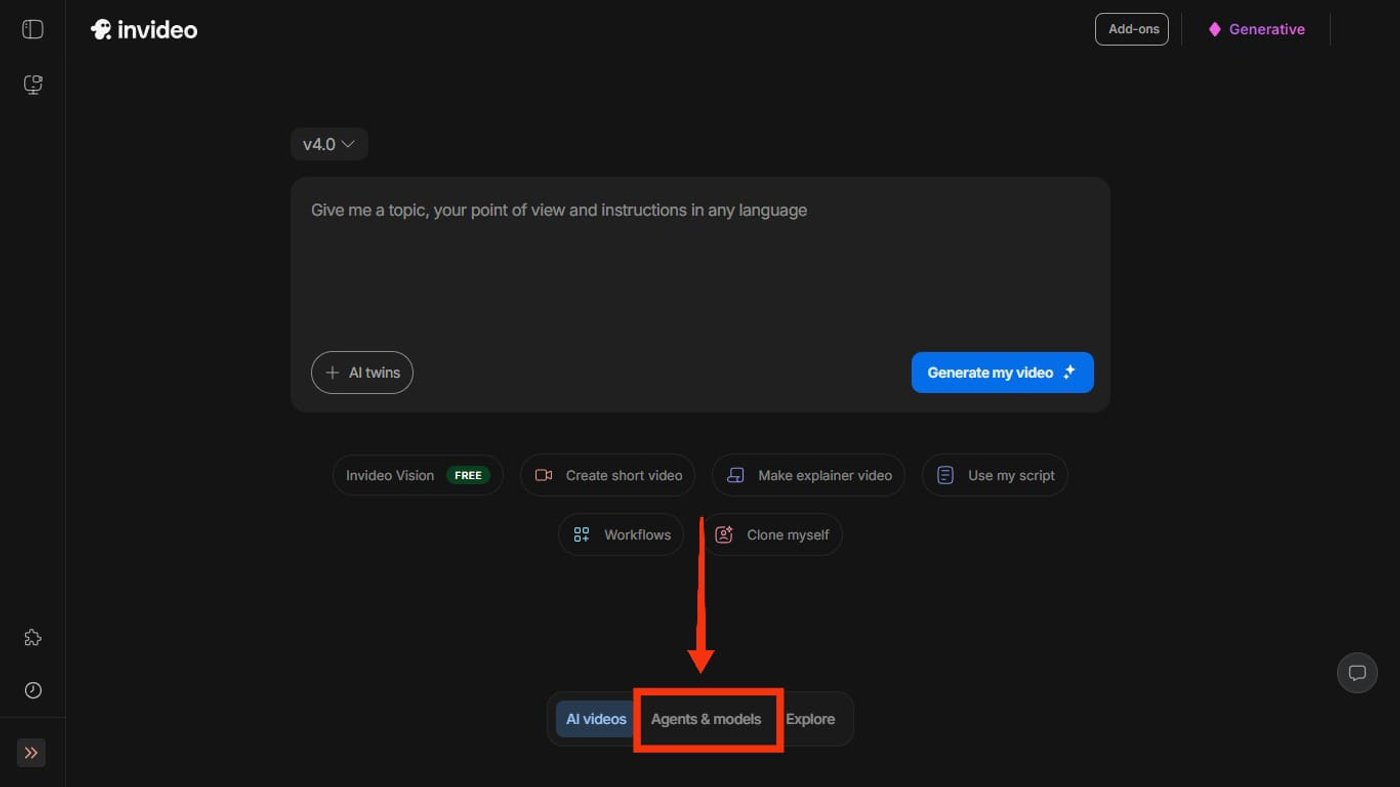
Log in to your account on ai.invideo.io. Navigate to the bottom of your dashboard and click on “Agents & models.”
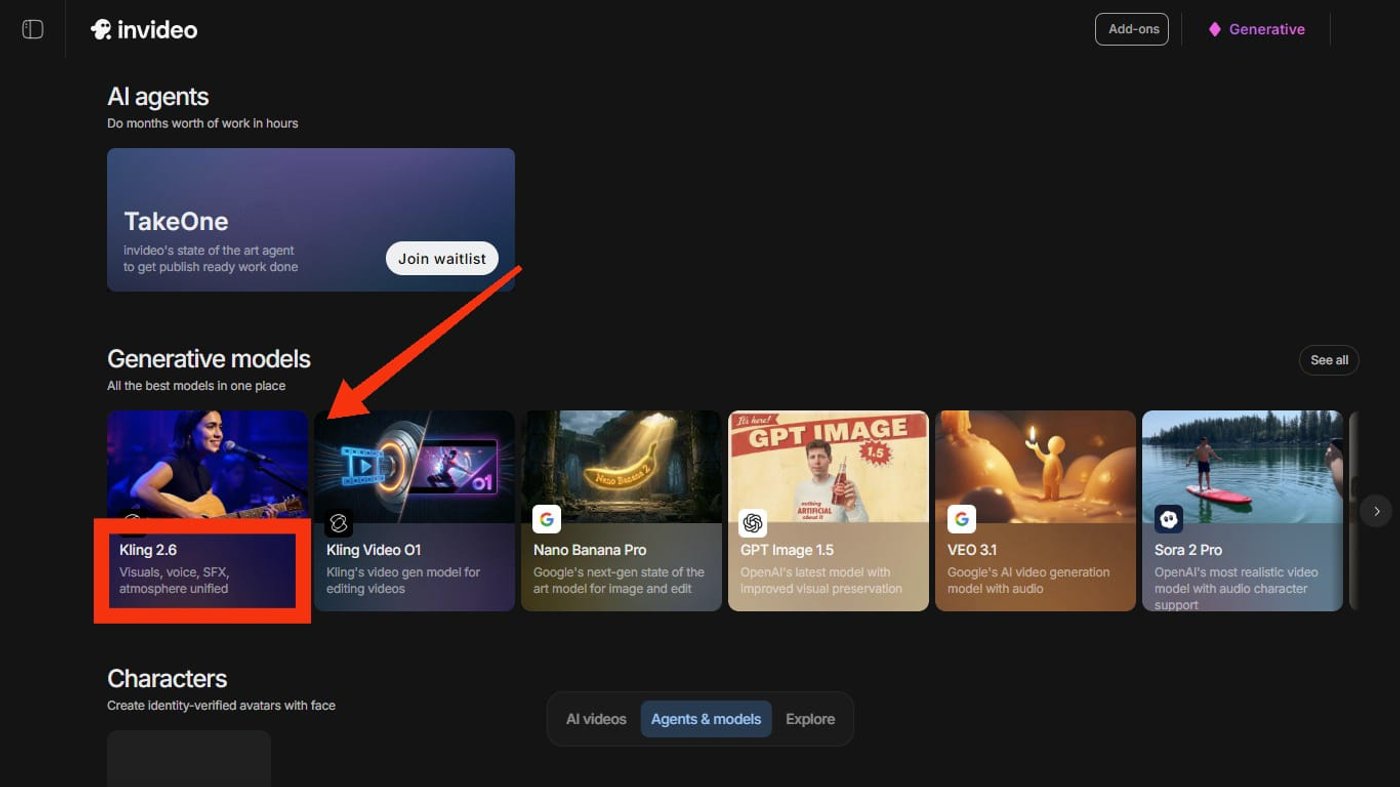
From the “Generative models” section, select Kling 2.6 and start a new project.
Note: All Kling AI models, including Kling 2.6 and Kling o1, are available on invideo on any paid plan. Sign up today!
Step 2: Enter Your Prompt
Now, think about the type of vlog intro you want to create and craft a detailed prompt.
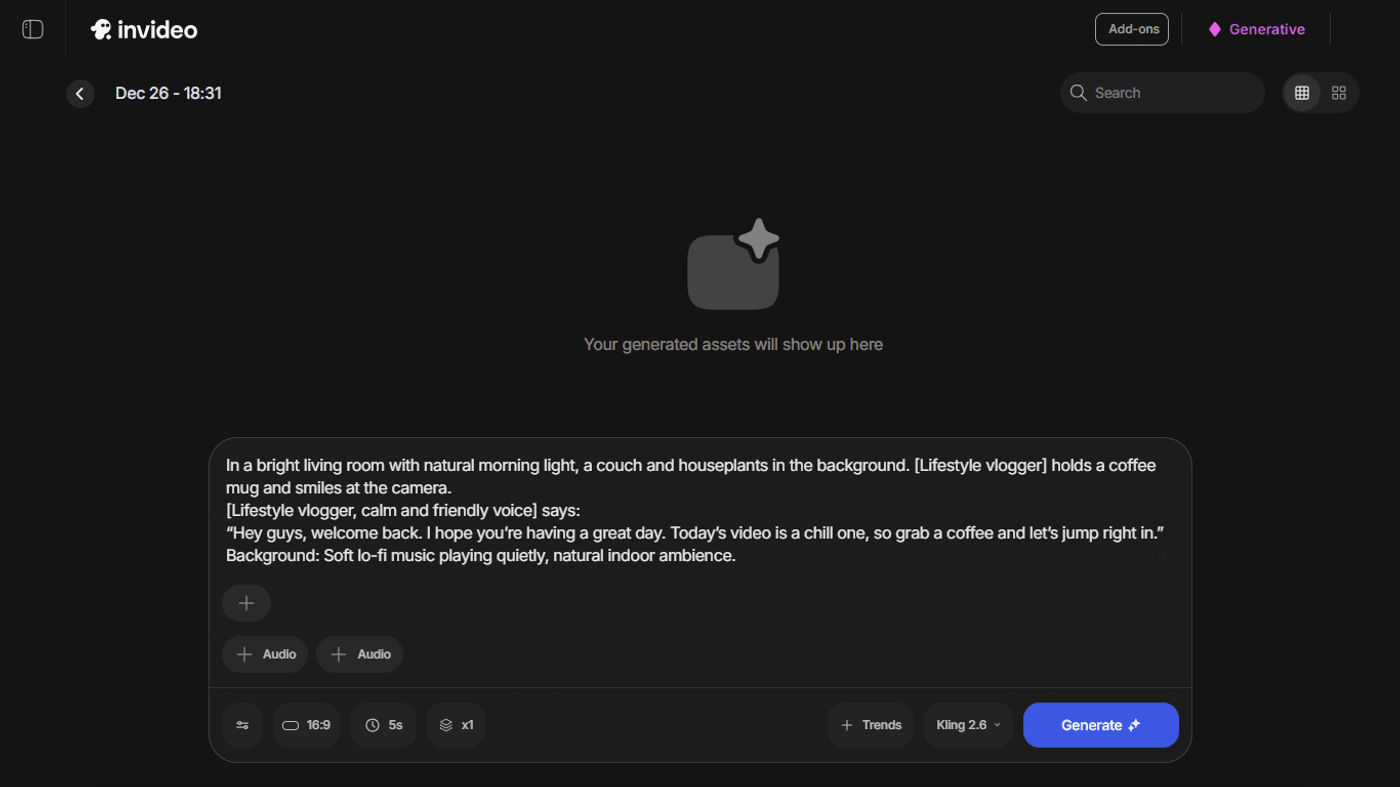
Kling 2.6 responds best when it understands the full intent behind what you’re trying to create, not just the words you type. So, when drafting a prompt, make sure you clearly define these elements:
-
The visual context: Describe the environment and setup. This gives the model visual grounding and helps it create scenes that feel intentional instead of generic.
-
The delivery style: Specify how the speaker should sound. This could include the pace, energy level, and overall mood of the voice. Clear direction here leads to audio that feels natural and believable.
-
The spoken content: Even if it’s a short line, clarity matters. Well-structured dialogue helps Kling align visuals and audio seamlessly.
-
Supporting audio details: Mention any background elements like music or ambient sound. These subtle cues play a big role in making the final output feel cohesive.
For instance, here’s what an ideal prompt for a vlog intro looks like:
Prompt:
Visual: In a bright living room with natural morning light, a couch and houseplants in the background. [Lifestyle vlogger] holds a coffee mug and smiles at the camera. [Lifestyle vlogger, calm and friendly voice] says: "Hey guys, welcome back. I hope you're having a great day. Today's video is a chill one, so grab a coffee and let's jump right in." Background: Soft lo-fi music playing quietly, natural indoor ambience.
Step 3: Adjust the Nuances
Once your prompt is in, Kling 2.6 gives you a final layer of control to fine-tune the output before generation. This is where you shape the video to match your exact creative needs.
You can guide the visuals further by adding static reference images. These work well when you want a specific look or character to stay consistent, for example, across vlog intros, branded explainers, or a series of short videos.
If audio matters to your concept, you can also attach audio samples to influence tone, mood, or delivery. This is helpful for content like narrations, dialogue-based scenes, or videos where emotion and pacing matter. And if you prefer to handle sound later, Kling 2.6 lets you generate clips without native audio, which is useful when you already have a voiceover or background music planned.
Kling 2.6 also adapts to your content format. You can choose between 5-second or 10-second clips, depending on whether you’re creating a quick hook for social media or a slightly longer segment for storytelling. On top of that, you can generate clips in multiple aspect ratios, including 16:9 for YouTube videos, 1:1 for feeds, and 9:16 for Reels and Shorts, so your video is ready for the platform you’re publishing on.
So, adjust these nuances, hit generate, and wait. Your final output will look something like this:
Watch Kling AI 2.6 in Action: 5 Real Examples with Prompts
From creating solo monologues to bringing multi-character dialogues to life, as a creator, you can use Kling 2.6 for a variety of purposes. Here are 5 examples with prompts:
1. Natural-Sounding Solo Monologues
Solo monologues are deceptively hard to pull off with AI for beginners. The visuals, pacing, and voice delivery all have to work together, or the result feels flat.
Kling 2.6 excels here because it understands tone and intent, not just spoken words. So, say a character speaking directly into the camera is going to be one with natural emotions and synchronized lip movements. This makes it especially effective for intros, personal updates, and creator-led storytelling.
Example Prompt:

Visual: In a softly lit home studio with a desk, laptop, and window in the background. Warm evening light filters in. [Solo speaker] holds the camera at arm's length in a vlog-style close-up, relaxed posture, natural smile. Dialog: [Solo speaker, conversational and confident voice] says: "Hey everyone, today I want to talk about [topic]. It's something I've been thinking about a lot lately, and I felt like sharing it with you." The camera remains steady in selfie mode, with subtle hand movement. Background: Soft ambient music plays.
When to use: Product showcases, public speaking, lifestyle vlogs, etc.
2. Smooth, Visual-First Narrations
Not every video needs a face on screen. For explainer videos and story-driven content, narration plays a supporting role, guiding the viewer without overpowering the visuals.
Kling 2.6 handles this balance well, pacing narration naturally while letting scenes unfold visually. The result feels closer to a polished explainer than an AI-generated slideshow.
Example Prompt:

Visual: A clean, minimal workspace with [object/process] placed neatly at the center. No clutter. The camera slowly pans across details, then follows the movement of the subject. Dialog: [Narrator, calm and clear voice] says: "This is how [process or concept] works, step by step—designed to simplify everyday tasks without extra effort." The camera maintains a slow, steady motion throughout. Background: Light cinematic music mixed with subtle ambient sound.
When to use: Event commentary, product explanations, etc.
3. Ultra-Realistic Multi-Character Dialogues
Dialogue is where timing matters most. Who speaks first, how long a pause lasts, and how responses overlap all shape believability. Kling 2.6 understands conversational structure well enough to make back-and-forth exchanges feel fluid.
This opens up possibilities for skits, interviews, and conversational formats without manual audio stitching.
Example Prompt:

Visual: A modern podcast studio with soundproof panels, microphones mounted on adjustable arms, and soft studio lighting. Dialog: [Host] sits facing the guest, hands resting near the microphone. [Host, steady and professional voice] says: "Today, we're joined by [guest name], known for their work in [field]. Your journey into this space has been fascinating." During this, [Guest] remains silent, maintaining eye contact with the host. Immediately, [Guest] adjusts the microphone slightly and responds. [Guest, composed and confident voice] says: "Thank you. It all started when [origin story or insight]." During the guest's response, [Host] remains silent and attentive, leaning back slightly. Background: Low studio room tone, no music.
When to use: Scripted interviews, interviews, etc.
4. Seamlessly Synced Music Performances
Music content is less about realism and more about cohesion. Visuals, vocals, and mood need to move together. Kling 2.6’s native audio generation helps here by aligning performance visuals with sound from the start.
This makes it easier to create short performance clips or musical concepts without external syncing or cleanup. Be it a rap or a group chorus, Kling 2.6 is sure to hit it out of the park.
Example Prompt:

Visual: A quiet lakeside at golden hour, sunlight reflecting off the water. Tall grass sways gently in the breeze. [Performer] stands near the edge of the lake, holding a light shawl that moves with the wind. The camera slowly circles them in a wide, cinematic shot. [Performer, warm and expressive singing voice] sings: "Every step I take feels closer to home. In this stillness, I'm finally not alone." During the chorus, [Performer] turns slightly toward the water, lifting their chin as the vocals swell. Ripples spread across the lake's surface. Background: Acoustic instrumental track synced to the tempo, subtle wind and water sounds.
5. Immersive Creative Scenes
Some videos are meant to be felt rather than explained. Cinematic and experimental scenes rely heavily on atmosphere, sound design, and pacing.
Kling 2.6 allows creators to shape all three directly through the prompt, making it a strong fit for mood pieces, cinematic shorts, or abstract storytelling.
Example Prompt:

Visual: A quiet living room lit only by a table lamp and the TV glow. [Character] sits on the couch, lost in thought. Dialog: [Voiceover, soft introspective voice] says: "Some moments don't need answers—just silence." The charact
Get, Set, Create: Kling AI 2.6 Now Live on invideo
AI video creation has come a long way. But Kling AI 2.6 marks a clear shift in how accessible high-quality video generation has become. With native audio, strong audio-visual alignment, and an intuitive workflow, you no longer need advanced technical skills or heavy post-production to bring your ideas to life.
Now, with Kling AI 2.6 on invideo, creators can move from prompt to polished video in one streamlined flow. Whether you’re experimenting with vlogs, narrations, dialogues, or cinematic scenes, everything you need sits in one place.
Ready to turn ideas into videos that look and sound right from the start? Sign up on invideo and start creating with Kling AI 2.6 today.
Frequently Asked Questions (FAQs):
-
1.
Is Kling AI 2.6 suitable for creators with no video editing experience?
Yes, Kling AI 2.6 is suitable for creators with no previous video editing experience. It lets you turn simple text prompts or images into short audio-visual clips that you can bind together to create a full-fledged video. On invideo, the process becomes all the more simple as the platform does all the technical heavy lifting for you, from adjusting camera angles to adding suitable music.
-
2.
Can I generate videos without native audio on Kling AI 2.6?
Yes, you can generate silent videos on Kling AI 2.6. Simply select the “Without Sound” option in the prompt bar. While the 2.6 update is a major milestone specifically because it introduces native audio, the ability to generate visuals, voiceovers, and sound effects simultaneously, it is designed to be flexible.
-
3.
What languages does Kling AI 2.6 support?
Currently, Kling AI 2.6 only supports native audio generation in English and Chinese. Prompts in other languages get automatically translated to English for voice output, while visuals remain unaffected.
-
4.
Can Kling AI 2.6 generate videos with images?
Yes, Kling AI 2.6 can generate dynamic, audio-enabled videos with static images. Upload a single reference image (JPG, PNG, WebP, GIF, or AVIF) alongside a text prompt describing motion, dialogue, or effects, and it animates the scene with fluid cinematic movement while adding native audio like synced speech, sound effects, or ambient sounds.
-
5.
Where can I access Kling AI 2.6 on invideo?
To access Kling AI 2.6 on invideo, log in to invideo and go to “Agents & models” from the main dashboard. Select Kling 2.6 from the list of available models. Once selected, you can use it while creating a new video or editing an existing one.
