





AI video has reached an inflection point. Invideo and Kling have launched VFX House, an advanced video engine powered by Kling o1 that finally unlocks the one thing AI video never truly offered: complete control.
Invideo’s VFX House plus Kling o1’s Nano Banana–style thinking turns generative video into a controllable production system. A reasoning-first VFX studio that generates, edits, and keeps continuity with precision controls.

Built on the close collaboration between invideo and Kling, VFX House turns Kling o1 into a full production system inside your workflow. You can rebuild scenes, swap or remove objects, change environments, extend sequences, relight footage, match continuity, and keep a consistent identity across every angle and moment. All in seconds, not days.
The gap between a rough draft and a polished final cut is now almost zero. Plus, Kling o1 is entirely FREE and unlimited for 7 days on invideo, with instant Day-0 access on any paid plan.
Is Kling Truly the Nano Banana for Video?
If Nano Banana Pro brought thinking to images, Kling o1 brings it to video. It understands scenes, identity, camera moves, and timing. You get shots that feel filmed together and edits that hold up in motion. Read more below.
Kling has always been a creative studio in a box. Excelling at video generation at scale, its models moved from fast concept clips to polished, stunning outputs ready for campaign use. When paired with invideo, creators can break beyond timed clips and craft full-length, production-grade content.
- Kling 1.0: The very first text-to-video model in the lineup. Great for quick experiments, rough visual ideas, internal concept tests, and mood pieces that helped teams explore creative directions.
- Kling 1.5: A noticeable step up in prompt stability. Perfect for simple branded snippets, early social concepts, and storyboard-style visual references.
- Kling 1.6: Motion and texture got better here, making it useful for stylized loops, short prototype ads, and early look-and-feel explorations.
- Kling 2.0: This version brought richer cinematics and higher fidelity, making it strong for polished concepts, teaser shots, and anything client-facing.
- Kling 2.1: More structural reliability meant smoother short-form outputs. This model stood out for its explainers, social clips, and quick campaign experiments.
- Kling 2.5: The most cinematic of the pre-o1 models. Ideal for hero shots, stylized campaigns, and fast-turnaround content where reshoots aren’t an option.
- Kling 2.6: Kling 2.5 with an added vocal engine for native voice, action sound effects, and immersive ambience. Built for product demos, interviews, performances, and even ASMR-style ads.
Kling o1 is the thinking layer for motion. It keeps faces and products consistent across shots. It reuses camera moves, assembles multi element scenes, and controls pacing from 3 to 10 seconds. It also patches, relights, reframes, and swaps inside moving footage without reshoots.
14 Production-Grade Moves You Can Pull Off With Kling o1
Paired with invideo’s workflow, Kling now better understands environments, objects, characters, and camera logic. That’s bound to make a big productivity jump in everything from editing and assembly to AI post-production.
Here’s everything that’s new and revamped with the Kling o1.
1. Shot Kitchen
Kling o1 now pulls from over six reference images, blending subjects, environments, and styles into one clean visual. This means your existing assets can instantly transform into seasonal refreshes, localized campaigns, or quick rebrands.
Prompt: Surreal neon style. Blend [@Subject] with the colors of [@Style Ref] inside the environment from [@Environment Ref], moving through glowing signage with a gentle 'whrr-click.'
VFX House’s Shot Kitchen also lets you reference a character, product, and background together to create one seamless animated shot. o1 is perfect for product-and-talent setups, lifestyle moments, and modular variations without a single shoot.
Prompt: [@Subject] is rowing through the calm waters in [@Image1], breaking into the storm-lit ocean scene of [@Image2] as lightning flashes overhead.
For marketers who need product reveals, o1 on invideo just needs a template, your product reference, and background to generate one in minutes.
Prompt: Shoot from a horizontal angle. Begin with the product from [@Image1] placed cleanly at the center frame against a minimal studio setup. Push in slowly as soft light wraps around the product.
From the right side, transition into the product placed inside the scene from [@Image2], keeping the composition identical. End with a crisp, high-energy reveal across three background variations that highlight the product's vibe.
2. Virtual Production
Video background generation on Kling o1 has levelled up into a full environment transformation. With just short text prompts, invideo's VFX House can rebuild your world, lighting, atmosphere, and even background characters.
Prompt: Turn the location in [@Video] into a tundra surrounded by drifting snow, icy cliffs, and roaming mechanical wildlife.
VFX House also offers Relight for near-ready campaigns that need an upgrade to lighting or a mood shift. Plus, o1 on invideo can keep your main character’s face, style, and features across every shot with just a few reference images.
In short, you now get cleaner influencer videos, clearer explainers, and multi-shot stories that feel like they were all captured in one continuous take.
Prompt: Portrait shot of [@Image1]. The bike rider's face is lit by shifting lights from amber and teal hues. Suddenly, water droplets cut through the scene, scattering across their face.
3. 3D Texturizer
Kling o1 can now turn your low-poly or wireframe 3D renders into fully texturized looks or polished previsualization shots. It also brings mascots, illustrations, and product stills to life by borrowing motion from your reference clip. Kling o1 on invideo is perfect for playful explainers, dynamic brand assets, or early visual development.
Prompt: Reference the dance moves from [@Video] to animate this mascot in [@Image1] with energetic, vibrant movements.
Plus, your camera moves are finally reusable. You can take a tracking shot from one clip and now drive an entirely new scene inside invideo. Instantly, you'll have matching shot language, dramatic product reveals, consistent motion for stills, and far tighter visual continuity.
Prompt: Use [@Image1] as the start point and follow the full camera motion from [@Video] to create a dynamic shot.
4. Continuity Engine
If you’ve ever needed the moment leading into a clip, Kling o1 can now generate the shot that comes before it.
Prompt: Generate the shot that leads into [@Video] showing the character entering the space, taking off her sunglasses with her right hand, and sighing.
If you need something to move forward, there’s also o1’s next-shot capability to continue the action with scene-accurate logic. Everything from building ad sequences to extending campaign stories becomes effortless.
Prompt: Continue this [@Video] with the camera following the character as she turns toward the counter and notices the glowing device on the table.
5. AI Post-Production Editing
Editing without reshoots is finally real. Kling o1 can replace props, update packaging, and swap objects inside a moving shot. This upgrade from Kling AI 2.5 helps you fix branding, refresh old assets, and update creator videos instantly.
Prompt: Replace the prop in [@Video] with a glowing futuristic device from [@Image2], ensuring the new object matches the lighting and movement of the scene.
6. Object Removal or Outpainting
Kling o1 on invideo also has an answer for all those cameos you didn’t invite. You can now clear entire crowds and backgrounds, and not just basic objects. After it rebuilds the clip, you’re left with fresh, usable footage. No reshoots, no headaches.
Prompt: Remove the building on both sides of the street in [@Video] and restore the road as a clean, empty shot.
7. Specific Object or Subject Insertion
With its latest upgrade, Kling video finally nails 3D space. o1 now lets you drop new products, props, or characters into moving footage. The result? Scenes look enriched, objects are naturally lit, and you've avoided rebuilding and add-ons.
Prompt: Outside the spaceship window in [@Video], insert the glowing whale from [@Image1], matching its lighting to the ship interior.
8. Reframe
Your camera can finally bend to your will. o1 goes beyond the past model's restyling and lets you tweak angles on command. One prompt, and the scene stays intact while your subject remains perfectly consistent.
Prompt: Recreate this moment [@Video] as a bold low angle shot.
9. Localized VFX Modifications
Kling o1 on invideo now gives you the freedom to layer striking effects with surgical precision. Whether it’s ambient glows or dramatic, magical flourishes, invideo’s VFX House even keeps each VFX element precisely tracked to your motion.
Prompt: Add a crackling ember glow to the lantern in [@Video] as the character lifts it higher.
10. Refraction
If you want yesterday's footage in a style that’s viral right now, just name the style, and watch your clip transform. Kling o1 on invideo restyles it into a brand-ready, artistic scene with zero instability, intact identity, and stellar motion.
Prompt: Transform [@Video] into a bold, American-cartoon animation with thick outlines and saturated colors.
11. Keylab
Kling o1 and invideo can now green screen anything. With one text prompt, invideo's VFX house isolates characters and wipes the background clean. Just like that, your footage has a plug-and-play backdrop ready for location swaps, multi-market edits, and creator integrations.
Prompt: Generate a clean green-screen version of this creator clip [@Video] for background replacements.
12. AI Colorist
Kling has perfected object color change. Whether it’s outfits, hair, packaging, or product parts, o1 makes smooth updates frame by frame. With natural textures, lighting, and motion, you’re ready for brand palettes, regional variants, or quick visual testing.
Prompt: Recolor the jacket in [@Video] through the full brand palette of red, teal, and graphite, while keeping lighting consistent.
13. High-Fidelity Text-to-Video
Using Kling o1 on invideo delivers prompt-to-motion generation that’s smoother, sharper, and genuinely more cinematic. With results that land much closer to a final draft, creators can test ideas without endless retries, marketers can spin up campaign prototypes in minutes, and brand teams finally get consistent, on-tone shots without long production cycles.
For brand-new shots with Kling o1 on invideo, more descriptive prompts dial up the cinematics and depth of your results.
Prompt: Inside a vast digital library, holographic books open in slow motion as cyan light beams down. A researcher stands centered while floating pages orbit them, neon-blue symbols reflecting across their face as the camera glides forward through shimmering particles and soft lens flares.
14. Granular Pacing Control
Instead of fixed options, Kling o1 now has granular control over timing from 3 to 10 seconds. With invideo steering the edit, you get social-ready cuts, precise storyboard beats, and clips that slide into the timeline without trimming hassles.
Prompt: Generate a 7-second shot: a lone figure from [@Image1] walking through a street of breaking news on multiple television store screens. Reflect the screen light off their face as the camera glides forward.
Kling o1 Compared to the Model Archetypes
AI video models typically fall into familiar categories, and the latest from Kling is on its way to a more practical, production-ready system. Here’s how it stacks up.
Getting Started With Kling o1 on invideo
When using Kling o1 on invideo, intelligent tools and presets keep the learning curve minimal. Here’s everything you need to start generating, testing, and fine-tuning your shots until they’re truly production ready.
Step 1. Upload Your Inputs and Set Up Your Project
Log in, create or open a project folder, and add your assets. Invideo’s VFX House uses your creator videos, product stills, and location shots as anchors for identity, style, and continuity when running Kling o1.
Step 2. Choose the Right Mode in Agents & Models
You can run Kling o1 directly inside invideo without breaking your edit flow.
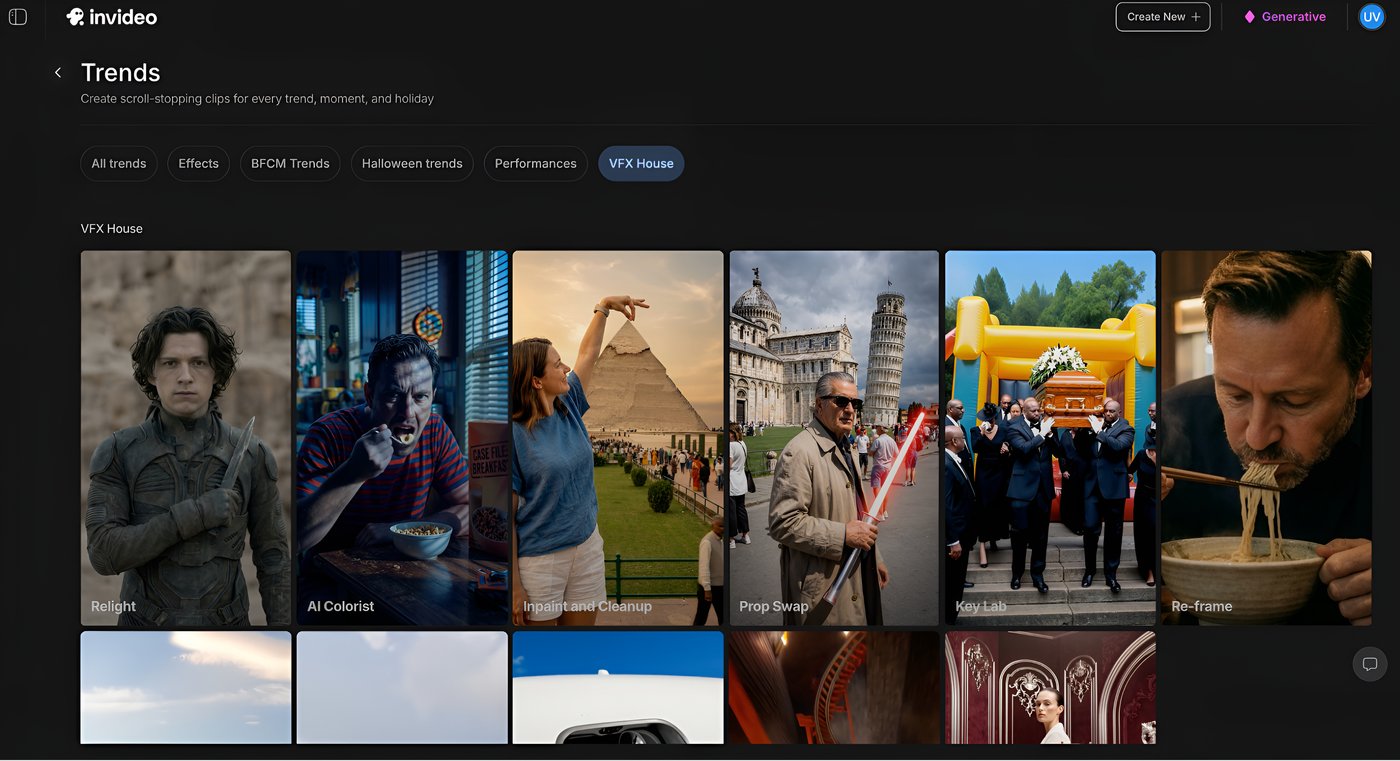
From your prompting page, head to Agents & Models, open Trends, and select VFX House.
From there, pick the feature you want and jump straight into describing and creating shots that match your brief.
For teams ready to jump right in, invideo is offering free, unlimited access to VFX House powered by Kling o1 for the next 7 days on any paid plan.
Step 3. Generate Clips and Review Results
From the VFX House feature, here’s how you inspect and approve each shot with confidence:
-
Preview your first outputs directly inside for an instant sense of realism.
-
Check motion flow, character consistency, and how well each shot holds together visually.
-
Spot text clarity, lighting accuracy, and scene details before you move into deeper edits.
Pro Tip: Kling o1 loves good references. So, take your reference still, give it a quick glow-up in Nano Banana on invideo, and feed the result into Kling o1 for the strongest video output.
Step 4. Refine Inside the Editor
Make quick fixes like swapping objects, adjusting colors, replacing backgrounds, or trimming sections, directly in the same invideo prompt thread. Once your shots hold up after these edits, they’re ready for export across any channel.
Creative Things You Could Do With Kling o1 on invideo
Using the all-new Kling model on invideo is a fast track to stellar scenes. Here are a few practice workflows to tap into with o1 for all those tight timelines and no-reshoot realities:
-
1.
Reuse Your Assets
Smart campaigning means getting more mileage from what’s already in your library. With Kling o1, make the most of text-to-video, identity consistency, and environment change to place the same creator across new videos, seasons, and formats.
-
2.
Animate Your Stills
Static shots don’t always cut it when it comes to socials. Tap into motion transfer that gives product packs, mascots, or illustrations real movement borrowed from your best-performing clips.
-
3.
Upgrade Camera Movement
Even simple clips can turn into pro director energy. Apply a hero video’s push-in, pan, or arc to any new shot using Kling o1’s camera retargeting.
-
4.
Change Locations on Demand
Travel budgets shouldn’t limit your visuals. Replace backgrounds to create seasonal sets, regional versions, or themed formats from a single clip.
-
5.
Match Your Campaign Look
Mixed footage is all it takes to break visual flow. Tap into style transfer to turn scattered clips into one cohesive neon, noir, anime, or warm-wellness aesthetic.
How invideo Keeps Your Kling o1 Outputs Safe
Even with all the creative freedom of the new Kling model, your outputs still need to stay safe and brand appropriate. Running o1 on invideo gets ahead of that by removing extra setup, reducing errors, and preventing unwanted shifts.
Here’s how using Kling on invideo automatically keeps everything in check:
-
Safer branding: invideo keeps your reference images, styles, and character anchors tightly linked to Kling o1, which prevents random likeness changes and keeps every shot aligned to your brand’s visual rules by default.
-
Clear licensing: All assets you upload stay traceable inside your invideo project, so you always know what’s cleared or owned. Because o1 can recreate likenesses faithfully, invideo’s project view helps teams stay responsible and transparent without extra tracking systems.
-
Controlling quality: If identity drift, motion glitches, or unreadable text show up in edge cases, invideo makes it easy to spot issues quickly and regenerate cleaner versions. Light fixes inside the editor keep overall quality high without slowing down your workflow.
Cinematic Production With Kling o1 on invideo
Kling o1 is a leap forward in AI post-production, video control, continuity, and cinematic intent. It delivers sharper scene logic, stronger identity consistency, and natural camera understanding. And with Kling o1 now free and unlimited for 7 days on any invideo paid plan, teams can tap into the full power of VFX House without hesitation.
Its real impact shows inside invideo, where these capabilities translate into a specialized creation workflow. Storyboards turn into scenes, scenes become polished edits, and everything stays consistent without extra tools or pipelines slowing you down.
FAQs
-
1.
What skills and prompts do the Kling o1 need?
Basic prompts are all it takes for Kling o1 and invideo's VFX House features like editing, patching, retiming, relighting, reanimating, and altering parts of videos. When generating a brand-new shot, a detailed description makes the output more cinematic. Either way, you don't need any VFX skills.
-
2.
What kinds of videos can I create with Kling o1?
Just about anything. Creators can use Kling o1 on invideo for social ads, product demos, UGC-style clips, explainer sequences, multi-shot stories, brand films, and even quick concept tests. Plus, its granular timing control lets you generate clips for anything from 3 to 10 seconds.
-
3.
How is Kling o1 different from previous Kling models like 2.5?
Kling 2.5 was cinematic and great for single shots. With the invideo and Kling o1 integration, you can add scene logic, camera understanding, identity consistency, and multi-shot connection. Instead of one-off moments, it's easy to extend sequences, match angles, reuse camera moves and keep your identity consistent across scenes.
-
4.
Can Kling o1 really replace parts of my video shoot?
For many marketing workflows, yes. o1 can change locations, rebuild environments, fix branding, animate stills, update props, and generate the shot before or after a clip. Invideo's VFX house, powered by Kling o1, dramatically reduces reshoots, travel, and production setup for everyday campaign needs.
-
5.
Why does Kling o1 matter for marketers and editors specifically?
With Kling o1 on invideo, it’s now possible to refresh old footage, localize campaigns, fix branding, animate stills, and extend sequences without any reshoots. That’s VFX-level control in minutes and fast, on-brand variations without anyone slowing down for fresh creativity.
-
6.
How much time does it take to produce a finished shot with Kling o1?
Most 3–10 second shots generate in under a minute. Because o1 avoids common issues like identity drift, jittery motion, and broken lighting, you get more usable seconds in every run. That means fewer retakes, faster timelines, and the ability to move from prompt to finished edit in one working session.
