





Key Takeaways:
-
Kling on invideo's VFX House gives full creative control to filmmakers.
-
Unlike other tools, Kling on invideo lets filmmakers generate, edit, and refine every video element.
-
Kling's features streamline complex edits and VFX, helping filmmakers save time and achieve polished results.
-
To get started, you simply need to pick a feature in VFX House and upload your video.
-
Well-structured prompts, scene pacing, motion tweaks, iterative refinements, and leveraging invideo's tools ensure every project reaches its full cinematic potential.
AI video engines have revolutionized filmmaking. They do the technical heavy lifting, so you can let your imagination run wild and free. But is that the full picture?
According to a recent evaluation by ResearchGate, even the top AI models produced semantically correct and physically accurate videos only 19.7% of the time. And while these tools can be helpful, they still require a fair amount of time, money, and effort to get the desired results.
But there’s still a reason why filmmakers turn to AI video engines anyway, and that’s where Kling on invideo comes in. In fact, with the launch of VFX House, it has become an industry favorite.
Kling on invideo has stepped in at a moment when creators want more than just an automated video generation tool. They want precision, control, and technology that actually understands filmmaking. This is where VFX House sets itself apart.
Why Does Kling on invideo Matter More Than Ever for Modern Filmmakers?
We’ll spill the tea: Kling is now every filmmaker's must-have because of VFX House, Kling AI and invideo’s all-new, full-fledged video generation engine powered by Kling O1. It makes sense why.
Kling AI is a powerful AI tool for video. Several of its versions, from Kling Lipsync to Kling 2.1, have been a part of invideo’s Agents & Models creative toolkit for a long time. But modern filmmakers want more. More control, more creativity, more variations.
This is precisely what VFX House brings to the table. With a set of ultra-smart, next-gen features, like video-to-image motion transfer, scene outputting, and previous/next short generation, it has taken filmmaking to a whole new level, making the tool a go-to for storytellers who take creativity seriously.
Think of it this way: Nano Banana Pro pushed image generation into a smarter era, showing creators how an advanced image generator could quickly turn ideas into visual concepts, and Kling O1 basically does the same thing for video. It doesn’t just spit out visuals. It understands the scene, the characters, the camera flow, and how one shot should transition into the next. The result? Shots that feel like they belong to the same film, with edits that hold up when everything is in motion.
What’s Holding Most AI Video Engines Back and How Does VFX House Flip the Script?
Today, most AI tools for video generation are irrelevant for two reasons: lack of reliability and lack of control. If you want polished output, you have to do the fine-tuning by yourself because these tools rarely deliver accurate results. This creates a never-ending cycle of trial and error. What’s worse? Even if you’re up for the labor, the level of control you get is minimal. You can’t zoom in and manipulate every detail.
Kling on invideo’s VFX House puts you first and gives you the creative upper hand that other AI video engines don’t.
This means, you can now generate, edit, patch, retime, relight, reanimate, and alter any part of a video with surgical precision and without worrying about the output quality.
10 Ways Filmmakers Can Work Smarter with Kling on invideo
VFX House has a number of useful features filmmakers can benefit from. Let’s check out a few of them in detail:
-
1.
Swap Scene Environments with Video Background Modification
Ever wanted to shoot on an alien planet without leaving Earth? With Video Background Modification, you can!
Swap your original setting for anything: futuristic cities, stormy mountains, or cozy cafés, while keeping your subject intact. Bring locations and stories to life without a single reshoot.
Prompt: Transform [@Video] background into a neon-lit cityscape, [@Subject] perfectly integrated, cinematic reflections, dynamic lighting, ambient atmosphere, smooth color grading.
-
2.
Copy Cinematic Moves with Reference Video Camera Movement
Let’s face it. Rebuilding entire visual contexts from scratch over and over again is kind of monotonous. Well, now, you can add cinematic motion to your footage without extra crew or equipment.
Reference Video Camera Movement allows you to mimic the exact pans, tilts, and tracking shots from any reference clip. Want a smooth tracking shot like a blockbuster scene or a dramatic close-up pan? Apply it to your video instantly. This feature helps your scenes move like professional productions, keeping every shot dynamic and engaging while saving hours of complex camera work.
Prompt: Apply camera motion from [@Reference Video] to [@Video], smooth dolly-in, subtle lens flare, cinematic focus on [@Subject], natural motion continuity.
-
3.
Combine Props & Characters with Multi-Element Scene Assembly
Imagine a crowded sci-fi marketplace or a tense heist scene. How do you get every element perfectly placed? Multi-Element Scene Assembly lets you combine characters, props, and backgrounds seamlessly. Build cinematic complexity without chaos.
Prompt: Place [@Subject] with props from [@Prop Image] against [@Background Image], realistic lighting, shadows, and perspective, cohesive cinematic composition, dynamic framing.
-
4.
Speed Up Edits with AI Post-Production Video Editing
Post production editing has for the longest time been one of the most challenging and strenuous tasks.All that is about to change. Cut down hours of editing into minutes. AI Post-Production Video Editing automates tedious tasks like color grading, transitions, and minor VFX tweaks, giving every shot a polished, cinematic feel.
Whether it’s a short film, commercial, or experimental video, this feature helps filmmakers maintain visual consistency while freeing them to focus on creative decisions rather than repetitive adjustments. The result is smooth, professional-quality footage faster than ever.
Prompt: Apply cinematic color grading to [@Video], smooth transitions, enhanced highlights, subtle VFX polish, consistent tone, professional cinematic finish.
-
5.
Add Props or Characters with Specific Object/Subject Insertion
Being able to insert specific props or characters into a scene is quite literally a god-send because it involves a lot of precision, to say the least. Now, bring anything you imagine directly into your scene. A dragon swooping through a city, a futuristic gadget on a table, or a glowing artifact on set: all blend naturally.
Specific Object/Subject Insertion makes fantastical elements feel real, giving your footage depth, drama, and cinematic authenticity without reshoots.
Prompt: Insert a glowing robot companion next to [@Subject] in [@Video], interacting naturally, soft lighting, realistic shadows, integrated with scene motion.
-
6.
Clean or Expand Shots with Object Removal and Scene Outpainting
Object removal and scene outpainting has for the longest time been one of the most sought-after skills for editors. The good news? Well, now you can clean or expand your shot effortlessly. Object Removal and Scene Outpainting erases unwanted items, whether gear, crew, or clutter, and can also extend the scene naturally. Filmmakers gain full control over framing, composition, and environment, turning ordinary footage into polished, immersive visuals without extra production work.
Prompt: Remove [@Object] from [@Video], restore textures naturally, shadows aligned, seamless blending, extend environment if needed, and polished final frame.
-
7.
Shift Perspectives with Camera Angle Modification
Want to see your scene from a new perspective? Modifying the Camera Angle allows you to shift viewpoints without reshooting. Low angles for heroism, high angles for drama, or subtle tilts for visual tension let you reshape every shot to enhance storytelling and cinematic impact.
Prompt: Shift [@Video] angle to a low perspective, cinematic depth, focus on [@Subject], subtle lens effects, enhance scene storytelling, and dramatic impact.
-
8.
Redefine Looks & Settings with Multi-Element Style Transformation
Elevate every frame into a stylized masterpiece. Multi-Element Style Transformation can change a subject’s wardrobe, props, and environment all at once, creating a unified cinematic aesthetic.
From turning a casual street scene into a snow-covered fantasy world to giving characters unique stylistic flair, this feature empowers filmmakers to experiment with visuals, storytelling, and mood in a single step. Every element blends harmoniously, making it easier to craft compelling, visually striking sequences.
Prompt: [@Subject] wearing the clothes in [@Image 1], wearing the hat in [@Image 2], strolling on the streets of Kyoto, hands in pockets, slowly walking, subtle ambient sounds underfoot, cinematic style.
-
9.
Transform Footage Style with Video Restyling
Video restyling can quite literally be used as a plot-device to describe things in a more coherent manner. Your footage doesn’t need a reshoot to feel dramatic. Video Restyling lets you shift the visual mood completely. Turn daylight into noir, summer into winter, or real into surreal while keeping motion intact.
Prompt: Restyle [@Video] in noir theme, high contrast shadows, moody lighting, subtle film grain, cinematic composition, consistent motion, enhanced visual storytelling.
-
10.
Extend Scenes with Previous/Next Shot Generation
The fact that Kling has the capability to predict what happened before or what will happen next is one of its biggest pros. We all know that these kinds of shots are plagued with continuity issues.
Well, now you can extend your sequence smoothly and naturally. Generate the Previous/Next Shot creates adjacent frames, filling narrative gaps, continuing action, or simulating multi-camera setups. It keeps your story flowing, ensures continuity, and lets you explore new angles without additional shooting.
Prompt: Generate the next shot after [@Video], continuing [@Subject] movement, consistent lighting, cinematic angle, smooth transition, maintaining scene continuity.
From Concept to Camera: Here’s How You Can Get Started with Kling on invideo to Create Cinematic Magic
Getting started with Kling on invideo is pretty straightforward. Follow these steps to generate videos using VFX House:
Step 1: Create Your Account
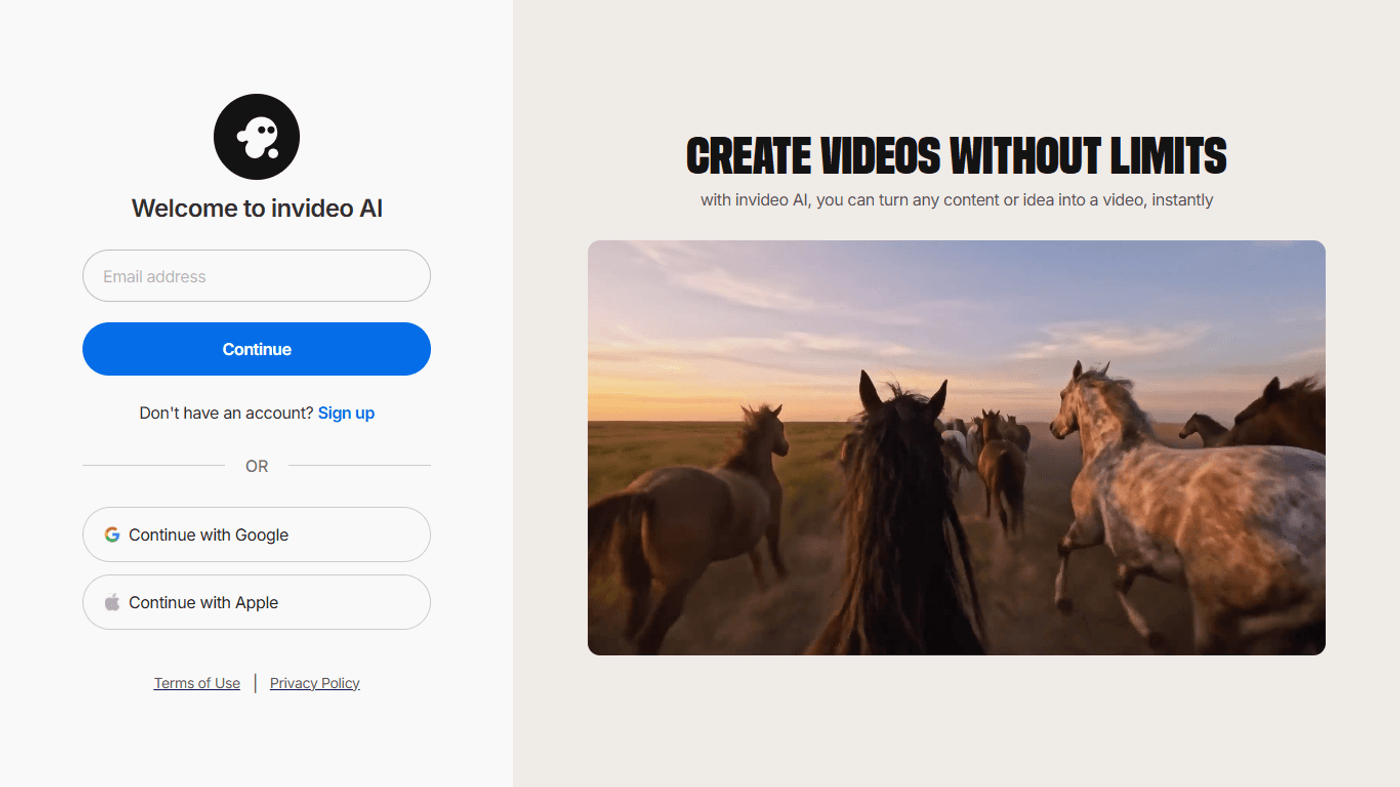
Visit ai.invideo.io and create an account on the platform.
Step 2: Go to the Agents & Models Section
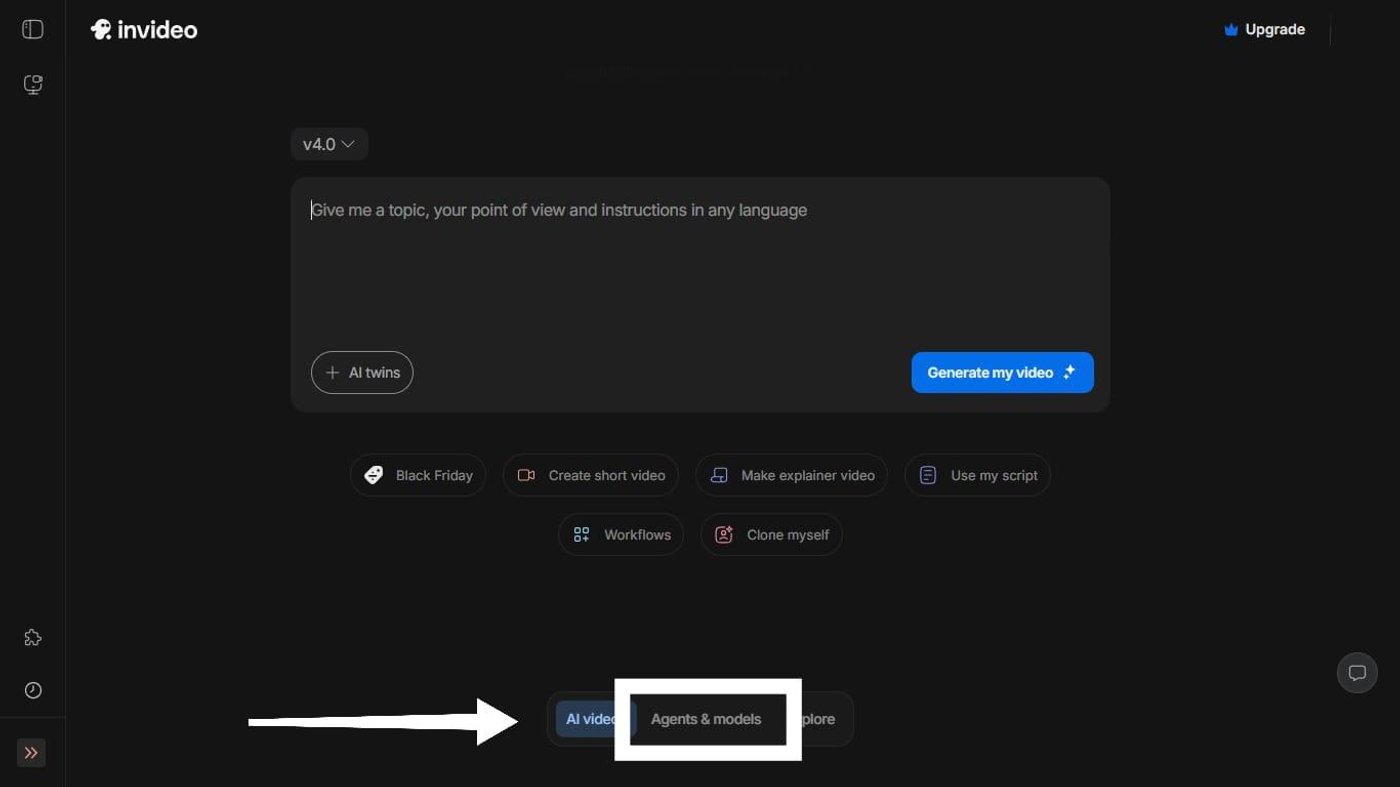
Scroll to the bottom of your dashboard and tap on the “Agents & Models” tab. Then, scroll down and select “Trends.”
Step 3: Select the VFX House Trend
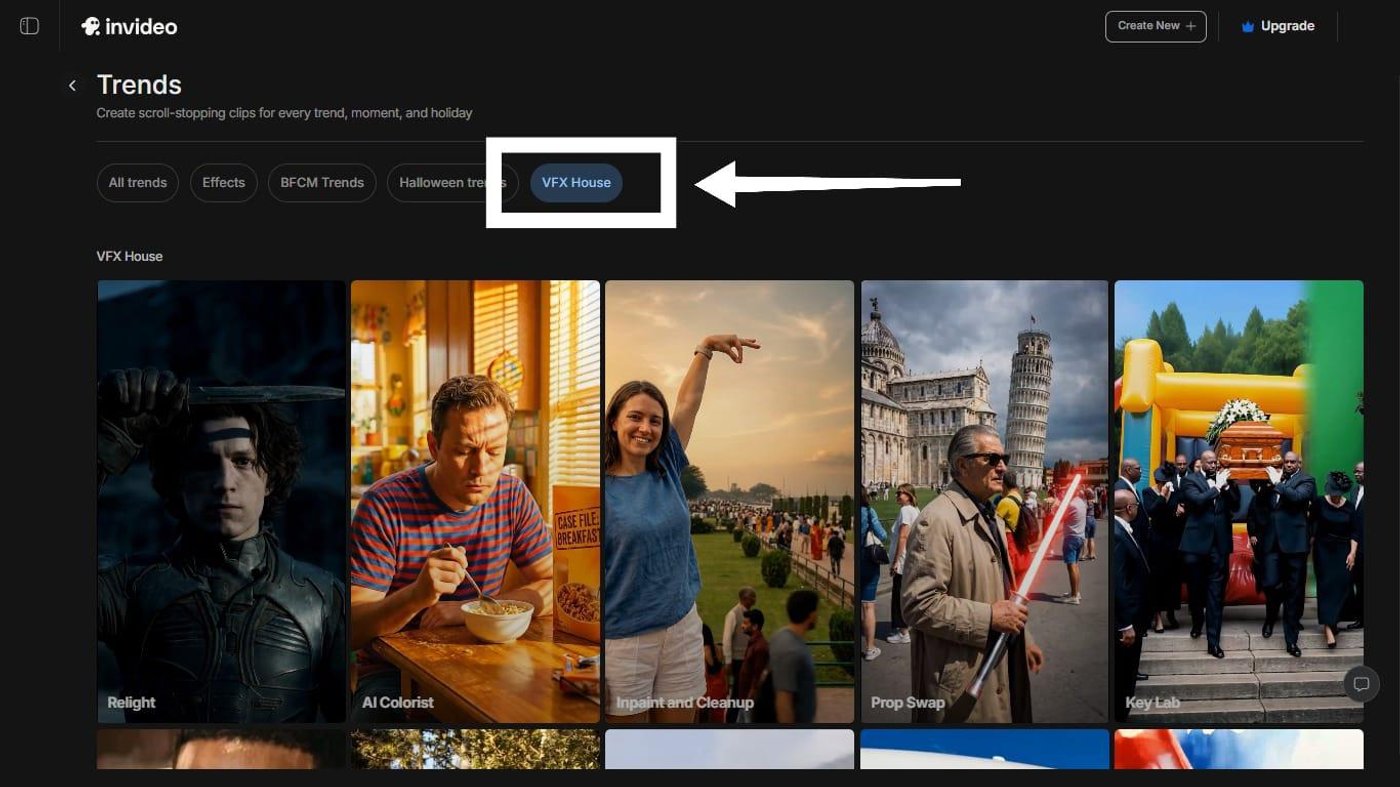
Now choose the “VFX House” option and select the feature you want to use.
For instance, if you want to remove background objects or insert new ones without altering anything else, select “Inpaint Cleanup.” It will look something like this:
Similarly, you can color grade your videos (AI Colorist), change their lighting (Relight), or even retexture them (3D Texturizer).
Step 4: Start a Project
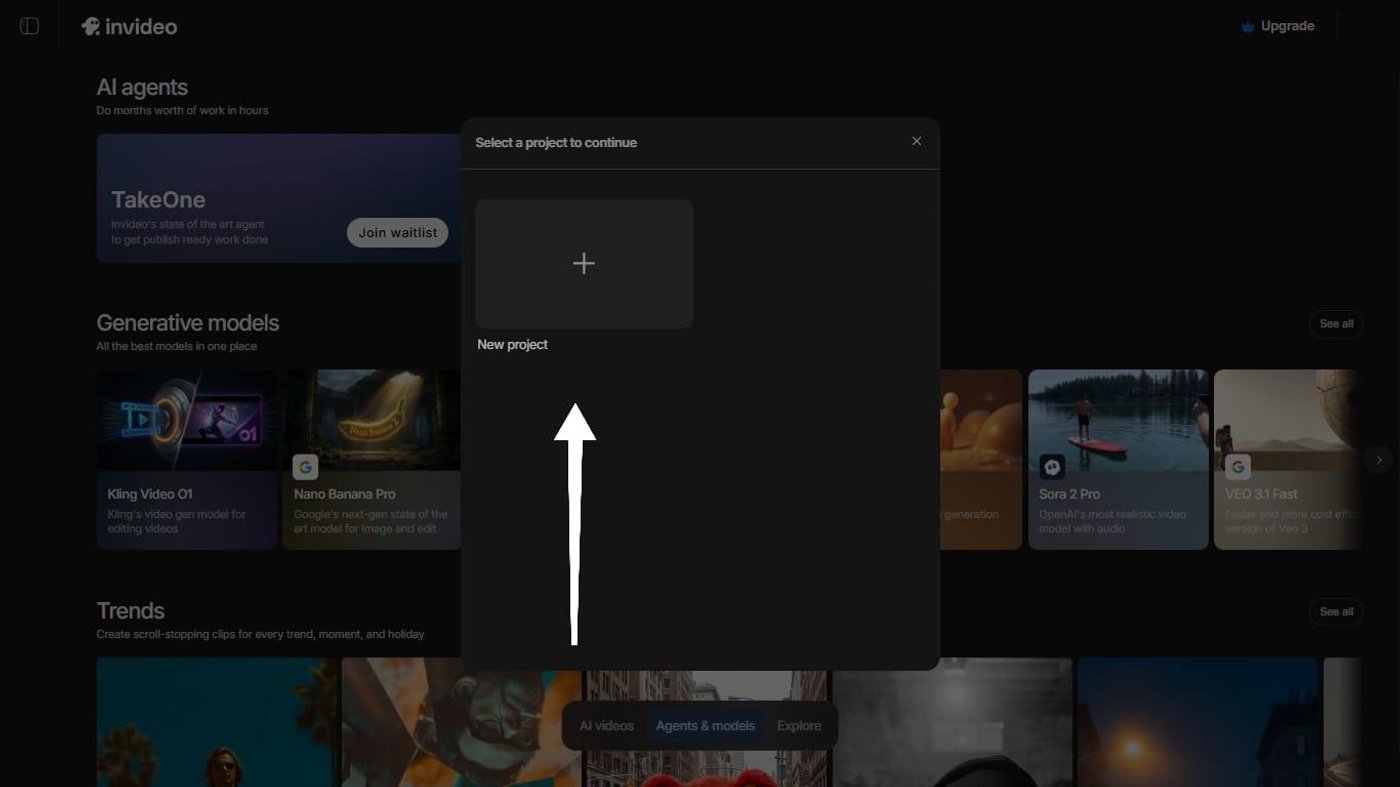
Once you select a feature, tap on “New Project” to add it to your video.
Step 5: Generate the Output
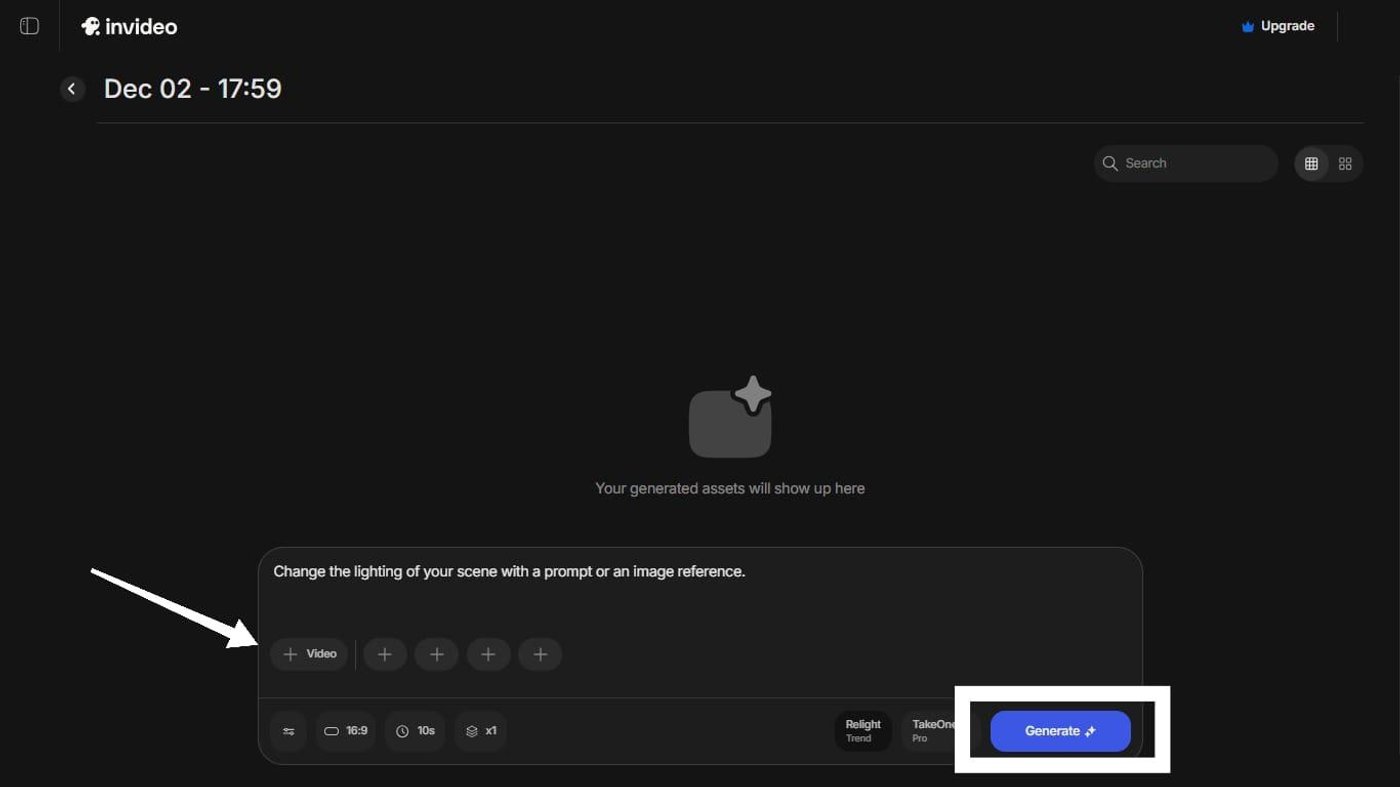
Finally, upload your video and hit “Generate.”
As the shots load in, you can review them right inside the editor.
-
Get an instant feel for the movement
-
Check if characters stay consistent
-
Make sure the lighting, text, and scene details look the way you imagined
If something needs a quick touch-up, you can adjust it right there, swap an object, tweak colors, change the background, or trim a segment, without starting over or opening another tool. If a detail still doesn’t sit right, you can refine the prompt or regenerate only that section for a cleaner result. Once everything looks tight after these quick passes, you’re all set to export it wherever you need.
Pro Tips for Getting the Most Out of Kling on invideo
Take your Kling AI videos to the next level with these expert tips:
-
Structure Prompts Precisely: Begin with the main action or scene, then incorporate details such as mood, lighting, and camera angle. For example, “Make a cool video of a guy walking” is too vague, while “A man walking through a neon-lit alley at night with soft rain, a close-up shot, and a slow camera pan” gives the model exactly what to create.
-
Optimize Scene Pacing: Adjust the timing between shots to control rhythm and narrative flow. Shorter segments generate energy, while longer ones build tension and focus.
-
Refine Motion Styles: Fine-tune camera movements, character animation, and transitions to align with the story’s tone, creating a more cinematic experience.
-
Iterate Efficiently: Review outputs, make precise adjustments, and refine clips incrementally to maintain creative control without slowing production.
-
Integrate with invideo Features: Pair Kling outputs with other features available on invideo, like text overlays, transitions, or smart audio cleanup. This will help you achieve more polished, professional results.
Take Your Creative Leap Today
Kling on invideo’s VFX House proves why it’s the AI video engine filmmakers trust for unmatched control and creativity.
From swapping backgrounds and restyling footage to precise object insertion and camera movement replication, it empowers you to craft cinematic scenes without endless trial and error. Whether you’re editing, experimenting, or exploring bold visual ideas, Kling on invideo puts professional-quality video creation at your fingertips.
Ready to elevate your storytelling? Sign up today and start generating your next masterpiece!
Also check out these related articles:
-
Kling O1 on invideo: The All New VFX Studio for Video Editors
-
Hidden Secrets of Kling AI: The Reference-First Guide for Kling (Prompting Secrets Playbook)
-
Kling vs Sora vs Veo vs Runway: Which AI Model Wins for Real Production?
Frequently Asked Questions (FAQs):
-
1.
What is Kling on invideo, and how does it work?
Kling on invideo is an advanced AI video engine that turns texts and images into professional-quality videos.
-
2.
What types of videos can I create with Kling?
You can make explainer videos, product demos, UGC ads, cinematic sequences, educational clips, and social-ready short-form content.
-
3.
Can I customize the style, motion, and aesthetics of my videos?
Yes. With the all-new VFX House video engine on Kling O1 in invideo, you can granularly customize the style, motion, and aesthetics of your videos.
-
4.
How long does it take to generate a video using Kling?
Most short clips are generated in under a minute. Longer, more detailed shots may take a few minutes, depending on complexity.
-
5.
Does Kling support voiceovers and subtitles?
Yes. You can generate AI voiceovers, upload your own audio, and auto-add subtitles directly inside invideo.
-
6.
Are there limits on the number of videos I can generate?
It depends on your invideo plan. Free and paid tiers have different generation limits, but you can upgrade anytime to unlock higher output.
