Bring ChatGPT into the edit
Edit professional NLE timelines, color correct footage, mix audio, and generate images, video and audio with the invideo MCP server, right from Claude, ChatGPT, Cursor or any MCP client.Edit real NLE timelines, color correct, mix audio and generate media from Claude, ChatGPT, Cursor or any MCP client.

Copy and send this to Claude Code
Set up invideo's video editor as an MCP server for yourself so we can edit videos on a professional NLE timeline together. 1. Run: claude mcp add --transport http --scope user invideo https://mcp.invideo.io/mcp 2. I have to restart you for the server to load. In one message, tell me to run claude --continue, then /mcp, choose invideo and Authenticate, signing in with my invideo account. Carry on when I'm back. 3. Introduce yourself in invideo as "<my first name>'s Claude Code". Ask me my first name if you don't know it. 4. Once invideo's tools are available, ask me what video we're making.
Copy and send this to Codex
Set up invideo's video editor as an MCP server for yourself so we can edit videos on a professional NLE timeline together. 1. Run: codex mcp add invideo --url https://mcp.invideo.io/mcp (it opens my browser to sign in; tell me to approve it with my invideo account). 2. The tools load in a new session. Tell me to start one, then carry on from there. 3. Introduce yourself in invideo as "<my first name>'s Codex". Ask me my first name if you don't know it. 4. Once invideo's tools are available, ask me what video we're making.
Connect it in one click
Add invideo to Claude, ChatGPT or Cursor with one click, or to Claude Code, Codex and the other CLIs with one prompt they run themselves. Sign in with your invideo account and your agent is in the editor.
Choose your agentWatch every edit land
Your agent opens a project in invideo Editor and sends you the link. Each cut, title and transition shows up as it happens, under a cursor with your agent's name.
Open invideo Editor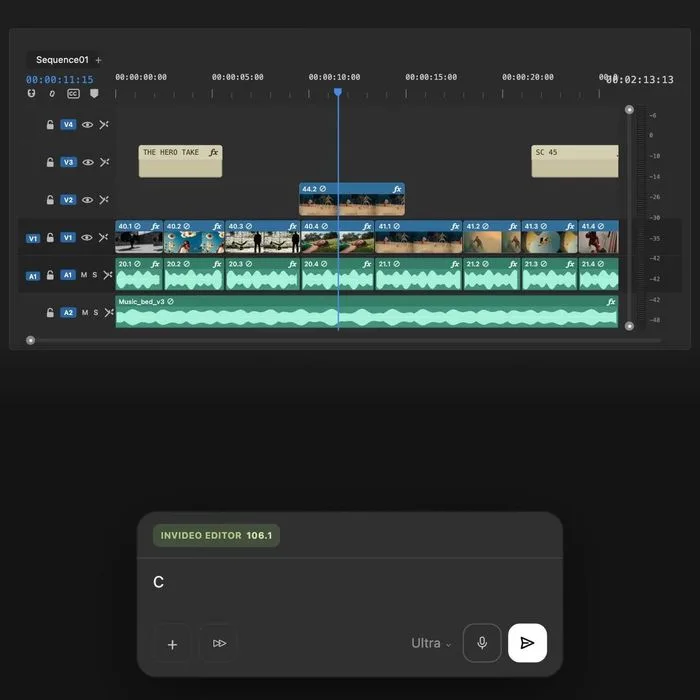
Take over at any frame
It's the same timeline you edit by hand. Fix a cut, keep working alongside your agent, then export a video or a project for Premiere Pro, Final Cut Pro or DaVinci Resolve.
See what you can ask for
What you can ask for
Six prompts to start with. Open one in your agent, or copy it into any MCP client.
Rough cut
Cut a 30-second teaser from the footage I give you: the strongest moments, a title card up front and music under it.
Color
Color correct the three interview clips so the skin tones match, then add a light film grain across the whole sequence.
Captions
Add word-by-word captions to this talking-head video, bold white on a dark backing, and keep them clear of the lower third.
Audio
Duck the music under the voiceover, clean up the room hum and bring the whole mix to -14 LUFS.
Generate
Generate three b-roll shots of a city at sunrise and place them between the interview answers.
Deliver
Rebuild this cut as a 9:16 vertical for Reels, then export the video and a Premiere Pro project.
Or let your agent do the setup
Copy this prompt into any agent and it will connect itself to invideo.
Set up invideo's video editor as an MCP server for yourself so we can edit videos on a professional NLE timeline together. 1. Read invideo's setup guide at https://invideo.io/agents.md and follow the steps for the client you are running in. 2. Do the setup yourself. It changes my client's settings, so ask me once first. If a step only I can do (a restart, a settings screen, a sign-in), tell me exactly what to do in one message, then carry on when I'm back. 3. In invideo, introduce yourself as "<my first name>'s <your name>", like "Maya's Claude". Ask me my first name if you don't know it. 4. Once invideo's tools are available, ask me what video we're making.
Agents can follow the setup guide at invideo.io/agents.md
invideo MCP server FAQs
What is the invideo MCP server?
It is invideo's timeline editor, available as a remote server over the Model Context Protocol (MCP), the open standard AI agents use to work with tools. Once connected, an agent like Claude Code, Codex or ChatGPT can open an editor, import media and edit the timeline while you watch in your browser.
What are Remote Agents?
Remote Agents are AI agents from outside invideo, such as Claude, Codex or Cursor, that connect to invideo's editor over MCP. Each one edits the same timeline you do, under its own cursor, and you can edit at the same time.
Which agents and apps work with it?
Any client that supports remote MCP servers: Claude Code, Codex, Cursor, Hermes Agent, OpenClaw, Claude on the web and desktop, ChatGPT through its apps directory, and others. The server uses Streamable HTTP at mcp.invideo.io/mcp.
Do I need an invideo account?
Yes. You sign in with an invideo account, and you can create one during sign-in. Connecting does not need an API key: your client asks you to sign in when it connects.
How is this different from a text-to-video tool?
Your agent decides the edits, and invideo applies them as explicit changes to a timeline, such as cuts, clip placement, text and effects. The result is an editable timeline rather than a single rendered clip, and you can change any edit or restore an earlier checkpoint.
Can I edit while my agent is working?
Yes. You and your agent work in the same editor. You see its cursor and each edit as it happens, and you can make your own edits at any time.
What can I export?
A rendered video, or an editable project for Premiere Pro, Final Cut Pro or DaVinci Resolve. Exports come from a project saved to your invideo account.