





Most performance campaigns start with a terrific idea, but often stall at execution. This happens when high-intent hooks are paired with visuals that were never built to scale. Be it cropped UGC, compressed screenshots, legacy product images, or “good enough” assets pulled from past launches, these visuals carry limitations that only surface at scale.
When pushed into Instagram feeds, YouTube thumbnails, or homepage banners, those limitations show up as soft detail, unreadable text, and weakened visual trust.
This is where an AI image enhancer changes how ads get made. Today’s AI upscalers can improve image clarity and structure while preserving faces, logos, and typography, making low-resolution assets usable for high-visibility placements without reshoots or redesigns.
UltraRes does exactly that. With invideo UltraRes, you get upscaled images in a single pass that are ready for use. You can select and use high-grade images, and feed them straight into video ads, thumbnails, and social posts, allowing teams to reuse existing assets and move faster without compromising visual credibility.
Using AI Image Upscaler to improve Ads performance
UltraRes by invideo.io is an AI image enhancer designed for advertising workflows, and not photo correction for its own sake. It takes low-resolution inputs, JPGs, PNGs, screenshots, UGC frames, and small product photos, and outputs images you can use directly in paid and organic placements.
The focus is not cosmetic sharpening here, but to achieve usable clarity at ad scale. It ensures that your text stays readable, faces look credible, and brand elements survive larger formats.
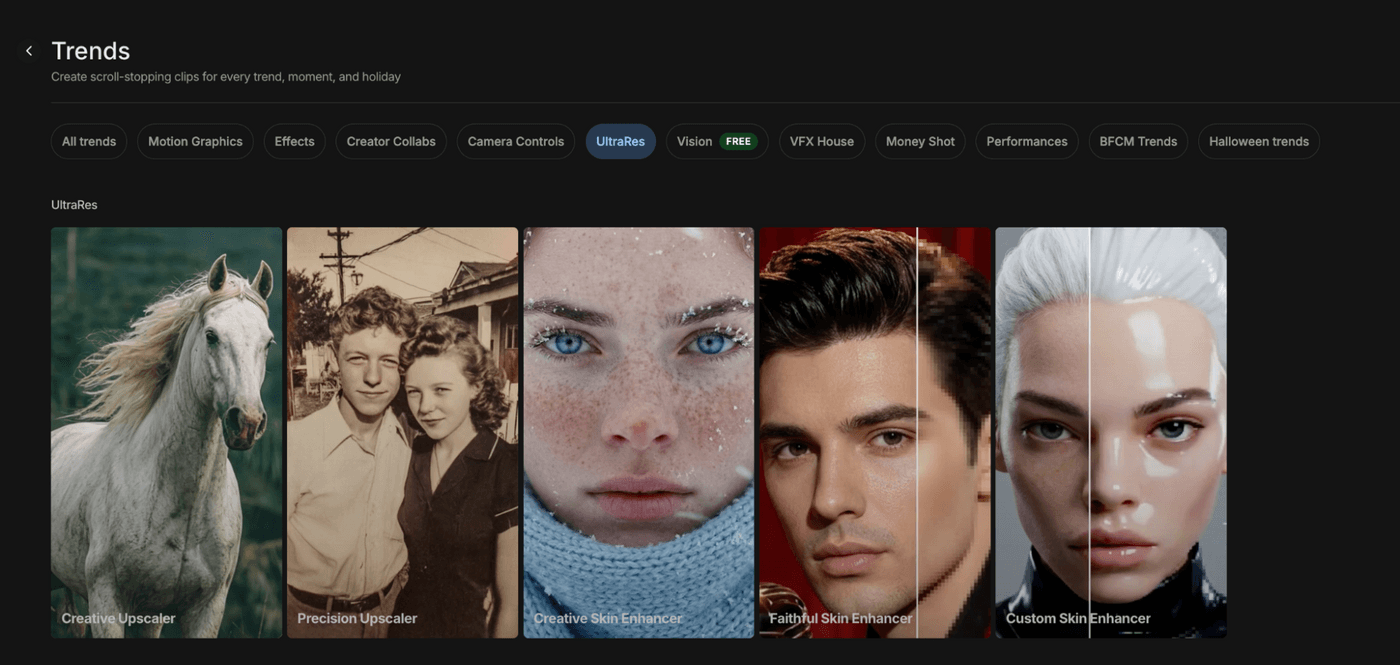
Rather than relying on a single enhancement control, UltraRes offers five purpose-built presets aligned to common advertising scenarios. These include:
| UltraRes preset | Best used when | What it optimizes for |
|---|---|---|
| Creative upscaler | You need visual impact for social ads or top-of-funnel creatives | Adds clarity and depth while enhancing overall visual presence |
| Precision upscaler | The image contains logos, UI, product details, or readable text | Preserves edges, typography, and structural accuracy |
| Creative skin enhancer | You’re running lifestyle or creator-led ads where polish matters | Enhances skin with a styled, campaign-ready finish |
| Faithful skin enhancer | The ad depends on authenticity and natural appearance | Improves skin quality without altering natural texture |
| Custom skin enhancer | You need control for different audiences or brand guidelines | Allows adjustable skin optimization based on creative intent |
For marketers and creators, the real advantage shows up in speed and control. UltraRes removes the dependency on design bandwidth and production timing, which means creatives no longer stall while waiting for “better assets.”
Teams can test more variations, localize visuals for different placements, and adapt creatives mid-campaign without restarting the build. Because the upscaled images are usable as-is, they slot directly into video ads, thumbnails, and social posts inside invideo, keeping iteration fast and performance-led rather than asset-constrained.
Choosing the Right Image Enhancer Preset Social Media Image Upscaler
To pick the right invideo UltraRes preset, match it to your video's target platform, intended use, and processing needs. Here's a quick guide to help you through:
| UltraRes preset | What it does | Best for | Pro tip |
|---|---|---|---|
| Creative upscaler | Upscales the image and adds creative enhancements like extra texture, contrast, and richness. | Lifestyle photos, campaign hero images, moodboards, social ads where style matters more than pixel accuracy. | Use on backgrounds, B-roll images, and non-UI visuals. Avoid for tiny text or complex product details that must stay exact. |
| Precision upscaler | Upscales the image with precision detail enhancement and minimal hallucination. | Product photos, logos, UI screenshots, infographics, carousels with small text. | Default choice when you need the “best ai image upscaler” style for ads: sharper without changing the design. |
| Creative skin enhancer | Enhances skin with creative styling (adds glow, smoothness, and beauty-ad polish) while upscaling. | Beauty, fashion, portraits, creator promo images, and social profile shots. | Great for close-ups on faces. Pair with precision upscaler for product/detail shots in the same campaign. |
| Faithful skin enhancer | Enhances skin while preserving natural texture and realistic appearance. | UGC photos, founder portraits, testimonial images, and behind-the-scenes shots. | Use when authenticity and real-people vibes matter more than perfection, especially for TikTok and UGC creatives. |
| Custom skin enhancer | Enhances skin with fully customizable optimization (strength, texture, softness, and effects) while upscaling. | Brands with strict visual guidelines and campaigns requiring different looks by region or audience. | Build and save your own brand-safe skin recipe—subtle for UGC, stronger for premium campaigns—for consistent reuse. |
How to Upscale Image Quality without Losing Quality
Invideo UltraRes lets you upscale low-resolution images directly inside your invideo workspace and use the outputs immediately in ads. The workflow is built for speed, so you can enhance visuals, select the results, and push them straight into video ads.
Here's how you can use it to upscale your ad videos.
Step 1: Open UltraRes Inside Invideo
Start in your Invideo workspace and navigate to the Trends section. From there, open the UltraRes tab. This is where all upscaling workflows live, designed specifically for ad and content production rather than standalone image editing.
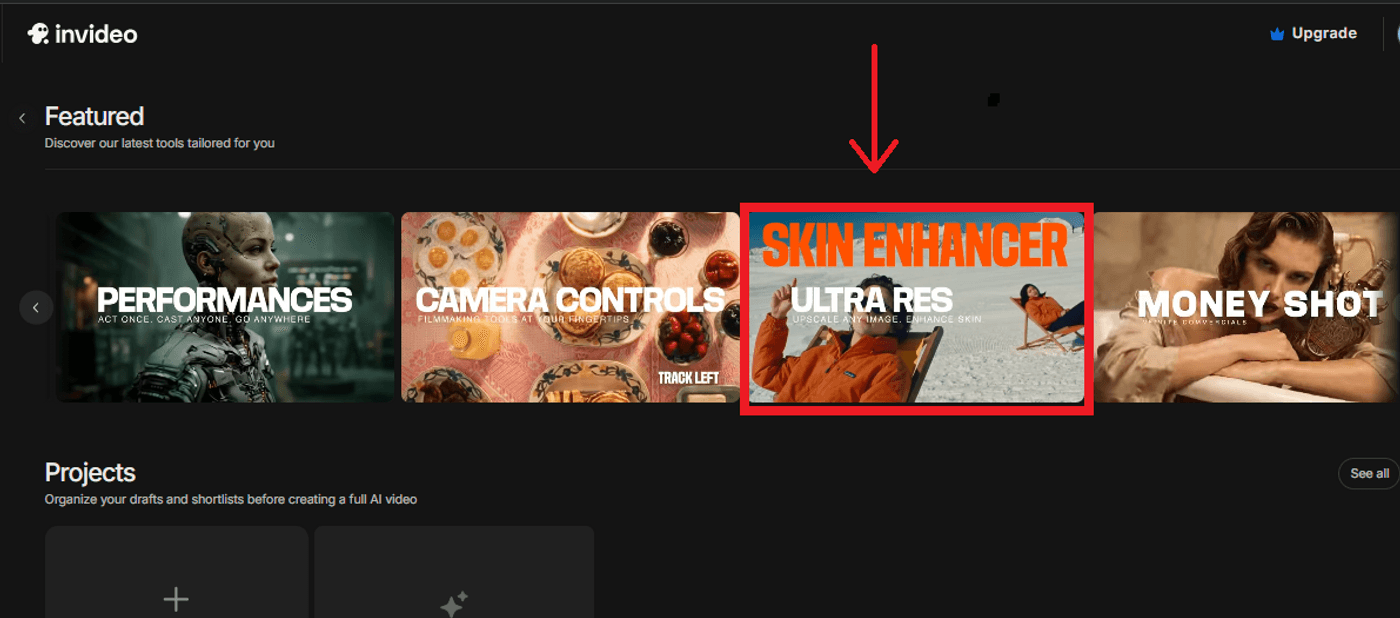
Once inside UltraRes, you’ll see the presets displayed as tiles:
-
Creative upscaler, Precision upscaler, Creative skin enhancer, Faithful skin enhancer, and Custom skin enhancer.
Each preset reflects a different creative intent, whether you’re optimizing for visual punch, text accuracy, or portrait realism. Select the preset that best matches how the asset will be used in your ad, thumbnail, or social post before moving to the next step.
Step 2: Choose The Right AI Image Upscaler Preset
Each preset is designed around how the image will function inside an ad, not just how it should look in isolation. Use the above-mentioned table to align the preset with your creative goal before you upscale.
For instance, if your asset includes screenshots, UI, packaging, or small product details, the Precision upscaler keeps edges and text clean at larger sizes. For beauty, lifestyle, or creator-led campaigns where visual polish drives appeal, the Creative skin enhancer delivers a refined, campaign-ready finish.
When you’re working on assets that need credibility and authenticity (such as founder stories, testimonials, or customer features), the Faithful skin enhancer can help out a lot. On the contrary, if your brand requires a consistent, controlled visual style across markets or placements, the Custom skin enhancer lets you fine-tune the result to match that standard.
Choosing the right preset upfront will ensure that your output fits the placement the first time. It’ll reduce your rework and keep the creative process moving.
Step 3: Upload Your Low-Resolution Image
Upload the image you plan to use in your ad. This can be a cropped UGC frame, a compressed screenshot, a small product photo, or any visual that lacks clarity at scale. UltraRes is designed to work with the assets marketers actually have, not ideal studio-ready inputs, so there’s no need to prep or pre-edit before uploading.
Step 4: Apply UltraRes And Compare Versions
Apply your chosen preset and let invideo upscale the image. Once the first version is ready, duplicate the image and apply at least one alternate preset. For example, compare Precision upscaler against Creative upscaler, or Creative skin enhancer against Faithful skin enhancer.
Review the results side by side and assess them the way an ad viewer would. Check text legibility, facial detail, product edges, and overall credibility at the final placement size. This comparison step helps you select the version that holds up best in-feed, on thumbnails, or in high-visibility placements before moving it into production.
Invideo UltraRes Workflows That Turn Low‑res Images Into High‑impact Ads
The table below maps common ad workflows to the UltraRes presets that perform best in each scenario. It’ll help you choose the presets that protect credibility, clarity, and brand intent at scale.
| Workflow | Goal | Invideo UltraRes go-to presets | Why they work |
|---|---|---|---|
| Repurposing UGC photos for paid social ads | Make grainy, compressed phone photos look clean in feed and story placements. | Faithful skin enhancer, Precision upscaler | Keeps people real while removing noise and sharpening key details. |
| Upgrading old campaign creatives for new formats | Turn 720px or banner-sized archives into full-screen social or hero images. | Precision upscaler, Creative upscaler | Precision keeps layouts and logos accurate; creative adds modern richness and contrast. |
| Polishing founder and team portraits | Use existing headshots for landing pages, LinkedIn banners, and ads. | Faithful skin enhancer, Custom skin enhancer | Gives subtle, flattering improvements without looking like a heavy filter. |
| Making product photos pop in ecommerce and carousel ads | Sharpen packaging, textures, and fine details for higher perceived quality. | Precision upscaler, Creative upscaler | Precision for technical clarity; creative to add cinematic depth and saturation. |
| Building beauty or fashion campaigns from creator photos | Elevate influencer/selfie content to match brand campaigns. | Creative skin enhancer, Custom skin enhancer | Delivers the glossy look audiences expect from premium beauty/fashion ads. |
Ship Higher-Quality Ads Without Rebuilding Assets
The real value of UltraRes shows up when creativity stops being limited by asset quality. Low-resolution images no longer block new formats, faster testing, or mid-campaign refreshes. They become usable inputs that can move directly into production without redesigns or reshoots. That shift matters when teams need to adapt creatives quickly across placements, audiences, and platforms.
UltraRes works best when it’s part of an active workflow, not a one-off fix. Choose an existing image, select the preset that matches your goal, compare outputs, and feed the selected version straight into video ads, thumbnails, or social posts. Iteration becomes lighter, faster, and more intentional.
The fastest way to see the impact is to try it yourself. Get invideo and upscale an image you already use in campaigns. Start there, then build forward.
FAQs
1. How to upscale an image without losing quality?
Use an AI image enhancer that rebuilds detail instead of stretching pixels. UltraRes focuses on structure, edges, and texture so the image holds up at larger sizes. This results in a sharp, high-definition output that looks like it was originally captured at a higher resolution.
2. Which is the best AI image enhancer?
Image enhancer by Invideo is the best AI image enhancer since it combines the best AI models and reduces your tool clutter. It is specifically designed to improve the quality of static digital ads, where text clarity, faces, and brand elements matter more than artistic effects. It prioritizes data integrity, logos remain as logos, and faces remain recognizable. Additionally, it focuses on text legibility, skin realism, and structural accuracy, making it the superior choice for professional graphics designers, solopreneurs, marketers and content creators.
3. How to increase resolution of an image?
Resolution increases when AI recreates missing detail at scale. Invideo generates a higher-resolution output that’s usable in real placements, not just technically larger. When you process an image through UltraRes, the AI performs a "pixel synthesis." It takes a 720p image and reconstructs it into a 4K asset. This isn't just a technical enlargement; the AI adds micro-details to hair, fabric, and text that weren't visible in the original, making the image "print-ready" or "large-screen ready."
4. How to make a blurry picture clear?
Blurry images need structural correction, not sharpening alone. UltraRes restores definition in faces, text, and objects so clarity looks natural, not forced. UltraRes identifies the "structure" behind the blur, it recognizes a blurry eye as an eye, and uses its training data to reconstruct the sharp features of that object. This creates a natural, crisp look rather than a filtered, over-processed effect.
5. How to make an image higher resolution?
Upload the image to an AI upscaler that delivers a new, higher-resolution version. Invideo delivers images that are already ready for ads, thumbnails, and banners. By uploading your asset to a dedicated AI Image enhancement engine like UltraRes by Invideo, you leverage massive GPU power to perform millions of calculations per second. The result is a high-res file optimized for specific aspect ratios (like 16:9 for YouTube thumbnails or 9:16 for Instagram), ensuring your brand looks premium even on the largest 5K displays.
6. What is upscaling when it comes to image quality?
Upscaling is the process of increasing image resolution by reconstructing detail. AI-based upscaling predicts and rebuilds what low-resolution images are missing, meaning traditional upscaling is additive (adding pixels), whereas AI upscaling is interpretive. It interprets what the scene should look like. For filmmakers and designers, this means you can take a small screenshot from a video and turn it into a high-quality static ad without needing a separate photoshoot.
7. How to sharpen image quality?
Sharpening boosts contrast at edges, but it has limits. UltraRes goes further by improving overall clarity and structure, not just edge contrast. Most tools sharpen the "noise" (grain) along with the subject. UltraRes distinguishes between the two. It smooths out the digital grain while simultaneously hardening the edges of objects and text. This "Selective Sharpening" ensures your subject pops while the background remains clean and professional.
8. What is invideo UltraRes and how is it different from a normal image upscaler?
UltraRes is an AI image enhancer built for advertising workflows inside invideo. Unlike generic upscalers, it produces images you can use directly in ads without extra cleanup. Since UltraRes lives inside the invideo ecosystem, you can enhance an image and immediately drop it into a video timeline or an ad template. It is specifically tuned for commercial aesthetics, meaning it won't make your subjects look like "uncanny" AI robots; it keeps them looking like high-end professional photography.
9. Can invideo upscale images for YouTube thumbnails, Instagram ads, and web banners?
Yes. Invideo produced images typically tend to perform better across high-visibility formats like thumbnails, feeds, stories, and hero banners.
10. Which AI image upscaler is best if I just want a sharper version of my image?
The Precision upscaler preset on invideo is the best choice. It improves clarity while keeping text, logos, and layouts accurate. It uses a conservative AI model that is strictly tethered to the original pixels. It won't add artistic flair; it simply removes the "fuzziness" from logos, text, and faces, making it ideal for corporate assets and product photography.
11. Will image upscaling change my brand colors or logo design?
No. Image scaling on invideo preserves original colors and brand elements, focusing on clarity rather than stylistic alteration. The AI is programmed with a "Faithful Reconstruction" protocol. It respects the HEX codes of your colors and the geometry of your logos. It only improves the resolution and edge-sharpness of those elements, ensuring your brand identity remains 100% intact.
12. Which skin enhancer preset should I use for UGC vs beauty campaigns?
Use Faithful skin enhancer for UGC where authenticity matters. Use Creative or Custom skin enhancer for beauty campaigns that need a polished, brand-led finish.
