AI Video Transitions
Make grid reveals, whip pans, zooms, frame-by-frame transformations and more with the invideo editor. Point to the moment you want the transition to land and the invideo agent inside your editor creates it on the timeline with editable keyframes and knobs, right in your browser.
Trusted by teams at















Choose from 72+ transitions or create your own
Wipe and reveal
Slides and pushes
Flips and rolls
Cross Zooms
Light and flash
Dot Glitch and Digital
Distortion and Warps
Rewind
Mixed media transitions
Try now
Match cut transitions
Grid transition
How to create and edit video transitions inside the invideo editor
Upload your footage
Bring your clips into the project and choose where you want the transition or effect to happen.
Describe the transition
Tell the agent the look, timing and movement you want. For example: “Reveal the next clip through a 3 by 3 grid, one tile at a time, on the beat.” Add a visual reference if you have one.
Review and keep editing
Play back the transition and keep it as it is if you’re happy with it. Want a change? Give the agent more direction or adjust the timing, layers and sound yourself.
A complete video editor, built for the way you work
A real timeline
Shape every detail of your video, on a multitrack, frame-accurate timeline that gives you complete control over your edit with familiar tools and shortcuts.
Try nowAgentic editing
Get your very own editing agent that helps you go from raw footage to a finished edit with less grunt work. Direct the agent to assemble cuts, generate B-roll, build effects or match a reference, with the results ready to review on your timeline.
Try nowShared workspace
Work with teammates on the same timeline and share session replays for handoffs with context. Gather timestamped comments through review links, so you know what needs to change and where.
Try now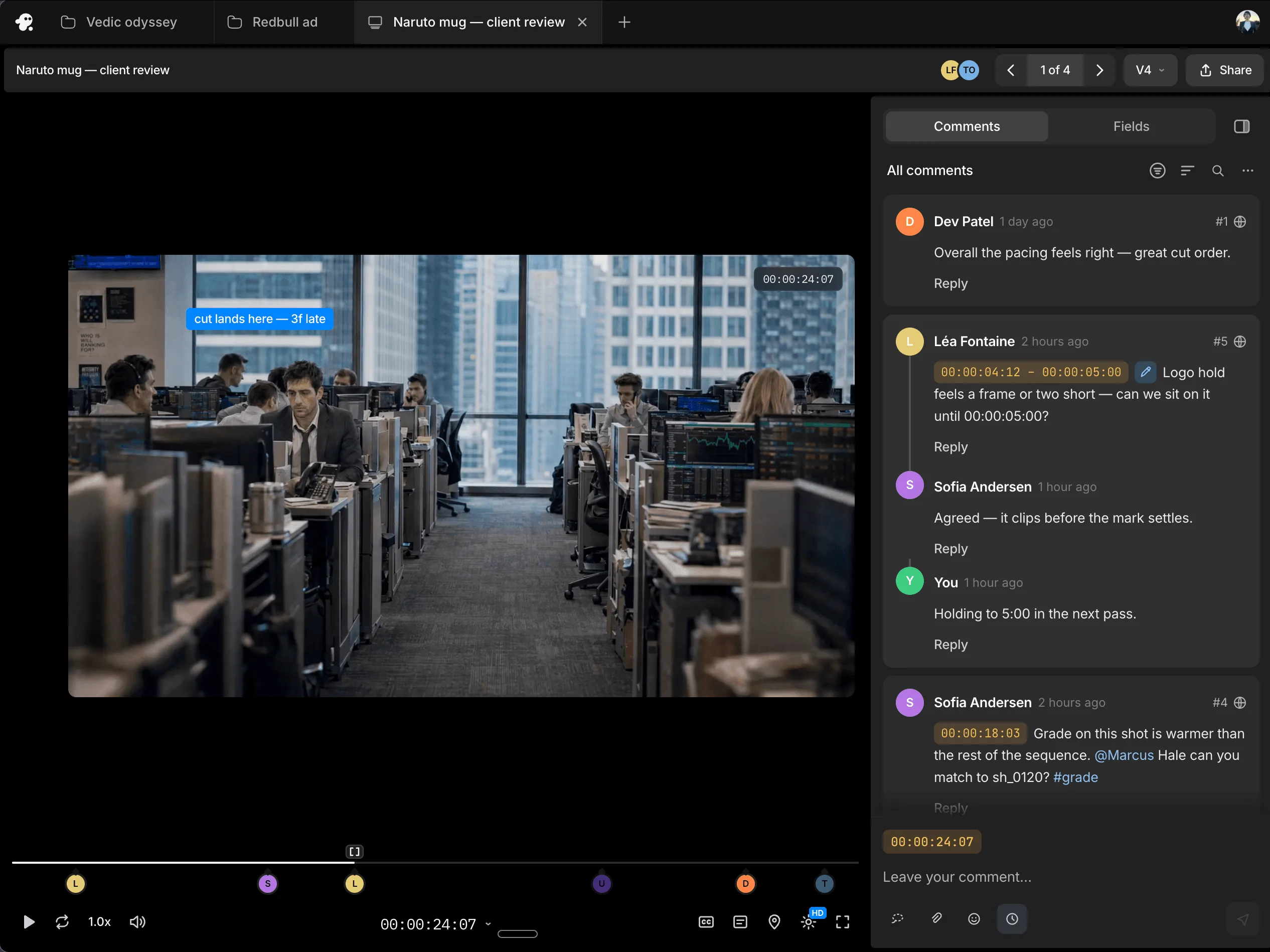
FAQs for AI video transitions
How do I add a transition between two clips?
Place your clips on the timeline and tell the agent how you want one shot to move into the next. It creates the transition from your direction. You can use the result as it is or make further changes.
Can I use a reference for the look I want?
Yes. You can provide a visual reference as creative direction. Describe which parts you want to carry into your transition, such as the textures, movement or reveal timing.
Can I time a transition to music?
Yes. Describe where it should land in the track. For a grid transition, you can direct the tile reveals around a beat pattern and add sound effects to the sequence.
Do I always need to adjust the transition manually?
No. You can keep the result as it is. If you want changes, give the agent further direction or use the timeline controls to adjust it yourself.