Place keyframes with frame-level precision
Try now
Create precise motion, layered animations and evolving effects with manual control over keyframe values, timing and easing. Build it manually or describe your animation to the invideo agent and let it build it on your timeline.
















How invideo agents make keyframing easy
Ask for a push-in, rotating graphic or gradual fade, and the invideo agent inside your editor will add keyframes to the relevant scale, position, rotation or opacity properties, with values and timing based on your direction.
Specify where a movement should begin, end and what should happen in between, and the agent creates the keyframes needed to build that sequence on your timeline, saving you from setting each value at each point.
Ask for a slow start, quick move, or gentle stop, and the agent will set the easing and interpolation between keyframes to shape the motion, with controls available to refine the acceleration or timing.
Tell the agent inside the invideo editor to increase a blur over time, fade an effect away or move a mask across a shot, and it attaches keyframes to the supported effect or mask properties, keeping the animation editable alongside the rest of your grade or edit.
Want to have a title move into place as the background scales up and an overlay fades in? The agent creates and times the keyframes across the relevant layers, so you don’t have to build each part separately.
Ask for a zoom to finish earlier, a fade to last longer or a movement to feel less abrupt and the agent updates the relevant keyframe timing, values or easing.
Bring your footage, images, text and graphics onto the timeline and choose the clip or element you want to affect.
The invideo editor offers complete keyframe controls for your timeline. Edit manually or tell the agent the property, movement or effect you want to create, and it builds as you direct.
Play back the animation and keep it as it is, or ask for changes. The keyframes remain attached to the relevant properties for you to inspect and fine-tune whenever needed.
Shape every detail of your video on a multitrack, frame-accurate timeline that gives you complete control over how your clips, text and effects move, with familiar tools and shortcuts.
Describe the motion you want, such as a slow push-in, a title sliding into place or an effect building over time, and the invideo agent creates the keyframes on your timeline. Ask it for changes or refine the animation yourself to get to the final edit.
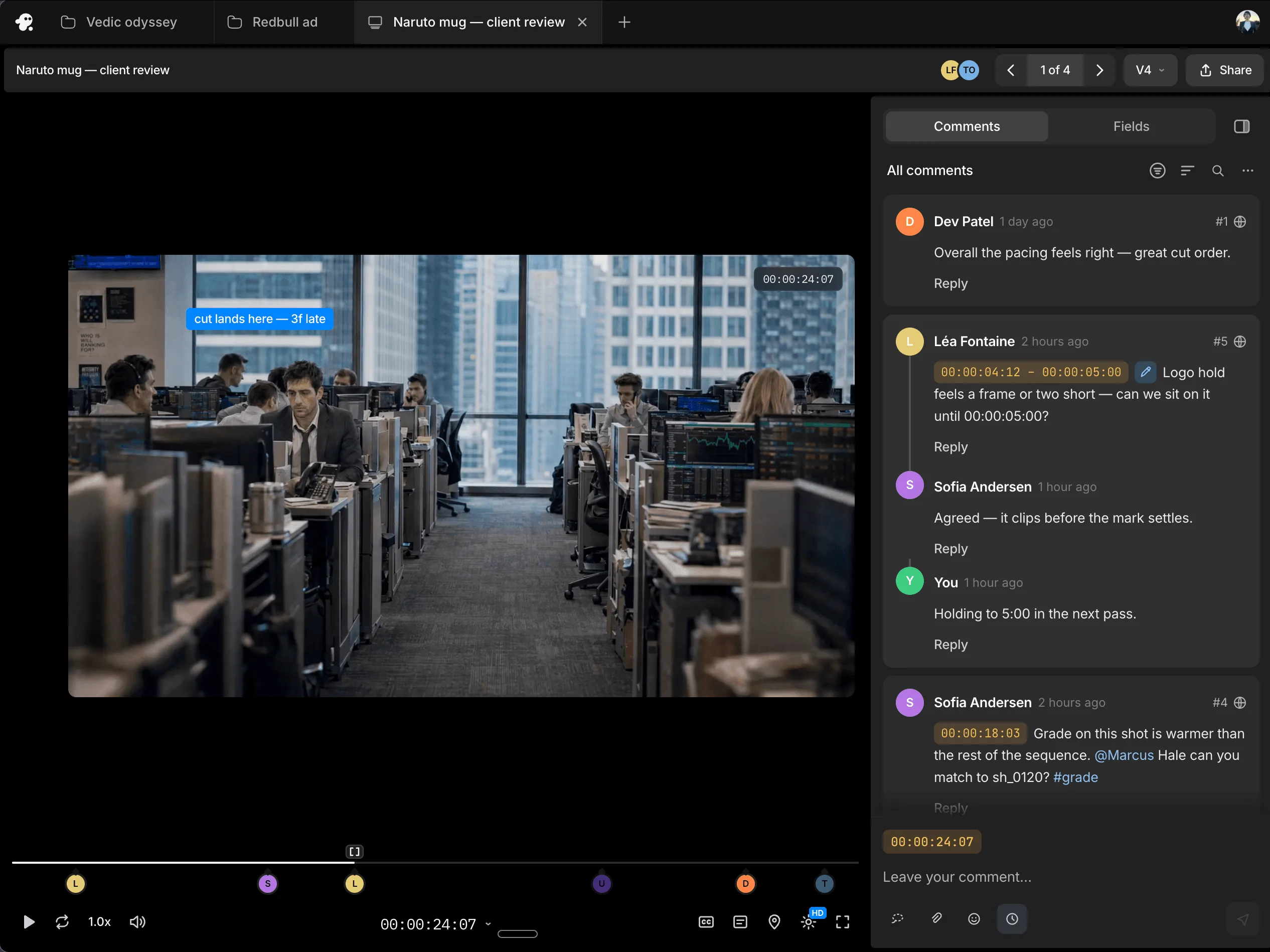
Work with teammates on the same timeline and share session replays for handoffs with context on how you went about building your animations. Gather timestamped feedback on movement, pacing and transitions, so you know exactly what to adjust.
It creates keyframes on the relevant clip or effect properties. Each keyframe sets a value at a point in time, and the editor calculates how that value changes between points.
You can keyframe position, scale, rotation and opacity, along with supported effect and mask properties. The available controls depend on the clip or effect you’re working with.
Yes. Give the agent starting and ending values, a duration or specific moments on the timeline. You can also describe the result in plain language, such as a slow zoom that stops before the next cut.
Yes. You can change their values, move them in time, adjust easing or remove them. The animation remains editable in the same project.
Yes. Tell the agent what should be different, such as a faster start or a longer fade, and it updates the relevant keyframes. Manual adjustments are optional.
Yes. They can control opacity and supported effect settings over time, as well as audio volume and panning. That lets you build fades, changing effects and sound movements alongside visual animation.
Loading pricing…