6 OpusClip Alternatives for Editing Long Videos into Shorts
November 13, 2026

invideo Editor is the strongest overall OpusClip alternative when you want to develop selected moments into fully finished Shorts. It combines agent-assisted selection and revisions with a frame-accurate multitrack timeline, editable captions and graphics, and detailed picture and sound controls. Manual editing, ordinary ChatGPT or Claude MCP editing, and watermark-free video and editable-project exports are free; your assistant’s allowance applies separately. Built-in-agent work and media generation use invideo credits. Klap suits speech-led clipping and publishing, Vizard adds transcript and Agent workflows, Submagic focuses on caption-led finishing, Descript on restructuring speech, and Riverside on recording, editing and distribution. Their clip, credit, upload and export allowances affect the cost of switching.
OpusClip brings several jobs together: discovering moments in a long recording, reframing them, applying captions and visual treatments, and sending approved clips to social channels. Its paid editor also lets you trim, extend and rearrange selections. An alternative needs to replace the parts of that workflow you actually use.
You might want more freedom to rebuild an opening, join passages from different parts of the recording, finish the sound, or keep several versions editable through client feedback. Or you may want a different allowance for a recurring clipping and posting schedule. Those are different reasons to switch, even when the starting material is the same interview, webinar or demonstration.
We compared six OpusClip alternatives: invideo Editor, Klap, Vizard, Submagic, Descript and Riverside. The comparison covers moment selection, editing each Short, framing and captions, sound, and batch delivery. It also considers the restrictions that change the cost or control of the replacement workflow.
Top OpusClip alternatives at a glance
Alternative | Finding and selecting moments | Reshaping each Short | Framing, captions and visuals | Sound and finishing | Batch revisions, export and publishing |
|---|---|---|---|---|---|
invideo Editor | You can use the built-in agent or ChatGPT/Claude to search spoken ideas and visual action, helping you select complete moments around an editorial brief. You can also ask for clip ideas and a shortlist of moments before you start editing. | Separate timelines and frame-accurate multitrack controls keep each Short open to changes in its hook, source order and pacing. | Editable crops, captions, graphic layers and keyframes give you control over the composition and timing of each element. | Separate dialogue, music and effects tracks combine cleanup, EQ, dynamics and manual level and fade controls. | Batch edits through ChatGPT or Claude are free on invideo, as are watermark-free video and editable-project exports. Named versions preserve the batch for feedback; finished files feed your publishing workflow. |
Klap | Moment prompts guide speech-led discovery. Low-speech footage needs more manual selection. | Trim and element controls cover light corrections; detailed layering and frame-by-frame finishing need another editor. | Active-speaker crops, split layouts and saved caption styles keep a recurring show visually consistent. | The light clip editor suits straightforward spoken delivery; precise beat cuts and more developed finishing add a handoff. | Scheduling and unlimited social accounts are included in paid plans. Downloads and posting require payment; generated clips consume the plan allowance. |
Vizard | AI discovery and source-transcript selections find passages. Clipping uses the uploaded source duration, including material you discard. | Transcript cuts, timeline trims and inserted scenes reshape clips. A wider selection may require the original-video editor. | Speaker layouts, captions and added media develop the picture. The separate AI Edit beta only accepts eligible portrait talking-head clips. | Timeline audio insertion adds a music layer beneath the clip, while AI Edit applies an additional automated treatment for credits rather than removing the need to review the finish. | The Creator plan adds clean 4K delivery and scheduling. The free plan exports 720p with three-day storage, limiting longer review cycles. |
Submagic | Magic Clips finds excerpts and manual transcript selection chooses a passage. Each Magic Clip costs eight credits. | Text-based trimming removes unwanted speech. The Starter plan caps edited videos at two minutes, constraining longer cutdowns. | Styled captions, B-roll, zooms and transitions build a social format. Reusable custom templates require the Pro plan or above. | Music, sound effects and cleanup develop the soundtrack. AI cleanup and other treatments use extra credits. | Created videos export without another credit charge. Social publishing starts on the Pro plan; 4K/60 fps needs the Business plan. |
Descript | Create Clips uses topics, length and count preferences to make editable compositions. Transcribed source duration uses media minutes. | Transcript rearrangement and timeline controls rebuild each cut. Underlord revisions use AI credits, including through MCP. | Scenes, layers, speaker framing and caption presets keep the visual treatment editable in each composition. | Studio Sound, manual EQ, dynamics and automation let you clean speech and shape music alongside the picture. | Clean video exports require a paid plan. Timeline export starts on the Creator plan, with format-specific omissions to account for before handoff. |
Riverside | Magic Clips and transcript selections find highlights. The Pro, Grow and Webinar plans allow 15 external-upload hours monthly. | Movable tracks, splits and overlays let you change a hook and timing. Speaker layouts depend on eligible video separation. | Custom layouts and captions support recurring clips. External HDR converts to SDR, which can change the picture. | Individual speaker tracks support sound edits. Background music in imported recordings does not carry into the timeline. | Paid plans remove the watermark; the Grow plan adds scheduling. MCP requires an eligible plan and client for editing and export. |
1. invideo Editor

A portrait cut and editable video/audio segments in The Future Of AI’s invideo Editor walkthrough.
invideo Editor is the strongest overall alternative when the selected moments need to become deliberately developed Shorts. It combines a professional manual editing suite with a built-in agent and optional free ChatGPT or Claude assistance through MCP. The assistant works on the same timeline you can edit yourself, so selecting a moment does not close off later story, picture or sound decisions.
You can use the built-in agent or ChatGPT/Claude to search a recording for spoken explanations, visual action and themes that fit your direction. You can also ask for clip ideas and a shortlist of moments before you start editing. Those selections can become separate named timelines, with the longer edit preserved. A Short can combine a later answer with its earlier setup, move the central point into the opening, or retain a qualification that would otherwise disappear. Manual trimming, splitting and rearrangement give you precise control over those choices.
That control extends to the full composition. Portrait framing can change shot by shot, while editable captions, titles and graphic layers explain the material without obscuring it. Keyframes refine movement and timing. The Future Of AI’s walkthrough at 7:18 shows a captioned portrait preview above a timeline of separate video and audio cuts.
Supporting footage can come from your source, uploads, stock or generated media. You can time it above continuing dialogue, adjust its framing and colour, and retain a separate treatment for each Short. The audio suite keeps voice, music and effects on separate tracks, with cleanup, EQ, dynamics, volume and fade controls for a considered finish.
The built-in agent can coordinate these edits, and you can use ChatGPT or Claude to request batch edits through MCP. You can continue manually between requests; the assistant rereads the updated timeline. Manual editing, batch edits through ChatGPT or Claude, and watermark-free exports are free on invideo. Your external assistant’s subscription and usage limits apply separately. Built-in-agent work and generation of images, video or audio use invideo credits.
How invideo Editor compares with OpusClip
Switching to invideo retains assisted moment selection while giving you a fuller editing workspace for developing the selection. You can direct a revision that changes the source order, retimes a title and adjusts the music, then inspect and refine each element manually. Separate cutdown and version timelines help keep an approved Short intact while another receives a new opening or ending.
The access difference is especially useful through repeated feedback: batch edits through ChatGPT or Claude add no invideo editing charge, and free manual controls remain available at every stage. You can export clean finished videos or an editable project with its media without buying an editing subscription. Finished files then go through your social-publishing workflow. The invideo Editor versus OpusClip comparison explores selection, individual revisions and delivery in more detail.
Choose invideo Editor when your reason for leaving OpusClip is greater control over the finished Short: agent-assisted selection and revisions, detailed manual picture and sound editing, and free batch edits through ChatGPT or Claude and exports in one workspace.
2. Klap

Klap’s official caption-editing demonstration shows transcript, caption and scene controls.
Klap is a close replacement for a recurring speech-led clipping and publishing routine. Moment instructions steer discovery toward particular topics or kinds of answer. Its editor then offers trimming, manual reframing, caption corrections, saved styles, hook titles, B-roll and additional on-screen elements.
Active-speaker framing and split-screen layouts help adapt an interview to portrait. Caption presets keep successive clips consistent, while scheduling and connected-account analytics carry approved clips into distribution. Its assistant integrations also allow clipping, editing, MP4 export and scheduling through ChatGPT, Claude or another MCP host, using the same Klap account and plan.
How Klap compares with OpusClip
Both products combine selection prompts, editable clips, reframing, captions and social delivery. Klap is particularly useful if you want to budget around generated clips: its allowance counts each generated Short, while source videos can run up to three hours. That differs from OpusClip’s ordinary clipping budget based on imported source minutes.
OpusClip’s ClipAnything is the broader fit for selection involving visual action and sound as well as speech. Klap suits a repeatable spoken-content batch whose clips need light corrections before publishing.
Where Klap falls short
Klap’s clipping and finishing boundaries matter if you want to replace more than automatic selection. When there’s little speech in the footage, you’ll need to do more of the clip selection yourself. Detailed B-roll layering, colour work, precise beat cuts and complex transitions call for another editor, so a more developed Short adds a download, finishing pass and separate version to manage.
The one-video trial lets you preview and edit clips, but downloading or posting requires a paid plan. The Basic plan includes 100 clips monthly for US$29 month to month, the Pro plan 300 for US$79, and the Pro+ plan 1,000 for US$189. Annual billing lowers the monthly equivalents to US$14.50, US$39.50 and US$94.50, paid as US$174, US$474 and US$1,134 for the year. Generated candidates count even when you do not publish all of them.
Klap also has no team workspaces, multiple seats or user roles. A shared account is less useful for separating client reviewers from publishers than a workspace with defined permissions. Its LinkedIn posting route is for personal profiles, so company-page delivery needs another route.
Choose Klap when your OpusClip replacement should keep speech-led discovery, consistent caption treatment and recurring publishing together, and most clips need only light editing.
3. Vizard

Vizard’s scene-insertion menu brings source transcript, brand material and uploads into the timeline.
Vizard combines automatic clip discovery with source-transcript selection, text cuts and timeline trims. After Vizard has found a clip, you can add a scene from the recording, an upload or saved brand material, then adjust captions, speaker layouts and supporting media around the chosen passage. This gives you a direct editing route when the automatic selection needs more context.
Vizard Agent adds a conversational route for developing and revising videos. Its MCP connection can start a project from a brief and send changes to the same saved project. Projects use your account credits; the free plan uses the Flash tier, while paid plans unlock additional model tiers. The Creator and Business plans share credits between clipping and Agent work.
How Vizard compares with OpusClip
Both offer automatic selection, direct clip editing and a route to social distribution. Vizard is useful when you prefer selecting and extending speech through the original transcript, then using an agent for further direction. The Creator plan includes watermark-free 4K exports, scheduling and six social accounts; the Business plan adds shared projects, a brand kit and more account connections.
OpusClip’s paid clip editor also extends source selections, rearranges scenes and accepts custom media. The reason to switch is Vizard’s particular combination of transcript editing and Agent work. OpusClip’s established clipping-to-scheduler workflow remains relevant if distribution is your main reason to use the product.
Where Vizard falls short
In the classic clip editor, restoring removed text may not expose all the source material you need. A wider setup or ending can require returning to the original-video editor and creating a broader selection. That adds work when several promising excerpts need contextual repairs.
The separate AI Edit beta adds automated transitions, B-roll and zoom treatments, but accepts only 9:16 talking-head videos lasting 15 seconds to three minutes with a detected speaker. Intro and outro segments from AI Clipping do not transfer. It does not yet support custom styles, bulk submission, automatic scheduling of its results or an API. Those limits apply to AI Edit, rather than to every Vizard editing or scheduling route.
AI Edit also costs 0.5 credits per second, so a one-minute treatment uses 30 credits. Classic AI clipping uses one credit per uploaded source minute, charged once per project even if you also transcribe it. Agent projects consume account credits too. The shared balance therefore has to cover source processing and the further AI work you choose.
The free plan includes 60 monthly credits, a 60-minute/1 GB upload limit, 720p output and three-day storage. Its watermark and project expiry make clean client delivery and longer review cycles paid-plan decisions. The Creator and Business plans raise uploads to ten hours/30 GB and offer 4K exports; their selected allowance and billing term determine the price.
Choose Vizard when you want automatic discovery alongside source-transcript editing and an Agent workflow, with enough paid storage and credits to support revisions after the first batch.
4. Submagic

Submagic Academy’s Magic Clips demonstration shows manual transcript selection beside a portrait preview.
Submagic is useful when your reason to switch is the treatment around the selected passage. Magic Clips finds excerpts from a long recording, while manual transcript selection and text-based trimming let you choose and shorten the material yourself. The clip can then receive styled captions, B-roll, zooms, transitions, music and sound effects.
Caption correction and reusable looks help keep a series recognisable. Additional AI tools remove silences or bad takes and clean audio. Social publishing is available on the Pro and Business plans, allowing the finished clip to move beyond a download-only workflow.
How Submagic compares with OpusClip
Both products offer automated excerpts, captions, B-roll and audio treatment. Submagic is a useful alternative when caption-led presentation and its set of social finishing tools suit your house style. It also allows you to build from a chosen transcript passage instead of accepting every automatic selection.
OpusClip remains useful when clipping, organising and scheduling the batch are the main job, and its paid editor already offers timeline and text revisions. Submagic’s appeal is the particular mix of caption styles and finishing tools you want to use.
Where Submagic falls short
The selected plan constrains the edit. The Starter plan allows two-minute edited videos and standard caption templates, with no reusable custom templates or social publishing. The Pro plan raises duration to five minutes, adds premium templates, three custom templates, cleanup tools and one publishing profile per platform. The Business plan raises duration to 30 minutes and provides 30 custom templates and more publishing profiles. A longer cut or repeated branded treatment can therefore require an upgrade even before export.
Magic Clips and finishing share a credit pool. Magic Clips costs eight credits per clip, while ordinary uploads cost three. AI B-roll, silence removal and clean audio each add two credits, and auto zooms add one. A headline video count is therefore not the number of fully treated Shorts you can finish. Exporting an already created video has no further credit charge.
The Starter plan includes 45 credits, the Pro plan 120 and the Business plan 300 per member. Their annual-billing rates are US$12, US$23 and US$41 per member per month. Delivery specifications matter too: the Starter plan exports 1080p/30 fps, the Pro plan lists up to 2K at 30 fps, and 4K/60 fps requires the Business plan. Text-based trimming is convenient for speech, but decisions about the visual join and the music still require reviewing the actual clip.
Choose Submagic when the decisive reason to leave OpusClip is a caption-led visual style and integrated social finishing, with a plan and credit budget that cover the treatments you will actually use.
5. Descript
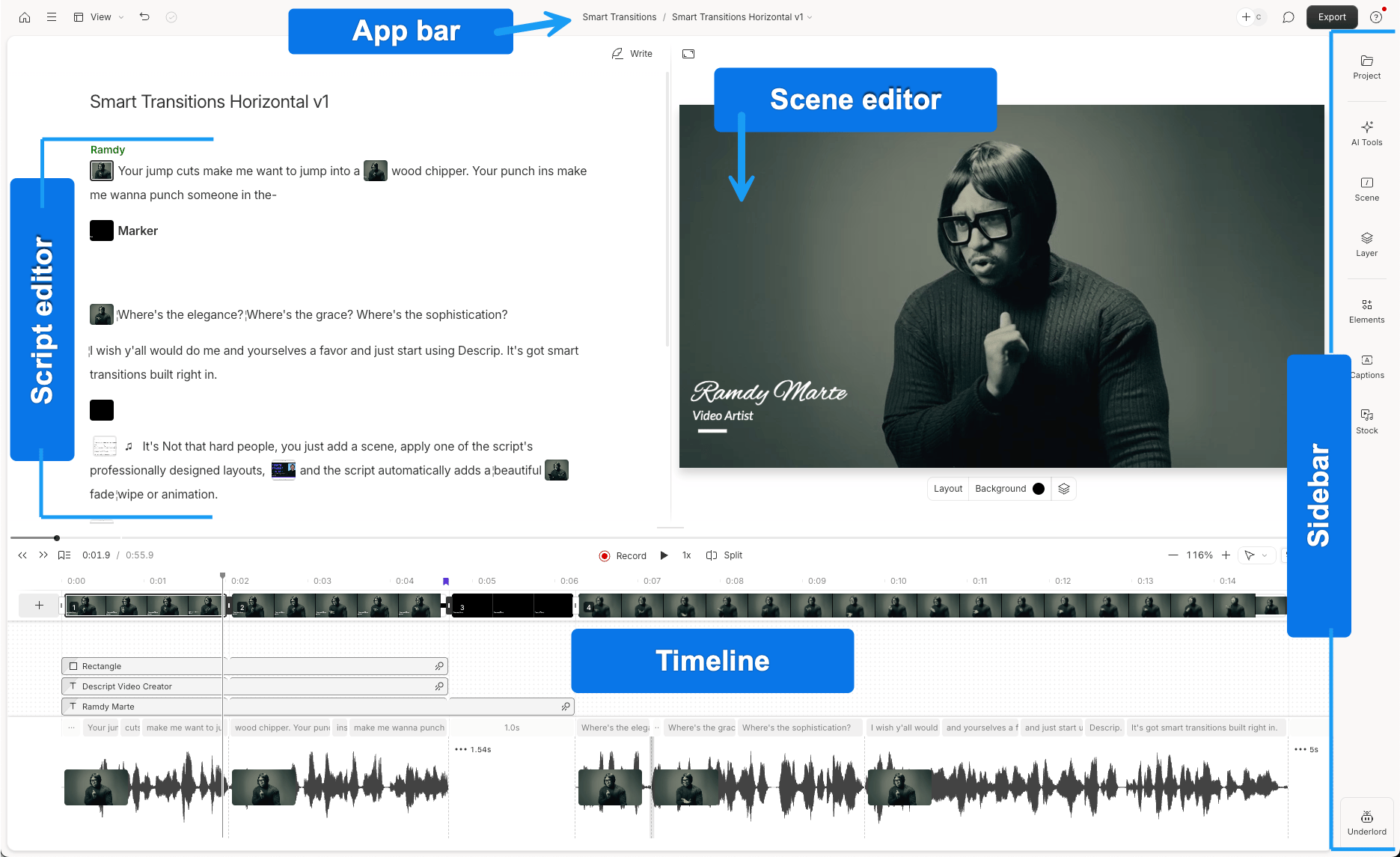
Descript’s official annotated interface shows its script, scene and timeline workspaces in a general editing example.
Descript is a strong alternative when the Short needs restructuring through the words. Create Clips accepts topics or selection criteria, one to 20 clips, and durations from ten seconds to five minutes. It makes a separate editable composition for each result, with portrait and square layout options.
Moving and deleting transcript passages changes the associated media. Timeline controls refine timing, while scenes, layers, captions and speaker framing develop the picture. Studio Sound, manual EQ, dynamics and volume automation support audio finishing. Underlord can take revision instructions, and MCP connects compatible external assistants to the same projects.
Reusable layout packs and caption presets support repeatable visual treatment. Underlord’s reusable skills can also preserve a workflow between requests. Generating branded layout packs is a paid-plan feature that uses AI credits.
How Descript compares with OpusClip
Both tools find candidate clips and let you revise them. Descript lets you reshape a clip by cutting and moving passages in the transcript. This is useful when a Short needs to bring together points from different interview answers. Separate compositions keep each version editable with its own scenes and sound.
OpusClip is the more direct fit when the recurring job centres on a pool of clips and a social schedule. Descript offers publishing and exports, but its main reason to replace OpusClip is the combination of transcript restructuring, Underlord and manual finishing. The invideo versus Descript podcast comparison explores those editing and sound choices for interview-derived material.
Where Descript falls short
Transcript edits still need visual and audio timing decisions at the joins. For camera layouts, rerunning Automatic Multicam replaces existing scenes, so a fresh automatic pass can undo scene adjustments you have already made. Individual manual or Underlord changes let you refine a particular section without rebuilding the entire camera treatment.
Automatic music ducking follows clip presence, including breathing or background noise, rather than detected speech. A pause can therefore keep the music lowered until you shape it manually. The effect applies to a whole layer, not individual clips, and is unavailable inside the Sequence Editor; apply it on the composition timeline.
Descript separates media minutes from AI credits. Newly imported recordings consume their full transcribed duration, even if the final Shorts use only a few minutes. Underlord work, including through MCP, uses AI credits; unused allowances do not roll into the next billing cycle. Reusing media already in the same Drive avoids charging media minutes again.
The free plan exports watermarked 720p video. The Hobbyist plan costs US$24 per person monthly and includes ten media hours, 400 AI credits and clean 1080p exports. The Creator plan costs US$35 per person monthly and includes 30 hours, 800 credits and 4K exports. Annual-billing equivalents are US$16 and US$24 per month respectively.
An editable timeline handoff requires the Creator plan or above. Standard XML routes omit animation, video effects, audio effects and audio keyframes; Studio Sound has its own supported treatment. The native Premiere project route is in beta and not available on every account. It supports eligible multicam sequences but omits visual transforms such as position, scale and crop, so a handoff can leave finishing work to rebuild.
Choose Descript when your OpusClip replacement needs to reshape spoken ideas through the transcript and keep each clip editable, and you are willing to budget source transcription, AI revisions and the required export tier separately.
6. Riverside

Riverside’s expanded-track editing demonstration shows separate speaker waveforms beneath the conversation.
Riverside combines recording, an archive, clip selection and editing. Magic Clips finds moments around topics or speakers; transcript selections create chosen excerpts. Existing recordings made elsewhere can also become editable projects, making it relevant to an archive you already have.
Its timeline allows individual track trimming, splits, movement and overlays. A passage can move to the opening as a hook, with the remaining material reshaped around it. Custom speaker layouts, captions, B-roll, music and audio enhancement support the finish. Paid publishing routes connect the resulting videos to social channels; the Grow plan adds scheduling.
Riverside’s assistant connection can search transcripts, create and cut edits, export and schedule through eligible clients. Agent edits create a new edit rather than overwriting the original, which helps preserve a version already approved.
How Riverside compares with OpusClip
Both tools can discover highlights and carry them toward social delivery. Riverside becomes especially useful when your full recordings and their separate speaker tracks already live there: the source, longer edit and promotional clips can stay in one production environment.
Its expanded-track controls are also useful for revising a clip after selection. Switching from OpusClip for an externally recorded archive is a different decision, however, because Riverside’s import handling and upload allowance become part of every new source project. Its value as a replacement depends on wanting recording, editing and repurposing together.
Where Riverside falls short
External imports have consequences for picture and sound. HDR becomes SDR and can visibly shift colour. The studio setting determines the imported frame rate, so a mismatch can change the source cadence. Background music in the imported recording does not carry into the timeline, leaving that treatment to rebuild. Speaker layouts require eligible video separation; if separation is unavailable, separate audio tracks alone do not provide independent camera views.
The Pro, Grow and Webinar plans each include 15 hours of external uploads monthly; the Business plan includes unlimited external uploads. This is separate from recording-track download hours. Riverside does not display used upload hours, so a large back catalogue also creates an allowance-tracking task.
The free plan exports 720p video with a watermark. The Pro plan provides watermark-free output up to 4K; the Grow plan adds social scheduling. MCP requires the Grow, Webinar or Business plan. Personal ChatGPT plans are limited to read-only tasks, so that particular connection cannot perform the edits. An agent can initiate export, but you still download the resulting file in Riverside. MCP itself does not consume Riverside AI credits.
Choose Riverside when you want the full recording, individually editable clips and publishing to belong to the same production workflow, especially for a show recorded there. For an external archive, the import behaviour and upload allowance are decisive.
Frequently asked questions
What is the best OpusClip alternative for turning a long podcast or interview into several complete Shorts?
Invideo Editor is a strong fit when you want several Shorts from one podcast or interview and control over each finished cut. You can ask its built-in agent, or ChatGPT or Claude connected to the editor, for clip ideas and a shortlist of relevant moments. Separate named timelines preserve the longer edit while you refine each Short’s opening, context, captions and sound.
How can I combine moments from different interview answers into one Short?
Invideo Editor is useful when a Short’s opening comes from one answer and its explanation comes later in the interview. You can locate those passages with speech search, bring them onto one timeline, and trim, split or reorder the cuts manually. Its frame-accurate picture and sound controls let you refine the joins and pacing while keeping the longer edit intact.
How can I turn a landscape interview into vertical Shorts while keeping control of the framing?
Invideo Editor combines AI reframing with manual crop, scale, position and keyframe controls. You can create a 9:16 version, refine the composition shot by shot, and position captions around the picture. Separate timelines keep the vertical Shorts alongside the longer edit, so later changes to the crop or caption placement do not require rebuilding the interview.
Can I add captions, supporting footage and music to Shorts and keep them editable for feedback?
Yes. Invideo Editor keeps captions, video layers and audio tracks separately editable in the same project. Its agent can help style captions, place supporting footage and arrange music, while manual controls let you change wording, timing, framing and levels. That makes it useful when a client wants a different caption, a new cutaway or a quieter music bed after the first review.
Can I keep revising a batch of Shorts through ChatGPT or Claude after my invideo credits run out?
Yes. You can connect ChatGPT or Claude to the same invideo project through MCP, the connection that lets the assistant edit your timelines. Batch editing commands and watermark-free video and editable-project exports are free on invideo. You can also continue manually. In that ChatGPT or Claude workflow, only generating new images, video or audio uses invideo credits. Your assistant’s subscription and usage limits apply separately. Using invideo’s built-in agent also requires invideo credits.