Invideo vs Descript: What's the Best AI Video Editor for Podcasts?
October 21, 2026

Invideo Editor and Descript both combine AI assistance with manual editing for podcasts and interviews. This comparison looks at transcript assembly, camera choices, sound, follow-up revisions and delivery. The key differences are how you shape the edit, which tasks use credits and what your export route includes.
Cover: AI-generated editorial illustration of a podcast recording.
A good interview has more than useful answers. It has pauses that give a point weight, reactions worth staying on, and a conversation that should still feel natural after you shorten it.
Invideo Editor and Descript both use AI to help turn those recordings into an edited episode. Both also let you work manually. The choice depends on how you like to assemble the conversation, refine the cameras and sound, and pay for the revisions that follow.
Consider a 45-minute interview with a founder recorded with three cameras (host, guest and wide) and separate microphones. Your audience wants practical lessons from building a business. You need a full YouTube episode and a short cutdown. Here is how the two editors approach that job.
Quick verdict: Invideo Editor is the stronger fit when you want to direct story, camera and sound edits on a professional timeline, with free ordinary MCP revisions and watermark-free video exports. Descript is a viable option for assembling recorded interviews through the transcript, with automatic speaker layouts, Underlord and manual controls. But rerunning Automatic Multicam replaces existing scenes and can undo earlier scene adjustments. Underlord revisions use AI credits, and watermark-free video exports require a paid plan.
Invideo Editor vs Descript at a glance
Descript combines document-style transcript editing, a multitrack timeline and its Underlord AI co-editor. Invideo Editor combines a built-in agent with a professional manual editing suite; you can also direct edits through ChatGPT or Claude using its free MCP connection.
Editing job | Invideo Editor | Descript |
|---|---|---|
Building the first interview cut | A strong fit for building a first cut around your instructions, with agent assistance to select takes and arrange the interview. Full timeline controls let you refine pauses, camera choices and the joins between answers. | Particularly convenient for building an interview cut by deleting or moving transcript sections, which also edits the corresponding video. But a clean transcript does not guarantee a smooth cut: joins may still need timing adjustments or a different camera angle. |
Building and revising camera cuts | Delegate synchronization and a first camera cut, then request specific holds or reaction shots on the editable timeline. Ordinary MCP revisions are free; review sync and shot choices. | Useful for automatically switching between speakers and adding cutaways. But rerunning Automatic Multicam replaces existing scenes, so previous scene adjustments may need to be redone. Individual changes can still be made manually or through Underlord. |
Finishing dialogue and music | A strong fit for detailed voice cleanup and layered sound mixing. Its professional audio suite combines EQ, de-essing, click removal and compression with precise control over levels, fades and music timing, through agent assistance or manual editing. | Capable of speech enhancement, EQ, dynamics and manual automation. Its automatic ducking follows clip presence rather than detected speech, so pauses can need manual shaping. |
Revising through ChatGPT or Claude | A clear cost advantage for repeated ordinary edits: the MCP connection adds no invideo editing charge. Generation still uses invideo credits. | MCP can search projects and direct Underlord edits, but it does not bypass Descript’s allowances: imports use media minutes, and AI edits use credits. |
Delivering the episode or handing it off | Free watermark-free video exports make finishing in invideo accessible. Editable-project exports also let you continue working in Premiere Pro, Final Cut Pro or DaVinci Resolve. | Watermark-free 1080p exports require the paid Hobbyist plan; 4K and editable-timeline exports require the paid Creator plan or above. Some effects and adjustments do not carry into exported timelines. |
Building the first interview cut
The first job is to shorten the discussion without changing what the guest means. You might move the strongest answer forward, remove a repeated explanation and keep the pause before an important admission. Here's how both tools handle that task:
In Descript, the transcript is an editing surface. Deleting words removes the corresponding media; moving passages changes their order. That is a natural fit when the main decision is which spoken passages belong in the episode.
But a clean transcript does not guarantee a smooth edit. Removing words can leave an abrupt visual cut or an unnatural pause, so the joins may need timing adjustments or a different camera angle.
You can restore deleted material and refine those joins on the timeline. Underlord also accepts editorial direction and specific passages or time ranges as context for edits. It can make cuts and create clips, using AI credits. That gives you ways to refine the sequence, but the resulting picture and sound still need review.
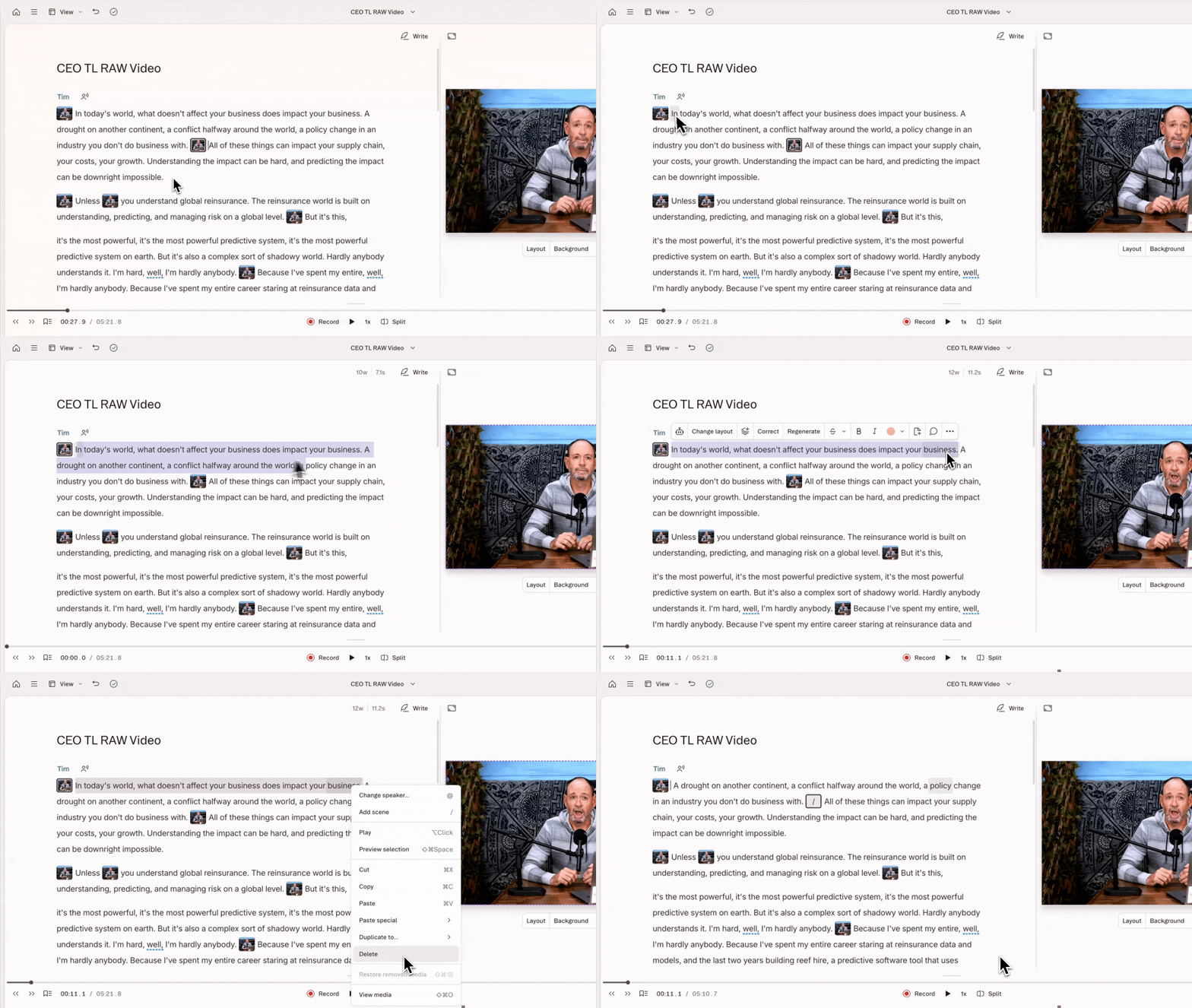
Descript’s script-editing demonstration shows how selecting and deleting transcript text removes the corresponding media. Source: Descript.
In invideo Editor, you can brief an agent on the audience, the story and what should stay. For this interview, you could ask the agent to build the episode around the founder’s biggest mistake: open with the admission, bring together the answers that explain what happened and how they recovered, remove repeated points, and preserve the pauses and reactions that give the story weight. The resulting clips remain on an editable timeline, where you can choose a different take, hold a reaction or adjust the gap between two answers.
That manual control is part of the creative process. You can shape the rhythm yourself, use the built-in agent for assistance, or direct ordinary edits through ChatGPT or Claude via MCP for free. The agentic-editing guidance covers first cuts, take selection and follow-up revisions; our multicam podcast workflow explains how those tasks fit together.

Illustration: story markers identify distinct passages in a separate conservation podcast example. The timings are illustrative.
Verdict: Invideo is a strong fit for building an interview around a story, with agent assistance to select and arrange the material and full timeline controls to refine its rhythm. Descript is convenient when you prefer shaping the episode through its transcript, but readable answers still need smooth visual and audio joins.
Shaping the multi-camera edit
A good multicamera edit follows the conversation, holds useful reactions and avoids distracting switches. Here’s how both tools build the first camera cut and let you refine which angle appears when:
In Descript, automatic multicam works with multitrack sequences and can build active-speaker layouts. You can select an active-speaker-only approach or allow cutaways and multi-speaker compositions. Cutaways can be occasional, frequent or disabled, giving recurring shows a repeatable starting style.
Run that automatic pass before detailed scene styling: applying Automatic Multicam again replaces existing scenes. Individual revisions are still possible afterward. You can adjust scenes manually or give Underlord a specific scene, layer or time range to work on, rather than rerunning the full camera treatment.
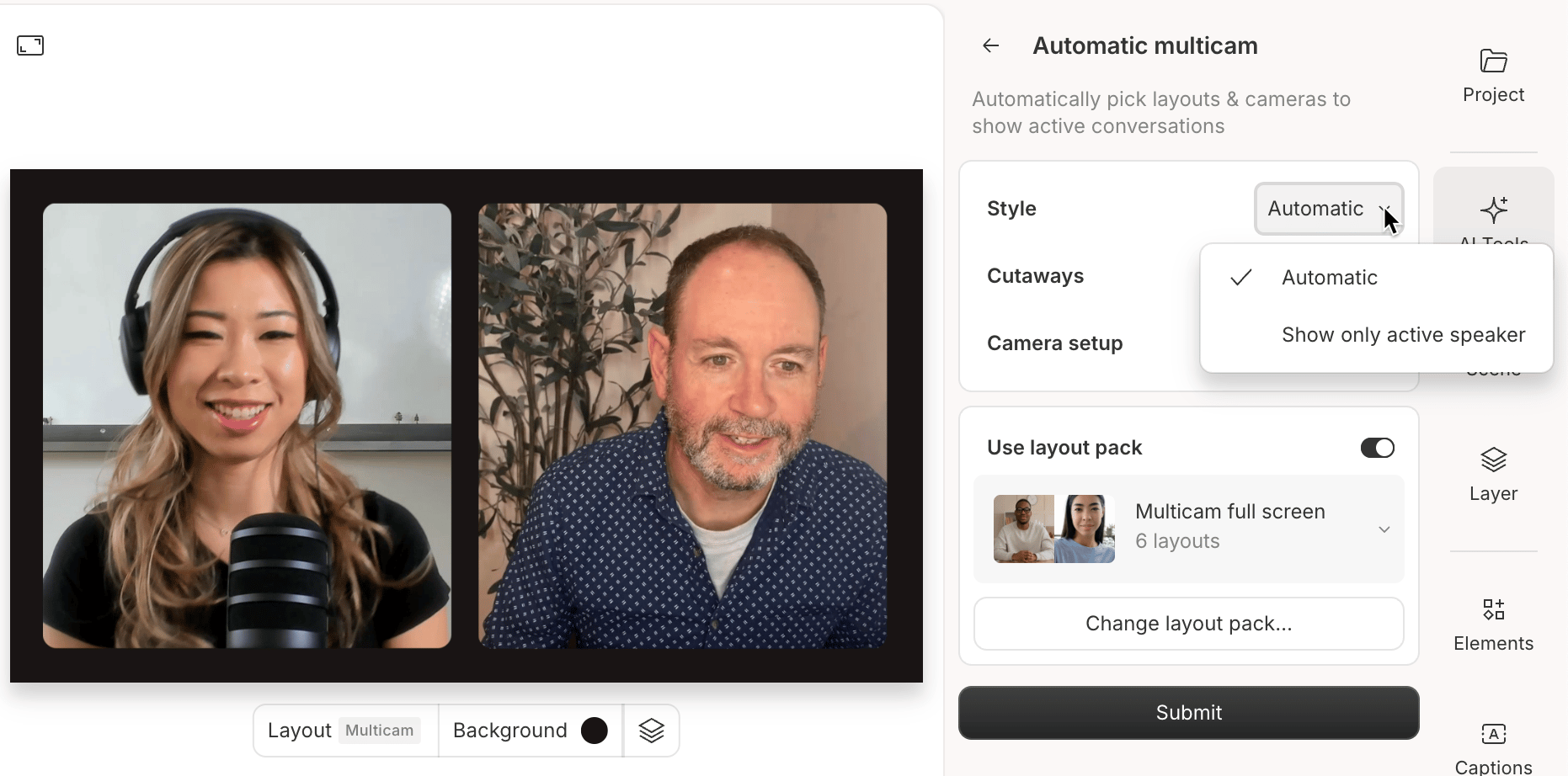
Official Descript help image showing automatic multicam style options. Source: Descript.
In invideo Editor, you can ask the agent to sync the camera and microphone recordings, then describe how the camera cut should follow the conversation. For this interview: “Stay on the guest while they explain their mistake. Don’t switch to the host for brief acknowledgements. Show the host’s reaction when the guest reveals what happened, and use the wide shot when they both laugh.”
The agent builds an editable camera cut from those instructions. You can then request precise changes, such as holding the guest’s close-up through the end of an answer or moving a reaction shot while keeping the dialogue unchanged. Full timeline controls let you adjust the shots and cut points yourself.

In this separate podcast example, Loco AI’s built-in-agent demonstration at 02:50 shows camera cuts assembled above a continuous master audio track.
A separate captured result appears in John The Video Guy’s podcast walkthrough at 4:53: two individual speaker views and a combined grid view are arranged into a camera-cut timeline above the audio tracks. The visible agent note warns that some switches may land early or late. This demonstrates an editable multi-view podcast cut; it is not a verified three-camera location recording or a completed sync-accuracy test.
Verdict: Invideo is a strong fit for shaping camera cuts around complete answers and reactions through instructions and timeline controls. Descript is convenient for automatic speaker layouts and cutaways, but rerunning Automatic Multicam replaces existing scenes and may undo earlier scene adjustments.
Cleaning dialogue and mixing sound
A separately recorded host and guest may need different treatment. You also want the intro music to make room for speech, rise during the opening pause and disappear before the interview settles in. Here’s how both tools handle voice cleanup and give you control over the mix:
In Descript, Studio Sound provides speech enhancement, while manual effects include parametric EQ, compression and limiting. Volume automation lets you shape changes over time. You can combine speech enhancement with adjustments to tone, dynamics and timing.
Its automatic ducking is based on a clip’s presence rather than speech detection. If the dialogue clip continues through a pause, the music can stay lowered through that pause too. Manual keyframes let you create the rise you intended.
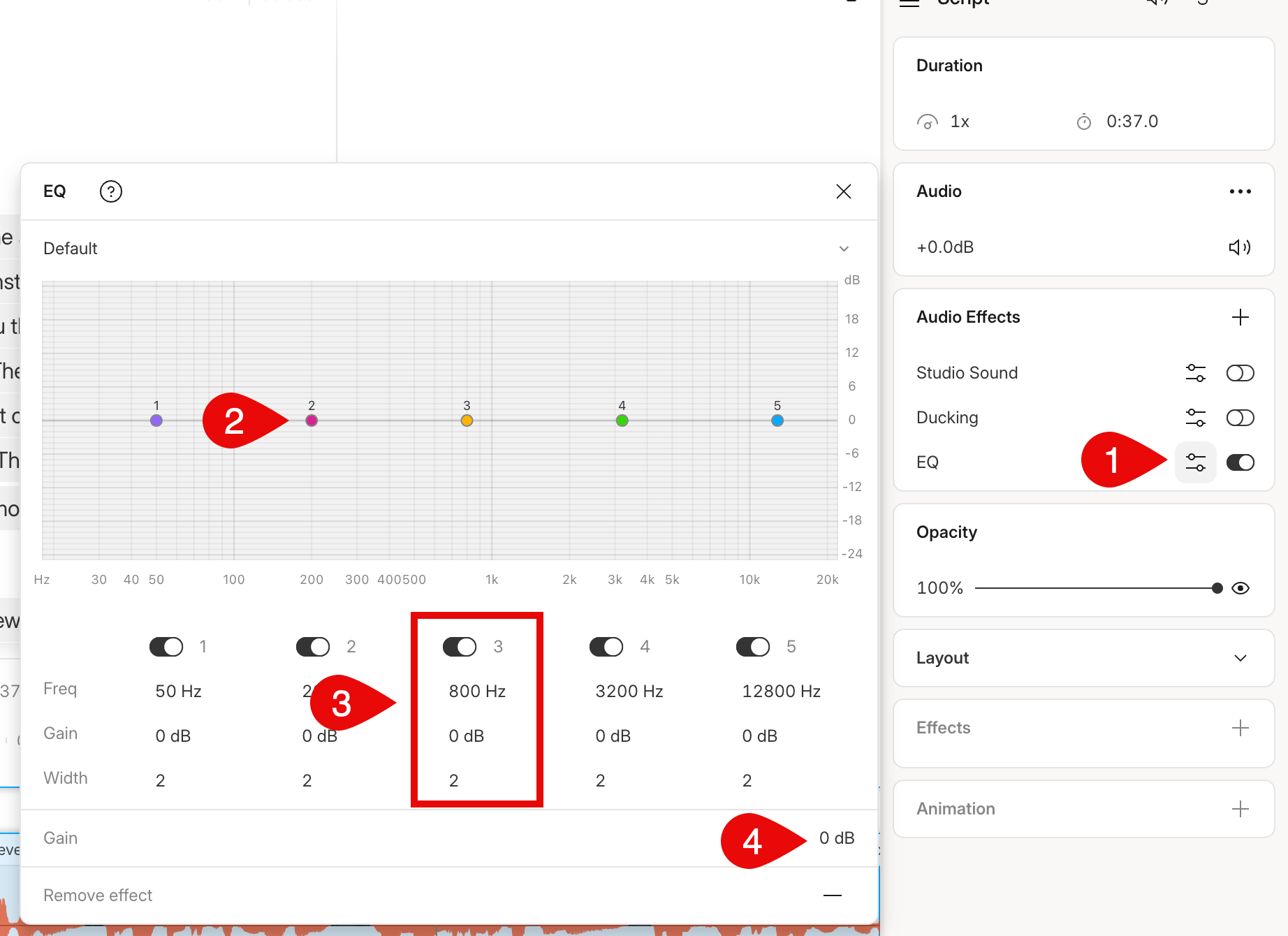
Descript’s parametric EQ controls, with frequency, gain and width settings for individual bands. Source: Descript.
In invideo Editor, the audio suite brings EQ, de-essing, click removal and compression together with volume and pan automation, buses and sends. For this interview, you could soften harsh sibilants on the guest’s mic, balance it against the host and shape the music envelope through the opening pause. You can request an initial mix from the agent, then adjust the treatment and timing yourself in the same project. Listen across the edited answers and music changes before settling on the mix.

Illustration of invideo’s layered sound workflow in a separate example project: dialogue, music and effects stay on separate tracks, with volume shaping and mixer faders.
Verdict: Choose invideo when you want to alternate between directing sound edits through free ordinary MCP and shaping the mix yourself. Both editors provide manual controls for voices and music.
Revising the episode and cutdown
After review, you may need to restore an explanation in the full episode and tighten the opening and ending of a separate cutdown. Here’s how both tools handle those revisions using your existing footage:
In Descript, MCP lets a compatible assistant find a project and ask Underlord to edit a chosen composition. Create the cutdown as a separate composition first, or select it if it already exists. Identify the episode or cutdown, describe the change, then review it in Descript. Importing media uses media minutes; Underlord’s reasoning and editing tools use AI credits. The cost varies with the request.
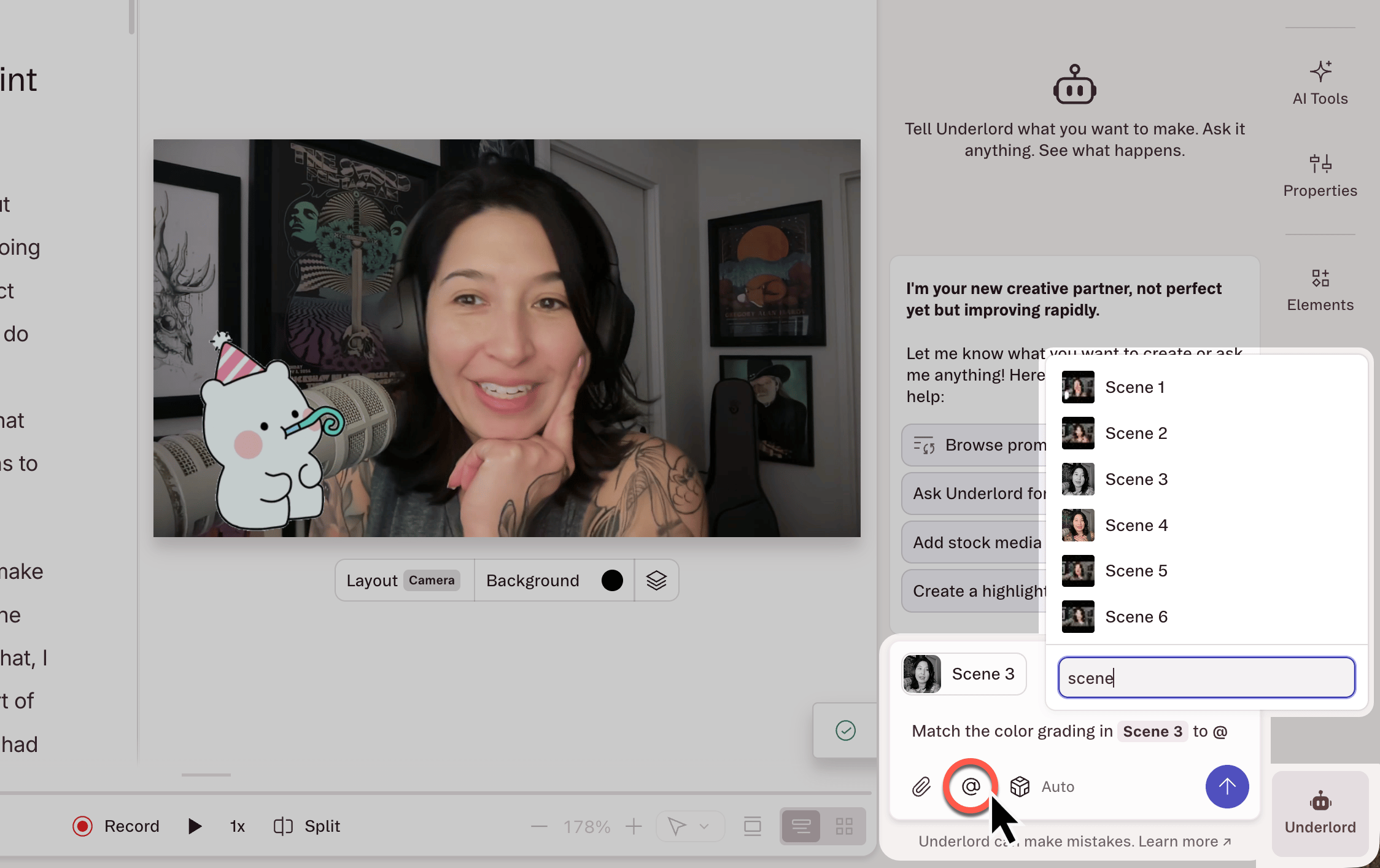
Descript’s scene selector adds specific context to an Underlord request. This interface image illustrates scoped instructions, not an external MCP session. Source: Descript.
In invideo Editor, the free MCP connection lets you request ordinary edits through ChatGPT or Claude without an additional invideo editing charge, within your assistant’s subscription and usage limits. On the full interview timeline, ask to restore the guest’s explanation before the closing advice while preserving the opening and music. Then create or select a separate cutdown timeline and ask for a tighter setup, the practical lesson upfront and an ending on the guest’s advice. Review each version and refine it through further instructions or manual controls.
Manual and ordinary MCP editing are free. The built-in invideo agent and image, video or audio generation use credits, including generation requested through MCP.

Illustration: a full episode and three promos remain separately named timelines in a fictional podcast project.
Verdict: Invideo has the advantage for repeated ordinary MCP revisions: those edits add no invideo editing charge. Descript supports the same feedback loop, but Underlord work draws on its AI-credit allowance.
Exporting finished videos and editable projects
Once the episode and cutdown are ready, you need to export them for publishing or hand over an editable project for further work. Here’s how both tools compare on export quality, paid-plan requirements and project handoffs:
In Descript, the paid Hobbyist plan includes watermark-free 1080p exports at $24 per person monthly, or $16 per month billed annually ($192 a year). The paid Creator plan adds 4K exports at $35 per person monthly, or $24 per month billed annually ($288 a year). The Free plan exports at 720p with a watermark. Prices checked on 21 October 2026.
The Hobbyist plan includes 10 media hours and 400 AI credits monthly; the Creator plan includes 30 hours and 800 credits. Budget the media allowance around source imports, not the finished running time. AI usage depends on the work requested.
Timeline exports require the Creator plan or above. Descript’s standard XML routes omit audio effects, audio keyframes and video effects; Studio Sound is an exception, with source and enhanced audio balanced to reflect its intensity. A beta native Premiere route supports multicam but is not available to every account and excludes transforms such as position, scale and crop. Check the chosen route before finishing work you expect to transfer.
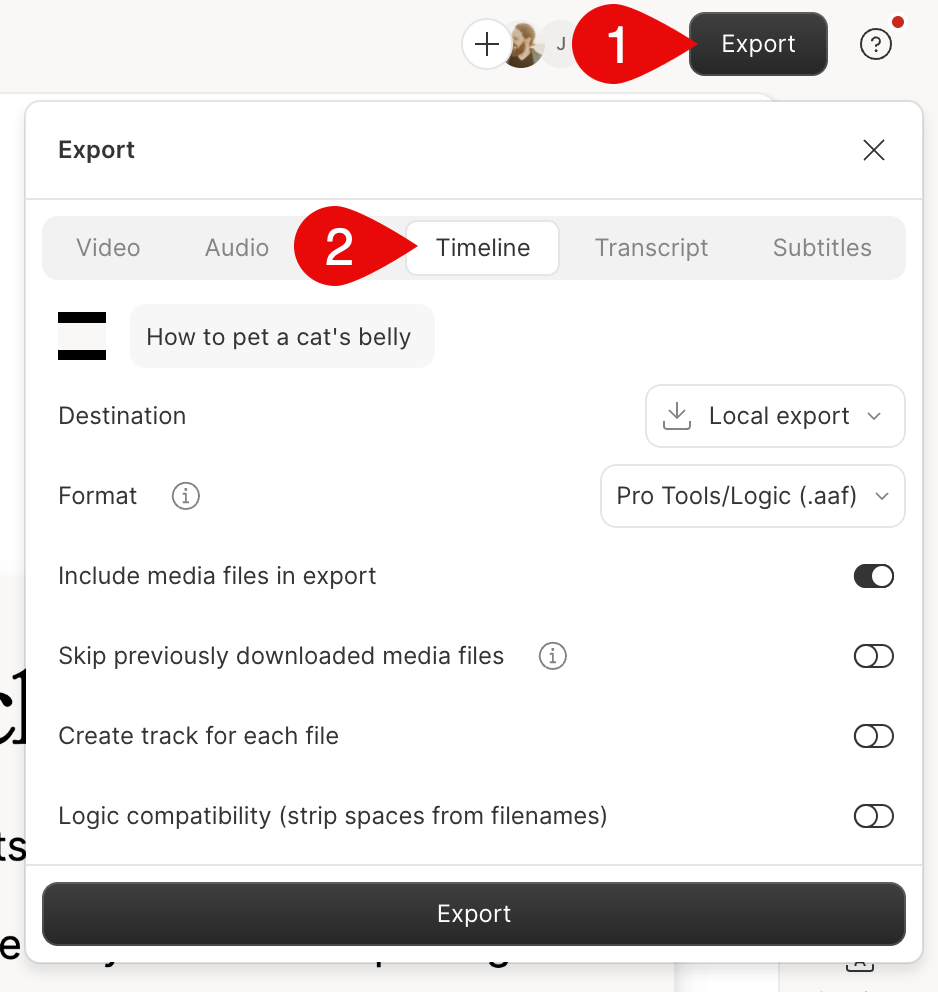
Descript’s Timeline export panel, shown here with the Pro Tools/Logic AAF format selected. Source: Descript.
In invideo Editor, manual editing and watermark-free video exports are free, so you can finish and deliver the episode and cutdown without buying an editing plan. Its editable-project options include FCP 7 XML for supported Premiere Pro/Final Cut workflows and OTIO for DaVinci Resolve. Check the receiving application and the elements that need to survive; an available format does not guarantee matching treatments.

John’s demonstration at 05:30 shows invideo’s video, audio-only, still-frame and editable-project delivery choices.
Verdict: Invideo wins when you want to finish and export the episode and cutdown without buying an editing plan. Descript can deliver them too, but resolution and project handoff determine the paid tier. Treat editable transfer as a separate check in either workflow.
Which should you choose?
Go with invideo Editor if you want to build the interview around your instructions, shape camera cuts around the conversation and finish the sound in a professional editing suite. Agent assistance and full manual controls let you develop the edit, while free ordinary MCP editing and watermark-free exports make repeated revisions and delivery accessible.
Go with Descript if editing the transcript is your preferred way to assemble the episode and you want automatic speaker layouts alongside Underlord and manual controls. Review the joins after transcript edits, remember that rerunning Automatic Multicam replaces existing scenes, and choose a paid plan that covers your export needs.
Frequently asked questions
Can I edit a podcast through ChatGPT or Claude?
Both editors support editing through compatible assistants via MCP. Invideo’s ordinary MCP edits add no invideo editing charge, while Descript’s Underlord work uses AI credits. Your external assistant’s subscription and usage limits still apply.
Is all AI editing free in invideo Editor?
No. Manual editing and ordinary MCP editing are free. The built-in invideo agent and image, video or audio generation use credits, including generation requested through MCP.
Can I change individual camera cuts after the automatic edit?
Yes. Both editors support individual revisions through manual controls or AI assistance. In Descript, distinguish those targeted changes from rerunning Automatic Multicam, which replaces existing scenes.
Can I move the edited podcast into another video editor?
Both offer editable-project exports. Invideo supports FCP 7 XML for supported Premiere Pro/Final Cut workflows and OTIO for DaVinci Resolve. Descript requires the paid Creator plan or above for timeline exports. Transfer support varies by format, and some effects or adjustments may not carry over.