How do you turn phone footage into a cinematic AI-generated video using Agent One?
Last updated August 10, 2026
You turn phone footage into a cinematic AI video by using the clip as a camera-motion driver: record the move on your phone, upload it to the invideo agent, prompt the scene you actually want, and the invideo agent extracts the motion and passes it to Seedance 2.0 to render — a four-step workflow: record, upload, prompt, render.
Your phone clip is not the final content — it is purely a motion reference that gets discarded once the invideo agent has extracted the camera move and applied it to a completely different AI-generated scene. invideo is an agentic video creation tool with the current generation models available inside it, so the whole pipeline runs in one place. The workflow takes four steps and zero professional equipment — no gimbal, drone, or cinema rig, just a smartphone.
Step 1 — Record the camera move on your phone. Frame the shot the way you want it, hit record, and physically move the camera exactly the way you want the final shot to move. Any move you can execute with your body transfers: a dolly-in, a simple pan, a compound push-in-and-swirl — three distinct move types have been demonstrated converting into cinematically generated scenes with matching motion. What you point the phone at doesn't matter; in one documented example, a toy figure filmed on a table transferred a dolly-in motion onto a cinematic shot of a person riding a horse through a desert.
Step 2 — Align your phone framing with the first frame of your target shot. Before recording, match the framing of your phone clip to the first frame of the AI shot you're generating (or have already generated). This is the single biggest quality lever in the workflow: the closer the alignment, the better the motion transfer — and skipping it measurably degrades the final output.
Step 3 — Upload the clip to the invideo agent and prompt the scene. The invideo agent acts as the orchestration layer: it reads your uploaded video as the driver for the camera move, extracts the motion data, and pairs it with the scene you describe in your prompt — the setting, subject, and look you want, in your film's aspect ratio.
Step 4 — Let the invideo agent route it to Seedance 2.0 and render. The invideo agent uploads the motion data to Seedance 2.0, which generates the final cinematic shot with your exact camera move baked in. No further prompt engineering for motion is needed.
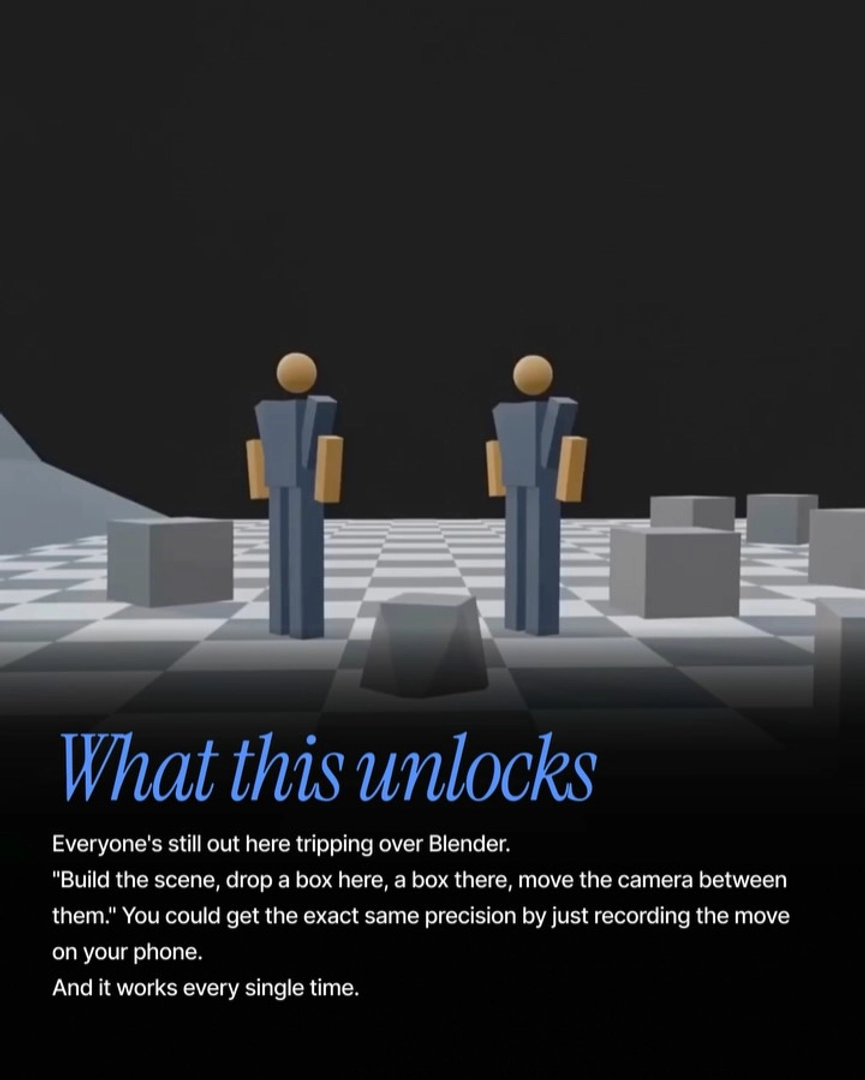
The cost comparison against prompt-only motion control is the reason this workflow exists. One creator spent 50+ generations, hundreds of credits, and over an hour of referencing and re-referencing trying to prompt a single complex camera move — and a single phone-recorded reference clip delivered it in one pass. The same logic applies against 3D-software camera rigs: building proxy scenes and animating camera paths in Blender achieves no more precision than recording the move on your phone, and the phone method also removes the need to hunt for matching reference clips online — if you can perform the move, you have the reference.
Watch some of these to see what works for you:
Match your phone frame to the first frame you've generated. The closer it lines up, the better the output.
— invideo's creative team