Best AI Tools for Finding, Creating and Adding B-Roll to videos
November 23, 2026

Invideo Editor is the best overall choice for adding B-roll to an existing edit: it can find uploaded or stock footage or generate new visuals based on spoken passages, with dialogue-led placement and detailed manual controls on the same editable timeline. Manual editing, ordinary ChatGPT or Claude MCP editing and exports are free. Other alternatives include Descript, Kapwing, VEED, Submagic and Gling.
Your presenter edit, tutorial or interview already has a clear explanation. What it needs now is a close-up that shows the action, a screen recording that makes a feature understandable, or a supporting visual over a cut. Finding a related image is only the beginning: it has to enter on the right words, stay long enough to help and leave the original dialogue and edit intact.
We compared six AI tools for this visual pass: invideo Editor, Descript, Kapwing, VEED, Submagic and Gling. The comparison follows finding or creating footage, placing it against the explanation, refining each insert, and continuing or delivering the edit.
Searching your uploads finds something you recorded. Stock brings in existing material from a library. Generation creates a new illustration or shot. Those sources serve different needs, especially when a video must show a real product, action or result.
Best AI tools for adding B-roll at a glance
Tool | Finding or creating footage | Matching B-roll to the edit | Refining and revising | Exports |
|---|---|---|---|---|
invideo Editor | Its built-in editing agent identifies moments to add B-roll, finds actions in uploaded footage, sources stock or generates the visuals required for the edit. | The agent or a connected ChatGPT or Claude assistant can match B-roll to spoken passages in the edit and place it on separate tracks above the main video on the timeline. | The same project stays editable through revisions, with control over source ranges, timing, framing, color, keyframes and text layers. | Watermark-free video exports and editable-project exports with media are free, with supported workflows for Premiere Pro, Final Cut Pro and DaVinci Resolve. |
Descript | Descript's AI assistant can find relevant shots in uploaded footage, source stock or generate new visuals for B-roll, but lower-tier plans limit the number of stock results you can use per search. | The assistant can time each B-roll clip to the spoken passage it supports and place it on a separate timeline layer above the main recording. | Layer timing, transforms and animation remain editable, but AI-assisted placement changes and repeated regenerations use AI credits, so multiple revision passes can get expensive. | Editable timeline export requires the Creator plan or above. XML handoffs are available but might omit some still images, animation and audio effects. |
Kapwing | Smart B-roll finds stock footage to illustrate the narration, but AI generation and assistant edits use workspace credits. | Kapwing's AI assistant can place supplied B-roll on separate timeline tracks over relevant narration, retaining the main recording. | B-roll stays editable with timeline trims, replacements and crop controls, while assistant revisions use workspace credits. | The free plan exports watermarked 720p videos up to four minutes; longer, clean delivery requires paid access. |
VEED | VEED's Magic B-roll transcribes narration to generate relevant images and video clips, with stock search and uploads available for replacements. | Magic B-roll places inserts on a separate timeline track at relevant points in the narration. | Individual inserts can be replaced, regenerated or adjusted, but Regenerate All replaces the set and the free and Lite plans only allow one automatic pass. | The browser editor's free plan exports watermarked 720p MP4s, with up to 4K on paid plans. |
Submagic | Magic B-roll supplies supporting visuals, with stock or uploaded alternatives, but automatic and premium inserts add credit costs. | Submagic places B-roll over spoken passages, with start/end controls for timing. | Manual replacements, transitions and timing changes are free, but Iris, its AI editor, uses credits for edits and chat beyond its included allowance. | Exporting uses no credits, but quality ranges from 1080p/30 fps to 4K/60 fps by plan. |
Gling | Stock search and uploads supply B-roll, but AI generation and automatic placement vary by plan and account. | Gling places B-roll at selected transcript words on the timeline, covering the main video while keeping the original dialogue. | B-roll clips can be moved, trimmed or replaced, but detailed grading and complex titles require another editor. | Free exports are watermarked; editable project exports require the desktop app and an eligible paid plan. |
1. invideo Editor: Best overall for adding and refining B-roll

In invideo Editor, the B-roll pass can develop inside the project you are already editing. Its built-in agent, or connected ChatGPT or Claude, can inspect the current timeline, find the passages that need visual support and place separate clips around them. Full manual control remains available on the same professional, frame-accurate multitrack timeline.
The source choices cover different gaps. Visual and speech search can locate a useful action or explanation in uploaded recordings, including the relevant range within a longer clip. Stock sourcing brings in general supporting footage. Image and video generation can create missing visuals, with the new assets available for placement and later trimming in the project. The ChatGPT B-roll guide develops these three routes.
B-roll sits on a separate timeline track above the main video while the original dialogue continues. The insert's source audio can be muted or balanced separately when it adds useful sound. In Marcus AI Tool Hunt's sponsored demonstration at 04:11, two short B-roll clips are visible above the talking-head track and its separate waveform.
You can also adjust each B-roll clip’s timing, framing and movement. The assistant can change the selected source range, move the insert to another spoken passage or extend its hold, while keeping approved sections in place. Manual trims let you choose the exact entrance and exit. Crop and transform controls keep the important detail in view; editable keyframes add a deliberate move; color controls help the insert fit the surrounding shots. Separate captions and callouts can be repositioned over the new picture.
Editable layers also make later changes practical. A generated image or video remains a clip you can move, trim, replace and reframe. Objects or words baked into that image do not become individual elements. A separately created text label, however, can be changed without generating the picture again. ChatGPT and Claude read the updated timeline before continuing, so manual adjustments become part of the ongoing edit. The Claude B-roll workflow explains that continuity.
Manual editing, ordinary editing through ChatGPT or Claude via MCP, and watermark-free video or editable-project exports are free. Your external assistant's subscription and allowance apply separately. Built-in-agent work and generated media use invideo credits; paid stock also has its own credit cost. The finished timeline can stay in invideo or move with its media into a supported Premiere Pro, Final Cut Pro or DaVinci Resolve workflow.
Invideo is the strongest overall choice because footage discovery, new supporting media, dialogue-led placement and detailed picture, movement and audio refinement all belong to the same editable project. Free ordinary editing through ChatGPT or Claude supports repeated revisions, with full manual control over the final visual pass.
2. Descript: For choosing B-roll around an editable transcript
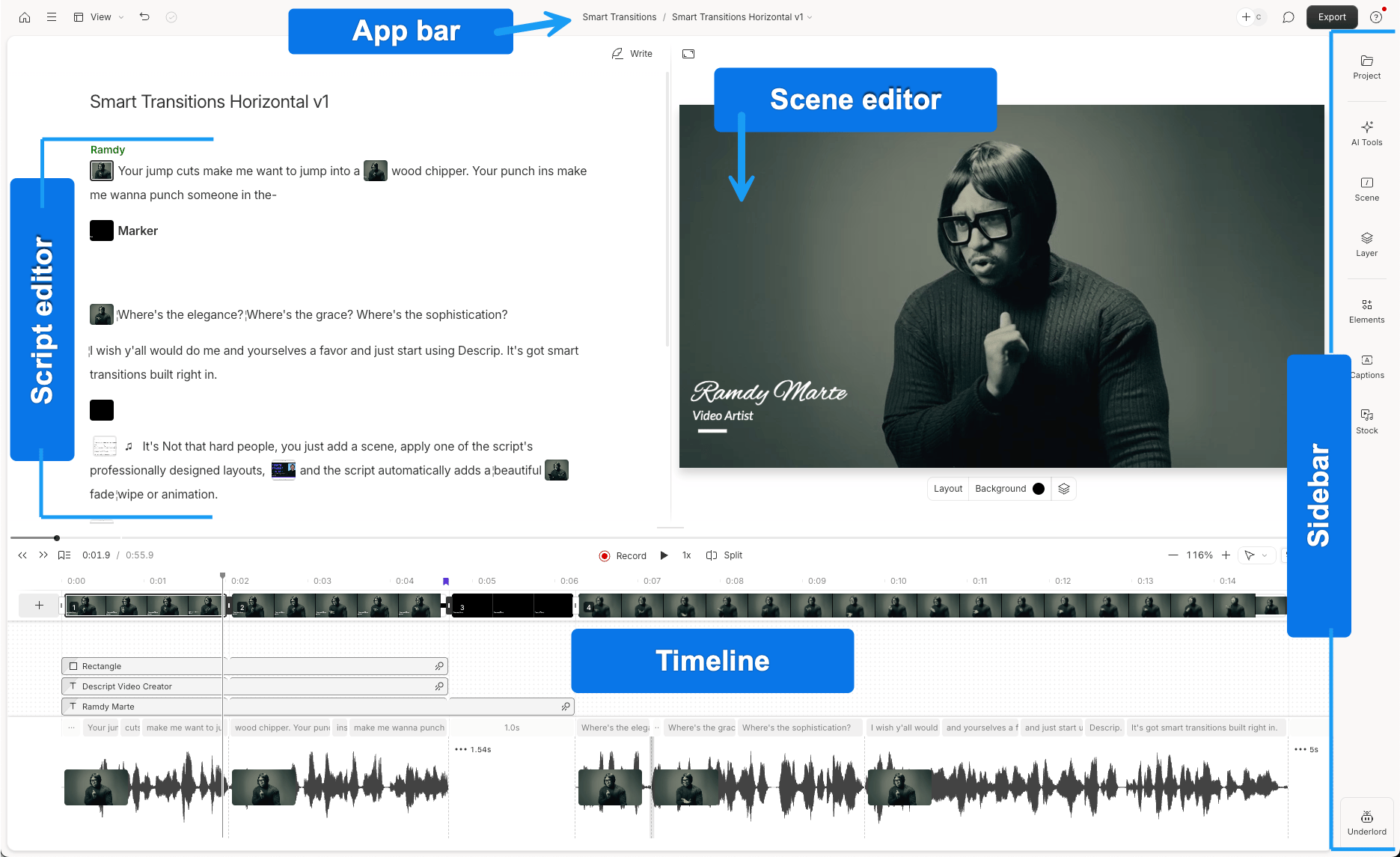
Descript suits an existing spoken edit when the transcript is the easiest way to identify where a visual belongs. Its scene editor and timeline keep images, footage, titles and captions available as layers around the recorded explanation. Layer timing, position, scale and animation let the visual pass develop without requiring every change to be a transcript cut.
Underlord, its AI co-editor, can find visible actions in uploaded media and select appropriate B-roll around the script. It also searches the built-in stock library and generates images or video. That gives it useful choices when the right insert is already in a project file, available as stock or needs to be created.
The allowances affect how broadly you can search and revise. The free plan makes the first five stock search results usable, the Hobbyist plan the first twelve, and the Creator plan removes that result limit. Imported recordings draw on the media allowance, while Underlord requests and generated assets draw on AI credits. Repeated assisted visual passes therefore use a separate allowance from the source footage itself.
For delivery, the free plan produces watermarked 720p video. The Hobbyist plan includes watermark-free 1080p; the Creator plan adds 4K. Editable timeline export requires the Creator plan or above, and XML omits still images, animation and audio effects. Image-based B-roll needs to be re-added, and an insert's finishing treatment may need rebuilding after XML handoff. The invideo versus Descript podcast comparison explores the related choice between text-led editing and detailed finishing.
Descript fits editors who want spoken passages to organize the B-roll pass, with visual search, stock and generation in the same workspace. It is especially useful when the video can be finished there and the media and AI allowances cover the work.
3. Kapwing: For agent-assisted B-roll on a browser timeline
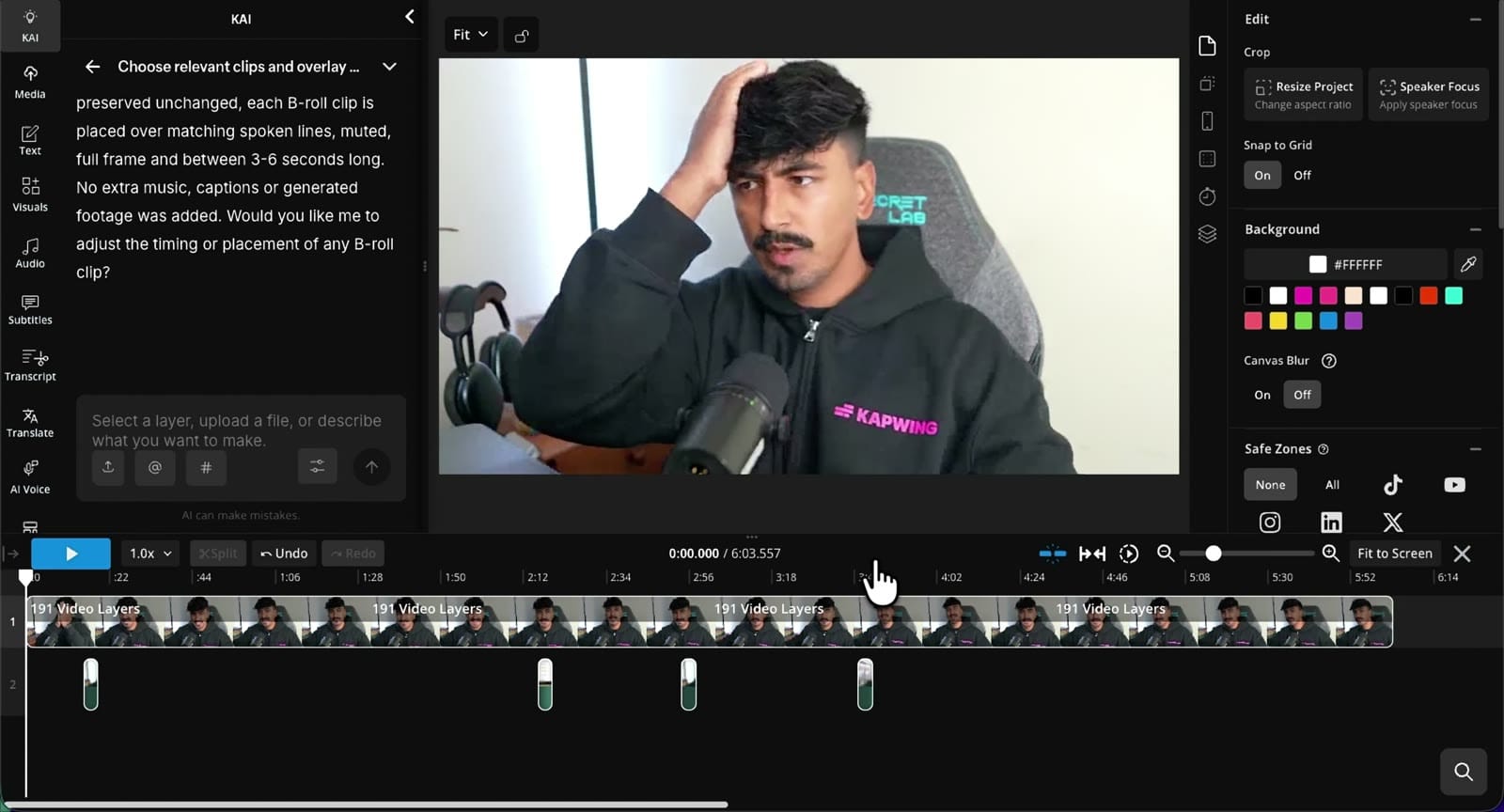
Kapwing offers both a focused automatic tool and a conversational editor for this job. Smart B-roll selects stock footage around a transcript. Kai, its AI assistant, can work with a main recording and supplied supporting clips, or generate additional visuals when a passage needs new material.
Kai can place uploaded B-roll over relevant spoken passages on separate tracks, keeping the main recording and its voice underneath. The project remains available for manual review. Timeline trims, clip replacement and crop or layout controls let you adjust the timing and framing after the automatic placement. Follow-up instructions can target another placement or a different visual.
Kapwing also has an MCP connection for ChatGPT, Claude and other agents. External-assistant access uses the existing Kapwing account and workspace credits, so it does not make Kai editing or generation free. Repeated agent-led placements and newly generated shots draw on that balance. Direct timeline adjustments remain another way to refine the result. The invideo versus Kapwing creative-control comparison looks more closely at animation, picture and sound controls.
The free plan exports watermarked 720p videos up to four minutes long. The Pro plan removes the watermark and supports 4K exports up to two hours, with 1,000 credits per month. A longer existing tutorial therefore needs paid delivery access even if its B-roll pass only changes a few short passages.
Kapwing suits editors who want conversational B-roll selection alongside a shared browser timeline. Supplied clips, stock, generation and external agents are all useful options, with credit use and the export plan determining the ongoing cost.
4. VEED: For speech-led inserts with individual replacement controls

In VEED's browser editor, Magic B-roll analyzes the words in a recording and adds supporting visuals on a new timeline track. It is useful when an existing spoken video needs a first set of inserts while retaining an editor surface for individual changes.
Each item can be replaced with uploaded media or stock, regenerated, or adjusted with opacity and other picture settings. Those controls make it possible to keep a useful placement while choosing a more appropriate visual. Regenerating the entire set removes the current B-roll, so a new full pass replaces selections you may already have refined. This automatic feature requires speech; a silent montage needs another placement method.
Magic B-roll is available once on the free and Lite plans, with unlimited usage on the Pro plan. That browser feature's access rules matter for recurring visual passes, rather than just trying one video.
VEED also offers VEED AI, its newer prompt-driven agent for short-form social video. It accepts uploaded media, uses generated content to fill gaps and takes follow-up revision prompts. Its free plan offers watermark-free exports. This is a separate route from browser Magic B-roll: follow-up prompts revise the social video, while the browser workflow above provides individual B-roll item controls for a selective visual pass.
VEED suits editors who want automatic visual suggestions around speech, followed by individual replacement and picture adjustments in the browser. The Pro plan matters for repeat Magic B-roll use; VEED AI offers a separate option for prompt-led social edits.
5. Submagic: For adding B-roll to short social videos

Submagic puts B-roll beside the other visual treatments commonly added to short presenter videos. Magic B-roll supplies an automatic pass, while library search and uploaded media provide alternatives for individual passages. Its B-roll controls include replacement, transition choices and explicit start and end times, entered as values or adjusted with sliders.
Those timing controls matter when an insert should cover only part of a sentence. A different shot can take the same role over the uploaded video, and a shorter range can return the viewer to the speaker sooner. Iris, Submagic's conversational editor, also includes B-roll alongside cuts, captions, zooms, music and motion graphics in a broader assisted edit.
The standard upload route costs three credits, automatic B-roll adds two, and premium Kling B-roll adds three. Iris costs twenty credits per edit, including the first twenty chat messages; each further block of twenty messages costs twenty credits. Manual changes in the Captions, Elements, Style and Editing Style tabs are free, and exporting itself is free. Automatic requests and manual refinements therefore have different costs.
Video duration is a more consequential choice for a complete existing edit. Iris accepts videos up to three minutes and rejects longer footage. In the standard editor, the Starter plan supports two-minute edited videos at 1080p/30 fps, the Pro plan five minutes at 2K/30 fps, and the Business plan thirty minutes at 4K/60 fps. The Pro plan adds Storyblocks B-roll and audio. A longer tutorial may fit the standard editor's Business plan, even if only a few inserts are wanted; its thirty-minute allowance does not extend Iris's input limit. The separate long-source clipping allowance is not the same as editing that full video.
Submagic fits short social videos that need B-roll together with captions and visual emphasis. Its explicit timing controls support selective refinements, while the video-length tier and chosen automatic or Iris route determine the useful budget.
6. Gling: For supporting visuals around a presenter edit

Gling is useful when a presenter video already has a workable explanation and needs supporting shots around it. Transcript word selections identify a passage for a B-roll image or video. Stock search, uploaded files and available AI generation options supply the visual, which appears over the main recording.
Each overlay can be replaced, moved along the timeline or trimmed at either edge. That gives you control over when the insert begins and how long the viewer sees it, without replacing the spoken recording. Generation and automatic placement differ by plan or account rollout, so the available AI pass can vary; the individual placement controls remain useful for refinement.
Gling can also add captions, prepared image overlays and speech enhancement. But detailed grading, complex titles and dedicated music or sound-effects work belong in another editor. If the new B-roll needs a more elaborate picture treatment or soundtrack, the job extends into a finishing application.
The free plan includes one hour of AI-edited media monthly and watermarked video exports. The Plus plan includes ten hours and watermark-free output. Editable exports to Premiere Pro, Final Cut Pro or DaVinci Resolve require the desktop app and an eligible paid plan. That delivery route matters when a straightforward visual pass grows into detailed finishing.
Gling suits a speech-led presenter edit that needs selective supporting visuals, captions and manageable timing changes. It is a useful focused option when its source allowance fits the recording and any further finishing can move to a desktop editor.
Frequently asked questions
Which AI editors can find B-roll in footage I've already uploaded?
Invideo Editor can search uploaded footage for a described action or spoken passage and select the relevant part for B-roll. Descript also supports finding shots in uploaded media.
Can an AI editor generate B-roll when I don't have the right footage?
Yes. Invideo Editor can generate images or video from a description and add them to your existing project as B-roll. The generated assets stay as separate timeline clips, and generation uses invideo credits.
Can AI match B-roll to narration without changing my main edit?
Yes. Invideo Editor's agent, or ChatGPT or Claude connected via MCP, can place B-roll over selected spoken passages on separate timeline tracks while keeping the main video and dialogue underneath.
Can I edit B-roll clips after AI adds them to the timeline?
Yes. Invideo Editor lets you trim, move, replace and reframe each B-roll clip, adjust its movement, or ask the assistant to revise a specific insert. Kapwing also keeps AI-edited projects available for manual timeline changes.