Invideo Editor vs Kapwing: Which Gives You More Creative Control?
October 22, 2026

Invideo Editor and Kapwing both combine AI assistance with hands-on video editing. The differences matter as your creative brief becomes more complex: coordinating animation across layers, shaping motion curves, building reference-inspired effects with adjustable controls, making selective color corrections and mixing a layered soundtrack. This comparison examines those controls, what each workflow leaves editable and how editing and export costs differ.
Complex video edits bring several creative decisions together: how layers move in relation to one another, how a custom effect develops over a shot, which colors need correction and how the soundtrack supports the action. AI can help build that work, but the controls available afterward determine how precisely you can develop and refine it.
Invideo Editor and Kapwing both combine AI assistance with editable timelines. Both support layers and custom keyframes. This comparison looks at what happens as an edit becomes more ambitious: coordinated animation, reference-inspired effects, selective color correction and detailed sound. The useful question is which controls remain available when you want to refine the result.
Quick verdict: Invideo Editor is the stronger fit for precise motion, editable custom effects, selective color correction and detailed audio mixing. Kapwing is a viable option for layered edits, custom keyframes and automated cleanup, but its documented keyframe controls do not include editable motion curves. Its AI Motion Graphics route also returns an MP4, so the generated animation cannot be refined through separate effect parameters. These limits leave less room to shape a complex edit after the first pass.
Invideo Editor vs Kapwing at a glance
Invideo Editor combines a built-in AI agent with a professional, frame-accurate multitrack editing suite. You can direct the work through chat or build and refine it manually. Kapwing combines its Studio editor with Kai, a native assistant that can revise projects, organize scenes and generate media.
Editing task | Invideo Editor | Kapwing |
|---|---|---|
Animation | Supports manual and AI-assisted animation across multiple layers, with independent property keyframes, Bézier curves and a graph editor for precise control over timing and acceleration. | Offers custom position, zoom and adjustment keyframes for layered animation, but its documented controls do not include editable motion curves for shaping acceleration between keyframes. |
Refining a custom effect | Lets you build effects manually with layers, keyframes and effect controls, or ask the agent to create a new custom effect from a description or reference video. The agent can give that effect its own controls, so you can adjust its settings manually and animate them with keyframes. | Supports layered effects and generated motion assets, but its AI Motion Graphics route returns an MP4, so the generated motion is not exposed as adjustable effect parameters. |
Targeting a color correction | Provides qualifiers and grade masks for isolating a color or region, with wheels, curves and scopes for detailed refinement. | Provides whole-shot color and lighting adjustments, but its grading controls do not include qualifiers or grade masks for correcting one hue or region independently. |
Shaping sound | Combines EQ, de-essing and compression for voice treatment with mixer controls for balancing layered sound. | Offers volume automation, leveling, fades and automated cleanup, but lacks detailed EQ for targeting specific frequencies and a bus mixer for adjusting groups of tracks together. |
Paying for revisions | Manual refinements, ordinary MCP editing and watermark-free exports are free; built-in-agent work and media generation use credits. | Includes free editing with four-minute, 720p watermarked exports. Watermark-free delivery requires a paid plan. |
Animation: controlling timing and movement
Imagine a product reveal where the shot pushes in, a title slides into place and a highlight appears over the product. After the first pass, you want the title to settle more gently while the other elements keep their timing. That revision involves both the timing of each layer and the movement between its keyframes. Here’s how the two editors handle coordinated keyframes and the shape of the movement between them.
In Kapwing, you select a layer and add position, zoom or adjustment keyframes at the points where its values should change. You can combine position and zoom, animate opacity or blur, and place other elements on separate layers. This supports custom animation rather than limiting you to preset entrances.

Kapwing Studio showing position keyframes and the layer’s position between them.
Kapwing lets you set a layer’s position at different points in time, but its documented controls do not include editable motion curves for shaping acceleration between keyframes.
In invideo Editor, keyframe controls include independent property animation, custom Bézier curves and a graph editor. You can preserve a title’s start and end positions while changing how quickly it accelerates and settles. Adjusting that curve gives you control over the character of the move, beyond placing its endpoints.

Invideo Editor’s graph editor shows how individual properties change between keyframes, with Bézier curves for shaping acceleration and settling.
You can build the coordinated reveal yourself or ask the agent to time the title, background scale and overlay together. A useful revision would be: “Keep the reveal at two seconds, but make the title ease into its final position. Leave the background zoom and highlight timing unchanged.” The resulting keyframes remain available for manual refinement.
Verdict: Invideo is the stronger fit for layered animation that needs precise timing and acceleration. Kapwing supports custom layered animation, while Invideo’s Bézier curves and graph editor give you finer control over how each movement develops.
Custom graphics and effects: creating and refining the look
You may want to recreate an effect from a reference video, then adapt it to your footage by shortening the light trails, reducing their strength or changing when they appear. The way an effect is constructed determines how you make those changes. Below we compare how each workflow creates the treatment and leaves it available for revision.
In Kapwing, custom effects can be built from separate layers, chroma key and keyframes. Its falling-through-Instagram tutorial combines generated scenes with a manually assembled scrolling composition. You can revise the layers and animation used to construct that composition.
Kapwing’s AI Motion Graphics tool turns a graphic and a movement description into an MP4 you can add to your edit. The animation is built into that clip, so you cannot adjust its internal motion through effect controls. Kai also works with editable projects; this limitation applies to the Motion Graphics tool’s generated clips.
In invideo Editor, you can describe a custom effect or graphic, optionally attach a reference, and ask the agent to build it with editable controls. You can then refine the effect’s settings or the graphic’s text, styling, placement and animation.
The practical advantage is what you can adjust afterward. In the highlight-streak example below, the panel exposes threshold, softness, trail length, taper, mix and direction, with keyframe icons beside the properties.

Capture from Noam Agassi’s invideo collaboration, around 00:34, reused from our custom-effects guide. These settings belong to this particular effect.
You could lower Mix to make the treatment subtler, shorten Trail Length, or animate a supported property over the shot. If you need another adjustment, ask the agent to add the relevant control. Raman Bauri’s separate demonstration at 10:56 shows another custom panel with streak angle, length, strength, glow, smear and overall mix controls.
For a visible output, Zenzdesign’s city-footage demonstration at 3:41 shows bright building lights stretched into trails in the monitor, beside controls for Highlight Threshold, Highlight Softness, Trail Length, Trail Taper Strength and Mix. This is a captured custom-effect result with editable parameters; it does not establish that every reference effect can be reproduced.
Verdict: Choose invideo for custom graphics and effects you can refine through editable layers, dedicated controls and keyframes, with both manual editing and agent assistance. Kapwing supports manually composed effects and generated motion graphics, but its AI Motion Graphics output is a video clip whose internal animation cannot be adjusted separately.
Color correction: targeting specific colors and areas
Suppose a product’s blue packaging looks too vivid, but the presenter’s skin and the room already look right. Lowering saturation across the entire shot changes more than you intended. You need to select the relevant color range or region before adjusting it. Here’s how the tools handle broad adjustments and targeted grading.
Kapwing provides warmth, tint, saturation, exposure, contrast, highlights, shadows, whites and blacks for balancing the whole shot. Supported adjustments can also change over time with keyframes.
Its grading controls do not include qualifiers or grade masks for correcting one hue or region independently.
In invideo Editor, the color workspace provides hue, saturation and luminance qualifiers to narrow a correction to a color range. Grade masks restrict it spatially when similar colors appear elsewhere. You can soften the selection boundary, then adjust the intended area while reviewing the surrounding image.
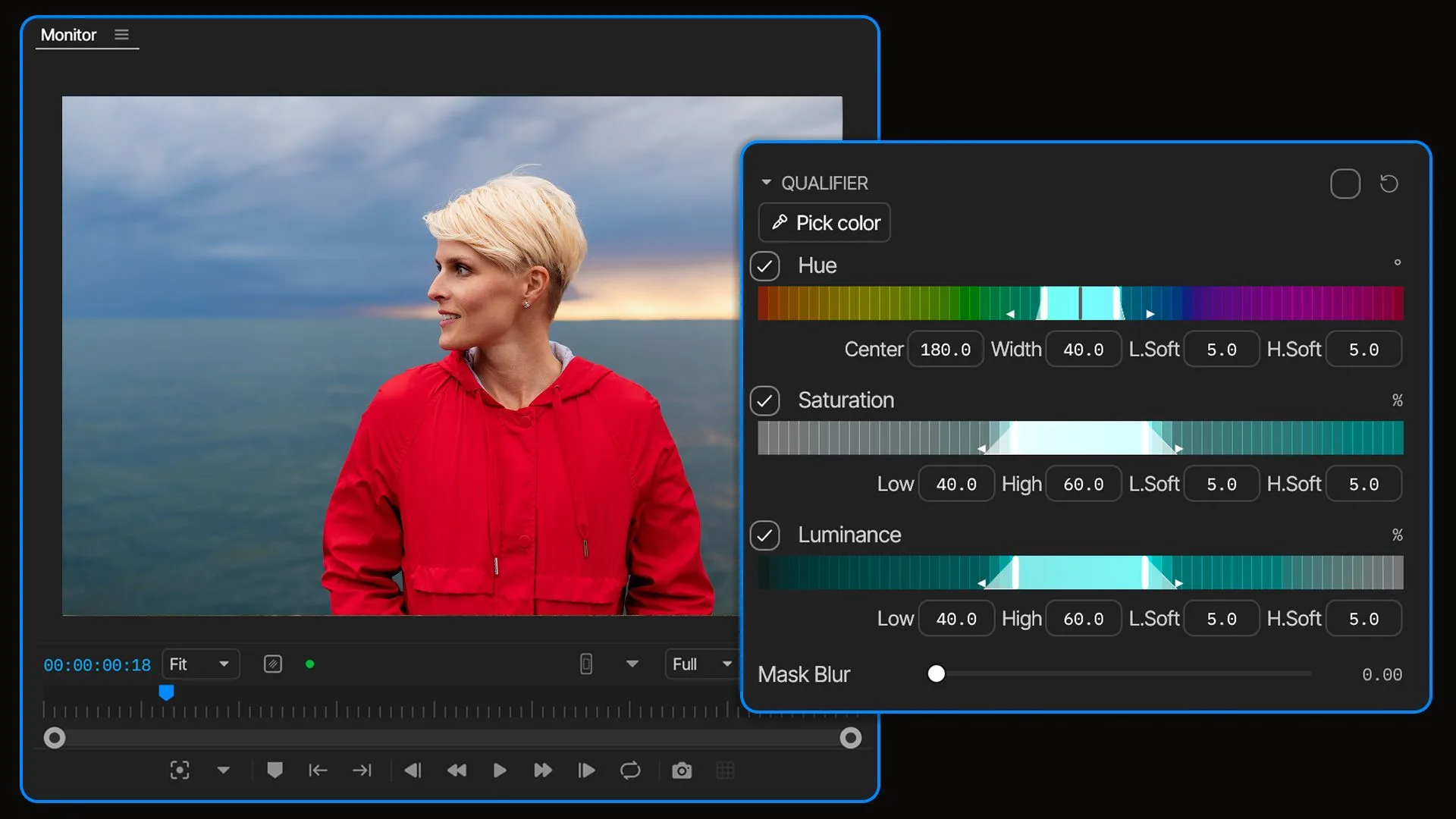
Official invideo product visual showing qualifier ranges and their softness controls.
Wheels and curves let you refine tonal ranges and channels; scopes help you inspect the change alongside the picture. Balaram Paul’s demonstration around 03:58 shows color wheels and a waveform scope in the Editor workspace. You can direct an initial grade through the agent and use these manual tools to make your own finishing decisions.
Verdict: Invideo is the stronger choice for selective corrections and detailed grading. Kapwing’s broad adjustments suit edits where balancing the whole shot is enough. The extra invideo controls matter when a particular hue, tonal range or area needs separate treatment.
Audio editing: shaping voices and balancing the mix
You want a voice that sits comfortably in the mix, music that makes room for the words and effects that arrive with the action. That involves the tone of each recording as well as its level and timing. Here’s how both tools let you treat the voice and balance the soundtrack.
Kapwing offers volume keyframes, automatic leveling, fades and automated cleanup. Its pricing page lists up to five minutes of Clean Audio on Free. These tools let you balance clips, smooth their entrances and endings, and lower music beneath speech.
In invideo Editor, audio processors include Parametric EQ 8, a de-esser, compressor and limiter. Use EQ to adjust a troublesome frequency range, de-essing for sharp sibilants, and compression when the difference between loud and quiet passages needs attention. Each addresses a different problem from moving a volume fader.
The audio suite also provides clip and track levels, pan automation, buses and sends. You can balance a whole music track, shape a particular phrase with keyframes and group parts of the mix for shared treatment. Ask the agent for an initial sound pass, or build and refine the mix yourself. For a worked example of that process, see our guide to building and revising a sound pass.

Invideo Editor’s audio workspace brings layered tracks, clip volume and pan controls, and track mixer faders into the same view.
Verdict: Invideo is the stronger fit for detailed voice treatment and layered mixing, with EQ for specific frequencies and bus controls for treating groups of tracks together. Kapwing suits volume adjustments, fades and automated cleanup.
Editing costs: what’s free and what’s paid
Repeated creative revisions should fit your budget through to the finished export. Here’s how free editing, assistant work and delivery limits affect the two workflows.
In Kapwing, manual editing is available for free, but the Free plan exports at 720p with a watermark and a four-minute limit. Pro adds watermark-free exports and up to 4K delivery. AI tools and processing allowances depend on the selected plan and credit balance. Check the delivery requirements before investing time in the edit.
In invideo Editor, manual editing and watermark-free video exports are free. Its MCP connection is also free to use for ordinary editing through ChatGPT or Claude, with no additional invideo editing charge. Your external assistant’s subscription and usage limits apply separately.
Keep those routes separate from work assigned to the built-in invideo agent and from generating new images, video or audio, which use invideo credits. A free connection does not make media generation free. Plan details were checked on 22 October 2026.
Verdict: Invideo combines free manual refinements and ordinary MCP editing with watermark-free delivery. Kapwing also offers free manual editing, but removing its export watermark requires a paid plan.
Which should you choose?
Choose invideo Editor for greater creative control for free. Its editable motion curves, custom graphics and effect controls, selective grading tools and detailed audio mixing give you more room to refine a complex edit. Manual editing and ordinary editing through Claude or ChatGPT are free, with watermark-free exports. Your assistant’s subscription costs apply separately.
Kapwing is a more limited choice for creative control. It supports layered editing and AI assistance, but gives you less control over motion curves, selective color corrections and detailed audio mixing. These limitations leave less room for precise refinements as an edit becomes more complex. Watermark-free exports also require a paid plan.
Frequently asked questions
Can I change AI-assisted edits manually in both tools?
Yes. Invideo keeps edits on its timeline, where you can refine layers, keyframes and effect controls manually. Kapwing lets you continue editing in Studio alongside Kai, but its AI Motion Graphics tool returns an MP4. That clip’s internal animation is not exposed as separate layers or adjustable effect controls.
Does Kapwing support custom keyframes?
Yes. Kapwing supports basic position, zoom and adjustment keyframes, including combined position and zoom animation. However it does not offer detailed controls to refine how a movement accelerates and settles between keyframes.
Do I need to know how to code to build an effect in invideo?
No. Describe the effect or share a reference and ask the agent to build it with dedicated controls. You can then adjust its settings manually and animate supported properties with keyframes. If a revision needs another setting, you can ask the agent to add that control.
Which editor gives me more control without a paid plan?
Invideo provides free manual editing and watermark-free exports, including access to its motion curves, selective grading tools and detailed audio controls. Ordinary editing through its MCP connection to ChatGPT or Claude is also free; your assistant’s subscription and usage limits apply separately. Built-in-agent work and media generation use invideo credits.
Kapwing’s free plan supports manual editing but limits exports to four minutes at 720p with a watermark. Watermark-free exports require a paid plan.