




Key Takeaways
-
Background editing gets tricky around hair, fur, shadows, or fine details.
-
AI background remover tools help you work faster without needing advanced design skills.
-
When paired with invideo, you can move beyond simple cutouts to build fully branded, multi-platform content within one streamlined workflow.
Creating high-quality visuals consistently is part of the job when you’re a creator or marketer. You’re expected to ship fresh content every week, sometimes every day. But most of you aren’t working with studio setups, professional lighting, or advanced design skills. You’re working with what you have, and often, that’s not perfect.
For instance, what do you do when a photo needs a cleaner background? Probably open Photoshop. But that demands real design skills and patience. And if you don’t have those, you end up making up for it with time. This explains why over 50% of marketers spend more than 10 hours creating visual content alone.
This is where AI background remover shakes up the equation by making image background removal and replacement faster, simpler, and scalable. What’s more, platforms like invideo help you turn simple background edits into complete, campaign-ready creatives in one streamlined workflow.
Why use AI for removing backgrounds from images?
If you’re a creator or a marketer who relies on pitch-perfect creatives for your job, here’s how an online AI background remover can be helpful for you:
- No design skills required: You don’t need to understand layers, masking, or complicated selection tools. An AI image eraser automatically detects the subject and removes the background in seconds. What’s more? There’s no steep learning curve involved either.
- Handles complex edges: Background editing gets tricky around hair, fur, shadows, or fine details. Modern AI tools are trained to recognize these subtle edges and separate them more accurately than basic manual cutouts. This means, instead of spending time refining tiny details, you get a smoother, more natural-looking result right away.
- Speeds up content turnaround: AI lets you remove and swap backgrounds quickly so you can test different looks without reshooting. So, you can take one product image and create several themed versions for different ads in a single afternoon. Thanks to this, companies using AI tools for content creation often report a 25% reduction in content production time.
6 AI Background Remover Tools Pro Creators and Marketers
Now that you know how an AI background remover helps in creating content, here’s a table summarizing five tools you can consider:
| Tool | Strength | Limitation | Creative Control | Best For |
|---|---|---|---|---|
| invideo | Generative scene expansion and automated e-commerce gallery creation from a single photo | Full access to premium stock and high-resolution AI models requires a subscription | High (via natural language prompting and style presets) | E-commerce sellers, Amazon FBA brands, and digital marketers |
| Adobe Express | Integrated design and background editing in one workflow | Advanced tools require a subscription | High | In-house marketing teams |
| Freepik | Features a rich built-in stock asset ecosystem | Usage tied to credit system | Moderate | Fast-paced content teams |
| Pixa AI | Automates subject detection | Offers minimal manual fine-tuning options | Low | Editing simple product images |
| Photoroom | Optimized for product visuals | Offers a limited platform-focused editing flow | Moderate | Ecommerce brands |
| Fotor AI | Features a template-driven editing suite | Precision masking is limited | Moderate | Small businesses |
Now, let’s discuss each of them in detail:
1. invideo
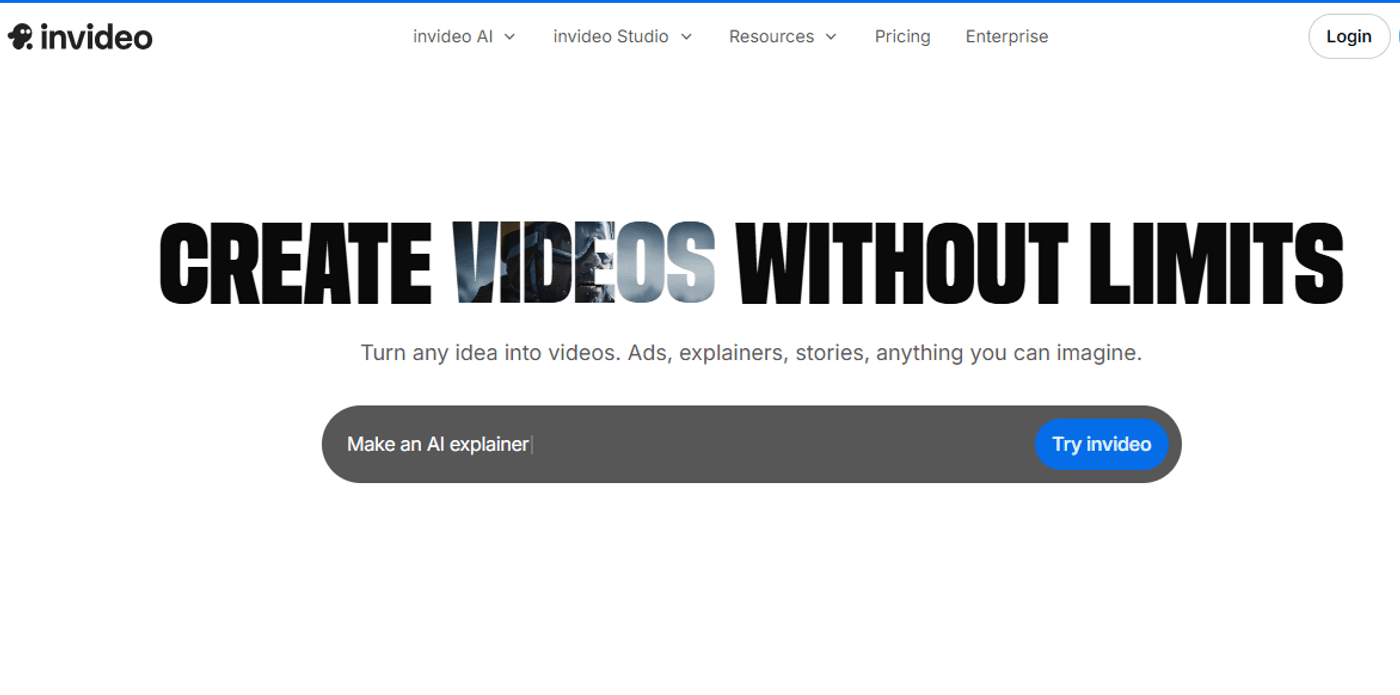
Invideo is an AI-first platform available on browser and app that helps you create and edit videos, images, and even audio in one place. Instead of focusing on just one task, it brings everything together so you can go from an idea to a complete piece of content without switching tools.
You can start from a script or prompt, drop in your footage, then isolate the subject and swap backgrounds to match a brand look, a location, or a campaign theme, without needing a traditional VFX toolchain. You can also use dedicated models like ‘Bria BG Remove’ for added control.
Invideo is great for teams and creators who need speed and consistency across many deliverables. Typical use cases include cleaning up webcam/talking-head backgrounds for creator videos, creating product highlight reels with clean backdrops, and producing multi-variant ad creatives where the same subject is placed against different scenes for testing.
Because the platform is built around end-to-end production, the “background removal” step can be paired with other AI editing functions such as automated cutdowns, on-brand templates, captions, and voiceover workflows, which helps reduce the time from raw clip to publishable output.
Where invideo tends to stand out is in turning a removed background into a complete composition rather than just exporting a transparent cutout. After isolating the subject, you can quickly place them into new scenes, add motion graphics, text overlays, and brand elements, using the different models like Kling 3.0, etc., that you have at your disposal, then export in platform-specific aspect ratios. This makes it a practical option for marketers and small teams who don’t want to bounce between separate tools for cutout, layout, and final edit, especially when the output goal is video rather than a single still image.
Pros:
- Supports an end-to-end workflow where AI background removal is part of creating finished videos and social ads, reducing tool switching and production time.
- Makes it easy to replace backgrounds with templates/scenes and then immediately add captions, overlays, and brand elements for platform-ready exports.
- Well suited for producing multiple variants (formats, durations, creatives) from the same core footage, which is useful for ads and social distribution.
Cons:
- If you only need precise, pixel-level manual masking and hairline refinements, dedicated image editors may offer more granular control.
- Background removal quality and speed can depend on the input footage (lighting, motion blur, edge detail), so low-quality clips may require extra cleanup or re-shooting.
- Creators looking for a simple “one-click photo cutout” tool may find an all-in-one video platform broader than necessary for that single task.
2. Adobe Express
Source: Adobe Express
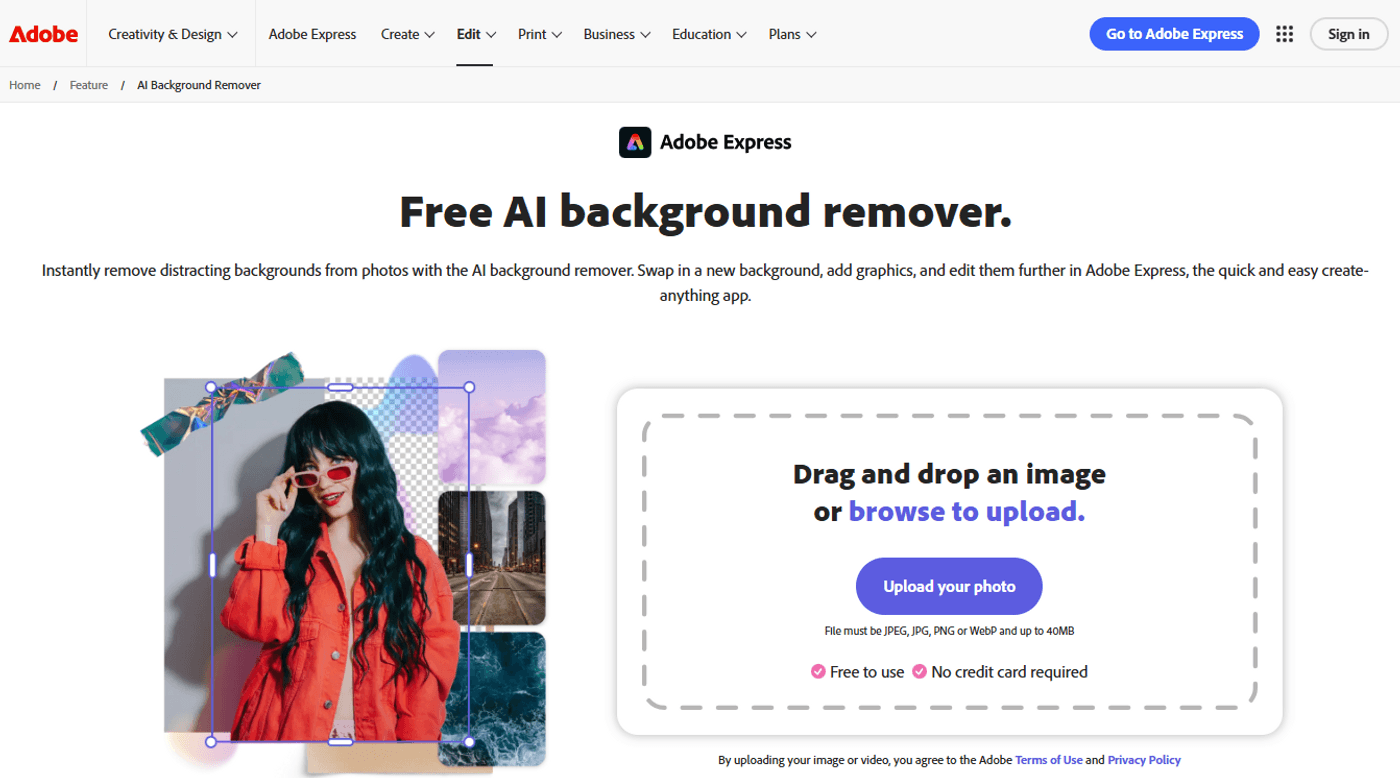
Adobe Express includes the Adobe AI background remover as part of its web-based design platform. It allows users to upload an image, remove the background automatically, and continue editing within the same workspace.
The tool integrates with Adobe’s broader creative ecosystem and offers templates for social media posts, ads, flyers, and branded visuals. So, you can also repurpose creatives for different platforms and apply brand kits for consistency. Due to this, it’s popular among marketers and creators who already work within Adobe’s suite.
Pros:
- Combines background removal with design tools in a single interface.
- Allows users to refine edges and adjust layouts after removing backgrounds.
- Works directly in the browser without complex setup.
Cons:
- Many advanced features require a paid subscription.
- Can feel feature-heavy for users who only need simple cutouts.
3. Freepik
Source: Freepik
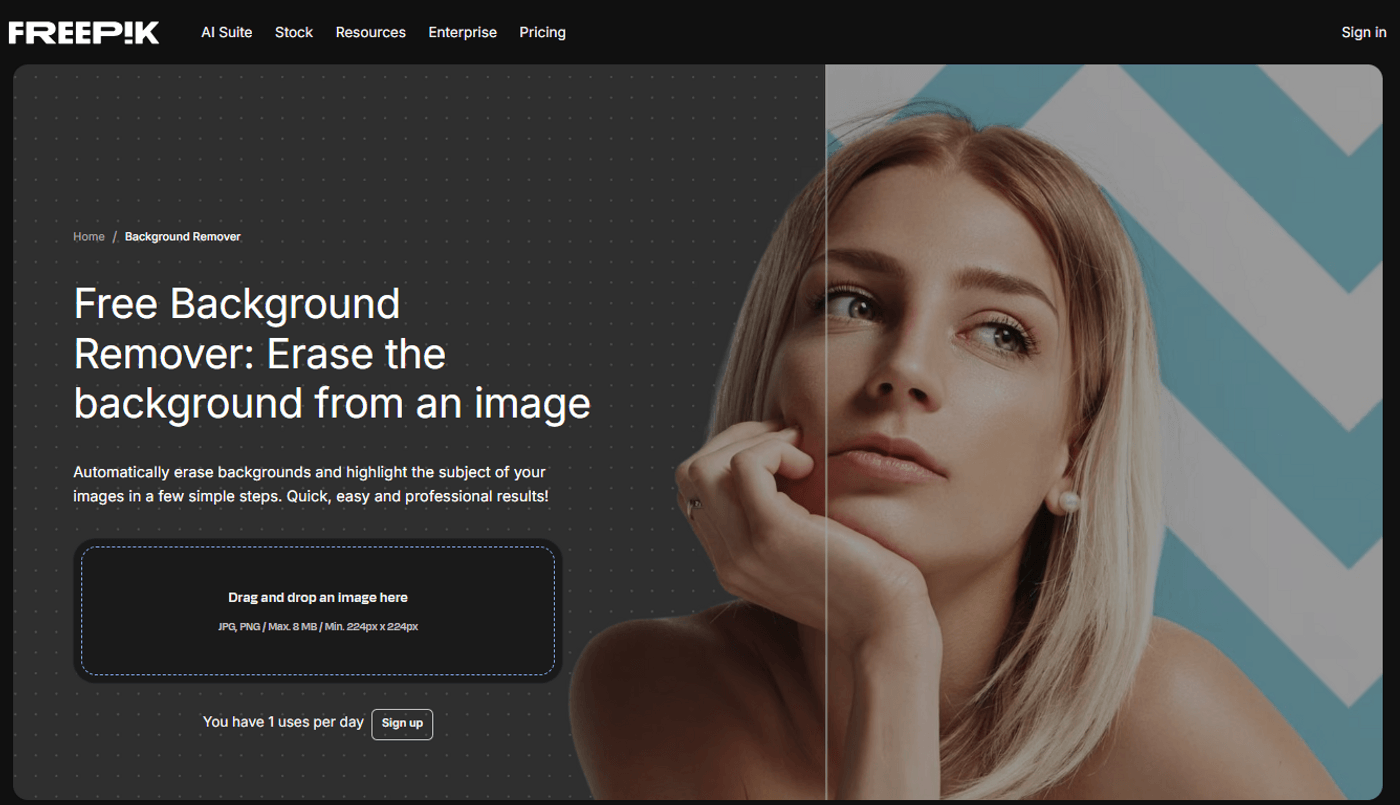
Freepik offers an AI-powered editing feature that works as an AI background changer within its broader creative platform. Users can upload their own images, remove backgrounds, and apply new scenes or visual elements.
The platform also includes stock photos, vectors, and AI-generated image tools within the same interface. Hence, it tends to be ideal for social media managers and content marketers who combine ready-made assets with quick image edits for campaigns.
Pros:
- Combines background removal with access to stock images and graphics.
- Allows users to edit visuals directly after removing the background.
- Offers templates for marketing use cases.
Cons:
- Background refinement options are limited.
- Many assets require credits or a premium plan.
4. Pixa AI
Source: Pixa AI
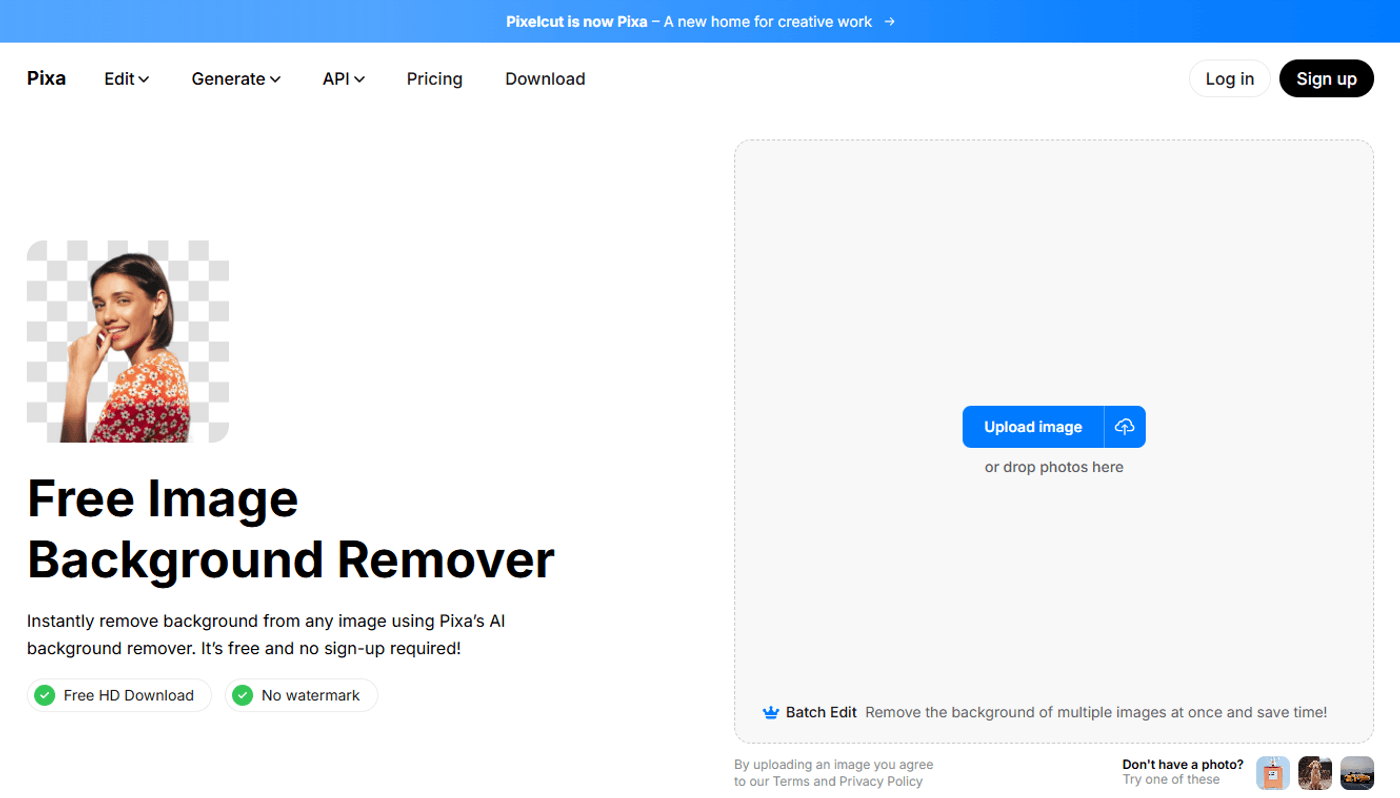
Earlier known as Pixelcut AI background remover, Pixa AI is positioned as one of the best free AI background remover tools. It’s designed for quick subject detection and clean cutouts.
Simply upload portraits, product images, or promotional visuals, and the tool will generate transparent backgrounds within seconds. The platform focuses on automation with minimal manual editing required, and is commonly used for ecommerce listings, display ads, and social media creatives where speed matters.
Pros:
- Detects and isolates subjects automatically.
- Provides fast results with minimal manual input.
- Easy to use for beginners.
Cons:
- Offers limited control over edge refinement.
- Not designed for complex multi-layer edits.
5. Photoroom
Source: Photoroom
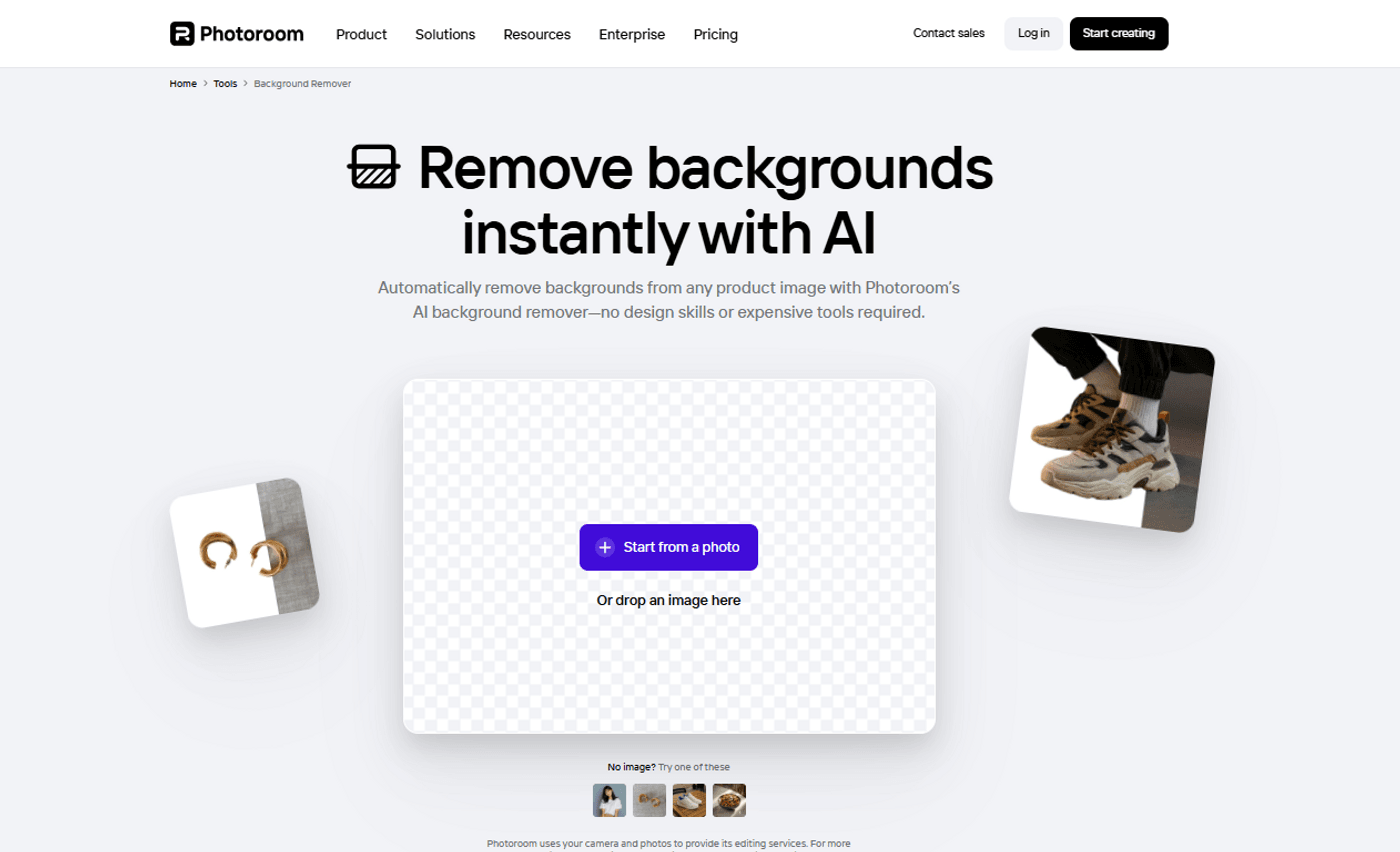
Photoroom is a mobile-first editing app that includes background removal, resizing, and layout tools. It lets you edit brand product shots, profile images, and promotional visuals directly from your mobile or desktop. The platform supports batch edits and marketplace-optimized exports as well, making it suitable for sellers and content creators managing multiple assets.
Pros:
- Supports batch editing for multiple images.
- Allows quick placement of products into preset scenes.
- Offers templates tailored to online marketplaces.
Cons:
- Provides limited manual masking controls.
- The free version adds watermarks to exports.
6. Fotor AI
Source: Fotor AI
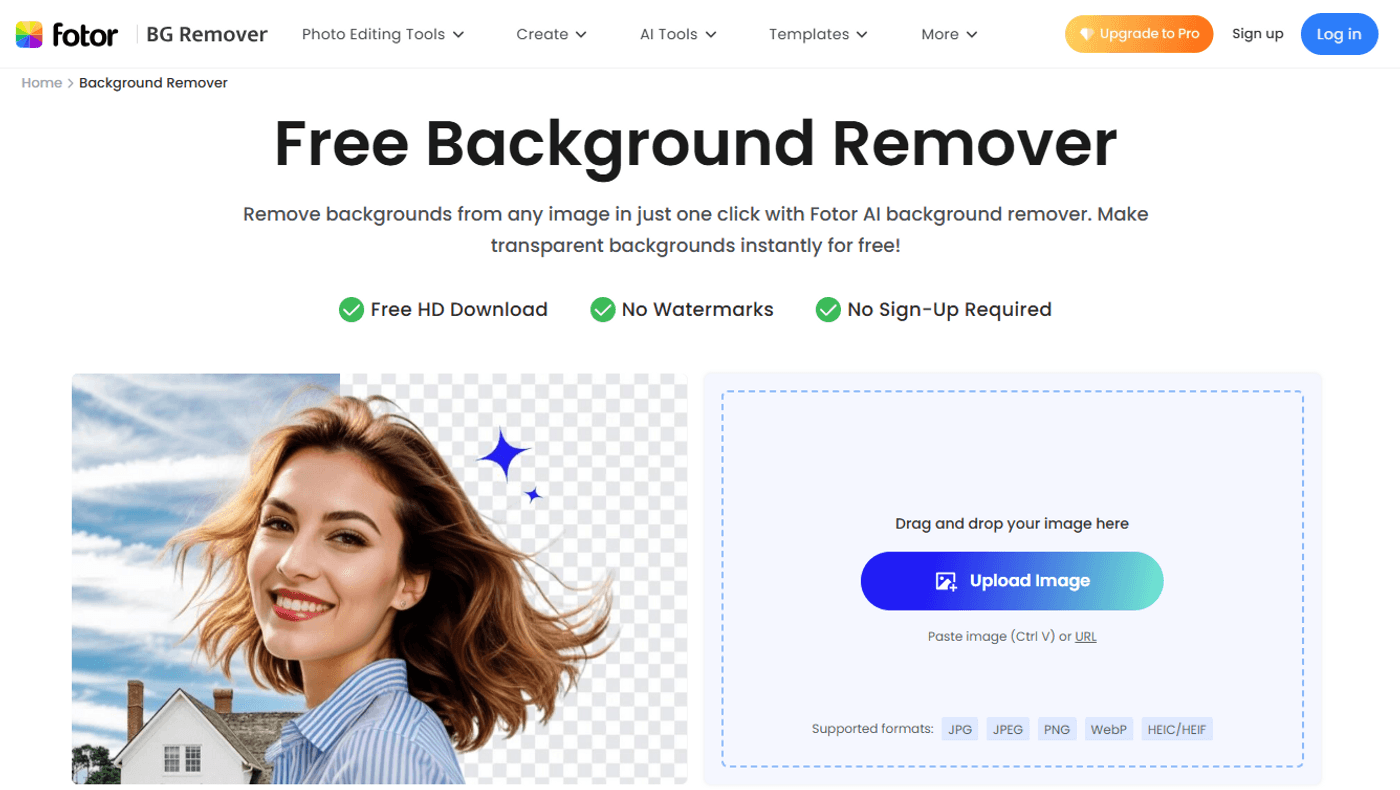
Fotor AI includes the Fotor AI background remover within its browser-based design and editing suite. It excels in removing backgrounds, replacing them with preset scenes, and applying color or lighting adjustments.
Apart from this, the platform also offers collage tools, templates, and design layouts in the same workspace. It functions as a free AI background remover online with optional paid upgrades for higher resolution exports and advanced features.
Pros:
- Provides background removal inside a broader editing suite.
- Works directly in the browser.
- Allows additional image adjustments after cutouts.
Cons:
- May not handle complex subjects consistently.
- The interface can feel crowded for new users.
How to Remove and Replace Backgrounds with AI in invideo
Let’s look at a simple workflow for background removal on invideo:
Step 1: Upload Your Image
Sign up or log in to invideo first, and then create a new project. Upload the image you want to edit by clicking the upload button or dragging the file into the editor.
Step 2: Select the appropriate model for Background Removal
Next, go to ‘Agents and Models’ and select a background removal model such as ‘Bria BG Remove’
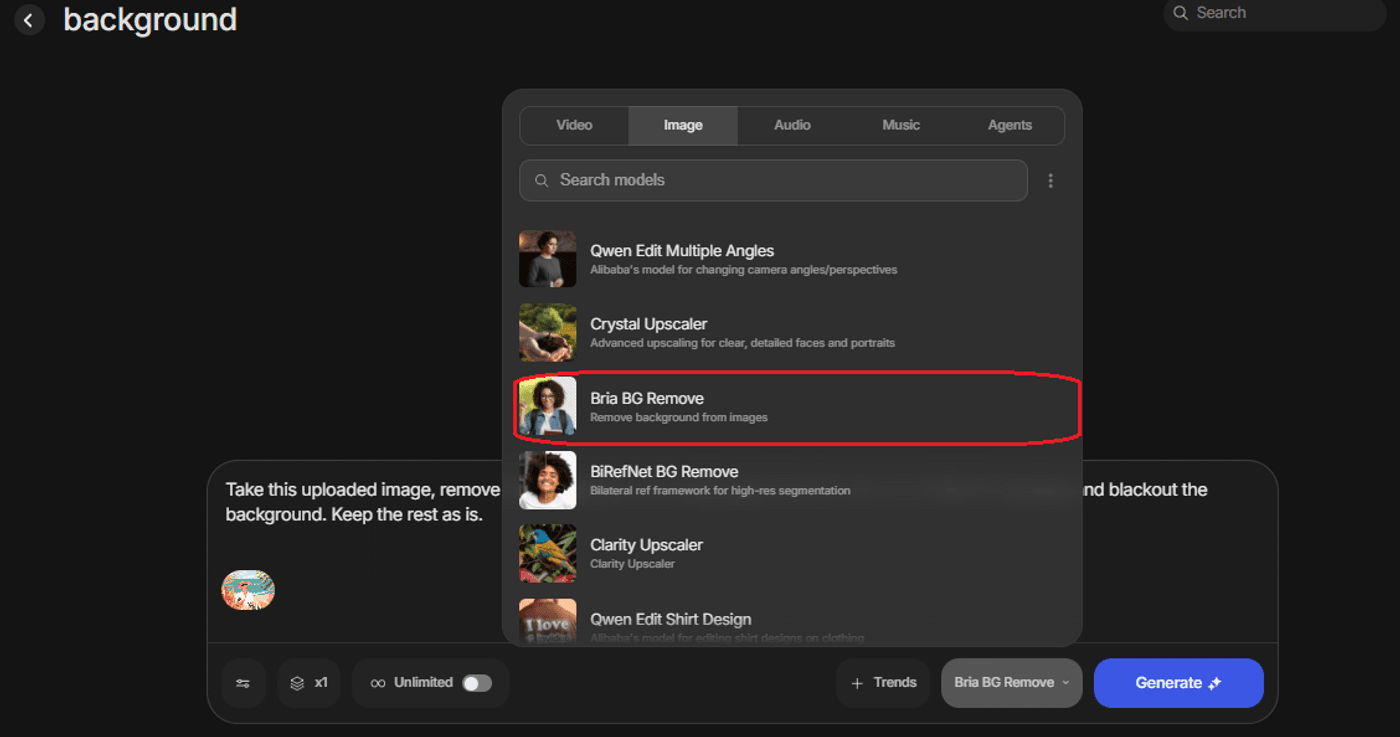
Step 3: Draft a prompt
After having selected the model, we move into drafting an appropriate prompt for removing the background. Here’s a sample prompt:
Prompt: Take this uploaded image, remove the background completely apart from the two trees in the foreground, and make the background clean. Keep the rest as is.
Step 4: Export in Your Target Format
Once you've composed your final visual (whether it's a product shot, ad creative, or social post), export the project in the aspect ratio and resolution required for your platform, i.e., marketplace listing, Instagram story, YouTube thumbnail, or ad network.
Here is a sample before and after using the prompt above:
Before:

After:

Common Pitfalls to Avoid
AI background removal definitely makes editing easier. But it's still possible to get results that look off if you're not careful. Here's how to identify and avoid those mistakes before it gets too late:
- Overusing blur to hide bad masking: Blur is used to cover rough edges. But too much of it can make the subject look pasted onto the background. So, always take a moment to refine the edges properly or adjust the cutout before adding effects.
- Ignoring lighting mismatch: If your subject is lit from the left but the new background suggests light from the right, the image will feel unnatural. So, adjust exposure or warmth too, so both elements feel like they belong in the same scene.
- Forgetting natural shadows: Shadows ground your subject and make the edit believable. Without them, the subject can look like it's floating. Adding a soft, subtle shadow beneath the feet or an object can instantly improve realism.
From Cutouts to Campaigns: Do It All Inside invideo
An AI background remover gives you a clean start. But creators and marketers need more than an isolated subject. You need structured messaging, motion, branding, and formats that work everywhere your audience is.
Invideo brings all of that into one seamless, video-first workflow. You remove or replace backgrounds in your footage, then instantly build around it with ready-made layouts, brand kits, animations, and one-click resizing for every platform. No switching tools, no rebuilding assets, no complicated editing panels. Just a faster way to turn simple edits into complete, publish-ready content.
Ready to create without the extra steps? Sign up on invideo and build your next piece from start to finish in one place.
FAQs
-
1.
What is AI background removal and how does it work?
AI background removal uses machine learning to detect the main subject in an image and separate it from the background. The system is trained on thousands of images, so it understands shapes, edges, and common objects. Once it identifies the subject, it removes everything else automatically. You get a clean cutout in seconds without manual editing.
-
2.
What image quality is best for accurate AI background removal?
High-resolution images with sharp focus work best. Good lighting and clear contrast between the subject and background make it easier for AI to detect clean edges. Starting with a clear image always gives smoother results. Blurry or heavily compressed images can lead to rough cutouts.
-
3.
Is AI background editing ideal for social media ads?
Yes, especially for creators and marketers who need content fast. AI background editing lets you quickly swap messy or distracting backgrounds for branded or campaign-specific ones. That makes it easier to test different ad creatives and stay consistent across platforms.
-
4.
Why use invideo instead of a standalone AI background remover?
Standalone AI image remover tools only help you in removing or replacing the background. With invideo, you can take that edited image and immediately build a full video around this image. It saves time and keeps your workflow in one place.
-
5.
Can I turn a background-edited image into a video using invideo?
Yes, you can upload your edited image into invideo and turn it into a dynamic video. You can also add text, motion effects, transitions, music, and branding elements to it.
