How to Sync and Edit a Multi-Camera Footage with AI for Podcasts
September 21, 2026
AI can simplify multi-camera podcast editing by syncing footage, switching angles based on speakers, and creating a first-pass edit. With an editable timeline, creators can refine cuts, adjust pacing, and complete the final episode faster while keeping control over the editing process.
This blog explains how AI can simplify the process of editing multi-camera podcast footage by handling time-consuming tasks like syncing recordings, organizing camera angles, and creating an initial multicamera cut. It walks through a practical workflow where creators can use AI to build a first draft, refine camera switches, and make final adjustments on an editable timeline, helping them produce polished podcast episodes with less manual effort.
Anyone who edits a video podcast knows that recording the conversation is the easy part of the job. Editing is where it becomes a nightmare. Three cameras can leave you with three sets of files to line up, followed by an hour of switching between the host, the guest, and the wide shot. Then you get to do it all again for the next episode.
You can line up the recordings manually or use audio sync to bring them together. A traditional multicam workflow then lets you play through the episode and switch angles as you watch. That helps with the setup, but you’re still working through the conversation to build the camera cut. See Adobe’s multicam workflow.
If you’d rather hand off that first pass too, invideo Editor could be a better fit. Its built-in AI editing assistant can sync your recordings and assemble a cut based on who’s speaking, leaving you an editable timeline to refine.
Here’s how to put it to work on your next episode.
How to Sync and Edit a Multi-Camera Footage with AI for Podcasts
1. Upload and organize your recordings by camera
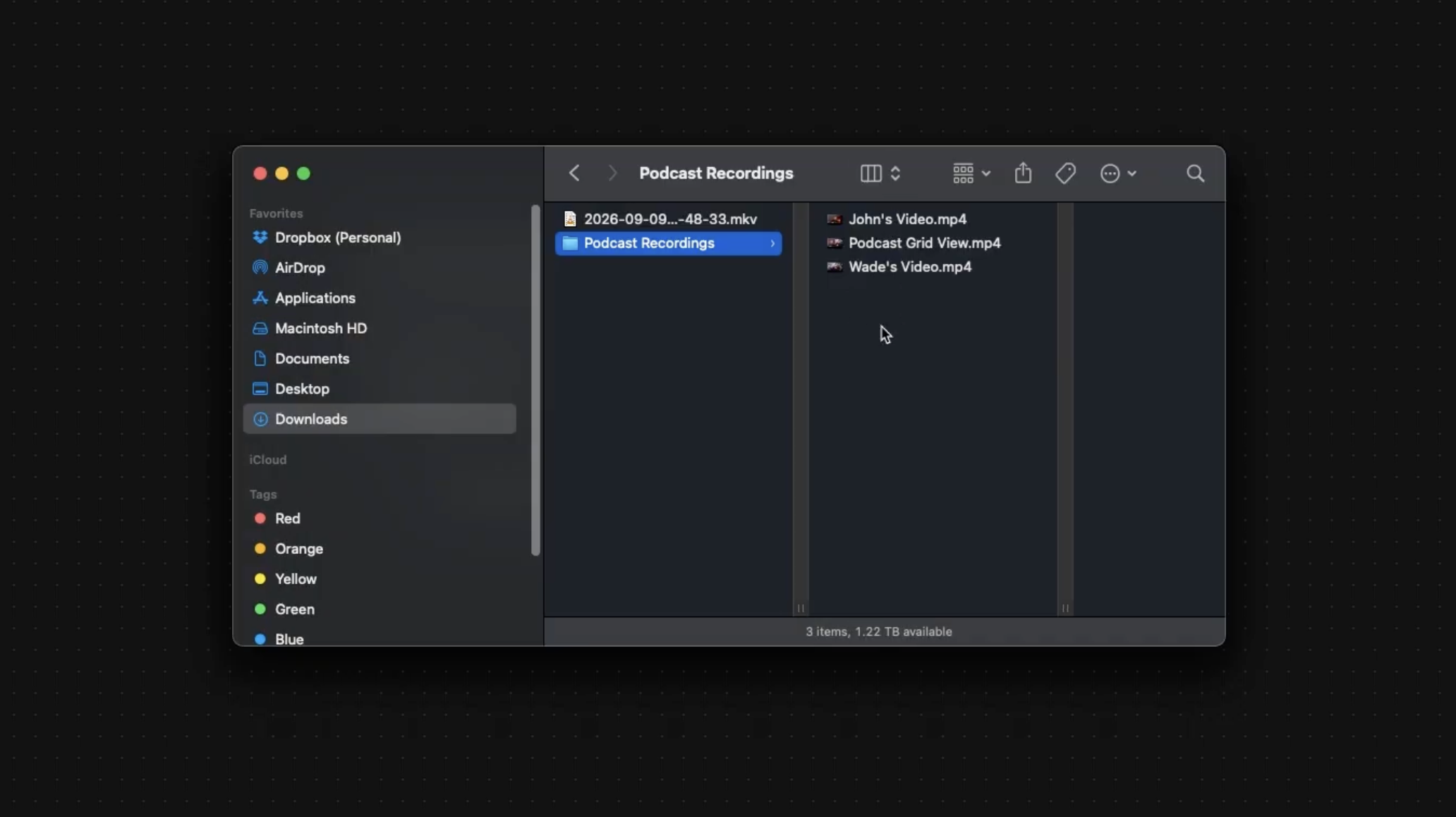
Upload each camera’s footage into its own folder. Use clear names so your AI agent can identify the angles:
Camera A: Host
Camera B: Guest
Camera C: Wide shot
2. Choose your audio reference and ask the agent to sync
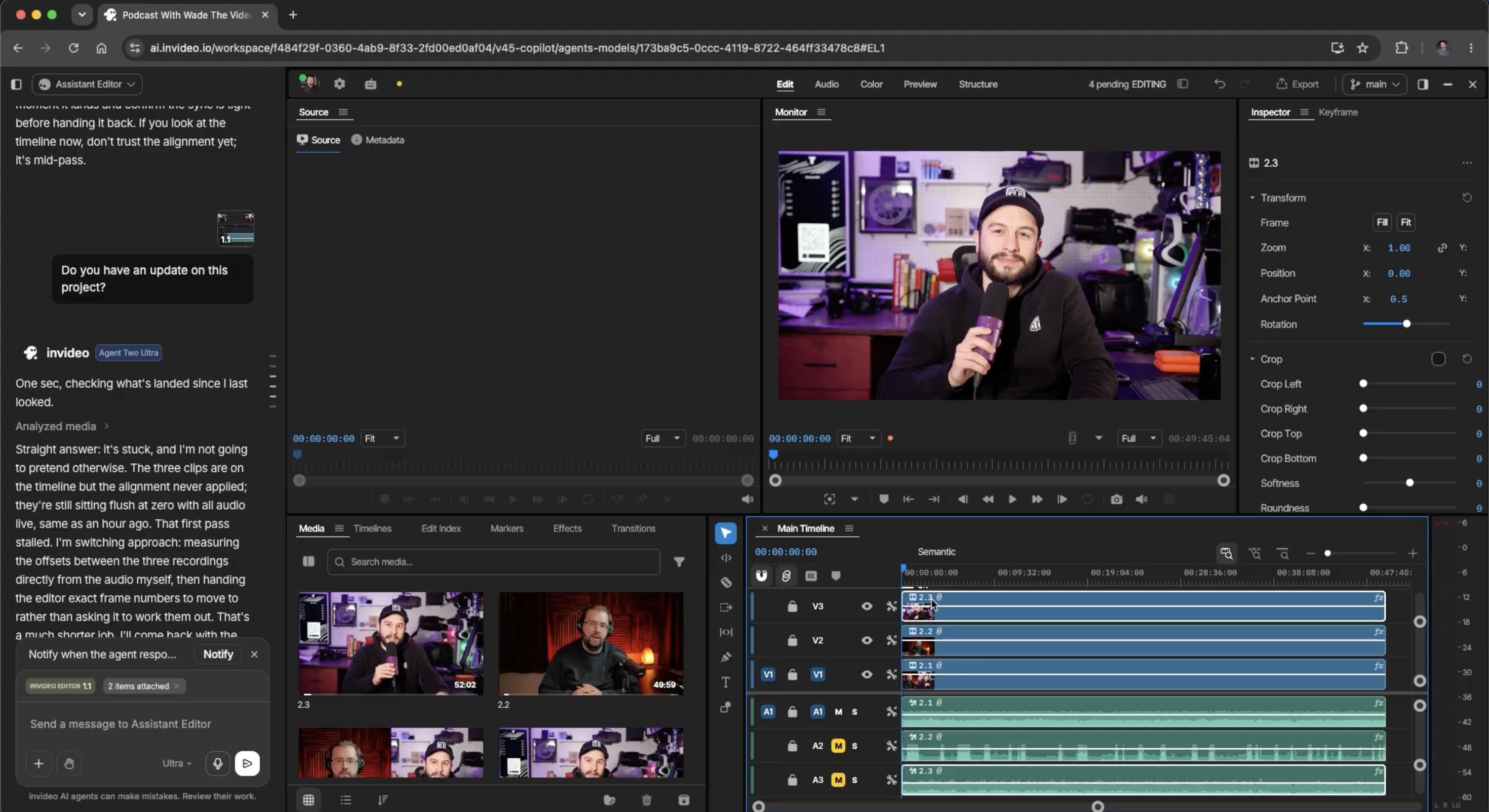
Your cameras may have started recording at different times. Ask your AI agent to align them using the camera with the clearest audio as the reference.
Here’s a prompt you can adapt:
Sync the recordings in Camera A, Camera B, and Camera C. Use Camera A as the audio reference.
Camera A shows the host, Camera B shows the guest, and Camera C is the wide shot. Keep the camera angles on separate timeline tracks.
Watch John The Video Guy request audio-based sync at 03:09.
Once the tracks are aligned, check a few spoken moments near the beginning, middle, and end. Look at the speaker’s mouth while listening to the reference audio to check that picture and sound line up.
3. Ask your AI agent to cut between speakers
With the recordings synchronized, ask your AI agent to build the multicamera cut, switching angles based on who is speaking.
Explain how you want the conversation to feel. A relaxed interview may need longer holds on each speaker. A lively discussion may need more changes, but cutting on every short interjection can make the edit feel restless.
Here’s a prompt you can adapt:
Build a multicamera podcast edit from the synchronized recordings. Use Camera A when the host speaks and Camera B when the guest speaks.
Keep the pacing conversational. Avoid switching angles for every brief “yeah” or “right” while the other person is still answering. Use the wide shot for shared reactions or moments when both people are speaking.
Keep the conversation intact for this pass. Focus on camera switching before removing sections of the episode.
Separating camera selection from content cuts makes it easier to judge the first pass. You can review the angle changes before deciding which parts of the conversation to shorten.
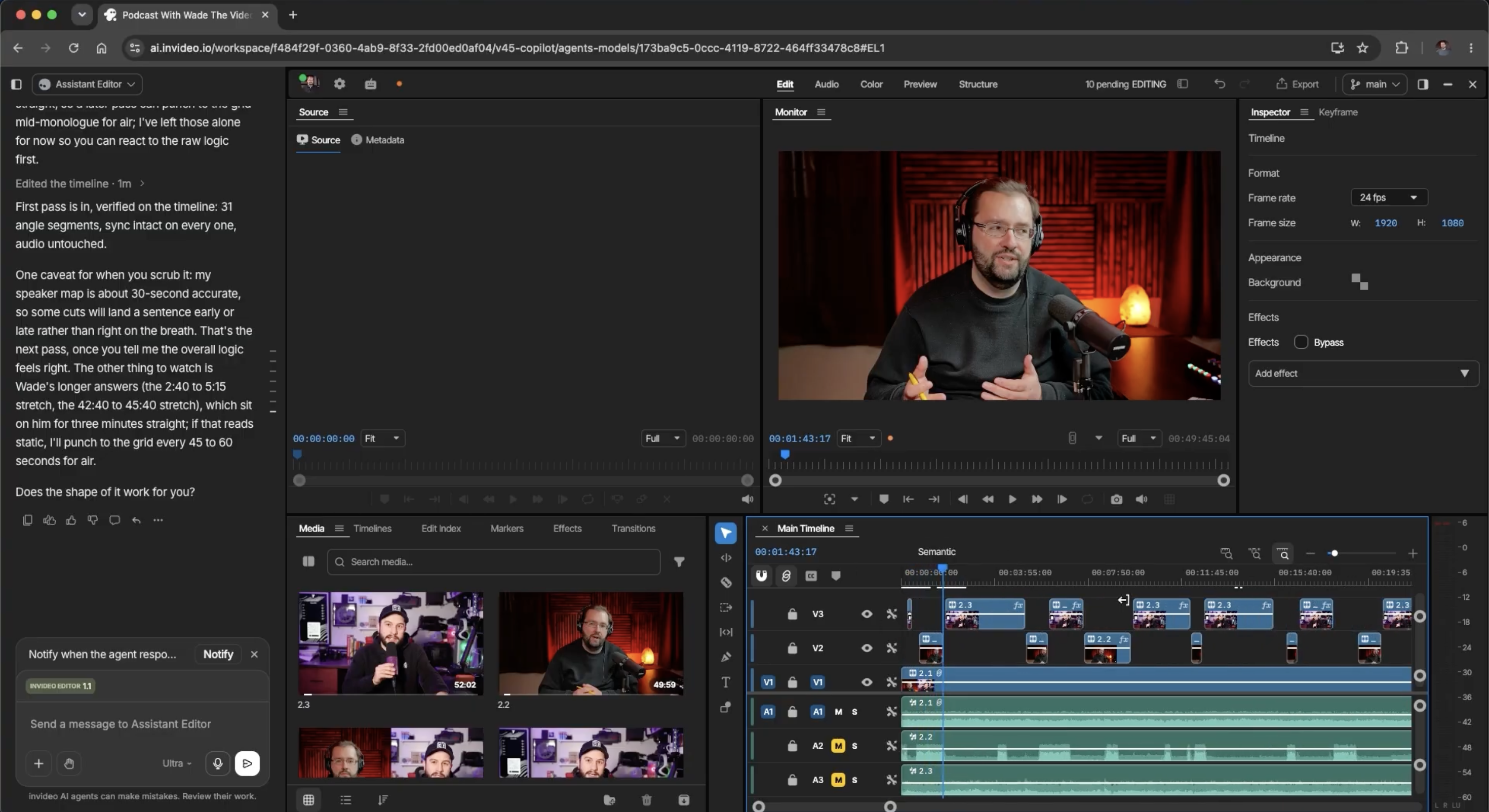
John The Video Guy requesting a multicamera edit and showing the result.
4. Review the switches and refine the conversation
Play through the assembled edit and check the moments where the conversation changes hands. Does the camera reach the new speaker at the right time? Do brief interruptions create unnecessary cuts?
Pay particular attention to:
Overlapping speech: Would a wide shot make the exchange easier to follow?
Short acknowledgements: Does the edit need to leave the person giving the main answer?
Reactions: Is there a useful laugh or expression worth holding?
Cut timing: Does an angle change feel early, late, or too brief?
Some switches may need timing adjustments. In John The Video Guy’s demonstration, the agent notes that a camera cut can land a sentence early or late. Everything stays editable on the timeline, so you can adjust individual cuts yourself or request a focused revision.
For example:
Keep the guest’s camera on screen throughout this answer, including the host’s short acknowledgements. Switch back to the host when the next full question begins.
Watch a manual timeline adjustment at 05:03.
Once the camera cut works, decide whether to remove setup chatter, long gaps, or tangents. When shortening a section, check the surrounding conversation so the question, answer, and reaction still connect naturally.
You can also continue with audio mixing, colour adjustments, titles, and other finishing work inside invideo Editor.
5. Export the episode or continue in your usual editor
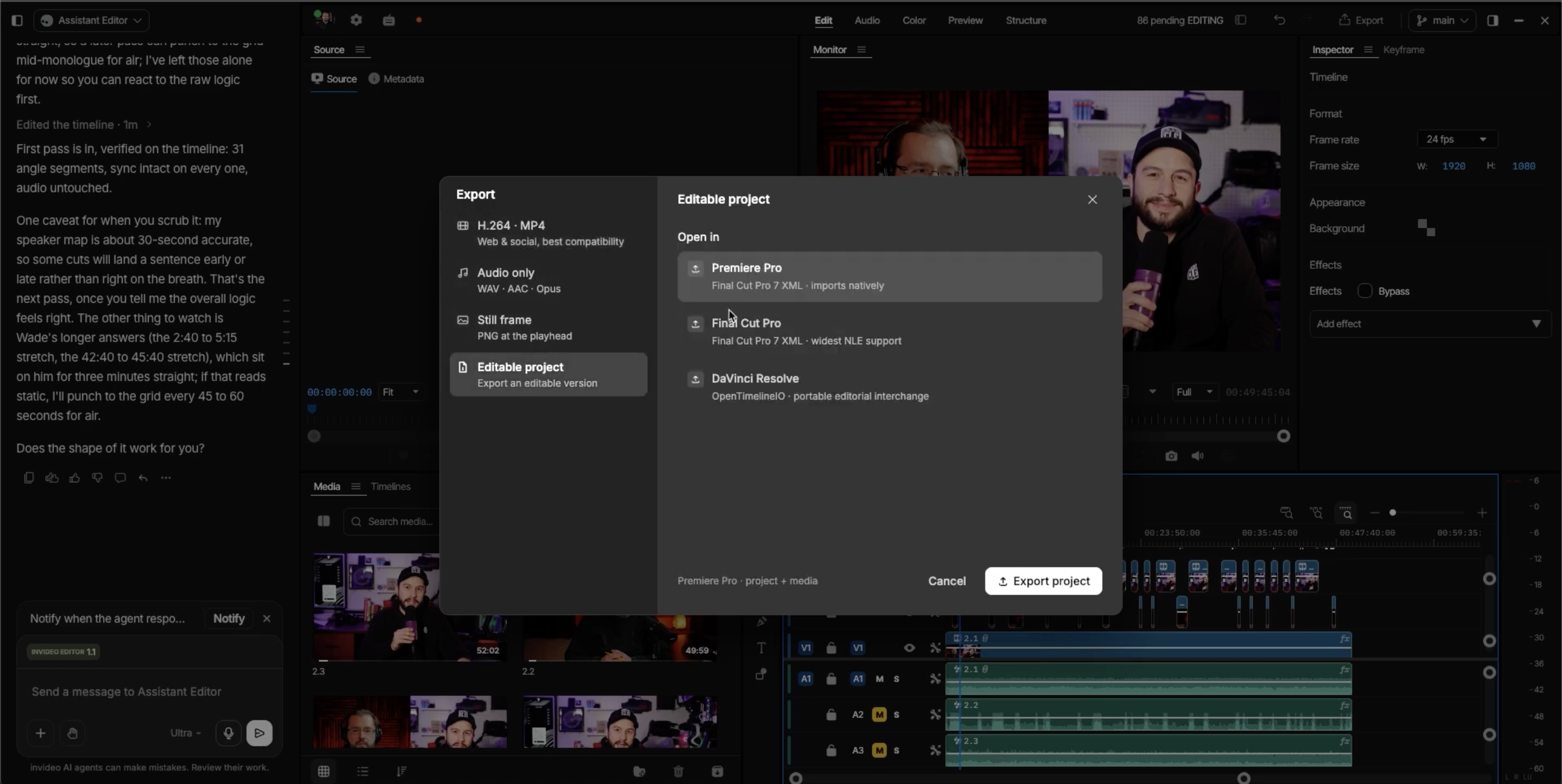
If you’re finishing in invideo Editor, export the completed episode as a video. If you prefer to finish in Premiere Pro, Final Cut Pro, or DaVinci Resolve, export an editable project with your timeline and media properly linked, then continue with your usual finishing workflow. See supported export options.
See the video and editable-project export options at 05:23.
FAQs
Is there an AI tool that can both sync and edit a multi-camera podcast?
Yes. invideo Editor supports audio-anchored camera synchronization and speaker-based camera switching. Its AI agent works inside the editor, and you can continue adjusting the resulting timeline yourself.
Do I need to install a plugin?
No. This workflow uses the AI agent built into invideo Editor, which runs in your browser. You upload your recordings and give the agent instructions inside the project.
Which audio should I use to sync the cameras?
Choose the camera with the clearest recording of the conversation and identify it as the audio reference in your prompt. Once the recordings are aligned, check a few points across the episode to confirm that picture and sound stay in sync.
Will the AI always choose the right camera when people talk over each other?
Overlapping speech and short interjections can sometimes lead to a camera choice you’d prefer to change. Ask your AI agent for a different angle or adjust the cut manually on the timeline.
Can I change the camera cuts after the AI has finished?
Yes. The sequence remains editable, so you can adjust cut timing and change the selected shots. You can also give your AI agent a focused revision instead of rebuilding the whole edit.
Is AI podcast editing free in invideo Editor?
The manual editor is free, while assigning work to the AI agent uses credits. Check your current allowances before running synchronization, camera switching, or additional AI revisions. See availability and credit use.