invideo Editor vs Canva: Which Tool Gives You More Editing Controls?
October 23, 2026

invideo Editor and Canva both offer editable multitrack timelines, AI assistance, editable video projects and MCP connections. The differences matter as your edit becomes more complex: coordinating layers, shaping motion curves, building effects with adjustable controls, correcting selected colours and mixing a layered soundtrack. This comparison examines how much control each editor gives you to build and refine those elements, what remains individually adjustable and which controls are available for free.
Cover: AI-generated editorial composition using invideo Editor control references.
A layered video edit brings several creative decisions together: how a title settles while the shot keeps moving, how a custom effect develops through a reveal, which colours need correction and how the soundtrack supports the action. The controls available to you determine how precisely you can build and refine those elements.
invideo Editor and Canva both offer editable multitrack timelines, AI assistance, editable video projects and MCP connections. The difference is how much control you get as the edit becomes more complex. This comparison examines motion curves, adjustable custom effects, selective colour correction and detailed sound, along with the cost of using those controls.
invideo Editor vs Canva at a glance
invideo Editor combines a built-in editing agent with a professional, frame-accurate multitrack editing suite. You can direct the work through chat or build and refine it manually. Canva combines multitrack video editing with templates, graphics, conversational AI and its wider design suite. Both support editable projects and MCP; the table compares the depth of control within those projects.
Editing task | invideo Editor | Canva |
|---|---|---|
Shaping animation | Offers independent property keyframes, Bézier curves and a graph editor for precise control over timing and acceleration across layers. | Offers custom paths and Match & Move for creating animations, but gives you less control over how each movement speeds up and slows down. |
Refining custom effects | Lets you build effects with layers and keyframes, or ask the agent for a reference-inspired effect with dedicated controls you can adjust and animate. | Provides native effects and shader animations with their own settings. Its separate AI Effects route returns a video whose treatment is not exposed as custom effect parameters. |
Targeting a colour correction | Gives you qualifiers and grade masks to isolate a colour or region, with wheels, curves and scopes to refine the grade. | Offers Video Adjust and filters for balancing the whole clip, but that native panel lacks qualifiers and grade masks for correcting one hue or region independently. |
Shaping sound | Combines EQ, de-essing and compression with level and pan automation, buses and a track mixer for detailed control over a layered soundtrack. | Supports arrangement with multitrack levels, fades and Beat Sync. Enhance Voice offers adjustable overall enhancement, rather than separate EQ and dynamics controls. |
Accessing the controls | Gives you free access to detailed manual editing, ordinary MCP edits and watermark-free video exports. Built-in-agent work and generation use credits. | Offers free editing, core MCP and watermark-free exports with your own or free assets. Enhance Voice and automatic Beat Sync require eligible paid plans; shader animations require an eligible plan. |
Animation: controlling timing and movement
Imagine a blue speaker reveal with a moving shot, a title sliding into place and a highlight appearing over the product. You want the title to settle more gently while the other layers keep their timing. That involves the timing of each layer and the shape of its movement. Here’s how the editors let you control both.
In Canva, you create a custom animation by dragging an element across the canvas to record its path. You can choose Original, Smooth or Steady movement, change its speed, orient the element along the path and add effects such as rotation or a pulse. This gives you custom motion, beyond a preset entrance.

Canva’s custom animation controls for movement style, path orientation and speed. Authentic capture, 23 October 2026.
For a sequence of poses, Canva’s Match & Move connects duplicated pages with changed positions, sizes, colours or transparency. You adjust the poses and transition duration to develop the animation. Its page-based method suits graphic sequences, though revising a complex move can involve changing several page states. Neither method gives you separate timing curves for position, scale, rotation and opacity. You can adjust the path or page poses, but have less control over how each property speeds up, slows down or settles.
In invideo, you get keyframe controls that let you animate properties independently and shape their interpolation with Bézier curves in a graph editor. For the title, keep the starting and ending positions, then reshape the curve so the final approach takes longer. Position, scale, rotation and opacity can follow different timing.

invideo’s property curves and transform controls, reused from a separate Editor project.
Build that motion manually or ask the agent to coordinate the title and reveal. A useful revision is: “Keep the title landing at two seconds and preserve its final position. Make the last part of its movement gentler. Leave the camera move and other overlays unchanged.” The keyframes remain available for your own adjustments.
Verdict: invideo gives you finer control over coordinated animation through independent property curves and precise timing. Canva supports custom paths and page-to-page animation, while its native path styles and pose-based transitions give you less direct control over how each property accelerates and settles.
Custom graphics and effects: controlling the look
You may want to build a light-trail treatment from a reference, then shorten its trails, reduce their strength or change when they appear. The way the treatment is built determines how precisely you can make those changes. Here’s how the editors let you create a look and keep control of its settings.
Canva supports layered compositions and editable effects, including glow, echo and glitch on supported design elements. Its shader animations, available on eligible plans, add treatments such as Shake Zoom, Whip Slide, Old TV and Chroma Wave to video. Available settings depend on the treatment: Shake Zoom has an intensity slider; Whip Slide has a speed slider. Your control depends on the settings included with each treatment. If an effect has no control for trail length or direction, you cannot adjust those parts of the look independently.
Canva AI supports conversational revisions to editable designs, and apps add other creation workflows. What remains adjustable depends on the route. Its separate AI Effects feature uses ready-made templates to turn an image into a vertical video. You can trim and layer that clip, but its generated treatment is not exposed as a custom effect panel. Native design elements retain their own controls.
In invideo, you can build custom graphics and effects with layers, keyframes and effect controls, or ask the agent to build an effect from a reference with dedicated settings. You can then refine those settings manually or animate supported properties.

Capture from Noam Agassi’s invideo collaboration, reused from the custom-effects guide. These controls belong to this particular effect.
In a separate example, Luuk Alleman’s demonstration around 03:50 shows a custom panel with highlight threshold, softness, trail length, direction and mix. You can lower the mix or shorten a trail while retaining the surrounding edit. If the treatment needs another adjustment, ask the agent to add a suitable control.
Verdict: invideo Editor is the stronger choice for building and refining custom effects. Its editable layers, dedicated controls and keyframes let you change individual parts of the treatment while preserving the surrounding edit. You can also ask the agent to build an effect from a video reference. Canva supports layered compositions and adjustable native effects, but its separate AI Effects route returns a video whose treatment is not exposed as custom effect parameters.
Colour correction: controlling selected colours and areas
The speaker’s blue casing may look too saturated while the presenter’s skin already looks right. Reducing saturation across the frame changes both. Below we compare whole-shot adjustments with tools for selecting the colour or area that needs correction.
Canva’s native video Adjust panel provides temperature, tint, brightness, contrast, highlights, shadows, whites, blacks, vibrance and saturation. Filters and Auto-adjust offer starting points for overall balance. You can correct a warm cast or lift dark detail without replacing the video.

The white-balance section of Canva’s native video Adjust panel. Authentic capture, 23 October 2026.
Those video sliders affect the clip as a whole. The native Video Adjust panel does not offer a hue qualifier or a spatial grade mask, so it cannot isolate the blue casing for an independent correction. Reducing saturation there also affects the presenter and background.
invideo’s hue, saturation and luminance qualifiers select a colour range for separate treatment. A grade mask can restrict the correction to the product when a similar blue appears elsewhere. Refine the range and soften its boundary, then watch the whole shot to check what remains selected as the product moves.
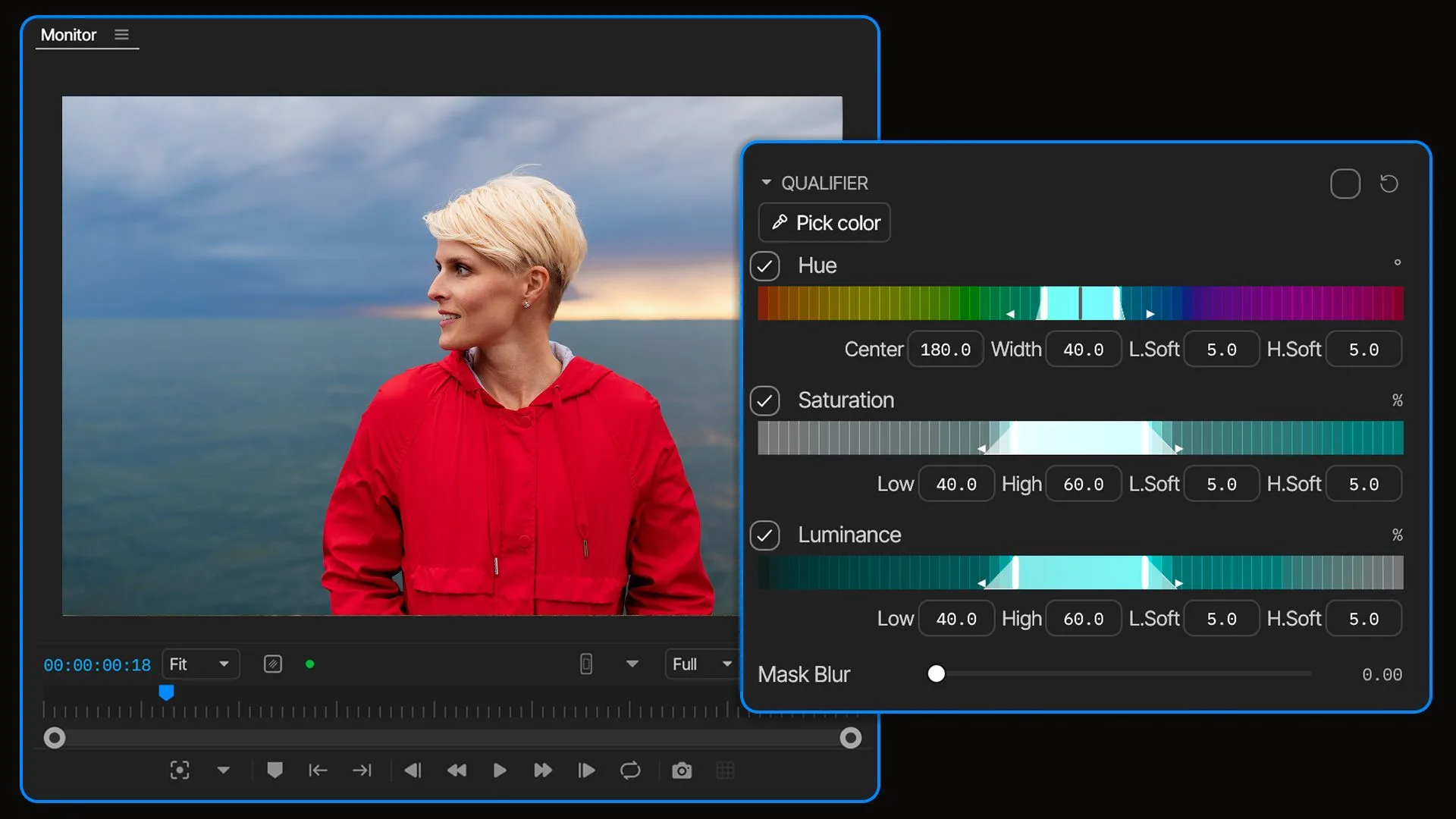
Official invideo product visual showing qualifier ranges and softness controls. The pictured footage is separate from the speaker example.
Wheels and curves let you adjust tonal ranges and channels, while scopes help you judge levels alongside the picture. You can ask the agent for an initial correction and use these manual tools to finish the selection and grade yourself.
Verdict: invideo Editor is the better choice for detailed colour correction and grading. It handles whole-shot balance and selective corrections, while Canva’s native Video Adjust panel is limited to colour adjustments that affect the whole clip.
Audio editing: controlling the voice and the mix
In the speaker reveal, the presenter’s explanation needs to stay clear over the music, while the button click marks the action on screen. That calls for treating the voice recording and balancing the audio layers. Here’s how both editors handle the recording and the mix.
Canva supports multiple audio tracks, trimming, clip volume, Balance all and fades. Beat Sync helps align clips to music: Canva’s free plan offers beat markers for manual placement, while Pro adds automatic synchronization. These tools cover sound arrangement as well as simple level changes.
The Enhance Voice feature on Canva’s paid plans reduces background noise and brings the voice forward. Its strength slider lets you vary the treatment. This is an overall enhancement workflow: it does not give you separate frequency-band, compressor and de-esser settings to tune each problem independently.
invideo’s audio processors include Parametric EQ 8, Compressor, De-Esser and Limiter. EQ lets you target a boomy frequency range; de-essing addresses sibilance; compression controls the difference between loud and quiet passages. These are separate decisions, so you can adjust one treatment while retaining the others.
This voiceover demonstration at 02:29 shows editable Parametric EQ 8 controls. The audio workspace also provides clip and track levels, pan, automation, buses and sends. You can keep voice, music and effects separate, shape the music through a pause and balance related tracks together.

invideo’s layered audio timeline, clip controls and track mixer in a separate project. This view shows mixing controls; the linked voiceover demonstration shows EQ.
For music-led sections, invideo’s agent can also sync cuts to music. With the track and first few beats marked, it can carry that pattern through the selected shots, leaving their timing editable on the timeline.
Ask the agent for an initial sound pass, then refine the processors and mix yourself. For example, lower the music during the presenter’s explanation while preserving the button click and picture edit. Our sound-design guide develops that process through separate cleanup, sound-bed and mixing passes. Listen to the full mix before settling on the treatment.
Verdict: invideo gives you greater control over voice treatment and layered sound, with separate processors for tone and dynamics and mixer controls for balancing tracks together. Canva covers arrangement, levels and adjustable automatic voice enhancement. Its native enhancement workflow gives you less control over individual frequency ranges, sibilance and compression.
Editing costs: which controls can you use for free?
Access to detailed controls is part of the decision, along with the cost of AI assistance. Both products offer free editing and MCP access. Here’s which controls you can use without an editing subscription and which work adds a plan or usage charge. Plan details were checked on 23 October 2026.
In Canva, free video editing is available, and core MCP tools include editing transactions on all plans. Canva’s assistant guidance notes that available actions vary between assistants; open the design in Canva for controls the connection does not expose. MCP access does not make premium content or AI generation free.
Canva’s paid plans add premium assets and tools. Enhance Voice has paid-plan requirements; automatic Beat Sync requires Pro. Shader animations require an eligible plan, including Education and Nonprofits. Check access before planning an edit around these tools. Conversational Canva AI 2.0 and generation have plan and usage boundaries. A Free project using your own or free assets can be exported without a watermark; premium content needs the appropriate licence.
In invideo Editor, manual editing and watermark-free video exports are free. Ordinary editing through the free MCP connection adds no invideo editing charge, including timeline revisions, subtitles and audio cleanup. Your ChatGPT or Claude subscription and usage limits apply separately.
Work assigned to invideo’s built-in agent uses invideo credits. Generating new images, video or audio also uses credits, including generation requested through MCP. Once work is on the timeline, you can continue refining it manually.
Verdict: Both offer free editing and MCP connections, but invideo gives you substantially greater control for free through independent motion curves, selective grading and detailed audio processing. Watermark-free exports are included; built-in-agent work and generation use credits.
Which should you choose?
Go with invideo Editor for greater creative control over a complex edit. Independent motion curves, adjustable custom graphics and effects, selective grading and detailed audio mixing give you more room to shape the result. Its built-in agent and professional manual suite let you develop those details in the same project. Manual editing and ordinary MCP revisions are free.
Go with Canva for videos built around its templates, reusable graphics, custom motion paths and supplied effects. It supports editable multitrack projects, AI assistance and MCP, but its native workflows give you less direct control over property curves, selective video grading and individual audio processors. Those differences leave less room for precise finishing as an edit becomes more complex.
Frequently asked questions
Does Canva’s ten-second animation limit mean my video must be ten seconds long?
No. Canva’s animation help limits each created animation to ten seconds and a design to fifty created animations. Those limits describe created animations, not the total running time of every Canva video.
Can I use my own footage and recorded sound in both editors?
Yes. Both accept uploaded media for editable video projects. Using your own footage also lets you judge the controls against the material you actually need to finish. Check format compatibility and the rights to any additional stock or generated assets.
Do I need to write code to create a custom effect in invideo Editor?
No. Describe the treatment or share a reference and ask the agent to build an effect with dedicated controls. You can then adjust its settings manually and animate supported properties. If a revision needs another setting, ask the agent to add it.
Can I refine AI-assisted edits manually in both editors?
Yes. Both keep video projects editable on multitrack timelines, where you can refine the elements and controls available in the project. Keep that separate from adding a generated video clip: in either editor, placing the clip on a timeline does not automatically expose its internal details as separate objects or effect parameters.