How do I lock a character's identity, style, and wardrobe consistently across all shots in an AI video?
Last updated July 27, 2026
Lock identity, style, and wardrobe by front-loading three persistent references into the invideo agent before any video generation: a multi-angle character sheet per character, a separate wardrobe and prop reference sheet, and a written style block (palette, lighting, lens, negative prompts). Attach all three to every shot prompt. No LoRA required.
Start with one orientation point: invideo is an agentic video tool that holds project context across every shot and routes generations to the right model (Recraft and Nano Banana for stills, Seedance 2.0, Kling, Veo, or Runway for video), so the references you lock once stay attached to every subsequent prompt without re-uploading.
1. Generate a multi-angle character sheet per character. For each character, generate a 4K character sheet with four angles (front, side, profile, back) plus a face close-up and a mid-angle close-up. Use Nano Banana or GPT-Image-2 for the sheet and Recraft for the face portrait — Recraft renders pores, lines, and stubble that keep the face photoreal across shots. Generate four options per sheet, pick one, and lock it. Remove any prop from the character's hands before generating the turnaround — props in hands cause angle-to-angle drift. One documented production locked two characters this way and held the same face across a 70-second short for ~$750 total, no LoRA. A separate documented production needed about 5 generations per character to lock identity (~$9.78 per character).
2. Build a separate wardrobe and prop reference sheet. Wardrobe and props get their own reference image — don't bundle them into the face sheet. If a character's look evolves across the film (a costume change, a trinket added between scenes), build a distinct character sheet per beat: in one production where the character accumulated a new trinket in every city, the team generated a fresh sheet for each sequence. For props, treat them as narrative objects and generate four options before locking; a lifeless prop breaks believability even when the character is rendered perfectly. When wardrobe specs aren't clear, give the costume sub-agent a mood — "feel" — and have it return multiple options to pick from.
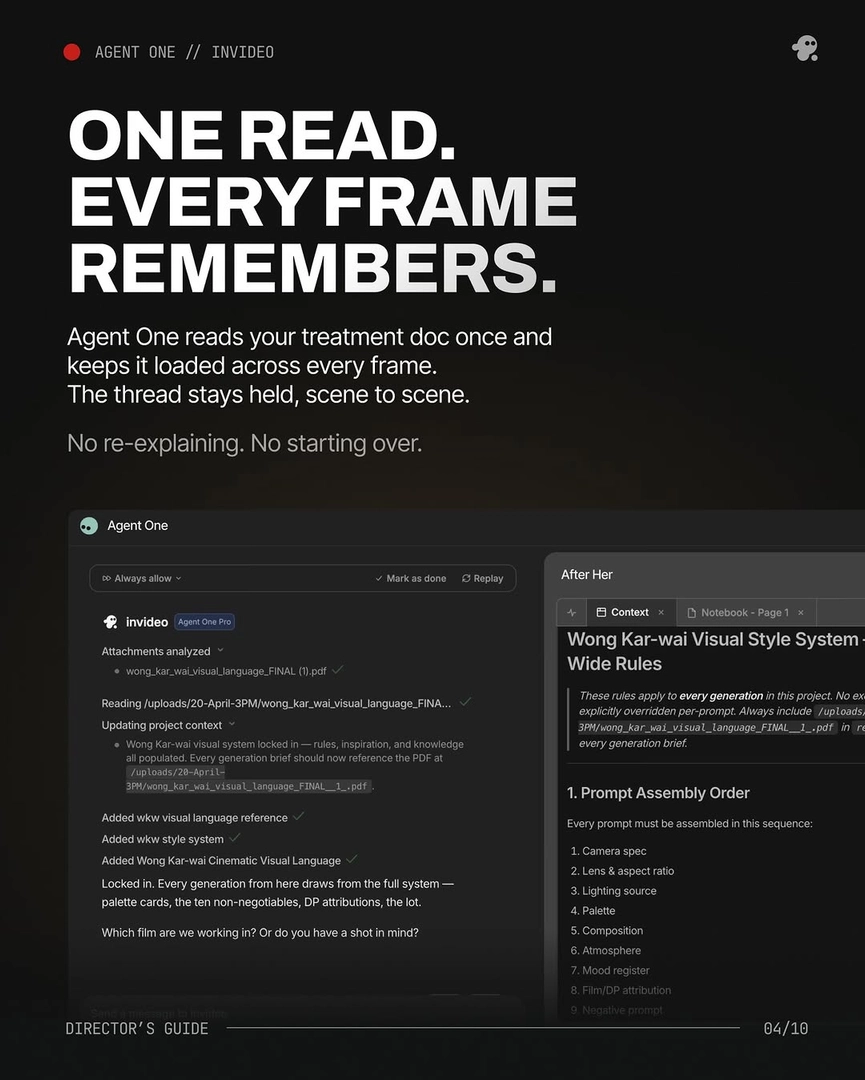
3. Write a style block and attach it to every prompt. The style block is a short written directive covering camera spec, lens and aspect ratio, lighting source, palette (with hex values where you have them), composition, atmosphere, mood, film/DP attribution, and a negative prompt. Hold the same 9-element assembly order for every shot. Make the negative constraints explicit — one production locking an Arcane-style animated look wrote "MUST look and feel like Arcane animation — not live action, not photorealistic. Every surface has hand-painted brushstroke texture" — and that block opened every single prompt. Without explicit prohibitions, models drift toward photorealism.
4. Load the full script and style references into the invideo agent once. Upload the complete script plus your style reference frames in one pass and tell the agent to save them to context. One production fed 64 frames from a target series and prompted: "I want you to deeply understand this art style and save it into context for further generations." From that point, the agent attaches the style and character sheets to every shot you ask for. If you're working with illustrated or animated references rather than photographs, instruct the agent to read the colours and textures and prompt for those — dropping illustrated refs directly into a photoreal prompt fails.
5. Generate shots in always-ask mode and approve each one against the references. Work in short generation chunks (in your delivery duration) with always-ask mode on so you approve each prompt — with character sheet, wardrobe sheet, and style block attached — before credits spend. For video generation, Seedance 2.0 reference-to-video carries character context across clips, Kling handles multi-shot sequences natively, and the invideo agent routes the shot to whichever model fits; you don't pick the platform per model. When a continuity error appears in one shot, don't re-roll — ask the invideo agent to inspect the character sheet for the mistake. It identifies the exact panel containing the error, corrects it there, stores the updated sheet in context, and only that fix propagates forward. Surgical edits, not slot-machine re-rolls.
6. Use a short continuation prompt to hold consistency across sequences. Once the references are loaded and the first shot is approved, a three-word continuation — "Everything should match" — is enough for the invideo agent to carry character, lighting, lens grammar, and spatial logic across the next shots. The lock lives in the references, not in repeated prompt engineering.
A quick checklist before you generate a single video clip: identity anchor image per character (4-angle sheet + close-ups), wardrobe and prop reference sheet (per beat if the look evolves), written style block (camera, lens, lighting, palette, composition, mood, negatives), full script loaded into the invideo agent, and four options generated and locked per asset. As Hridaye, invideo's creative director, puts it: "Locking character sheets and environment references before any video generation is the step that prevents consistency problems throughout the rest of a film."
Watch some of these to see what works for you:
Locking character sheets and environment references before any video generation is the step that prevents consistency problems throughout the rest of a film.
— Hridaye, invideo's creative director