How do you keep AI-generated video shots visually consistent across a short film?
Last updated July 27, 2026
Lock five things before you generate any video — character, wardrobe and props, world, style, and motion — then drive every shot from those locked assets. Build character sheets and a style block once, anchor each scene with an approved reference still, apply both to every prompt, and audit the cut for drift before final.
Start by treating consistency as five separate problems and solving each with a locked asset, not a clever prompt. The invideo agent is an agentic video tool that holds project context across shots and routes generations to the right model (Seedance 2.0, Veo, Kling), so once an asset is locked it gets re-attached automatically to every downstream shot.
1. Lock character identity with multi-angle sheets. Generate a 4-angle turnaround per character (front, side, profile, back) plus a face close-up, at 4K, and lock it before any video work. A documented 70-second two-character short kept the same person across every scene this way with no LoRA fine-tuning. For an animated episode, the team needed roughly 5 generations to lock one character (~$9.78 per character) and produced 11 reference images covering 4 characters and 1 prop. If a character evolves through the film — picking up trinkets, costume changes — make a separate sheet per beat rather than one master sheet.
2. Lock wardrobe, props, and world the same way. Generate 4 options per asset (costumes, key props, environment plates), pick one, and freeze it. Props matter as much as faces — a lifeless prop breaks believability even when the character renders cleanly. For worlds, batch references by theme (spatial logic, color, screen function) and tell the agent explicitly what to take from each batch and what to ignore; then extract the best panels from grid generations and use THOSE as the continuity anchors going forward, not the original moodboard.
3. Lock style as a written block, re-attached every prompt. Write a short style block — medium ("hand-painted brushstroke texture, painterly"), explicit negatives ("not live-action, not photorealistic"), palette, lighting grammar — and start every generation prompt with it. One animated production fed 64 style-reference frames in a single ingestion message ("deeply understand this art style and save it into context") and then prefixed every subsequent prompt with the same block. Hridaye, invideo's creative director, frames the underlying mechanic this way: "camera continuity carries from the treatment doc forward. you're not telling the agent how to move the camera every time. you set it once. it holds." Inside invideo you can do this by loading the style document into a creative producer agent that grounds every other sub-agent (storyboard, DOP, costume) in the same reference.
4. Hold a fixed prompt assembly order across every shot. Assemble every prompt in the same sequence — camera spec → lens and aspect ratio → lighting source → palette → composition → atmosphere → mood register → film/DP attribution → negative prompt. Same order, same vocabulary, every shot. Reference lighting back to the locked plates explicitly ("warm yellow from the lamps only, like all the refs") rather than generic descriptors. This is what stops style drift between scene 2 and scene 47.
5. Anchor each scene with an approved still, then generate motion from it. Frames-first, video second. Get the opening frame of a scene approved at image stage, then feed that frame plus the locked character sheets and world reference into video generation — Seedance 2.0 reference-to-video carries character, location, and camera context across clips far better than start/end-frame extension. Where a scene needs continuous coverage across multiple cuts, model choice matters: route shots that need multiple cuts in one generation to a multi-shot-capable model, and shots that need character continuity across separate clips to reference-to-video. The invideo agent holds all roster models, so you direct the shot and it picks the model.
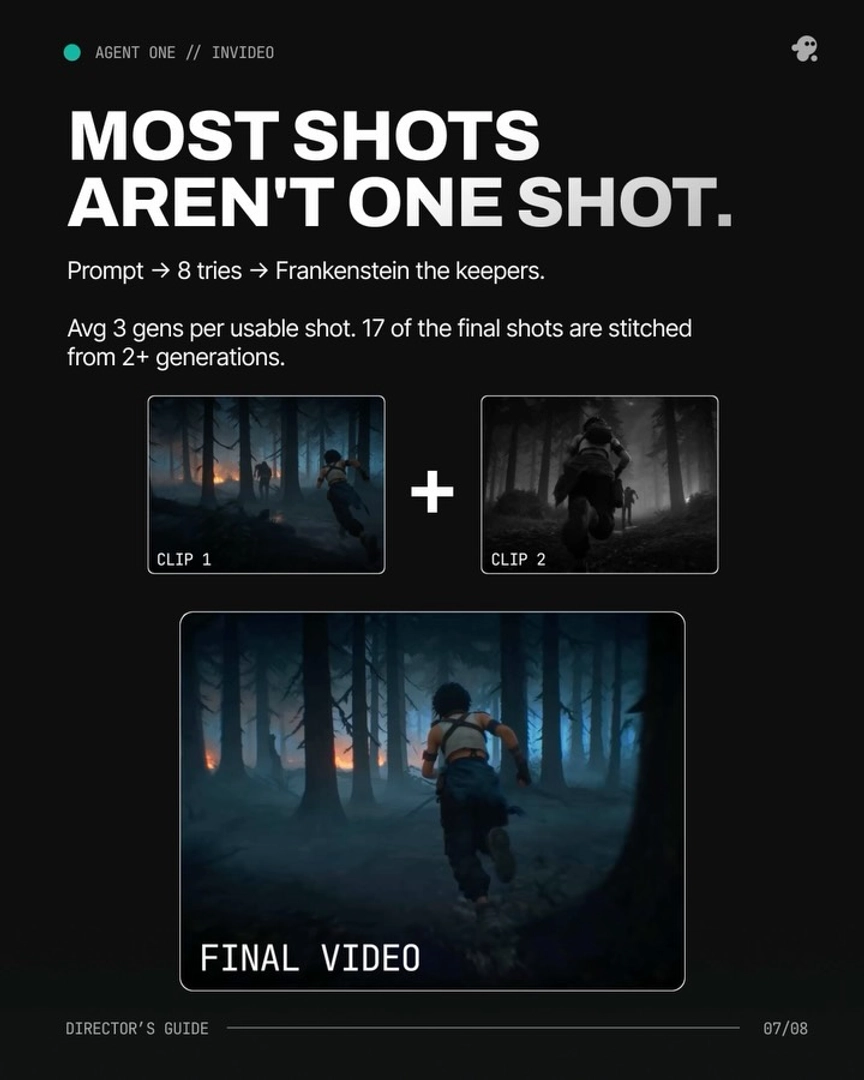
6. Overgenerate, then composite — plan for it in your budget. Across documented productions, roughly 3 generations are needed per usable shot and only ~25% of all generated clips make the final cut (41 of 164 in one 3-minute episode). Of the final shots, over 40% (17 of 41) were stitched from 2 or more generations — a Frankenstein shot, where you take the best 4–7 seconds of one 15-second clip and splice in the best seconds from another. Run generation in always-ask mode so you approve every prompt before credits are spent.
7. Audit the cut for drift before lock. When a continuity error shows up (wrong earring, a missing scar, the prop changed shape), do NOT re-roll the shot. Ask the invideo agent to inspect the character sheet, identify which panel carries the error, fix it at source, and regenerate only the affected shot. One documented case: the agent found an AirPod that had crept into a character grid panel and fixed it surgically. Then send the rough cut back through with a "what's working, what's not" pass — a documented production caught an entity-reveal shot running at the wrong emotional stage register that the human editor had missed.
Work act-by-act, not all-at-once. Finish 25% of the film fully — sheets, shots, edit — before starting the next 25%. This keeps the invideo agent's context tight and prevents drift on longer projects. Across five documented productions, this workflow has delivered consistent shorts at $315–$750 per finished minute in 2–5 production days.
Watch some of these to see what works for you:
camera continuity carries from the treatment doc forward. you're not telling the agent how to move the camera every time. you set it once. it holds. that's the flow state.
— Hridaye, invideo's creative director