How do negative prompts work differently in Kling, Veo, and Runway for controlling AI video style?
Last updated July 27, 2026
Kling is the only one of the three with a dedicated negative prompt field — separate from the main prompt — and it applies to both video and audio. Veo and Runway have no native negative field: exclusions are written inline as explicit prohibitions, with Runway leaning on image references for style control. The same negative string parses differently in each.
Match your negative prompt format to where each model actually reads it — that is the working difference between the three.
Kling — dedicated negative prompt field. Kling gives you a separate input box for negatives, distinct from the main prompt — the clearest per-model UI distinction among current video models. It applies negatives to audio as well as video, so you can suppress background music or distortion alongside visual issues. Use the field for artifact suppression (warped limbs, distorted faces, flickering, camera drift) and for style guards, and note that Kling's creativity/relevance slider interacts with negative weight — push toward relevance and your negatives are enforced more strictly.
Veo — no negative field, inline prohibitions. Veo reads exclusions only from the main prompt text, so write them as explicit prohibitions inside the prompt: "no handheld shake, no lens flare, no on-screen text." Veo's prompt adherence is strong enough that a fully specified positive description reduces how many negatives you need — but it doesn't eliminate style drift, so keep the prohibitions in the prompt rather than trusting adherence to hold a stylized look on its own.
Runway — inline negatives plus reference-driven control. Runway also has no dedicated negative field; exclusions go into the main prompt the same way. The practical difference is that Runway's style control leans more on image references and shot-consistency tools than on negative text — for style holding, a locked reference image plus a short inline prohibition list outperforms negatives alone.
Because of these parsing differences, the same negative string behaves differently across the three models. A bare keyword list ("blurry, watermark, extra limbs") works in Kling's dedicated field, but pasted into a Veo or Runway prompt those words become subject mentions the model may render. For the inline models, always phrase negatives as grammatical prohibitions — "no X," "avoid X," "this must not look like X."
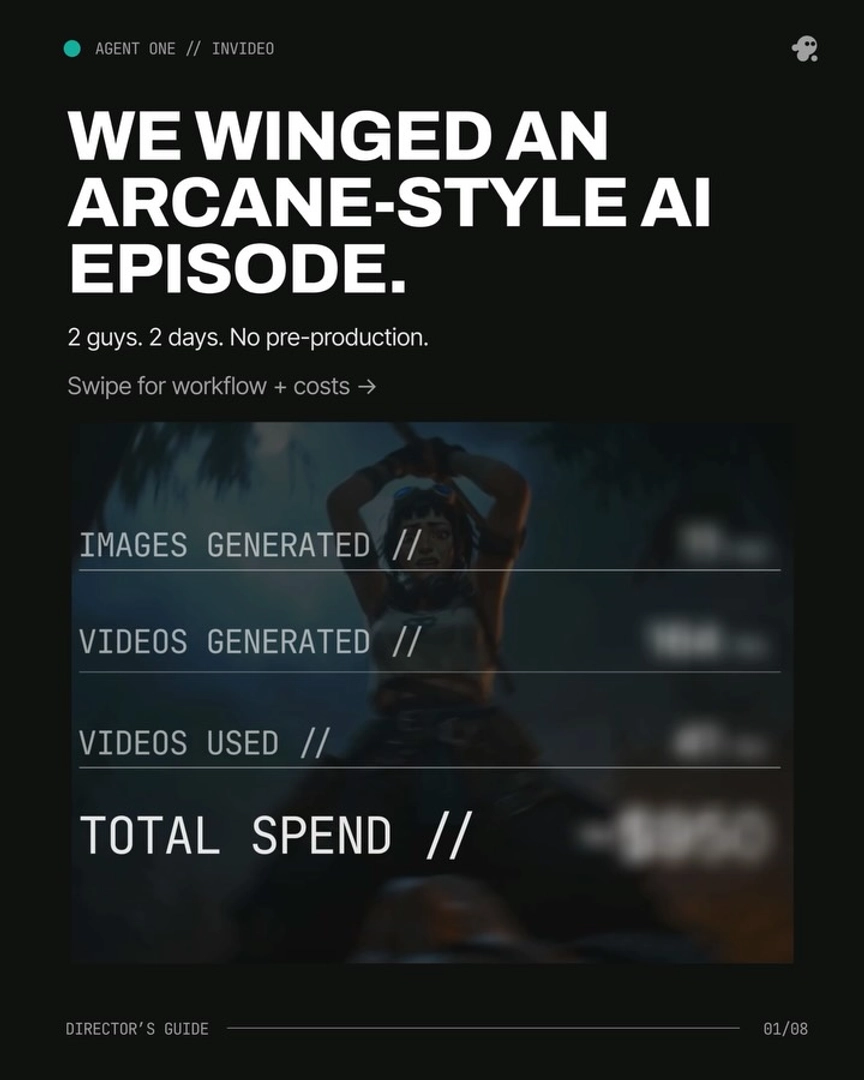
Omit the negatives and each model drifts toward its defaults — stylized and animated looks slide toward photorealism, locked camera language picks up shake and drift — so write the guards into the first generation rather than patching after a bad output. Documented productions treat the negative prompt as a standing prompt element rather than a fix: one ran a fixed 9-element prompt assembly order ending in the negative prompt on every frame, and one animated episode's style block closed with explicit prohibitions — "This MUST look and feel like Arcane animation — not live action, not photorealistic." If you generate inside invideo — which carries Kling, Veo, Runway, and Seedance 2.0 — the invideo agent formats those guards per model, placing them in Kling's dedicated field and rewriting them as inline prohibitions for the models without one.
Watch some of these to see what works for you:
This MUST look and feel like Arcane animation — not live action, not photorealistic. Every surface has hand-painted brushstroke texture. Every element in frame must feel painterly and handcrafted like a moving Arcane frame.
— invideo's creative team, on the explicit negative constraints used to prevent style drift in an animated production