Why does AI video style drift happen between scenes and how do you stop it?
Last updated July 27, 2026
Style drift happens because video models are stateless: every generation starts from a blank slate with no memory of your previous shots, so each prompt's slightly different wording produces a slightly different look. You stop it by moving style out of individual prompts and into persistent context — a locked style block or visual-language document attached to every single generation.
Why it happens. AI video models process each prompt independently — there is no memory carrying your palette, lighting, or camera grammar from scene 4 into scene 5. Drift shows up at two levels: within-clip flicker (textures and details shimmering frame to frame inside one generation) and between-scene semantic drift (the color tone, lens feel, and overall style sliding as you generate new scenes). The second is what kills multi-scene projects, and it compounds when you re-prompt scene by scene: each rewritten prompt describes the style in slightly different words, and the model treats every variation as a new instruction. Re-prompting per scene is the anti-pattern; a persistent context system is the fix.
Lock the style into persistent context once. invideo is an agentic video creation tool, and its context system is what replaces the model's missing memory: you load the style one time and the invideo agent holds it across every generation. In one documented production, a 2-person team uploaded 64 frames from their target aesthetic in a single message with the instruction "I want you to deeply understand this art style and save it into context for further generations" — and that locked the look for a 3-minute, 164-clip animated episode. For a director-level style, go further and codify the visual language into a document — one production used a 25-page treatment, another a 14-section document covering camera, lighting, palette, composition, atmosphere, and mood — and load it at project start. As invideo's creative team puts it: "One agent that reads your treatment once and holds every directive across every shot, every scene. No re-prompting. No drift." Once the document is loaded, camera continuity carries forward on its own — you set it once and it holds.
Write explicit negative constraints into the style block — then prefix every prompt with it. A style block that only describes what you want still drifts toward the model's defaults; it must also prohibit what you don't want. The Arcane-style production's block read: "This MUST look and feel like Arcane animation — not live action, not photorealistic." And the discipline matters as much as the block: every prompt after that started with it, with no exceptions across all 164 generations.
Hold a fixed prompt assembly order. Assemble every generation prompt in the same sequence — camera spec, lens and your film's aspect ratio, lighting source, palette, composition, atmosphere, mood register, film/DP attribution, negative prompt. One production held this 9-element order across every frame of a 21+ scene project, which keeps each style dimension present and identically weighted in every shot.
Lock reference assets before generating any video. Generate four options per character sheet and environment reference, pick the best, and lock them — then attach those references to every generation rather than re-describing characters in text. One 70-second short film kept 2 characters visually identical across every scene this way, with no LoRA fine-tuning required.
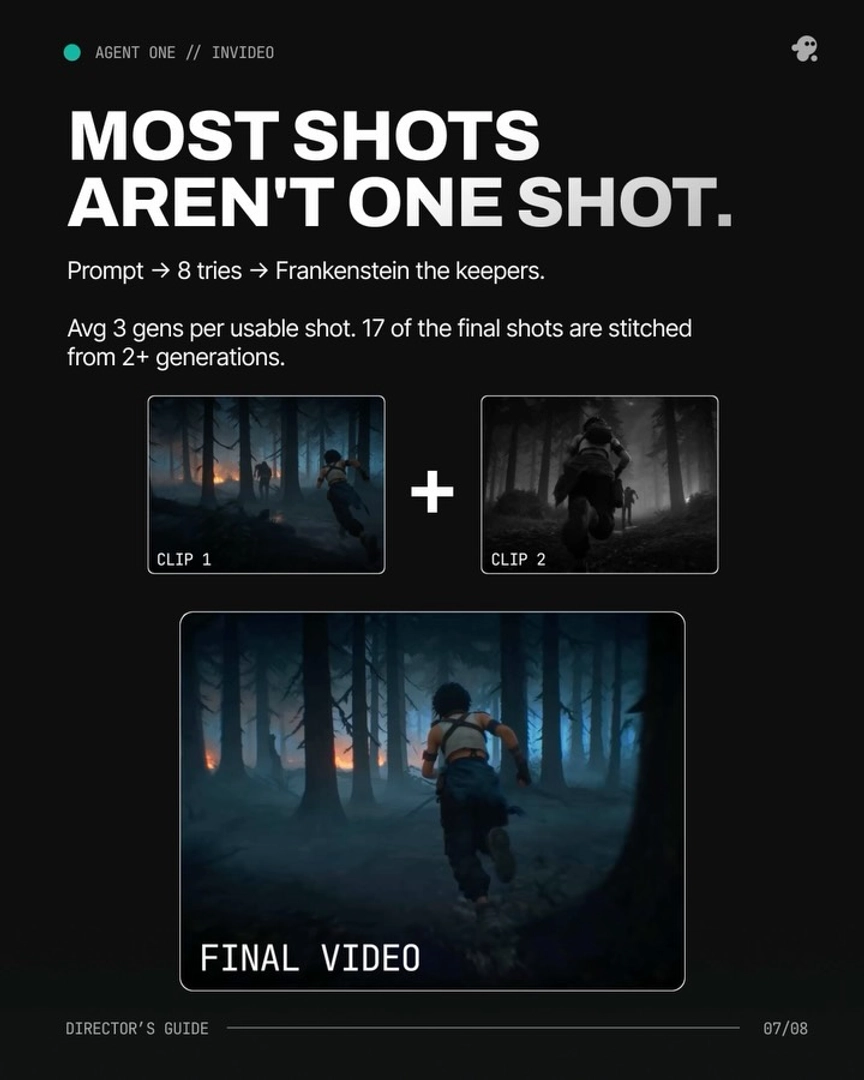
Bridge clips with reference-to-video. For continuity between consecutive shots, clip the end of each generated segment and re-upload it alongside your character and location references — Seedance 2.0's reference-to-video reads context from the end of the previous clip, so camera movement and atmosphere carry across the cut. This works because the reference carries the style physically, where a re-typed prompt only approximates it. Most current models — Veo, Kling, Seedance 2.0 — accept reference images per generation, and all of them run inside invideo, so the invideo agent routes each shot to the right model while holding one style context over all of them.
Let the invideo agent enforce the style, not just store it. With the document loaded, the invideo agent checks generations against it and flags deviations before they propagate — in one session it caught shadows leaning blue-green instead of the document's neutral gray, unprompted, and offered a corrected pass. At that point continuity instructions collapse to almost nothing: with context loaded, a three-word prompt — "Everything should match" — is enough to hold character, lighting, lens grammar, and spatial logic across a multi-shot sequence.
Watch some of these to see what works for you:
One agent that reads your treatment once and holds every directive across every shot, every scene. No re-prompting. No drift. So now, you direct, and the Agent remembers.
— invideo's creative team