Why doesn't my illustrated or animated reference image work in AI video generation?
Last updated July 27, 2026
Illustrated or animated reference images fail because most AI video models generate in a photorealistic output space — the model translates your drawn reference into photorealism, producing mismatched, off-register results. The fix depends on your goal: extract the reference's colours and textures into a text prompt for photoreal output, or explicitly lock the illustrated style with reference frames plus negative constraints.
Your reference isn't being ignored — it's being mistranslated. Video models pattern-match against their training data, and an illustrated rendering language (flat fills, ink lines, painted texture) has no direct equivalent in the photorealistic space most models default to, so the model produces something in between: neither your style nor clean photorealism. The fix routes two ways depending on what you actually want.
If you want photorealistic video with the reference's mood: don't attach the illustration directly. Instruct the AI to read the reference's colour palette, colour temperature, and surface texture qualities, then write those properties into a photorealistic prompt. invideo is an agentic video creation tool with all the current video models available, and this translation step is exactly what the invideo agent handles: in one documented production, the creator reported "the gens came back hyper-realistic with the exact colour temperature I was looking for" after the invideo agent read the colours and textures instead of copying the image. The same applies manually on any model — describe the palette (specific hues, warm/cool temperature), the texture (grain, softness, sheen), and the lighting quality in words rather than uploading the artwork.
Tell it what to take and what to leave out. When you use multiple references, separate them into thematic batches — one batch for spatial logic, one for colour theory, one for a specific design idea — and state explicitly what to adopt and what to ignore from each. One production fed stills from a live-action TV series with instructions to extract only the screen-as-dome concept and discard the small-room scale; exclusion instructions matter as much as inclusion, because stacking unfiltered references dilutes every style signal in them.
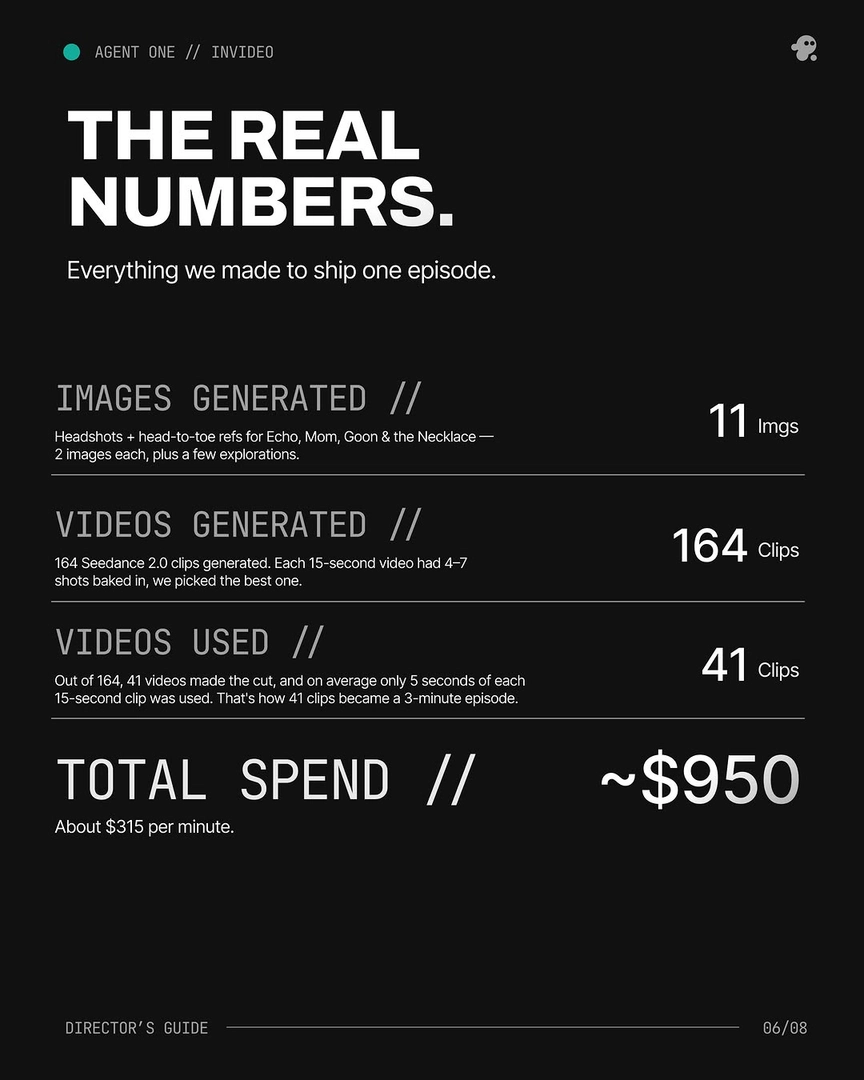
If you actually want the illustrated look as your output: the problem inverts — the model drifts toward photorealism unless you forbid it. Upload a large batch of style frames in one message with an instruction to save the style to persistent context, and put explicit negative constraints in every prompt: one production's style block read "not live action, not photorealistic... every element in frame must feel painterly and handcrafted." That production uploaded 64 frames from an animated series as the style lock, and a 2-person team held the hand-painted look across 164 generated clips to finish a 3-minute episode in 2 days for ~$950.
Check what kind of reference your model accepts. Models distinguish subject/asset references (a character or object to keep consistent — these generally work, even from stylized images) from style references (an overall look to imitate — support varies by model; Google's Veo documentation separates the two explicitly). Seedance 2.0's reference-to-video, for example, is built to carry character and location context across clips rather than to clone an art style. Inside invideo you don't have to pick a platform per model — every roster model is available, and the invideo agent routes each shot to the one that matches the reference type you're using.
These are some of the ways to problem-solve this — which one applies depends on whether your target output is photoreal or stylized.
Watch some of these to see what works for you:
The better move was to have Agent 1 read the colours and textures of them and prompt for that instead.
— invideo's creative team