AI Video Editor or Premiere Pro Plugins: Which Is Better for Editing Multicam Podcasts?
October 21, 2026

AI video editors and Premiere Pro plugins take different approaches when it comes to editing multi-cam recordings into a finished podcast. We compare invideo Editor with Premiere Pro and AutoPod across the different stages of editing to see how they handle things like syncing cameras and audio, building the base cut, revising the conversation, finishing sound and creating cutdowns. We will be seeing what each route handles, where manual work remains and where one has an advantage over the other.
An AI video editor and a Premiere Pro plugin can both help with multicam podcast editing, but they put different parts of the process in your hands. The choice depends on whether you want to direct work across the edit through a brief or add specific automation to an established Premiere workflow.
Below, we compare invideo Editor with Premiere Pro and AutoPod at each stage: syncing the recordings, building the camera cut, revising the conversation, finishing the episode and making cutdowns.
invideo Editor vs Premiere Pro with AutoPod at a glance
Premiere Pro supplies the editing, audio, colour and delivery tools. AutoPod adds podcast-specific camera switching, silence-based cuts and social-clip creation. You keep working inside Premiere throughout.
invideo Editor combines a built-in editing agent with a professional, frame-accurate multitrack timeline. You can delegate assembly and revisions, then develop picture, graphics and sound through further instructions or full manual controls.
Editing job | invideo Editor | Premiere Pro + AutoPod |
|---|---|---|
Syncing cameras and audio | Syncs camera and microphone recordings from a chat brief identifying each angle and speaker, with separate audio tracks for later adjustments. | Premiere syncs the recordings, but sequence settings, audio-channel setup and AutoPod’s speaker-to-camera mapping still need to be configured by hand. |
Building the base cut | Switches camera angles based on the conversation and your instructions: stay with a speaker until they finish their point, avoid cutting for brief acknowledgements and use wide shots for shared reactions. The same brief can request removal of filler words, false starts and unnecessary pauses during assembly. | AutoPod switches between speakers and wide shots using reusable settings, but cuts that interrupt a point or miss a reaction still need manual correction. |
Making edits and revisions | Allows the user to make precise edits from chat instructions using timestamps, such as changing a camera switch while preserving the dialogue. | Premiere supports transcript edits and pause detection; AutoPod cuts silence. You still select passages and judge what belongs in the story, with conversational help limited to Adobe’s public beta. |
Finishing picture and sound | Balances voices, matches camera colour and adds titles, graphics and styled captions through chat, with manual controls for further adjustments. | Premiere offers detailed audio, colour, graphics and caption tools with reusable templates, but AutoPod leaves this finishing work for you to complete in those controls. |
Making cutdowns | Suggests moments, builds separate cutdowns and revises their openings, framing and captions through chat while preserving the full episode. | AutoPod’s Social Clip Creator reformats selected ranges and supports batch export, but you still find the moments and choose where each story starts and ends. |
Syncing the cameras and audio
A multicam edit needs every camera angle and microphone recording to stay in sync, so switching views does not disrupt the conversation. Here’s how both tools handle syncing the cameras and audio:
With Premiere Pro and AutoPod, you have to prepare the sequence before the plugin can start cutting. In Premiere’s native multicam workflow, that means importing and selecting the clips, opening Create Multi-Camera Source Sequence, choosing the sync method and checking the audio-channel settings and camera names. Premiere can align the recordings, but configuring the sequence and checking the result are still your jobs.

Adobe’s Create Multi-Camera Source Sequence dialog brings together the sync method, audio settings and camera names used in Premiere’s native multicam setup.
AutoPod also needs separate audio tracks for each speaker, with the microphones and camera angles correctly mapped. A single mixed audio track will not work for this. The drawback is that AutoPod automates the camera cut while leaving this technical preparation to you. An already synchronized timeline works too, but you still need to get the recordings organized, aligned and mapped before the plugin becomes useful.
In invideo Editor, you upload the recordings and tell the agent what each camera shows and which microphone belongs to each speaker. For example: “Camera A shows the host, B shows the first guest, C shows the second guest, and D is the wide shot. Microphones 1, 2 and 3 belong to the host, first guest and second guest respectively. Sync the recordings, keep each microphone on a separate track and preserve the full conversation.”

John The Video Guy’s podcast walkthrough at 03:23 shows a request to sync the imported camera clips using their audio and add them to the timeline.
The advantage is that you can delegate the sequence preparation itself. You explain the footage in chat, and the agent handles arranging and syncing the tracks. You move on to reviewing the prepared timeline without having to build the multicam sequence and configure its audio routing yourself.
With either approach, check alignment near the start, middle and end, including after recording restarts.
Verdict: invideo becomes the easier recommendation with its chat-based briefing, where you describe your cameras and microphones and ask the agent to prepare the timeline. With Premiere and AutoPod, you work through the sequence setup and track mapping by hand before the plugin can start cutting.
Building the multicam base cut
A good camera cut follows the speaker, holds useful reactions and avoids distracting switches. Let’s compare how both tools build that first pass and let you change the camera choices:
With Premiere Pro and AutoPod, synchronization is only the first part of setup. Before the plugin can build the base cut, you need to tell it which microphone belongs to each speaker and who appears in each camera angle. You do this in AutoPod’s Multi-Camera Editor panel in Premiere Pro by entering the speaker and camera counts, assigning the audio tracks, and tagging everyone visible on each video track, including wide shots. If you use a nested multicamera sequence, the official demo at 00:19 also shows duplicating the multicam layer once per camera.

Capture from AutoPod’s official demonstration at 00:35: names for the audio tracks and speaker tags for the camera tracks.
With the tracks mapped, you choose the wide-shot frequency and editing method, then run Create Multi-Cam Edit. AutoPod uses that setup to produce the camera-switching pass. You can save the layout for future episodes, reducing the setup work for a recurring show.
You still need to review how those cuts follow the conversation. A general wide-shot setting may leave too many or too few wide shots in a particular exchange. Where a switch interrupts a point or misses a useful reaction, you have to work through the timeline and adjust the camera choice or cut point in Premiere.
In invideo Editor, once the recordings are synced, you tell the agent how you want the camera cut to follow the conversation and it will build the base cut for you. For example say: “Stay on the main speaker until they finish their point. Don’t switch cameras for brief acknowledgements from other speakers. Use the wide shot for shared reactions. Remove unnecessary pauses, long silences and unwanted false starts while preserving the speakers’ meaning and keeping every camera and audio track in sync.”
The result is an editable base cut with the camera switches laid out on the timeline. You can refine individual cuts through further instructions in chat or adjust them directly on the timeline.
The advantage is that you can direct both the first pass and individual corrections in plain language. You describe how the conversation should play, and the agent handles the corresponding timeline changes.
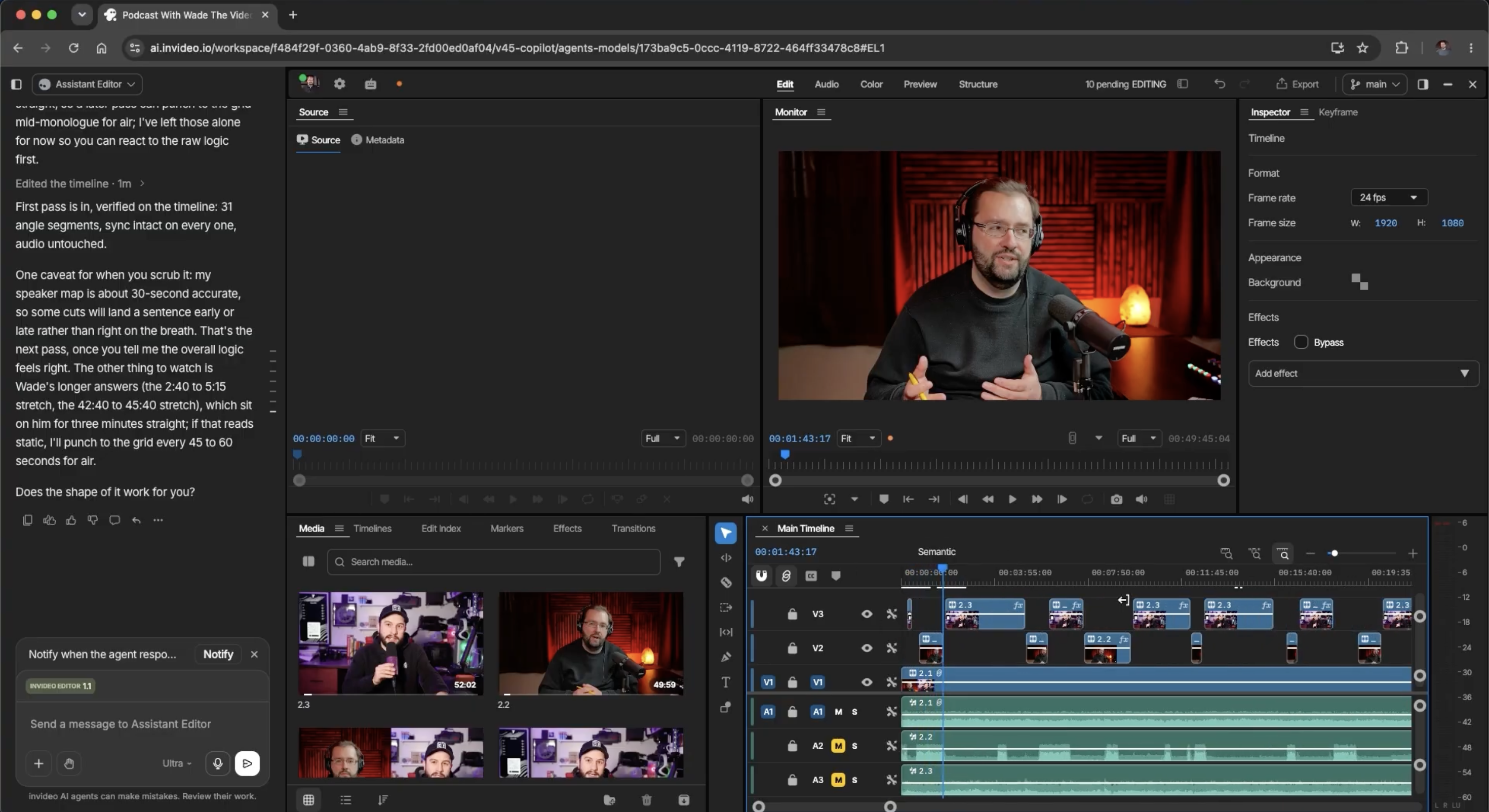
Capture from John The Video Guy’s separate podcast walkthrough. See the assembled camera cut at 04:49. The visible agent note flags that some switches may land early or late; this is a first pass to review.
Review speaker handovers, overlapping speech and reactions. Both routes let you hold a reaction longer or move a switch to the start of an answer.
Verdict: invideo’s context-aware editing makes it easier to shape the cut around complete points and reactions, with the agent handling both the initial brief and further corrections. AutoPod automates speaker switching and wide shots, but you still have to work through its base cut in Premiere and manually clean up switches that miss the context of the conversation.
Editing the conversation and applying revisions
With the base cut ready, you can tighten the conversation while preserving its meaning and keeping picture and sound in sync. Here’s how both tools handle those edits:
With Premiere Pro and AutoPod, you shape the discussion using Premiere’s Text-Based Editing: select passages to remove, then check the corresponding timeline cuts. Premiere also detects pauses and filler words. AutoPod’s Jump Cut Editor cuts silence using a decibel threshold. That helps remove gaps, but you still decide whether a pause adds tension, an answer repeats an earlier point or a tangent belongs in the episode.

Adobe’s Text-Based Editing example shows a selected transcript passage alongside the sequence timeline.
Keep the dialogue edits in the synchronized sequence. An audio-first handoff can leave you matching camera footage back to a shortened audio master, which adds work before the camera edit can continue.
Premiere’s AI Assistant public beta adds conversational help with media organization, transcripts, markers and rough assemblies. Its changes remain editable and undoable. Adobe currently recommends duplicate test projects and does not recommend the beta for client work, which matters if this podcast is a paid delivery.
In invideo Editor, with filler words, unnecessary pauses and long silences handled during assembly, you can focus on precise revisions in chat. Tell the agent what to change and what to preserve: “Remove the repeated explanation in this answer, keep the question and the guest’s counterargument, and leave the opening unchanged.”
The agent applies that targeted feedback to the relevant passage and its camera and microphone tracks. Review the joins and preserved passages, then request further changes in chat or make any frame-level adjustments on the timeline. This multicam podcast guide develops the same principle of keeping content edits aligned across sources.

Capture from BMF MEDIA’s separate talking-head demonstration at 04:50: opening-revision notes beside the editable timeline.
Verdict: invideo offers a coherent way to delegate changing editorial instructions beyond a camera-switching preset. Premiere remains strong for editors who prefer transcript selection and direct timeline work, with additional conversational assistance available in its evolving beta.
Finishing the episode: voices, colour and titles
A well-cut episode can still have uneven voices, mismatched camera colour or distracting titles. Let’s see how both tools help you finish the sound and picture, and how much control you have over the result:
With Premiere Pro and AutoPod, switching cameras does not by itself clean up overlapping microphones. If the host’s voice spills into a guest’s mic, you still need a separate audio pass to control that overlap, balance the voices and smooth the edited joins.
You handle the finishing work in Premiere. Enhance Speech where the dialogue needs it, match exposure, white balance and colour across the camera angles, and apply the show’s titles and captions. Existing Adobe templates help with recurring titles and graphics, but AutoPod’s camera pass leaves this finishing work to you.

Adobe’s Enhance Speech example highlights the Essential Sound controls used for a separate dialogue-cleanup pass.
In invideo Editor, you can brief the sound, colour, titles, graphics and captions in the same chat. For example: “Balance the speakers’ voices and smooth the audio joins. Match exposure, white balance and colour across the cameras. Add the supplied speaker names and logo, then add bold white captions with a black outline, centred near the bottom of the frame.”
The agent applies those instructions to the existing timeline. You can then ask it to adjust one speaker’s volume, correct a camera’s colour or change the caption styling. The advantage is that you describe the result you want instead of working through Premiere’s audio, colour, graphics and caption controls yourself. The audio workspace and manual timeline controls remain available for fine adjustments.

Published illustration of separate dialogue, music and sound layers with an editable volume envelope and mixer. This product-video illustration shows mixing controls, not an audible comparison.
Listen through the edited joins and check voice levels, colour consistency, graphics placement and caption accuracy before delivery.
Verdict: both routes provide substantial finishing control. invideo’s advantage is being able to direct that work through its built-in agent while retaining full manual access. Premiere is a compelling choice when existing audio practices, graphics templates and finishing expertise already serve the show.
Making cutdowns from the finished episode
A strong podcast moment still needs enough context and a clear ending to work on its own. Here’s how both tools help you select passages and turn them into cutdowns:
With Premiere Pro and AutoPod, you find the passage and mark its in and out points before running Social Clip Creator. The plugin creates a new sequence in landscape, 4:5 or portrait, with optional Auto Reframe, watermarks and endpages, and supports batch export. It automates preparation of your selected range, but finding a worthwhile story and choosing how it starts and ends are still separate editing decisions.

AutoPod’s official Social Clip Creator demonstration shows the format, Auto Reframe, watermark and endpage options at 00:16.
Premiere’s native Auto Reframe also creates a duplicate sequence for another aspect ratio, with editable reframing. Its Assistant FAQ currently lists versioning and cutdowns as future work for that beta assistant, rather than available assistant workflows.
In invideo Editor, you can ask the agent to suggest cutdown ideas with source timestamps and the context each needs. Choose the strongest candidates, then request separate cutdown timelines with the required framing and captions. The same conversation can cover discovery, assembly and revisions: change one clip’s opening or extend its explanation while preserving the full episode and other versions.

Generated illustration of a full podcast episode and three named cutdown timelines. The fictional project illustrates how versions can be organized; it does not show an executed edit or completed exports.
Keep revision instructions specific: “In the second cutdown, start with the guest’s answer and retain the explanation that follows. Leave the full episode and other cutdowns unchanged.” Check each crop through the exchange, correct captions and export the approved versions. The long-video-to-Shorts comparison explores the difference between finding candidates and developing individual clips.
Verdict: invideo is the stronger fit for developing and revising individual cutdown stories through instructions. AutoPod’s Social Clip Creator is convenient when you already know the ranges and want a repeatable social-format and batch-export workflow inside Premiere.
Which should you choose?
Choose invideo Editor if you want to delegate more of the edit through chat. Its advantage goes beyond the first camera cut: you can brief source preparation, give context-aware camera instructions, request precise conversation edits and finish voices, colour, graphics and captions without working through each control yourself. The same chat carries those decisions into cutdowns, while the timeline remains available for review and manual refinement.
Choose Premiere Pro and AutoPod when an established Premiere workflow is worth keeping. AutoPod’s reusable camera layouts and speaker-driven cut are useful for a recurring show, and its Social Clip Creator can format and batch-export ranges you have already selected. Premiere’s finishing tools and existing Adobe templates give you detailed control. The trade-off is the work around that automation: preparing and mapping sources, correcting contextual camera choices, shaping the conversation and completing the finishing pass.
Frequently asked questions
Is AutoPod one plugin or a bundle of tools?
AutoPod is a bundle of plugins for Premiere Pro: Multi-Camera Editor automates camera switching, Jump Cut Editor removes silence using a decibel threshold, and Social Clip Creator creates social-format sequences from selected in and out points. They are included in the same AutoPod plan.
Does AutoPod synchronize cameras and microphones?
AutoPod’s Multi-Camera Editor needs the recordings to be synchronized before it runs. You prepare them in Premiere, keep each speaker’s audio on a separate track, and map the microphones and camera angles. A native multicamera source sequence is one option; an already synchronized timeline can also be used.
Can I make precise podcast edits through invideo’s chat?
Yes. Identify the passage, say what should change and specify what must stay. For example, ask the agent to shorten a repeated answer while keeping the question and a guest’s counterargument. The result remains editable, so you can review the joins and refine it in chat or on the timeline.
Does AutoPod also finish the audio, colour and captions?
Its camera-switching pass does not complete those jobs. You use Premiere’s audio, colour, graphics and caption tools to finish the episode. In invideo, you can brief those adjustments in chat and refine the result through further instructions or manual controls.
How do invideo and AutoPod handle podcast cutdowns?
invideo’s agent can help find relevant moments and build cutdowns from a brief covering the story, length, format and captions. AutoPod’s Social Clip Creator starts from ranges you select and automates their social formats and batch export. Choose based on whether you need help developing the clips or mainly packaging selected moments.