How to Animate a Photo With AI (Pictures Into Motion)
July 15, 2026
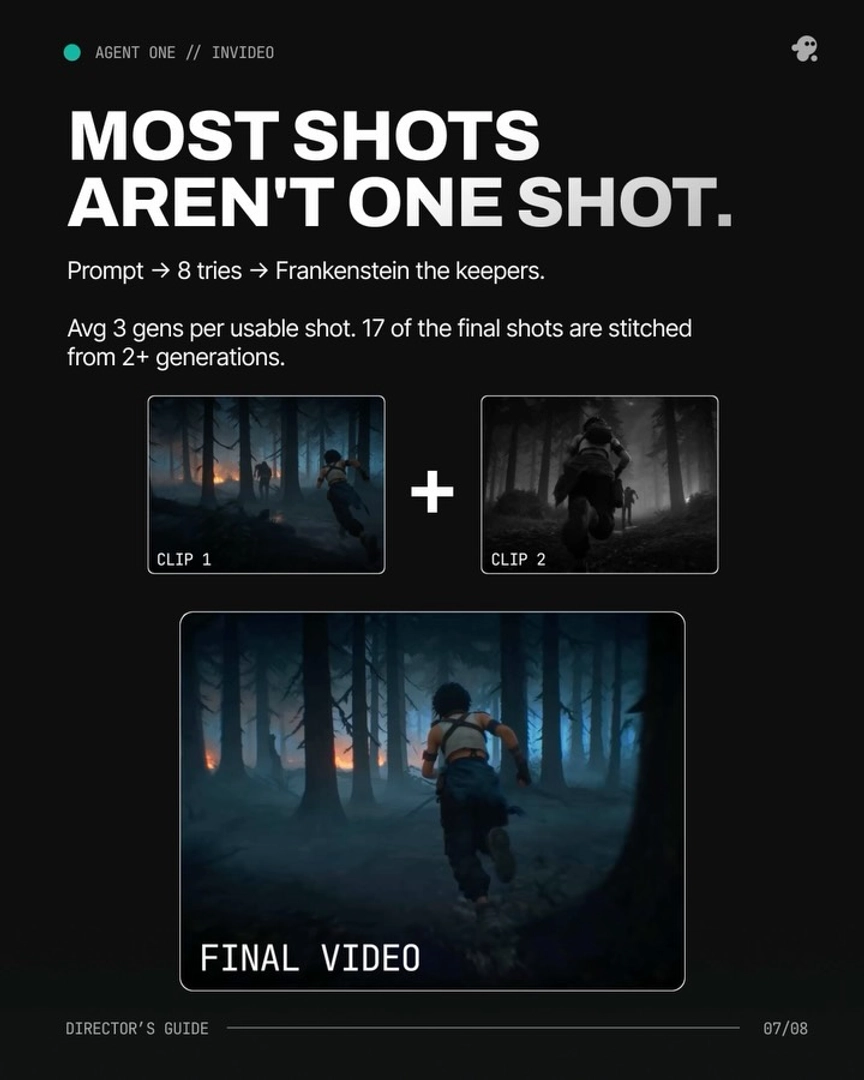
To animate a photo with AI, upload a clean, single-subject image with clear depth to an image-to-video model, write one or two sentences naming what moves and the camera move, then generate. Teams average about three generations per usable shot. The invideo agent routes shots to Seedance 2.0, Kling 3.0, or Veo 3.1.
To animate a photo with AI, upload a clean, single-subject image with clear depth to an image-to-video model, then write one or two sentences naming exactly what should move and what the camera does. Inside invideo, the invideo agent routes each photo to Seedance 2.0, Kling 3.0, or Veo 3.1 depending on what the shot needs.
What "animate a photo" actually means
Animating a photo means feeding a still image into an image-to-video model, which synthesizes motion from it — subject motion (eyes blinking, hair moving, smoke drifting), ambient motion (rain, light flicker), and camera motion (push-ins, pans, parallax). The photo can play one of two roles, and knowing how to animate a photo starts with choosing between them:
As the first frame. The model treats your image as frame one and generates everything after it. Composition, lighting, and framing are locked to the photo.
As a reference. The model reads identity, palette, and location from the photo but composes the shot freely. This is how you keep a person or place consistent across multiple animated clips.
The first-frame route is the right default for a single photo. The reference route matters the moment one still has to survive more than one shot — covered below.
The single-photo workflow, start to finish
This is one sequential process, not a menu of alternatives. invideo is an agentic video creation tool with all the current image-to-video models and upscalers available, so every step here happens in one place — the invideo agent routes each generation to the right model.
Prep the image. Use a single clear subject with visible separation between foreground and background, no heavy compression artifacts, and enough resolution that a crop still holds up. Depth is what gives camera moves their parallax; a flat image animates flat.
Upload and declare the role. Tell the invideo agent whether the photo is the literal first frame or a reference for identity and palette. The downstream prompt structure changes depending on which one you pick.
Write the motion prompt — two sentences maximum. Sentence one names what moves in the frame: "her hair lifts slightly in the wind, eyes blink once." Sentence two names one camera move: "slow push-in." One subject motion plus one camera move per generation; stacked instructions are the most common self-inflicted failure.
Generate and select seconds, not clips. Clips also contain more than one usable moment — one animated production found 4–7 usable shot candidates inside each 15-second Seedance 2.0 clip and used an average of only 5 seconds per clip in the final cut. Pick the best seconds.
Extend or stitch. Use extend to lengthen a take that works. When no single generation is complete, build a Frankenstein shot — stitch the strongest seconds from two or more generations of the same prompt into one composite. In one finished episode, 17 final shots were stitched from 2+ generations; compositing is the default, not the exception.
When a still won't hold up: the reference-image method
Switch from first-frame to reference-to-video the moment the photo can't carry the shot on its own — wrong composition, a camera move the framing can't support, or a subject that has to appear across several clips. Reference-to-video provides more context than start/end-frame methods: Seedance 2.0's reference-to-video accepts character references and location references simultaneously and carries that context across clips, so the photo anchors identity while the model composes freely.
To build a longer continuous piece from one photo, chain segments: clip the final moment of each generated segment, re-upload it to the invideo agent alongside the original photo, and generate the next segment. The clip carries camera movement and atmosphere across the boundary; the photo keeps the subject from drifting. This is what makes a single portrait sustain a 30–60 second continuous take instead of one short loop.
Two source-image cautions. First, multi-subject photos with physical contact — hands on shoulders, a held prop, bodies touching — break models faster than almost any other input; simplify to one subject or lock the arrangement as a clean reference image before animating. Second, illustrated or stylized photos shouldn't be dropped straight into prompts. Have the invideo agent read the colour palette and texture qualities and prompt for those instead — as one production put it, "the gens came back hyper-realistic with the exact colour temperature I was looking for."
Which model animates which kind of photo
Model choice changes the result more than prompt wording does, and you don't have to pick a platform per model — every roster model runs inside invideo, with the invideo agent as the routing layer.
Seedance 2.0 is the pick when the photo has to persist: its reference-to-video carries character and location context across clips, which makes it the backbone of chained continuous takes and multi-shot consistency from one source image.
Kling 3.0 generates multi-shot sequences natively, so it suits a photo you want to break into several angles or cuts rather than one continuous move.
Veo 3.1 rounds out the routing options for single-shot motion from a photorealistic still.
State the intent — "this portrait needs to stay consistent across four shots" versus "one slow cinematic push-in" — and the invideo agent matches the shot to the model rather than forcing one model to do everything.
What it actually costs to animate photos into a finished piece
A single animated photo costs a handful of generations; a finished piece costs iteration. Locking one recurring character from reference images ran roughly $9.78 per character. At the project level, documented productions ran $315–$750 per finished minute depending on team and approach. Image generation itself costs little, especially in invideo, so iterate on the still until it's right before spending video credits animating it.
Common reasons your animated photo looks wrong
The photo has no depth. Without foreground/background separation the model can't compute parallax, so camera moves smear instead of travel. Re-shoot or re-generate the still with depth before animating.
Two subjects in contact. Multi-character physical contact is the single most reliable model-breaker. Animate subjects separately or lock the arrangement as a reference image first.
Stacked motion instructions. Three subject motions plus two camera moves in one prompt produces mush. One subject motion, one camera move, per generation.
A stray reference attached. Over-prompting or a wrong attached image causes completely incorrect output; in one documented case, removing a single stray attachment fixed a continuity error outright. Audit what's attached before re-rolling.
Stylized source fed directly. Illustrated or animated stills confuse the model when used as literal frames — extract colour and texture into the prompt instead, as described above.
The style drifts mid-clip. If the photo has a strong aesthetic, state it as an explicit constraint — including what the output must not be ("not live action, not photorealistic") — so the model can't slide toward its default look.
The plasticky AI sheen. Over-sharp, plastic-looking output is a known generation artifact; a light pass of grain, subtle blur, and a grade — with Topaz Astra on invideo for upscaling — closes most of the gap to a filmed look.
FAQ
How many generations does it take to animate a photo well?
Plan on about 3 generations per usable shot — the documented average across productions.
How long can an animated photo clip be?
Individual generations typically run up to around 15 seconds. For longer pieces, use extend on a take that works, or chain segments through reference-to-video: re-upload the end of each clip with the original photo so identity and camera carry across the boundary.
Should my photo be the first frame or a reference?
Use it as the first frame when the composition itself is the shot — the model locks framing and generates motion from there. Use it as a reference when the subject or location must stay consistent across multiple shots, since reference-to-video carries that context where start-frame methods can't.
What should the motion prompt actually say?
Two sentences: one naming what moves in the frame, one naming a single camera move. Specificity beats length — "steam rises from the cup, slow push-in toward her face" outperforms a paragraph of adjectives, and stacked motions are the most common cause of unusable output.
Sources
The production figures in this article — generation-per-shot averages, clip selection rates, per-character lock costs, and per-minute finished costs — come from invideo's documented first-party productions, tracked shot-by-shot across multiple finished films and episodes ranging from 70 seconds to 7 minutes.
Watch these to see the techniques in action: