Best AI Video Editors for Editing Tutorials and Courses in 2026
November 4, 2026

Invideo Editor is the best overall choice for editing screen recordings, instructor footage and narration into tutorials and course lessons. It combines agent-assisted assembly, precise framing, editable graphics and narration, and targeted revisions on one professional timeline. Camtasia suits cursor-led training, Clueso suits narrated software updates, Descript suits transcript-led lessons, Filmora offers broad desktop editing, and Screen Studio focuses on screen tutorials on a Mac.
A tutorial or course lesson can start with screen recordings, an instructor on camera, slides and a separate voiceover. Repeated takes need cutting, small controls need a closer view, and the narration needs to line up with the action it explains.
A useful AI video editor should help bring those sources together, tighten the explanation and add visual guidance, while leaving the cuts, framing, captions and sound open to adjustment.
We compared six AI video editors for editing tutorials and course lessons: invideo Editor, Camtasia, Clueso, Descript, Filmora and Screen Studio. The comparison follows assembling the explanation, making actions readable, refining narration and visual guidance, and updating and delivering the lesson.
Top AI video editors for tutorials and courses at a glance
Tool | Assembling the explanation | Making actions readable | Refining narration and graphics | Updating and delivering |
|---|---|---|---|---|
invideo Editor | The built-in agent or free ChatGPT/Claude MCP route finds recorded actions, selects takes and assembles screen and camera footage on a manually editable multitrack timeline. | Scale and position keyframes let you zoom in on small controls. Separate close-ups, text and shapes highlight actions while keeping the recording visible. | Agent assistance and manual timeline controls align narration, time callouts and captions, clean dialogue and balance separate audio layers. Ordinary MCP editing is free. | Selected passages remain editable, with alternate lessons on separate timelines. Watermark-free videos and editable-project exports are free. |
Camtasia | Multitrack editing combines screen, camera and imported footage. Text-based cleanup works through Audiate, so the narration workflow spans two linked applications. | Cursor effects and zooms highlight actions. Editing the recorded cursor requires a Camtasia TREC file; a normal MP4 needs a newly created path. | Callouts, captions and audio effects support lessons. Generated narration requires the Create plan or above, adding cost if you want to replace spoken lines with synthetic speech. | Saved Camtasia projects support later updates and video or supported SCORM delivery. Watermark-free Editor output requires paid access. |
Clueso | Uploaded recordings become editable clips and scripts, with trimming and reordering. The free plan limits each input to ten minutes, so longer lessons need splitting or paid access. | Zooms, arrows, callouts and spotlights direct attention to controls; sync points associate spoken instructions with the relevant video frames. | Script edits generate new narration; sync points align speech and video, while captions and translation support language versions. AI work uses credits, adding a separate allowance to manage. | Individual sections can be replaced for updates. Export allowances limit delivery volume; repeated exports of one video count only its longest version within the billing cycle. |
Descript | Transcript cuts and Underlord assistance restructure explanations. The full length of uploaded recordings counts toward the media allowance, even when the lesson uses only short sections. | Scene layers, framing, animations and freeze frames combine screen details, presenter views and visual guidance on an editable timeline. | Studio Sound, captions and regenerated speech refine narration. Underlord requests use AI credits, making repeated assistant revisions part of the allowance. | Projects remain editable in Descript. Timeline handoff needs the Creator plan or above; XML exports omit animation, leaving zoom treatments to rebuild. |
Filmora | Screen captures, narration and filmed demonstrations share a desktop timeline. Transcript cuts and silence detection help tighten explanations; AI Text-Based Editing uses credits. | Crop, Pan & Zoom, keyframes and layered titles let you frame controls and add visual cues to screen or camera footage. | AI Mate can reduce narration noise and create freeze frames, while manual controls let you refine audio, color and captions. With bilingual Dynamic Captions, the translated track appears as plain reference text, while the original-language track keeps its animated styling. | Saved projects retain clips and graphics for later revisions. Ongoing watermark-free exports require a paid license. |
Screen Studio | Transcript edits, filler removal and timeline cuts tighten screen demonstrations. The editor runs on macOS, so Windows teams need a different editing route. | Automatic and manual zooms, cursor styling and masks emphasize actions. Imported MP4s lack captured cursor data, so native cursor animation controls do not carry over. | Captions, voice enhancement, music and AI voiceover support narration. AI handles speech tasks; automatic zoom and cursor treatments provide additional editing automation. | Framing and captions adapt to new aspect ratios, with MP4/GIF exports and project sharing. Paid access is required for export, including later revisions. |
1. invideo Editor: Best overall for editing tutorials and courses

Davinci’s built-in-agent demonstration shows screen-recording clips and separate tutorial versions in invideo Editor.
With invideo Editor, you can turn screen captures, instructor recordings, recorded slide presentations and separate narration into one editable video. Its built-in agent can find relevant spoken explanations and visual actions, select takes and assemble the sequence. You can also connect ChatGPT or Claude through MCP to carry out that editing for free, then refine any cut directly on the frame-accurate multitrack timeline.
Its multitrack timeline lets you combine screen recordings, instructor footage, recorded presentations and practical demonstrations in one lesson. Recorded close-ups can sit above the instructor while the explanation continues underneath. Separate picture and audio tracks let you choose the useful visual without bringing scratch narration into the finished mix. Cuts, clip order and source ranges remain available for manual changes or further agent instructions.
For readability, scale and position controls bring a small control or part of the demonstration closer. Editable keyframes determine the move, framing and hold, while separate text and shape layers add step names, arrows and highlights. You can time a callout to the spoken instruction, move it clear of the interface and change its wording without rebuilding the underlying footage. Our screen-recording editing guide develops framing and narration alignment further.
You can also generate narration from scratch using a script and audio models such as ElevenLabs. Direct the voice’s tone and pace, then align the generated voiceover with the lesson on a separate audio track.
Narration can guide the visual timing: the agent can arrange recorded actions around a separate voiceover, extend a settled screen with a still hold and add editable subtitles. Manual clip timing gives you control over how long a result stays visible. Dialogue cleanup, EQ, compression, levels and fades help keep instructions clear, while music and effects can remain independently adjustable. Color tools also help match presenter footage and camera close-ups.
Davinci’s demonstration at 06:28 shows screen-recording clips with separate short and longer tutorial timelines.
Updates can target the changed recording, label, subtitle or time range while preserving the rest of the edit. Separate timelines keep a full lesson, a shorter tutorial and alternate versions available together. You can continue manually after an agent pass and direct the next revision from that current timeline.
Invideo is the best overall choice because assembly, readable framing, layered instruction, sound and targeted updates stay together in a professional editing suite. You can export the finished video or an editable project for Premiere Pro, Final Cut Pro or DaVinci Resolve, while keeping the source project available for the next lesson revision.
2. Camtasia: For cursor control and structured training videos

TechSmith’s cursor-path tutorial shows editable points on the canvas and timeline. This capture uses the tutorial’s 2023 interface.
Camtasia combines a desktop multitrack editor with screen-recording tools built for explanation. You can mix imported footage, screen captures, a presenter and narration, then trim the sequence and add annotations, captions and transitions. Audiate, its linked audio application, provides text-based editing and speech tools that work alongside the visual timeline.
Its cursor-path controls are particularly useful for software training. With Camtasia recordings, cursor position, timing, scale and easing remain adjustable separately from the screen pixels. Click effects, cursor highlighting, zooms and callouts help show where an action happens and keep attention on the relevant control.
That original cursor flexibility depends on the recording. Camtasia’s TREC files retain cursor data; a pointer already burned into an ordinary MP4 is part of the picture. Cursor Path Creator can add a new path to imported video or an image, but you have to build that path and its click timing. It does not extract the original mouse movements from the MP4.
The narration workflow also spans Camtasia Editor and Audiate. Text changes and cleanup can return to the video, while visual timing, annotations and detailed finishing stay in Editor. The Create plan adds generated voiceovers; the Pro plan adds translation and dubbing. Exported videos can serve a course, and supported SCORM delivery is useful when an LMS needs tracking or quizzes.
Camtasia requires paid access for watermark-free Editor output. In India, the Essentials plan costs ₹7,399/year, the Create plan costs ₹9,999/year and the Pro plan costs ₹28,200/year, billed yearly.
Choose Camtasia when cursor detail, annotations and structured training delivery matter enough to build the lessons around its recording and Audiate workflow.
3. Clueso: For revising narrated software walkthroughs
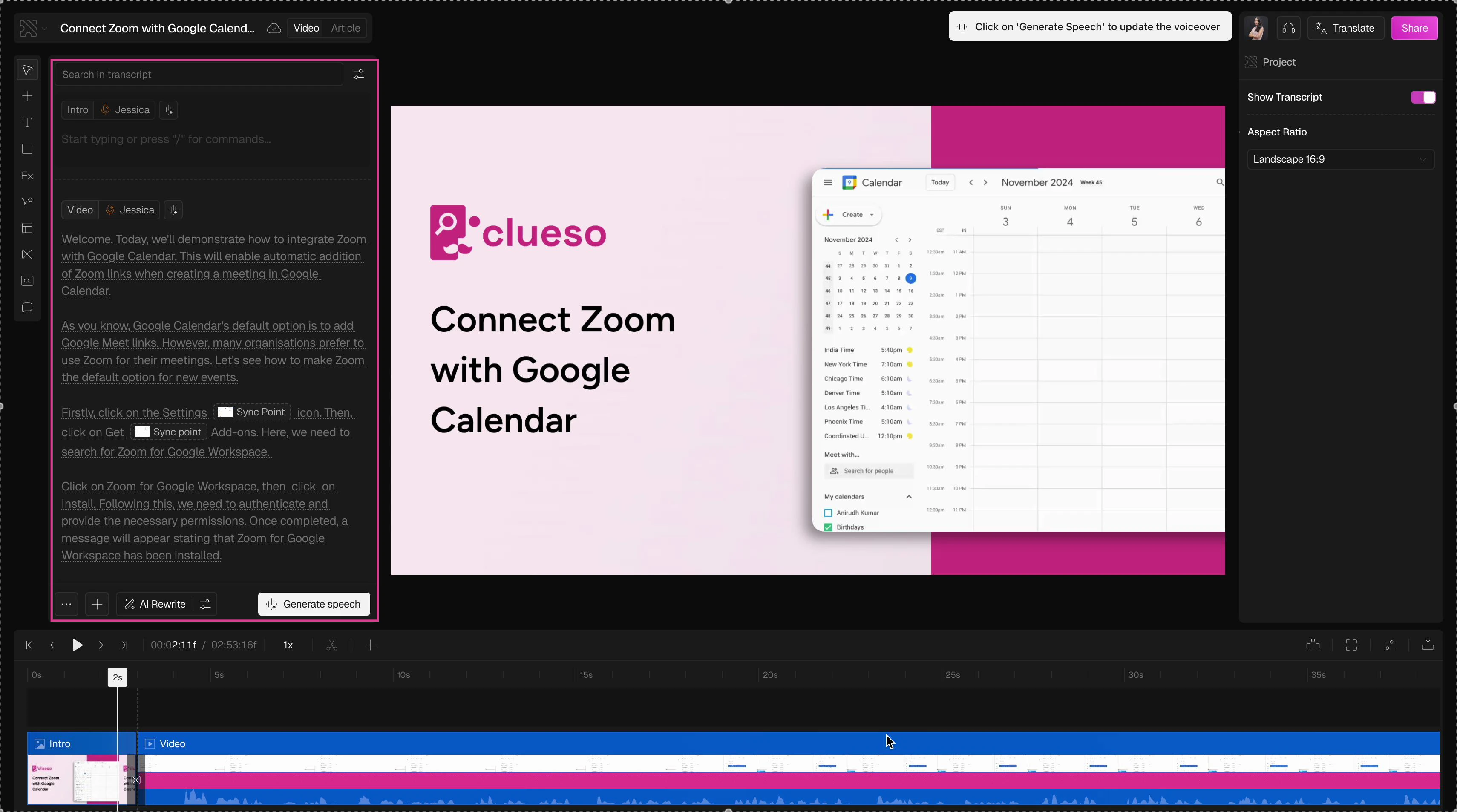
Clueso’s editor connects an editable narration script, sync points and the screen-video timeline. Source: Clueso.
Clueso connects a recorded screen demonstration to an editable script and AI narration. You can upload existing video, trim and reorder clips, revise the script and generate a new voiceover. It also accepts external video clips, slides and images, so a walkthrough can include supporting material beyond its original capture.
Sync points link positions in the script to frames in the video. They give you a way to adjust where an instruction lands after the wording changes, including slowing down or speeding up a passage. Zooms, arrows, callouts, spotlights and captions add visual guidance, while translation helps create language versions. You can replace a changed section rather than record the entire walkthrough again.
The main constraints are source length and delivery volume. The free plan accepts inputs up to ten minutes and includes ten minutes of watermarked video exports per month. The Solo plan raises the input limit to twenty minutes; a longer continuous lesson needs splitting or the Business plan’s unlimited input length. The Solo plan costs US$40/month billed yearly, with three hours of exports per year, watermark-free output up to 2K and 2,500 AI credits monthly.
Exports and AI credits are separate allowances. For repeated exports of the same video, only its longest exported version counts in a billing cycle, so a wording correction does not multiply that video’s minutes. A growing library of separate lessons still consumes the export allowance.
Clueso suits teams whose main job is keeping narrated software walkthroughs and their language versions current.
4. Descript: For editing explanations through their transcripts
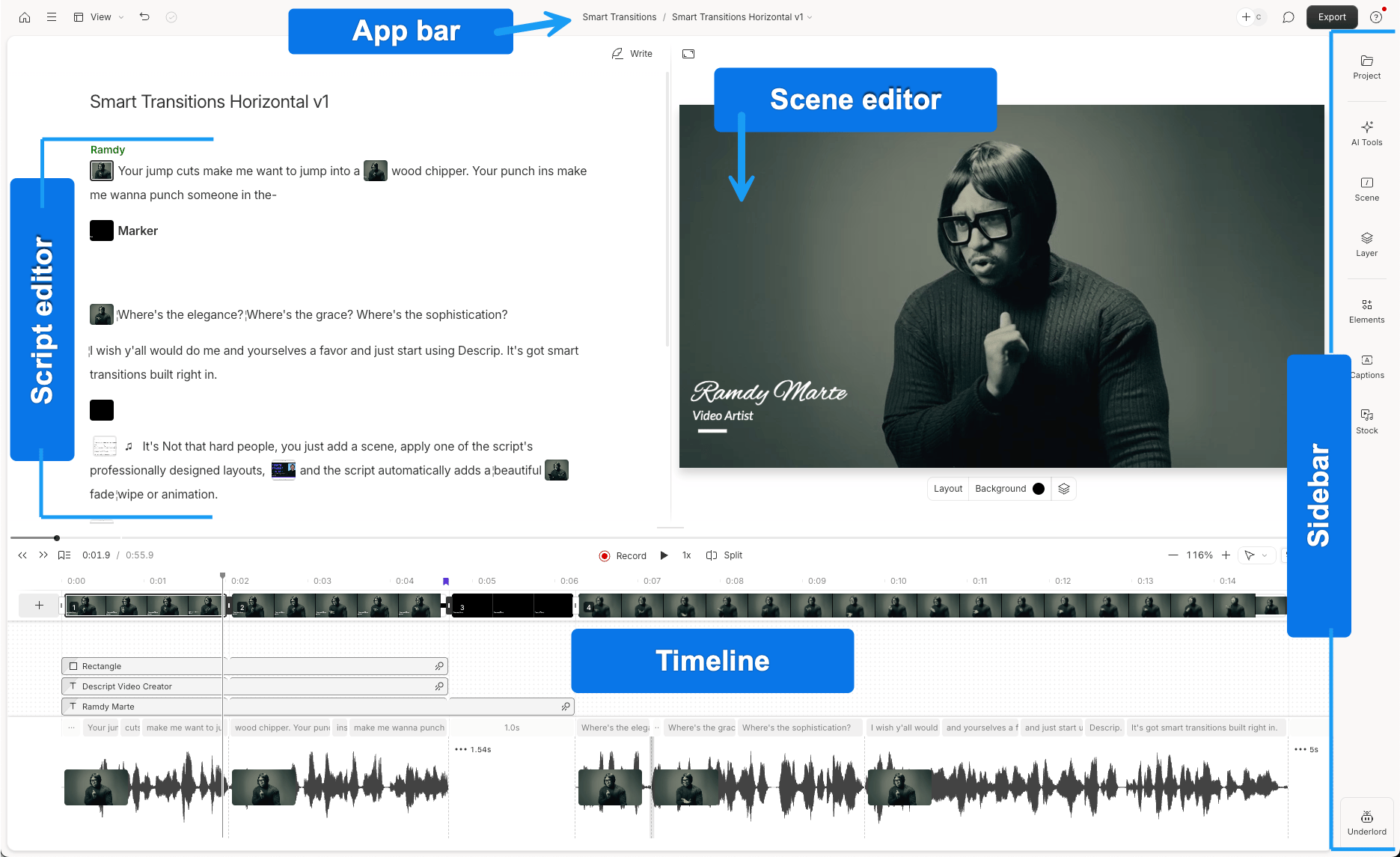
Descript’s annotated interface shows the script, scene editor and layered timeline. This is a general editing example. Source: Descript.
Descript is useful when the explanation is carried by speech. Deleting or rearranging transcript passages changes the corresponding recording, and retake or filler removal helps tighten a presenter’s delivery. Underlord, its AI co-editor, can take broader editing instructions while the transcript, scenes and multitrack timeline remain available for direct changes. Our invideo vs Descript podcast comparison takes a closer look at transcript-led assembly, sound and delivery.
Screen recordings, camera footage and supporting clips can share a composition. Scene layers, crop and scale controls, animations and freeze frames let you combine a presenter with screen details and hold a finished action while the narration continues. Captions and titles provide guidance; Studio Sound and regenerated speech help refine or repair the spoken explanation without automatically requiring another camera take.
Source volume and AI work have separate costs. Full imported or recorded media counts toward the media allowance, even if you keep only a short section. Underlord requests use AI credits. The Hobbyist plan costs US$24 per person monthly, or US$16/month billed annually, with ten media hours, 400 AI credits and watermark-free 1080p. The Creator plan costs US$35 monthly, or US$24/month billed annually, with thirty media hours, 800 credits and 4K.
An external editing handoff needs the Creator plan or above. Standard XML leaves out animation and audio effects, so a zoom animation or sound treatment may need rebuilding in the receiving editor. Studio Sound can transfer as processed audio.
Descript suits transcript-led lessons when its media allowance covers the recordings and you can finish the visual treatment there or plan the handoff early.
5. Filmora: For mixed screen and camera lessons on a desktop timeline
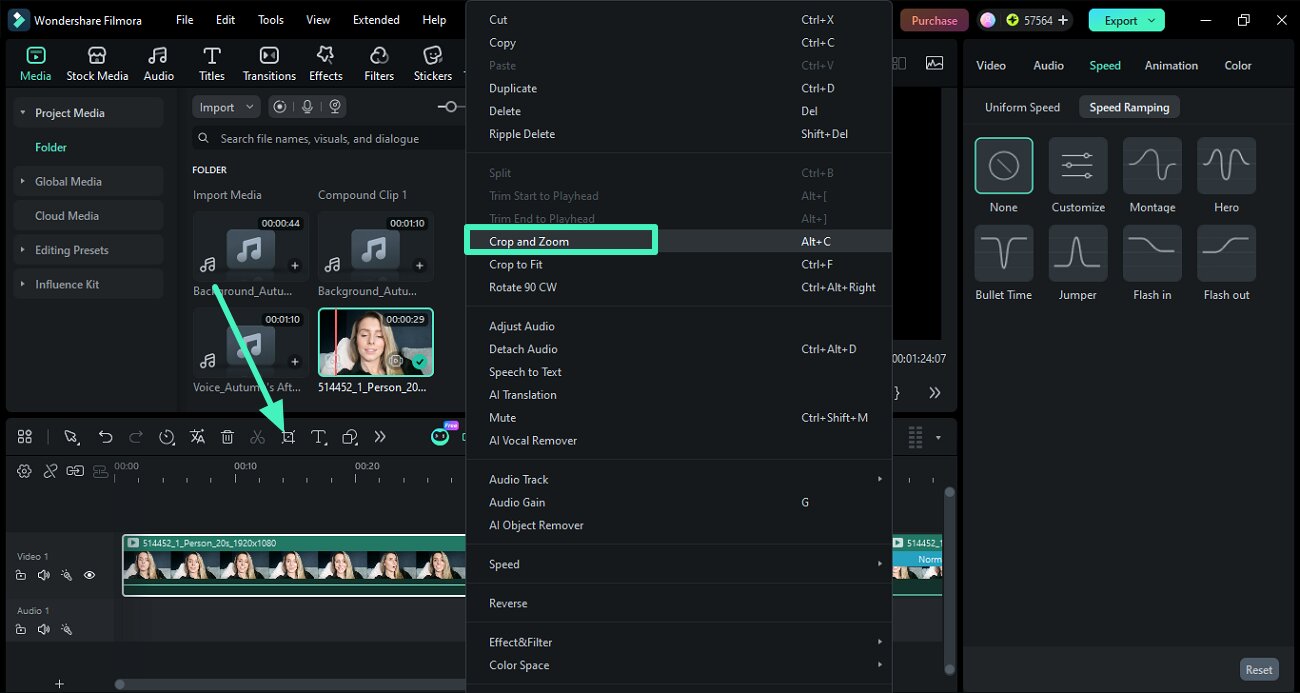
Filmora’s Windows guide shows the Crop and Zoom control beside recorded footage. The arrow is part of the source image. Source: Wondershare.
Filmora gives you a conventional desktop timeline for combining screen recordings, presenter takes, physical demonstrations and voiceovers. AI Text-Based Editing removes media through transcript changes, while silence detection helps shorten gaps. AI Mate adds conversational assistance: its Action Mode can execute supported editing operations, including audio synchronization and adjustments.
Crop, Pan & Zoom and position/scale keyframes let you move from an overall view to the control or part of the demonstration that matters. Separate titles, shapes and picture-in-picture layers keep labels and supporting visuals adjustable. Color tools, audio levels, EQ, denoise and dynamic captions carry a lesson through finishing in the same project. For bilingual Dynamic Captions, the translated track appears as plain reference text, while the original-language captions keep their animated styling. Replacement recordings and changed graphics can be revised on that saved timeline. Our invideo Editor vs Filmora podcast comparison examines assembly, audio and captions in more detail.
AI services sit alongside the editing license. Speech-to-Text and AI Text-Based Editing use credits, while AI Mate has a separate conversation allowance. The Windows Advanced plan costs US$59.99/year, with 1,000 AI credits monthly and 500 AI Mate conversations monthly. The Perpetual license supplies 1,000 credits once and covers its purchased major version; future major versions are a separate purchase.
Routine free-trial exports carry a watermark, so ongoing clean delivery requires a paid license. Extra AI usage and optional Creative Assets can add to that cost.
Filmora suits creators who want broad screen-and-camera editing with guided or executable AI assistance, while retaining hands-on control over the finished lesson.
6. Screen Studio: For focused Mac screen tutorials with automated framing
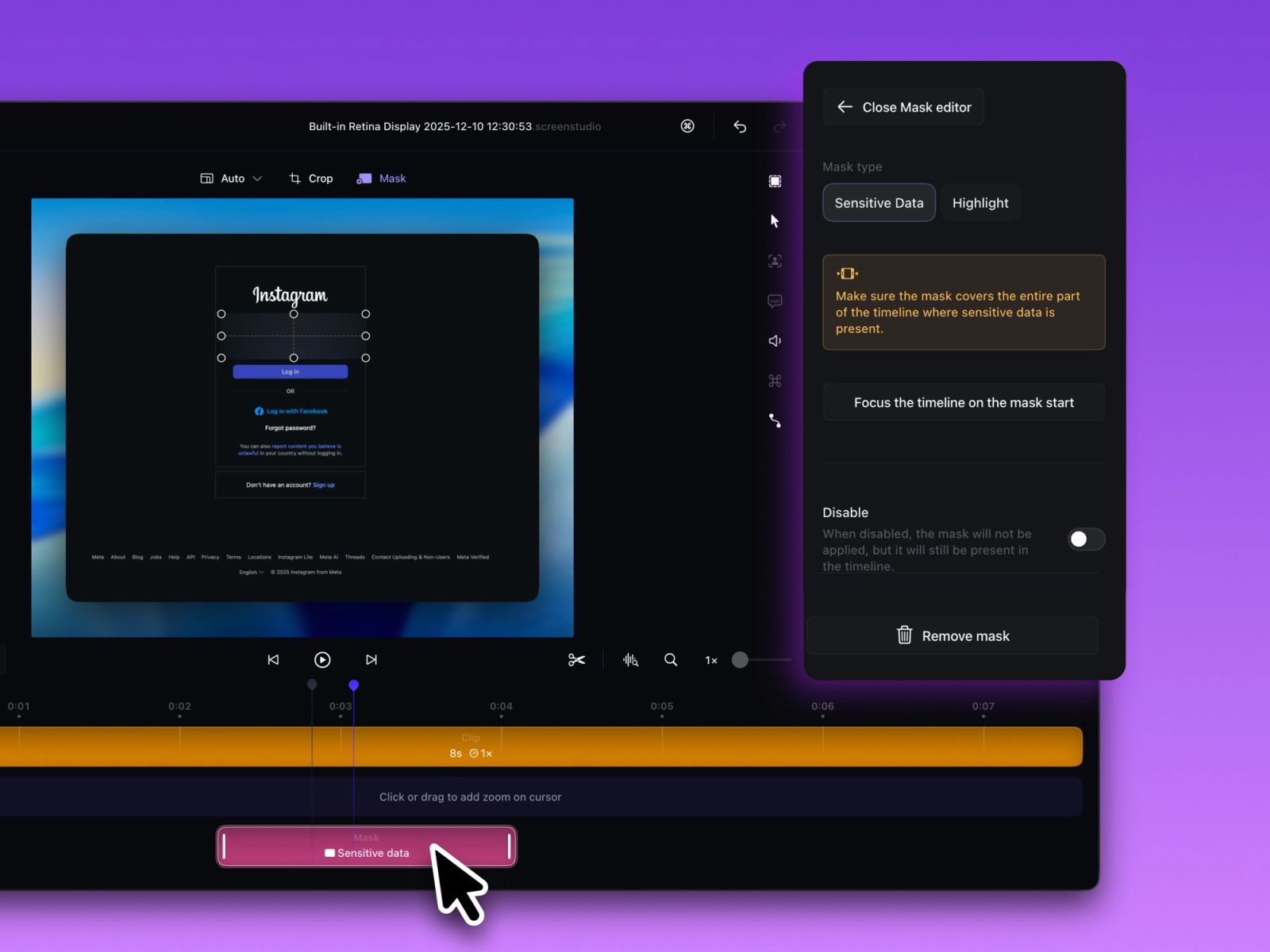
Screen Studio’s guide shows a mask with its own duration beneath the screen recording. Source: Screen Studio.
Screen Studio focuses on screen-recorded tutorials on macOS. It includes transcript cuts, filler-word and pause removal, captions, voice enhancement and AI voiceover. Automatic zooms and cursor treatments add editing automation, while manual zooms, trimming and speed changes let you control which actions receive attention. Masks and highlights can cover a detail or emphasize a part of the interface.
For recordings made in Screen Studio, separate mouse data supports cursor smoothing, size changes and click treatments. Screen and webcam layouts can move between a presenter view, split screen and the demonstration. Aspect-ratio changes adapt the framing and captions for another destination, and the project stays available for later adjustments.
Existing recordings are a different route. Imported MP4s support zooms and visual effects, but do not bring the captured cursor animation or separate selfie-camera data from a Screen Studio recording. A generic MP4 therefore cannot gain those original independent controls just by being imported. This is a more focused choice for screen tutorials than for assembling a course from multiple separately filmed demonstrations.
The monthly subscription is US$29, or US$9/month billed yearly, with all features included. Paid access is required for export. It delivers MP4 up to 4K or GIF, and can share an editable Screen Studio project; its shareable viewing links support videos up to thirty minutes.
Choose it for screen tutorials on a Mac when its focused workflow and imported-video limits match your source material.
Frequently asked questions
How can I make small controls easier to follow in a tutorial?
In invideo Editor, you can animate a screen clip’s scale and position with editable keyframes to move from the full interface to a readable close-up. Add separate text, arrows or highlights to identify the control without covering the action. A zoom can enlarge captured detail, but cannot restore text missing from the recording.
How can I align a screen recording with a separate voiceover?
Import the screen recording and finished voiceover into invideo Editor on separate tracks. The editing agent can arrange recorded actions around the narration and hold a settled screen while an explanation continues. Adjust clip timing manually where needed, then play the lesson back to check that each instruction matches the visible action.
Can I replace one outdated step without rebuilding the whole lesson?
Yes. Keep the invideo Editor project and source recordings, then replace the affected clip and revise its narration, callouts and captions together. You can make the changes manually or direct the editing agent to the affected section. Review the joins around the replacement before exporting the updated lesson.
Can I create lesson narration without recording my own voice?
Yes. In invideo Editor, you can generate narration from a written script using audio models such as ElevenLabs. Direct the voice’s tone and pace, then place the generated voiceover on a separate audio track and align it with the screen actions. Listen back and regenerate any lines that need a different delivery.
What is the best video editor for online course creators?
For course creators combining screen recordings, presenter footage and narration, invideo Editor is the best overall choice in this comparison. It keeps lesson assembly, readable zooms, separate callouts, captions and voice cleanup in one editable project. You can use its built-in agent or connected ChatGPT or Claude, then refine timing manually. Targeted updates can replace an outdated step while retaining the rest of the lesson. Camtasia suits cursor-focused training, while Clueso suits narrated software walkthroughs.