Best Collaborative Video Editors for Teams and Client Work
October 29, 2026

Invideo Editor is the best overall choice for teams and client work because simultaneous editing, timestamped review, assistant-directed revisions and detailed manual finishing stay in one editable project, with exports for continued work in other editors. Manual editing, ordinary ChatGPT or Claude MCP editing and exports are free; built-in-agent work and generated media use credits, external-assistant allowances apply separately, and team seats depend on the plan. Kapwing suits simultaneous browser production, Canva suits brand approvals, Premiere with Frame.io suits established post-production teams, Descript suits transcript-led work, and CapCut Teams suits social workflows that stay in CapCut.
A client video can involve three people and still feel like three separate projects. One editor has the latest cut, a teammate has the approved graphics, and the client’s notes refer to a version that has already changed. The work starts with shared footage, an existing edit and a round of feedback. It ends when the right changes are approved and someone can deliver or continue the project.
We compared six collaborative video editors and editing workflows: invideo Editor, Kapwing, Canva, Adobe Premiere with Frame.io, Descript and CapCut Teams. The comparison follows four parts of that job: sharing and organizing work, editing together, reviewing and applying revisions, and delivering or handing off. It also distinguishes a reviewer from an editor, and simultaneous editing from taking turns on a shared project.
Collaborative video editors at a glance
Tool | Sharing and organizing work | Editing together | Reviewing and revising | Delivering and handing off |
|---|---|---|---|---|
invideo Editor | Shared projects and media give teammates one working edit. Paid team plans add multiplayer seats, while review links bring clients into feedback without an account. | Teammates edit the same timeline with live cursors. Built-in-agent assistance, free ChatGPT or Claude MCP editing and detailed manual controls support work across picture, graphics and sound. | Timestamped comments and replies keep notes in context. Pass agreed revisions to an assistant, preserve approved choices and refine the resulting changes manually. | Free watermark-free videos and editable-project exports support delivery or continued editing in Premiere, Final Cut Pro or Resolve. Session replays add context to handoffs. |
Kapwing | Shared media, templates and brand assets support recurring production. Every member of a paid workspace is billed, so inviting a client there increases the team cost. | Teammates can edit simultaneously and comment in the same browser project. Transcript cuts, subtitles, resizing and layered editing support shared social and marketing videos. | Time-based comments connect feedback to the cut. Share the exported video for external review; private projects restrict nonmembers, so check client access before sending the link. | Exports MP4, GIF, images and audio, but the layered project remains editable only in Kapwing. Other editors receive flattened media and need layers rebuilt, limiting cross-platform collaboration. |
Canva | Lets you share designs with edit, comment or view access, and reuse brand assets. Business membership is paid per person; sharing a design differs from adding a team member. | Live collaboration combines multitrack video with graphics, custom motion and reusable layouts. Canva AI and MCP support design changes, with actions depending on the assistant and plan. | Offers comments, replies and paid approval workflows that suit brand reviews, but required approval can block downloading until sign-off, keeping release under the designated approver’s control. | Designs stay editable in Canva. No editable-project export to other editors; MP4/GIF exports flatten layers, so collaborators must rebuild them elsewhere. |
Premiere + Frame.io | Team Projects shares project state and history. Source media must also be accessible to each editor, adding storage, transfer and relinking work to remote setup. | Editors contribute to a shared project with professional finishing controls. A sequence locks to its current editor, so colleagues edit other sequences or wait for published changes. | Frame.io review links collect frame-accurate comments and versions. Notes return to Premiere for revisions; review access does not give a client timeline-editing access. | Native Premiere projects support continued Adobe finishing. Editing licenses and media storage remain part of the cost, even when the included Frame.io review allowance is sufficient. |
Descript | Project-specific editors and commenters can join without a paid drive seat. Project editors cannot upload media or use AI, so full creative contributors need different access. | Multiple editors can work on scripts and scenes in the same project in real time. Live cursor visibility requires Business or Enterprise, with Cursor Presence enabled in Labs. | Comments on the transcript or timeline give reviewers a specific target. Editors can restructure the spoken cut and adjust scenes, captions, B-roll and audio in the shared project. | Videos and paid timeline exports support delivery. XML omits animation, audio effects and keyframes, leaving those treatments to recreate when finishing in another editor. |
CapCut Teams | Shared projects, brand resources and bundled Pro tools support social teams. New free spaces allow only two people, so larger creative teams need paid access. | The documented CapCut Online workflow transfers editing permission. One person edits that draft at a time, while others view it or prepare separate work. | Share-for-review links bring external comments to a specific cut. Editing permission can transfer to the teammate handling revisions, who can adjust captions, picture and sound in the shared project. | Videos can be exported for delivery, while shared projects remain editable in CapCut. No direct third-party project interchange means an editable Premiere handoff needs conversion or rebuilding. |
Plan and capability details were checked on 29 October 2026. Prices below identify their currency and billing term; local offers, taxes and account-specific terms can differ.
1. invideo Editor: Best overall for team editing and client revisions

Authentic invideo Editor interface with a media panel and separate picture and audio tracks. This view shows the editing environment.
invideo Editor brings collaborative work, editing assistance and detailed finishing into the same project. Teammates can work simultaneously on a master timeline, with live cursors showing where others are contributing. Separate picture, graphics and audio layers let contributors work on different parts of the edit while keeping their contributions individually editable.
Frame-accurate trimming, keyframes, selective grading and audio controls give teams precise control over picture, graphics and sound. Contributors can refine assistant-made edits and complete client revisions within the shared project.
You can delegate work to the built-in agent or connect ChatGPT or Claude through invideo MCP. Each collaborator’s access follows their workspace permissions. Connected assistants read the current timeline before continuing, so a revision can build on manual adjustments and work already placed by another contributor. Shared editorial context and clear instructions help assistants preserve approved creative choices while applying the agreed changes.
In Desmond Wong’s demonstration around 08:35, Claude’s activity badge appears on the editable timeline beside the built-in agent’s working panel.
Review links collect timestamped comments without requiring the client to create an account. Replies clarify requests, and resolved comments show what has been addressed. Assistants can turn agreed feedback into changes to specific shots, titles and audio, with manual refinement available afterward. Identifying the reviewed timeline and version keeps revision targets clear, while instructions can specify the material to preserve. The client-feedback guide explains how that context connects review comments to editable changes.
Separate timelines let you compare alternatives while keeping the approved cut available. Session replays provide further context about how agent actions and manual edits developed the project. For delivery, export a finished H.264 MP4 or an editable project with its media for Premiere Pro, Final Cut Pro or DaVinci Resolve. The receiving editor can inspect the imported sequence and continue the work in their chosen application.
Team capacity is a separate plan choice: the displayed monthly Basic plan is US$9 per seat with up to five multiplayer seats; Pro at the displayed 1,000-credit tier is US$30 per seat, with up to ten multiplayer seats and ten included guest seats. Choose collaborator roles and capacity for the people doing the work; a client review link serves a different purpose from a workspace seat.
Invideo is the strongest overall choice because the team can share an editable project, turn agreed feedback into directed changes, finish the details manually and deliver either a video or an editable handoff. Those capabilities work together throughout the client revision cycle.
2. Kapwing: For simultaneous browser editing and shared brand content

Kapwing’s official guide shows project sharing above a captioned edit and timeline.
Kapwing offers simultaneous editing in a shared browser workspace. Teammates can open the same project, make changes and leave comments while working together. Shared media and saved logos, fonts, colors, subtitle styles and templates help a marketing team reuse approved material across regular client videos.
Its editor combines a layered timeline with transcript-based cuts, subtitles, resizing, background removal and AI tools. Teammates can develop the spoken edit and visual treatment in the shared project, while time-based comments keep requested changes close to the cut. This makes Kapwing a credible option for distributed teams producing captioned social content, explainers and branded cutdowns.
The important distinction is between sharing a video and inviting someone into the workspace. Every member of a paid workspace needs a paid seat, including someone added mainly to inspect work there. A workspace invitation also exposes that workspace’s projects. For a client who only needs to review an exported draft, the final-video link is the more focused route. Private projects restrict people outside the workspace, so the access setting needs to match the intended reviewer. Kapwing’s sharing guidance explains this boundary.
Free collaborative editing is available, but free video exports carry a watermark and are capped at 720p and four minutes. Longer, clean client deliveries therefore require a paid plan. The listed Pro rate starts at US$16 per member per month with annual billing, including 4K export and the shared brand workspace; AI features draw on the plan’s credit allowance. Kapwing’s download options include MP4, GIF, images and audio. These exports combine the project’s layers into finished media; they do not hand over an editable timeline to Premiere, Final Cut Pro or Resolve. Collaborators can continue in the shared Kapwing project, while work needing separate layers in another editor must be rebuilt there.
Kapwing suits teams that rely on simultaneous browser editing, shared brand assets and time-based feedback, with paid workspace membership planned around editing access. It is a weaker fit for workflows that continue in other editors, where the layered project must be rebuilt.
3. Canva: For brand-led videos that move through design approvals

Authentic Canva video workspace captured for our control comparison on 23 October 2026, showing animation settings, timeline layers and sharing access.
Canva is useful when video belongs to a larger set of campaign designs. The same team can reuse brand graphics, layouts and assets across a video, a presentation and social posts. Design permissions distinguish people who can edit, comment or view, while real-time collaboration lets colleagues develop the content together.
Teammates with edit access can edit the same video design in real time, with changes visible live. The shared timeline keeps clips, text, graphics and audio in one editable project, while scene-specific comments and assigned actions keep revisions tied to the relevant part of the video.
Canva’s approval workflow is a useful strength for teams with a designated brand reviewer. A contributor submits the design, receives feedback and requests approval again after revisions. Comments and replies keep feedback attached to the design during review. When approval is required, downloading or publishing can remain blocked until sign-off. That keeps release under the approver’s control, while making the approver’s availability part of the delivery schedule.
For detailed post-production, the controls still matter. Canva supports custom motion and whole-clip color adjustments, but its native Video Adjust panel lacks qualifiers and grade masks for isolating one hue or region. Selective color corrections therefore need a more specialized grading tool, adding a separate finishing step when the team needs that control. Our Canva control comparison examines these finishing differences.
Free accounts can collaborate on shared designs using the features and assets available to them. Granting access to a design is different from adding someone as a paid Business team member. Business membership is paid per person, with the current US listing at US$25 month-to-month or US$250 per year per person. It adds brand kits, approvals and team administration; premium content and AI allowances remain plan-dependent. The original design remains editable within Canva. Its video download formats are MP4 and GIF; there is no editable video-project export for Premiere, Final Cut Pro or Resolve. These files flatten picture and graphic layers, so moving the work to another editor requires rebuilding separate titles, overlays and timing.
Canva suits teams whose client work revolves around reusable brand designs, accessible video layouts and an explicit approval process, with more specialized finishing planned around its available controls.
4. Adobe Premiere + Frame.io: For professional post-production with client review

Adobe’s Team Projects interface shows the view-only state while another editor holds the sequence lock.
Premiere with Frame.io is a strong route for teams already delivering professional post-production in Adobe. Team Projects stores shared project state in the cloud, lets editors contribute sequences and keeps a history of published changes. The editing environment carries into detailed multicam, graphics, Lumetri color and audio work, so feedback can be resolved inside the project used for finishing.
Frame.io handles the client-facing review. You upload a sequence from Premiere, share a review link and collect frame-accurate comments. Versioned reviews help the client compare passes, and feedback can return to the editing workspace. Reviewers can participate without owning a Premiere editing license. That review access does not grant permission to edit the Premiere timeline; the editing team retains control of project changes.
Team Projects locks the sequence currently being edited. Other collaborators can view, scrub, duplicate it or work on other sequences, but they cannot change that locked sequence until its editor publishes the changes. The lock protects edit ownership; it also means two people cannot independently revise the same sequence at once. Adobe’s Sequence Locking guide explains that workflow. Productions is a separate shared-storage approach and should not be confused with Team Projects.
The media needs its own plan too. Sharing the cloud project does not supply every editor with the source files. Collaborators need access through agreed storage, synced copies or transferred drives, then must map or relink the media. That setup can involve additional storage and transfer costs even though the project state is shared.
Premiere’s US team listing is US$37.99 per license per month on an annual, billed-monthly plan. Eligible Creative Cloud subscriptions include a Frame.io allowance with 100GB, five projects, two users and unlimited reviewers. Larger production needs may require a different Frame.io plan or additional storage. Native Premiere projects retain the Adobe working environment for the next editor, together with the media and dependencies they need.
Choose this route when the team values Premiere’s established finishing environment and Frame.io’s review process, and can organize editing ownership and shared media around them.
5. Descript: For transcript-led collaboration on interviews and explainers
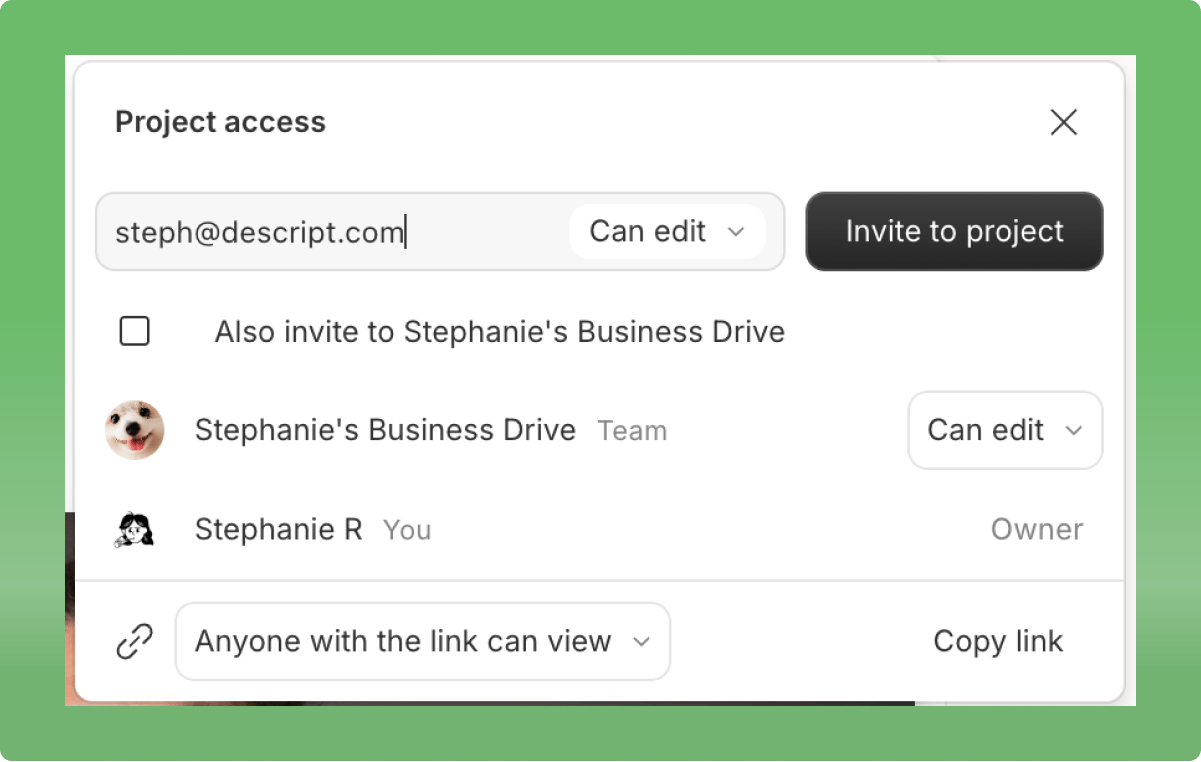
Descript’s official project-access interface separates project permissions from adding someone to the drive.
Descript is especially useful when teammates discuss a video through its spoken content. Editing the transcript changes the corresponding video and audio, making it straightforward to remove a repeated explanation, move an answer or comment on a particular line. Multiple contributors can work in the project in real time, with visual scenes, B-roll, captions and a timeline available alongside the script. Business and Enterprise offer the optional Cursor Presence Labs feature, showing teammates’ cursors and where they are working. Visual adjustments are visible when collaborators share the same scene and playhead position.
Underlord supplies AI-assisted editing, including cleanup and broader requested changes. Descript also has an official MCP route for assistants including Claude and ChatGPT. These options support conversational revisions, but collaborators cannot see one another’s Underlord chats. Separate AI conversations add coordination work: overlapping requests for the same material could work against another contributor’s changes.
Descript allows unpaid project-specific editors and commenters. Project editors cannot upload media, record or use AI features, although they can make permitted edits and export the shared project. Full contributors who need those functions require drive-level Editor access. Adding a collaborator to the drive triggers a seat charge and counts toward plan limits. The project-access guidance explains which invitation to use.
Creator is listed at US$24 per person per month with annual billing, or US$35 monthly, and supports up to three paid seats. Business is US$50 annually billed per person per month, or US$65 monthly, with up to five paid seats; Enterprise covers larger requirements. Imports count against media allowances, and AI work uses credits, including applicable operations requested through MCP. Unpaid project access does not remove those usage boundaries.
An external handoff also affects the finishing plan. Timeline export requires Creator or above, and XML leaves out animation, audio effects and audio keyframes. A beta native Premiere export supports eligible multicam sequences, but is not available on every account. Unsupported treatments need rebuilding in the receiving editor, as the format-specific export limits explain.
Choose Descript when the transcript is the team’s main editing surface and limited project collaborators can handle much of the review and revision work, with paid seats reserved for full media and AI access.
6. CapCut Teams: For social-video teams that finish inside CapCut
CapCut’s official Online workflow shows the command for transferring editing permission to a teammate.
CapCut Teams combines shared projects and resources with Pro editing features for team members. Shared brand assets, templates, effects and cloud storage support teams producing recurring social videos. Central permissions help control who can manage material, while captions, visual effects and direct timeline editing make it useful for developing client cutdowns within the CapCut environment.
CapCut Online also supports sharing a cut for review with teammates or external clients. Reviewers can leave comments tied to the video, with caption, picture and sound revisions handled by the teammate who holds editing permission. Someone reviewing the cut does not need to take ownership of the live editing session.
The documented Online collaboration route uses one editor at a time on that draft. The current editor transfers editing permission to a teammate; others remain in view-only mode. This gives the project a clear owner for each pass, but an audio contributor and a picture editor cannot independently change that Online draft together. The Online collaboration guide describes this permission transfer. CapCut uses broader “real-time collaboration” language elsewhere, so check the exact platform and team surface rather than assuming every CapCut workflow has identical behavior.
Cost depends on team size and access. Current help limits newly created free spaces to the owner and one additional member; larger teams require CapCut Teams. Teams bundles Pro features and shared storage, with prices varying by region, account and seat offer. Check the team checkout for the people you intend to add, rather than multiplying an individual Pro promotion. Premium features or assets can also require an eligible plan for export.
The editable handoff works most naturally within CapCut. Its official project-transfer guidance says third-party editing project files are not directly imported or exported. A rendered video can move between apps, but the receiving editor does not get the original independent titles, effects and clip structure. Conversion or rebuilding becomes a separate part of a handoff to Premiere or another editor.
CapCut Teams fits social-production teams that value its bundled creative tools and shared resources, can assign ownership of each Online editing pass, and plan to keep the editable work inside CapCut.
Frequently asked questions
Can I invite a client to review without paying for an editing seat?
Often, yes. Invideo review links let a client comment without creating an account. Frame.io supports external reviewers, and Descript separates project commenters from paid drive Editors. Kapwing also has a final-video sharing route, but private-project access differs from workspace membership. Choose the review invitation or link setting deliberately; adding someone to a paid workspace can create a seat charge.
Does real-time collaboration mean two people can edit the same timeline?
Check what is being shared. Invideo and Kapwing support simultaneous timeline editing; Canva and Descript also offer real-time collaborative editing. Premiere Team Projects locks the sequence being edited, while its other sequences remain available for work. The documented CapCut Online draft uses transferred editing permission. Shared assets, live comments and watching an editor work are useful collaboration features, but do not by themselves establish simultaneous editing.
How should a team give AI assistants a round of client revisions?
Identify the reviewed timeline and version, resolve conflicting notes, then specify the target, requested change and approved material to preserve. Pair timestamps with a spoken line or shot description so targets remain clear when timing shifts. In invideo, a connected ChatGPT or Claude assistant can apply those instructions to the current editable project, with manual refinement available afterward. Ordinary MCP editing is free; the external assistant’s allowance remains separate, and built-in-agent work or new media generation uses credits.
What should an editable handoff include besides the project file?
Include the source media or working media links, the approved timeline name, a review export and notes on unresolved work, fonts, plugins or effects. Invideo offers editable-project exports with media; Premiere and Descript also provide project or interchange routes with different requirements. Open the result in the destination editor and check the changed passages, layers and sound before the next contributor continues. A rendered MP4 is a finished reference, not a replacement for separate editable tracks.