Best Free Video Editors in 2026: AI Features, Watermarks and Export Limits Compared
August 2, 2021

invideo Editor is the best overall choice for editing and finishing videos for free: it combines a professional manual timeline, ordinary ChatGPT or Claude MCP editing, watermark-free videos and editable-project exports. External-assistant allowances apply separately; built-in-agent work and new media generation use invideo credits. Resolve suits detailed desktop finishing, Clipchamp provides approachable free HD editing, and ChatCut offers useful transcript and local-export routes. Kapwing and Descript have tighter free AI and video-delivery limits.
You have the recordings and a video to finish. A free editor should let you tighten the cut, add b-roll and readable captions, and polish the picture and sound before export. The frustrating part is finding out at the end that a watermark, a resolution cap or an exhausted AI allowance changes what you can actually save.
We compared six free video editors: invideo Editor, DaVinci Resolve, Microsoft Clipchamp, ChatCut, Kapwing and Descript. The comparison follows editing and revising footage, using AI without payment, refining picture, captions and sound, and exporting or handing off the finished edit.
Best free video editors at a glance
Tool | Editing and revising footage | Using AI without payment | Refining picture, captions and sound | Exporting and handing off |
|---|---|---|---|---|
invideo Editor | A free multitrack timeline keeps footage, graphics and sound editable. Refine cuts yourself or ask ChatGPT or Claude to assemble and revise the same project. | Ordinary editing through ChatGPT or Claude MCP is free, including footage analysis, transcription, captions and audio cleanup. Your external assistant's own allowance applies. | Editable captions, keyframes, color wheels, curves and audio controls let you develop the whole edit. Move between assistant instructions and precise manual adjustments. | Export finished videos without a watermark, or send an editable project with media to Premiere Pro, Final Cut Pro or Resolve. Both delivery routes are free. |
DaVinci Resolve | Precise timeline controls let you trim and arrange clips and switch between camera angles, while Fusion provides tools for creating titles and visual effects. | AI features like Auto Color, Shot Matching and Dialogue Leveler are included, but Official MCP AI Assistants require Studio, so free access does not include that editing route. | Node-based grading and Fairlight mixing offer substantial free control. Automatic transcription, subtitles and Voice Isolation require Studio, leaving those tasks to manual or separate preparation. | Watermark-free output reaches UHD 3840 × 2160 at 60 fps in supported formats. Higher resolution or frame rates require Studio; codec support also varies by platform. |
Microsoft Clipchamp | A visual timeline lets you combine and trim footage, add text and layer music or other audio in your browser or the Windows app. | Personal free accounts include AI subtitles, voiceovers and silence removal. These provide useful assistance without buying a starter-credit bundle. | Free text, stock, effects and color adjustments cover everyday finishing. Premium assets or features can block export until you replace them or obtain the required subscription. | Personal free accounts export as many watermark-free videos as needed up to 1080p. 4K is premium, so a UHD delivery needs paid entitlement. |
ChatCut | Manual timeline and transcript editing are free. You can also select a clip, transcript passage or time range and tell the agent what to change there. | Transcription and ordinary editing through supported external assistants do not use ChatCut credits. ChatCut’s built-in agent uses credits. Free starting balances vary by account, with no guaranteed monthly refill. | Captions and audio tracks support finishing. Desktop adds color wheels, curves and scopes; browser users need Desktop for these grading tools and direct editing of motion-graphic elements. | Compatible local exports are watermark-free, with up to 4K on supported devices. Free cloud rendering has 60 cumulative minutes; a cloud-dependent edit can exhaust that allowance. |
Kapwing | A browser timeline combines clips, layered text, images, music and transitions, with subtitle and transcript tools beside the edit. | 10 lifetime credits cover a small amount of captioning or other charged AI work. Using them on cleanup leaves fewer for subtitles; they do not renew monthly. | Color controls adjust exposure, contrast, warmth, tint and saturation. Warmth and tint cannot be keyframed, limiting animated corrections. Caption styling and audio edits remain useful; transcription and Clean Audio use credits. | Free output has a watermark, 720p ceiling and four-minute limit. A longer or clean HD deliverable requires upgrading rather than simply exporting the same free project. |
Descript | Transcript editing lets you cut and rearrange audio and video through the text. One media hour per month limits the source material you can process. | The free plan includes 100 one-time AI credits and limited AI-tool access. Underlord requests and enhancements share that balance; the monthly media reset does not refill it. | Caption controls let you style subtitles, while layers, animation and timeline controls let you arrange visuals and adjust their movement and timing. Studio Sound and other AI enhancements use credits. | Free video output is watermarked 720p. Watermark removal needs paid access, while editable timeline export requires Creator or above, so an NLE handoff is a separate upgrade decision. |
Free-plan terms checked on 29 October 2026. Clipchamp here means personal-account access; work and school licenses have different entitlements. Local rendering, cloud rendering and editable-project export are separate delivery routes.
1. invideo Editor: Best overall for editing and finishing videos for free

Supplied invideo Editor interface: source media beside separate video and audio tracks.
invideo Editor gives you a free professional editing suite for taking your own footage from a first cut to a finished video. Free access covers timeline editing, picture and audio finishing, and watermark-free delivery.
The multitrack timeline lets you trim and arrange footage, layer b-roll, titles and graphics, and adjust picture and audio timing independently. Clips and layers remain editable throughout, while keyframes and easing give you control over animated titles and graphics.
Free finishing tools go beyond the cut. Captions remain editable in wording, timing and placement. Color wheels, curves, masks and scopes support correction and shot matching, while separate dialogue, music and effects tracks, EQ, compression and volume keyframes give you control over the mix.
For assisted editing, you can connect ChatGPT or Claude through MCP. Editing existing footage through these connections is free, including transcription, captions, audio cleanup and timeline revisions. The external assistant’s own subscription and usage limits apply separately. The built-in invideo agent requires paid access, and generating new images, video or audio uses invideo credits.
Delivery is free too: export the finished video without a watermark, or send an editable project with its media to Premiere Pro, Final Cut Pro or DaVinci Resolve. This combination of detailed manual controls, optional assistant editing and clean delivery makes invideo our strongest overall choice for free editing.
2. DaVinci Resolve: For detailed desktop editing, grading and mixing

Frame from Blackmagic Design's Resolve 21.1 demonstration, showing title layout controls.
DaVinci Resolve offers a substantial free post-production workspace. You can organize recordings, cut a multicamera sequence, build titles and effects in Fusion, grade shots and mix the soundtrack in Fairlight. An editor who wants to make those decisions directly can finish an entire project without an editing subscription.
Its included AI tools are useful too. Auto Color provides a starting correction, Shot Matching helps bring a shot toward a chosen reference, and Dialogue Leveler manages variation in speech levels. These sit alongside detailed manual color controls and Fairlight's EQ, dynamics and automation. Free Resolve is a serious option for learning and continuing professional editing.
The important boundary is which automation you expect. Resolve 21.1's official feature matrix puts automatic audio transcription and subtitle generation, Smart Reframe, Voice Isolation and MCP-compatible AI Assistants in Studio. If those are central to your free workflow, you will need to prepare captions and framing yourself or use another eligible tool for that stage. The invideo and Resolve free-version comparison develops these distinctions.
Free delivery reaches UHD 3840 × 2160 at up to 60 fps in supported formats, without a watermark from ordinary free features. Studio is needed above those limits and for certain codecs and processing; format support depends on the operating system. Studio is available as a paid license, so upgrading does not inherently require a continuing subscription.
Resolve suits editors who want extensive desktop control and are comfortable doing more of the preparation themselves.
3. Microsoft Clipchamp: For straightforward edits and free AI captions

Microsoft's annotated personal-account editor example: text, footage and music on separate timeline layers.
Clipchamp’s personal free plan includes a visual timeline and screen and camera recording in the browser or Windows app. Trimming, layered text, transitions, color adjustments and controls for music and other audio cover everyday assembly and finishing in the same workspace.
Its included AI tools provide automatic subtitles, text-to-speech voiceovers and silence removal. Transcript checks and caption-appearance controls let you review the words and style the subtitles alongside the rest of the edit.
Using premium assets or features that aren’t included in your plan can block export until you remove or replace them, or get the required subscription. Using personal footage or included assets keeps the project on a free route; selecting 1080p alone does not make premium content free.
Personal free accounts can export as many watermark-free videos as they need at up to 1080p. Premium access through qualifying Microsoft 365 Personal or Family subscriptions adds 4K, premium assets and a brand kit. Work and education accounts follow a different license table, including separate Copilot requirements.
Clipchamp suits editors who want an approachable cut, captions and clean HD delivery, with the asset choices kept within their plan.
4. ChatCut: For transcript editing and free local delivery
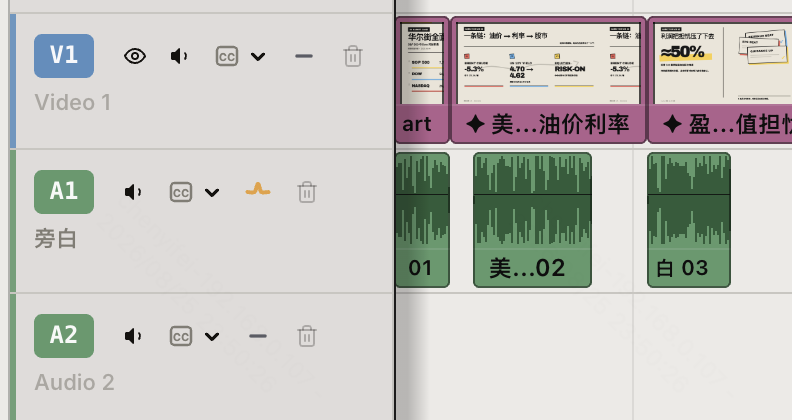
Official ChatCut timeline detail, showing separate video and audio tracks.
ChatCut includes manual timeline editing and transcription for free. Its editable transcript lets you cut and rearrange the corresponding footage through the text, while clip and track controls provide direct adjustments to trims and audio timing. A selected clip, transcript passage or time range can be included with an agent request, so the assistant knows which part of the edit should change.
Supported external agents, such as Codex or Claude Code, can also control ordinary editing without using ChatCut editing credits; their own host allowances apply. ChatCut-hosted media generation has separate charges. These plugins work through supported desktop agents rather than ChatGPT or Claude’s web conversations.
Desktop’s color inspector provides color wheels, curves, an HSL mixer and scopes for grading individual clips or the whole timeline. These controls require Desktop; the browser editor does not include them.
Its built-in agent is different: requests draw on credits according to model usage and context. The free starting allowance varies by account; it is not a guaranteed recurring monthly AI budget. Pro supplies recurring credits and specific entitlements such as video generation and transparent ProRes 4444 graphics export. Direct selection and adjustment of motion-graphic elements also require Desktop; browser users send those element-level changes through the agent.
The rendering route determines the free export limit. Compatible browser and Desktop local video exports are watermark-free, with 4K available on supported devices. Free cloud rendering has a cumulative 60-minute allowance. Manual web export chooses its rendering route automatically, so browser editing does not guarantee a local render. XML handoffs can also omit captions, effects, transitions or unrendered graphics.
ChatCut suits editors who value transcript work and compatible local delivery, with the assistant and export routes chosen before finishing.
5. Kapwing: For short browser edits and limited AI experiments

Kapwing's current guest workspace before media import; this capture shows the interface, not a completed edit or export.
Kapwing’s free plan provides a browser workspace for combining footage, layering text and images, adding music and resizing the canvas for different formats. Its manual timeline controls let you adjust the order, placement and timing of these elements, making it useful for assembling short videos and adapting them for social platforms.
Manual color controls let you adjust exposure, contrast, warmth, tint and saturation. Warmth and tint cannot be keyframed, limiting animated corrections within a shot.
The AI allowance is much smaller than a recurring production budget. Free accounts receive 10 lifetime credits. Subtitle transcription costs one credit per minute, while Clean Audio costs two per minute, with minimum charges applying. Captioning a recording and cleaning its sound therefore share the same balance. Some tools do not use credits, but their free availability can still be limited; credit-free is not a promise of unrestricted use.
The decisive issue for final delivery is the free export restriction: videos carry a Kapwing watermark, reach 720p and can be no longer than four minutes. Even if the timeline holds the edit you want, a clean HD version or a longer finished video requires paid access. Free uploads are also limited to 250 MB per file, so a large source recording may need preparation before import.
Pro removes the watermark, increases export and upload limits and provides a monthly credit allowance.
Kapwing suits short browser projects and trying its tools when watermarked output is acceptable, or when you already expect to upgrade for the final deliverable.
6. Descript: For shaping spoken video by editing its transcript
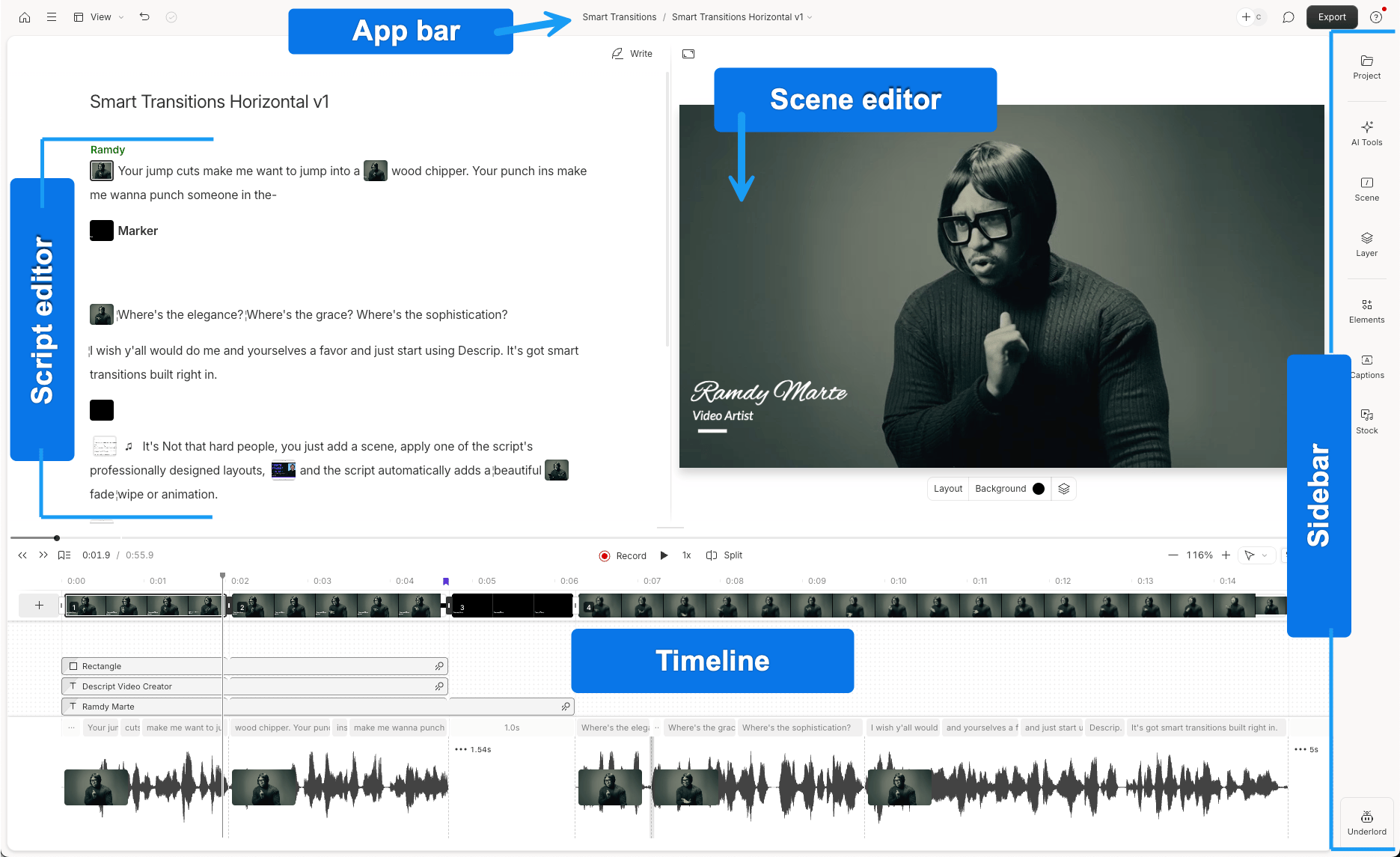
Official annotated Descript interface: the transcript, scene editor and timeline work together.
Descript’s Free plan includes text-based editing for audio and video. Deleting or rearranging passages changes the corresponding media, while its scene editor and timeline let you add visual layers, captions and animation and adjust their timing.
The plan includes unlimited projects and one media hour per month. That hour measures the material imported or recorded for processing, rather than the length of the finished cut. A long interview can use the allowance even if you only want a short excerpt, so source duration matters before you begin.
AI access has a separate limit: 100 one-time credits, with limited access to tools such as Underlord and Studio Sound. Assistant requests, enhancement and generated media draw on that balance. A new month's media hour does not replenish the AI credits. Descript also offers MCP/API access, but it follows its own access and usage terms; connecting an external assistant does not make its processing allowances disappear.
The current plan comparison lists watermarked 720p video for Free. Hobbyist adds watermark-free 1080p; Creator adds 4K and editable timeline export. That handoff requirement matters if you intend to cut the dialogue in Descript and finish in another editor: paying for watermark removal alone does not unlock timeline export.
Descript suits editors who prefer reading and restructuring speech, with source length, AI work and delivery planned as separate allowances.
Frequently asked questions
Can I keep editing after the free AI credits run out?
Manual editing can remain available even when paid or credit-based AI actions stop. Invideo's manual tools and ordinary MCP editing are free, with the external assistant's allowance separate. ChatCut also separates manual editing from built-in-agent credits. Kapwing's lifetime credits and Descript's one-time AI credits do not renew monthly; Descript's monthly media allowance is a different limit.
Can I export a free 4K video without a watermark?
DaVinci Resolve Free supports UHD 3840 × 2160 at up to 60 fps in supported formats. ChatCut offers up to 4K through compatible browser or Desktop local rendering, while cloud delivery follows different limits. Clipchamp's personal free plan stops at 1080p. Check the exact codec, frame rate and render route your project needs before committing to the edit.
Can I move the edit to another application instead of starting again?
An MP4 preserves the finished picture and sound, but does not retain separate editable clips and layers. Invideo offers free editable-project exports with media for Premiere Pro, Final Cut Pro and Resolve. ChatCut's XML route can omit some treatments, while Descript requires Creator or above for timeline export. Keep the original media and review the imported sequence before continuing the finishing work.