Invideo Editor vs DaVinci Resolve: How Far Can the Free Version Take You?
October 22, 2026

Both editors offer manual tools for editing, captions, audio and color, plus finished-video exports without a paid editing upgrade. Invideo adds free MCP editing through Claude or ChatGPT, watermark-free exports and editable-project handoffs to desktop editors. DaVinci Resolve’s free version combines editing, grading and Fairlight audio, with Auto Color, Shot Matching and Dialogue Leveler included. Studio adds further automation and higher-resolution or higher-frame-rate exports. External-assistant subscriptions and media generation costs remain separate from Invideo’s free editing tools.
A free editor can get you from raw footage to a finished video. The more useful question is which editing tools you get for free, and how much control they give you before you need to pay.
Invideo Editor combines manual tools for cutting footage, captions, audio and color with free editing through Claude or ChatGPT via MCP. DaVinci Resolve’s free version brings editing, grading, Fairlight audio and delivery into one desktop application, with AI tools such as Auto Color, Shot Matching and Dialogue Leveler included. This comparison follows the full workflow to show what each free version offers and where paid features become relevant.
Those differences matter when a project needs more than a first cut. Here is how the two approaches compare when you need to turn existing footage into a coherent video, refine it and deliver it.
Invideo Editor vs DaVinci Resolve: The free versions at a glance
Invideo Editor combines a professional manual timeline with free MCP editing through ChatGPT or Claude. You can edit tracks, layers, text, audio and keyframes yourself or work through ChatGPT or Claude using MCP. Ordinary MCP editing carries no additional invideo editing charge. Media generation uses credits, and your external assistant’s subscriptions and usage limits remain separate.
DaVinci Resolve is a desktop post-production application covering editing, Fusion visual effects, color grading and Fairlight audio. Its free edition can handle an entire manually edited project, with several Neural Engine tools included. Studio adds more AI automation, including official MCP-compatible AI Assistants. The edition distinctions below follow Blackmagic’s Resolve 21.1 feature matrix.
What you want to do | Invideo Editor | DaVinci Resolve |
|---|---|---|
Building and revising a cut | Assembling footage and applying scoped revisions with Claude or ChatGPT through invideo Editor MCP is free. Refine shots and timing on the manual timeline. | Offers precise manual timeline editing in the free version. Official AI Assistants require Studio, so delegating assembly and revisions through that route adds a paid upgrade. |
Captioning and reframing | Preparing subtitles and reframed cutdowns through invideo Editor MCP is free, with editable text, timing and composition controls for each version. | Supports subtitle tracks and manual reframing in the free version. Automatic transcription, subtitle generation and Smart Reframe require Studio. |
Balancing dialogue and music | Cleaning audio and balancing speech with music through Claude or ChatGPT via invideo Editor MCP is free. Fine-tune the mix with EQ, de-essing, compression and volume keyframes. | The free version offers AI Dialogue Leveler to even out speech volume, plus Fairlight tools for manually adjusting EQ, dynamics and the mix. Voice Isolation and Fairlight Audio Assistant require Studio. |
Matching and grading shots | Making color adjustments through invideo Editor MCP is free, with wheels, curves, qualifiers, masks and scopes for selective corrections and consistent shots. | The free version offers AI Auto Color, Shot Matching and detailed manual grading controls. Its official MCP assistant workflow requires Studio. |
Exporting the finished video | Export finished videos for free without a watermark, with options for audio-only and still-frame exports. Editable projects let you continue in Premiere Pro, Final Cut Pro or DaVinci Resolve. | The free tool exports finished videos up to UHD 3840 × 2160 at 60 fps with supported formats. Higher-resolution or higher-frame-rate delivery requires Studio. |
What free features do you get to build and shape your cut?
Suppose you are making a short chair-restoration demonstration video from a workshop interview, wide shots and sanding close-ups. You need a clear story, useful cutaways and room to respond when the client asks for a different opening. Here is how both tools help you select that material and turn a client note into a timeline change.
DaVinci Resolve: The free version gives you the tools to organize media, mark useful ranges, cut the interview and place workshop footage above it while keeping the dialogue underneath. You control the exact shot, duration and edit point. That remains a strong route if you enjoy making those decisions directly in a desktop editor.
Resolve also has an official assistant route. Resolve 21.1’s AI Assistants integration lets compatible assistants work with the application through MCP, and the manual describes tasks such as organizing timelines, applying looks and configuring renders. This integration is a Studio feature. The free version’s substantial manual toolset therefore does not give you the same built-in MCP access at no cost.
Invideo Editor: Through ChatGPT or Claude, you can ask the assistant to search footage by spoken or visual content and assemble an edit around your instructions. For the restoration demonstration video, the request could be: “Create a 60-second sequence. Open with a wide shot of the unrestored chair, use the interview to explain the restoration steps, and place sanding close-ups over the matching explanation while keeping the interview audio continuous. End with the restored-chair reveal.”
You can also request a narrowly defined change: “Replace the opening wide shot with a close-up of the damaged seat. Keep the opening’s duration and the rest of the edit unchanged.”

Illustration of another scoped revision: a ChatGPT request places the sanding cutaway above continuous interview audio.
The edit stays available for hands-on decisions: trim the cutaway to the movement you want, choose a different take or adjust the layer yourself. Subsequent assistant work can take those manual changes into account. Our guide to revising videos with Claude or ChatGPT develops this approach to specific client notes.
For a separate recorded-footage example, Desmond Wong’s sponsored walkthrough at 4:47 shows his talking-head recording cut into separate video segments with matching audio segments on invideo’s timeline. It is a visible edited result from recorded footage. The demonstration does not establish that every pause or take was handled correctly, and it is separate from the chair-restoration example above.
Verdict: Invideo offers a more convenient AI-assisted editing experience, with manual controls available to refine the result. DaVinci Resolve’s free version is a strong choice if you prefer to make the edit yourself; its official MCP assistant workflow requires Studio.
What tools do you get for captioning and reframing in the free versions?
A finished landscape video may also need a short portrait version with readable captions. You have to select a self-contained moment, keep the chair or speaker in frame and place text where it does not cover the action. Here is how both editors handle that preparation and the caption and framing controls you retain afterward.
DaVinci Resolve: The free version lets you build a separate version, change the composition manually and work with subtitle tracks. You can position and scale shots yourself, including changes over time. Automatic audio transcription/subtitles and Smart Reframe are Studio features, so a free workflow leaves more of that preparation to you.
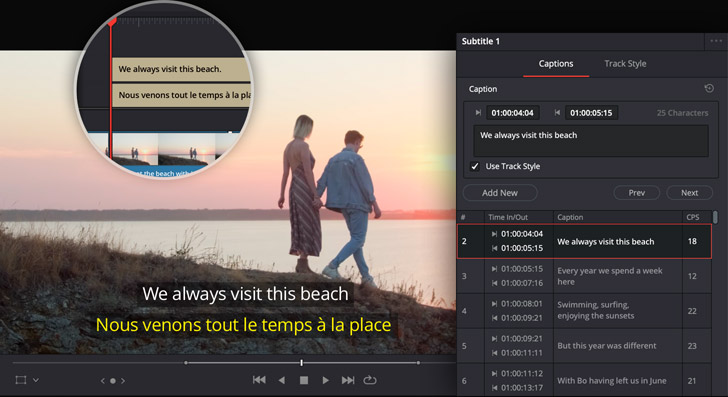
Official Blackmagic Design example of manual subtitle text, timing and track controls. Source: DaVinci Resolve Edit.
Invideo Editor: The free version lets you reframe shots, create cutdowns and edit subtitles manually in invideo Editor. Adjust a caption’s position around the chair, change its styling or animate the frame to follow a hand movement.
You can also connect the editor to Claude or ChatGPT for free via MCP. Ordinary MCP editing covers transcription, subtitling and shorter cutdowns. You can ask for a separate portrait timeline built around the restoration reveal, then review the chosen lines, caption timing and framing. The cutdown and versioning workflow keeps alternate edits available for further work.
Manual controls remain useful creative tools here. An assistant-prepared version still needs review for the right excerpt, readable text and a useful composition.
Verdict: Invideo offers a more convenient way to create captioned cutdowns, with free assistance through Claude or ChatGPT and manual controls to refine text, timing and framing. DaVinci Resolve’s free version is a strong choice if you prefer to prepare those versions yourself; automatic transcription, subtitle generation and Smart Reframe require Studio.
What free tools do you get to clean up audio and shape the mix?
Dialogue can vary between takes, and music may need to fall under an explanation before rising into the reveal. Leveling speech, reducing unwanted noise and shaping the mix are distinct jobs. Here is how both tools handle speech cleanup and give you control over the mix.
DaVinci Resolve: AI Dialogue Leveler is included in the free version. It can help manage dialogue-level variation, while Fairlight supplies detailed manual mixing, EQ, dynamics and automation. You can shape individual tracks and write level changes around the speaker’s pauses.
Voice Isolation and Fairlight Audio Assistant are Studio features. Dialogue Leveler’s availability is a real free-AI benefit, but it does not make the entire assisted cleanup and mixing workflow free.
Invideo Editor: The free manual audio suite includes eight-band EQ to reduce a boomy voice, a de-esser for sharp sibilance and compression to manage level variation. Separate tracks, dB faders and volume keyframes let you lower music under the explanation and bring it back for the reveal.
You can ask Claude or ChatGPT through MCP to clean up audio and balance speech with music without invideo editing credits. You can direct the mix through MCP, then shape individual treatments yourself.

Illustration from a separate example project: independent voice, music and action-audio layers let you shape the mix.
Verdict: Invideo offers a more convenient way to clean up audio and balance speech with music through Claude or ChatGPT via free MCP editing, with detailed manual controls to refine the mix. DaVinci Resolve’s free version is a strong choice if you prefer to work directly in Fairlight, with AI Dialogue Leveler included; Voice Isolation and Fairlight Audio Assistant require Studio.
What free tools do you get to correct color and match shots?
A restoration video can move between a cool workshop wide shot and a warmer close-up. You may want to match exposure and white balance, then give the sequence a consistent finish while retaining the wood’s natural appearance. Here is how both editors handle a matching pass and the refinements that follow.
DaVinci Resolve: Auto Color and Shot Matching are genuine Neural Engine features available in the free version. Auto Color provides a starting adjustment; Shot Matching lets you choose a reference shot and use “Shot Match to This Clip.” You can then refine the grade with nodes, curves, qualifiers, windows and scopes in the Color page.
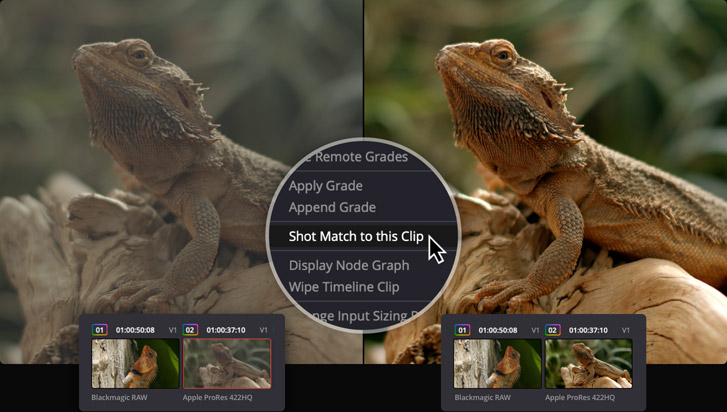
Official Blackmagic Design example of the Shot Matching workflow. Source: DaVinci Resolve Color.
That depth matters when a broad adjustment needs a selective correction. You can work on a particular tonal range or region and inspect the image through scopes. Studio adds tools such as Magic Mask, but you do not need it to get a serious grading workspace or the free AI matching tools. In the free version, further refinements are hands-on; the official assistant route for directing changes is part of Studio.
Invideo Editor: The free manual color workspace gives you Lift, Gamma and Gain wheels and RGB or luminance curves to shape the workshop shots’ tonal balance. Hue, saturation and luminance qualifiers target a color range; shape masks limit the correction to part of the frame. Waveform, RGB parade and vectorscope views help you check exposure and color as you adjust. Copy the grade to another shot, then refine it for that shot’s lighting.
You can also ask Claude or ChatGPT through MCP to make color adjustments without invideo editing credits, then refine the result with the manual controls.
Verdict: Resolve Free suits editors who want its built-in Auto Color and Shot Matching tools followed by node-based grading. invideo suits those who want free MCP-directed changes alongside selective manual grading controls. Both offer detailed refinements; the relevant distinction here is Resolve’s included matching tools versus invideo’s free external-assistant route.
Can you finish and export before upgrading?
A free workflow needs to reach a usable deliverable. It also helps to know whether you can carry the edit into another application when a project needs additional finishing. Here is how both tools handle finished-video delivery and the option to continue editing.
DaVinci Resolve: The free version lets you export finished videos at up to UHD 3840 × 2160 and 60 fps in supported formats. You can complete the edit, grade and mix in one application. Check the Studio feature differences if you need higher resolutions or frame rates, additional format support or Studio-only processing. Studio is available as a paid purchase, with optional rental arrangements; it is not a mandatory subscription for using Resolve.
Invideo Editor lets you export finished videos for free without a watermark. You can export an H.264 MP4, audio only or a still frame. You can also export an editable project with its timeline and media to Premiere Pro, Final Cut Pro or DaVinci Resolve to continue editing or finishing there.

The invideo export panel in a separate project. See the Resolve editable-project destination in Zane Hoyer’s walkthrough around 2:07.
If you plan to finish elsewhere, inspect the imported sequence, media, timing and treatments before relying on the handoff.
Verdict: Both editors let you finish and export a video without a paid editing upgrade. Invideo offers watermark-free video exports and editable projects for continuing in another editor. DaVinci Resolve’s free version keeps editing, grading, mixing and delivery in one desktop suite, though exports above UHD 3840 × 2160 or 60 fps require Studio. The better fit depends on your delivery requirements and where you prefer to finish the edit.
Which one should you choose?
Go with Invideo Editor if you want a free manual editor for cutting footage, preparing captions, shaping audio, correcting color and exporting without a watermark, with the option to have Claude or ChatGPT help through MCP. That combination makes it a convenient choice for moving between hands-on editing and assisted preparation or revisions. External-assistant subscriptions and generated media may add costs.
Go with DaVinci Resolve if you prefer a desktop workflow that brings editing, grading, Fairlight audio and delivery together. Its free version offers detailed manual controls alongside Auto Color, Shot Matching and Dialogue Leveler. Studio becomes relevant when you need automatic transcription, Smart Reframe, Voice Isolation, official MCP assistance or exports above the free version’s resolution and frame-rate limits.
Frequently asked questions
Does free invideo MCP editing include a ChatGPT or Claude subscription?
Your external assistant’s subscription, model access and usage limits are separate. Check the assistant account you intend to connect before planning a long editing session.
Can I use Invideo Editor without connecting Claude or ChatGPT?
Yes. You can cut footage, reframe shots, edit subtitles, adjust audio and color, and export finished videos using the manual controls. Connecting Claude or ChatGPT through MCP is optional.
When would I need DaVinci Resolve Studio instead of the free version?
The free version can handle editing, grading, audio mixing and delivery. Studio becomes relevant if you need automatic transcription, Smart Reframe, Voice Isolation, Fairlight Audio Assistant or official MCP assistance. Exports above UHD 3840 × 2160 or 60 fps also require Studio.