Invideo Editor vs Eddie AI: Which Is Better for Editing with AI?
October 16, 2026

Invideo Editor and Eddie AI both turn recorded footage into editable cuts. This guide compares how they build a base cut, handle revisions, add supporting visuals, mix sound and create Shorts. It also covers ChatGPT and Claude integration via MCP, editing costs and project exports.
Plenty of good footage does not automatically make a finished video. You still need to select the strongest moments, shape a clear sequence, add supporting visuals and bring the sound together.
Invideo Editor and Eddie AI both help with that work through AI-assisted assembly and manual editing controls. The difference is how each lets you develop the first pass, refine picture and sound, and carry the project through to delivery.
The comparisons below follow those tasks, showing how each editor works and where its strengths and limitations matter.
Invideo Editor vs Eddie AI at a glance
Invideo Editor combines a built-in editing agent with a professional, frame-accurate multitrack editing suite. Eddie AI centers on understanding recorded footage, finding selects and building cuts that can continue into an existing editing workflow in Premiere Pro, DaVinci Resolve or Final Cut Pro. Its current tools also cover manual editing, graphics, music, color and finished MP4s.
Editing job | Invideo Editor | Eddie AI |
|---|---|---|
Assembling a base cut | A strong choice for building a base cut around your creative brief, with built-in agent assistance, free editing through ChatGPT or Claude, and full timeline controls to develop the edit beyond the first pass. | Good for assembling a narrative base cut from a written selection and ordering of soundbites, with reusable footage logs. But prompted rebuilds can add costs, and refinement beyond its built-in controls requires exporting to another editor. |
Revising structure and pacing | Offers greater flexibility for revisions spanning footage, graphics and sound, combining free manual editing with assistance from the invideo agent or free editing through ChatGPT or Claude via MCP. | Convenient for transcript-led restructuring, precise trims and clip-scoped Spark revisions. ChatGPT and Claude can also direct changes, but prompted rebuilds use Eddie credits through either connection. |
Adding B-roll and explanatory graphics | Offers flexible creative control over supporting footage, layered labels and animation, with stock, media generation and precise manual timing in the same workspace. | Useful for matching cutaways to spoken content and adding titles or generated motion graphics. Custom compositing needs can exceed its tools; background removal requires another editor. |
Cleaning dialogue and mixing sound | The stronger choice for detailed voice treatment and layered mixing, with EQ, de-essing, click removal, compression and automation alongside agent assistance. | Covers noise cleanup, speech leveling and music ducking, but EQ, de-essing and click removal require another tool. Cleaned audio does not carry into NLE timeline exports. |
Creating cutdowns and vertical Shorts | Great for reshaping longer footage into shorter stories, with manual control over each version’s pacing, portrait framing, captions, graphics and sound. | Convenient for generating several standalone clips from longer spoken content, with target lengths, speaker reframing and captions. Additional versions and prompted revisions add metered work, while cloud exports beyond the daily allowance cost extra. |
Editing through ChatGPT or Claude | Editing through ChatGPT or Claude via MCP is free, with image, video and audio generation available using invideo credits. | Supports assembly, revisions and other editing through MCP, but Eddie credit charges still apply. New music, voice-over and AI B-roll generation require returning to its app. |
Delivering a finished video or editable project | Flexible delivery through free watermark-free videos, native project exports and multicam handoffs with media, so you can finish in invideo or continue in Premiere Pro, Final Cut Pro or DaVinci Resolve. | Supports native project exports and multicam handoffs, but timeline exports cost Eddie credits and some finishing treatments, including cleaned audio, do not transfer. |
Assembling a base cut
A base cut needs a clear opening, a sequence that develops the idea and supporting footage that connects the scenes. The difference is how each editor helps you build and develop that first pass.
In Eddie AI, you describe the edit and target length. Eddie reads the transcripts, selects answers and assembles a rough cut. With its B-roll workflow you can then add B-roll through a separate request, keeping the speaker’s audio underneath.
That gives you a starting structure built around the spoken material, but the visual coverage still needs direction. You can make direct trims and transcript changes inside Eddie, but more precise refinements require a professional editing suite. Further prompted rebuilds also add credit costs.
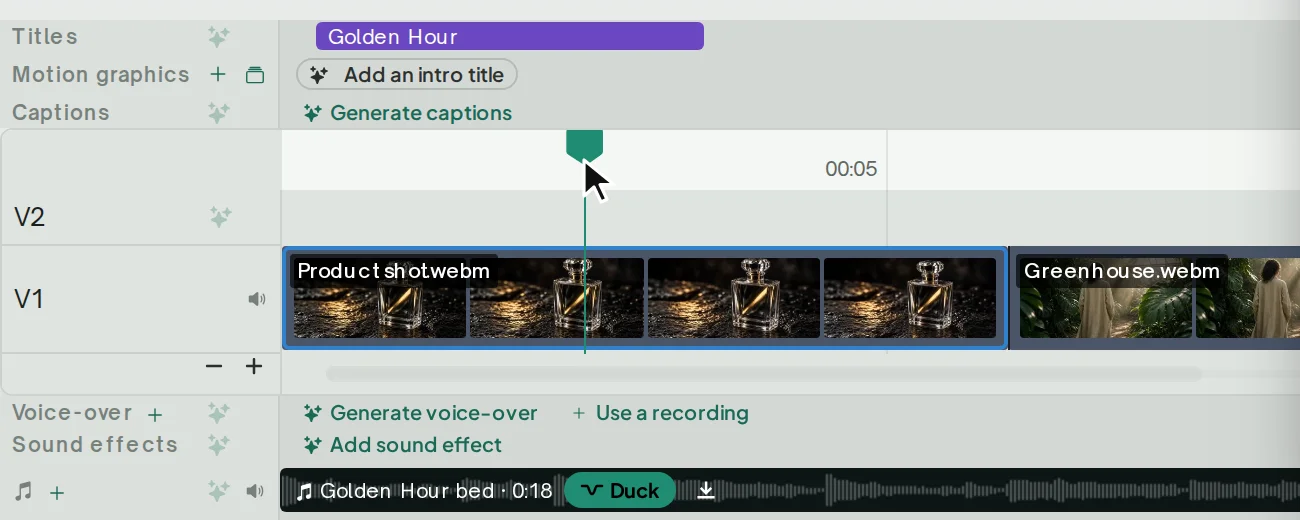
Official Eddie walkthrough frame: source clips arranged in a sequence, with separate title and music tracks. Source.
In invideo Editor, you define the broad creative brief, and the agent selects takes, cuts silences and retakes, and removes unusable footage to build a polished base cut on a professional multitrack timeline.
You can then develop the edit through agent instructions or free manual control over the sequence, supporting footage, graphics and sound. The rough-cut guide explains how that first assembly develops.
You can also build and revise the assembly using ChatGPT or Claude via MCP without using credits for free. Swap a take, reorder scenes, hold a reaction longer or adjust the cover footage without requesting another paid agent pass.

Illustration: named story markers in a conservation-podcast timeline.
Verdict: invideo is the stronger choice for building a base cut and developing it beyond the first pass, with a full professional editing suite, free manual refinement and free editing through ChatGPT or Claude. Eddie is a good choice for a transcript-led rough cut, but further prompted rebuilds can add credit costs, and finishing beyond its basic built-in controls requires another editor.
Revising structure and pacing
A revision can involve more than shortening a passage. Moving a section may also mean replacing its supporting shots, retiming a graphic and adjusting the sound. The useful distinction is how much of that work you can control within the editor.
In Eddie AI, transcript edits let you move or remove spoken passages, while manual timeline controls handle frame-level trims. You can also ask Eddie’s AI to swap a take, reframe a shot or change a graphic in selected clips.
These controls suit tightening and restructuring a cut, but finishing and compositing have specific limits. Background removal requires another editor, as do audio treatments such as EQ, de-essing and click removal. Further prompted revisions can also add credit costs, even when the underlying editing operation is free.
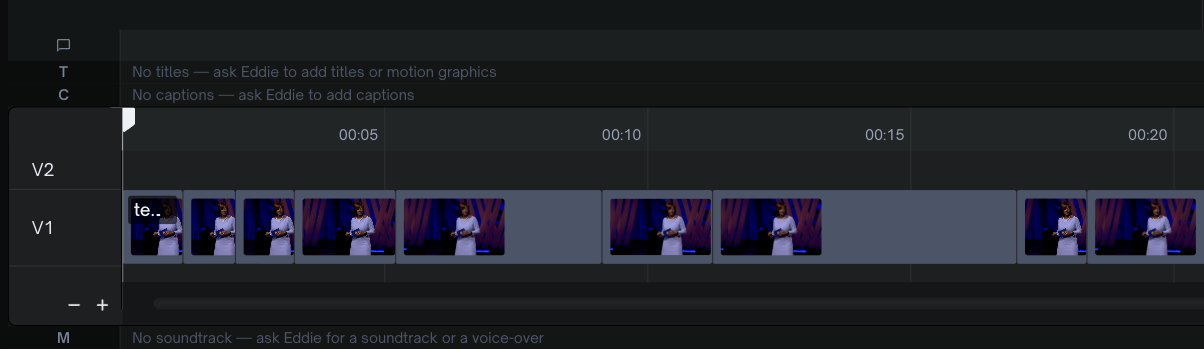
Official Eddie timeline screenshot. Source: The editor explained.
In invideo Editor, you can direct revisions across footage, graphics and sound on the same professional multitrack timeline, then refine the result with full manual controls.
For example you could give a command like: “Move the explanation before the demonstration, shorten the repeated setup and retime the supporting shots and labels. Keep the approved opening and ending unchanged.”
You can then adjust individual cut points, reposition layers, refine animation timing or shape the sound yourself. Manual editing is free, and editing through ChatGPT or Claude via MCP adds no extra charge. This timestamped-feedback guide explains how to target changes while preserving approved sections.

Capture: revision instructions beside the editable invideo timeline. Source.
Verdict: Both editors support targeted revisions, but invideo offers greater flexibility when revisions span the sequence, graphics and sound, with detailed manual controls and free editing through ChatGPT or Claude. Eddie is convenient for transcript-led restructuring and targeted clip changes, but prompted revisions can add costs, and changes beyond its finishing or compositing tools require another editor.
Adding B-roll and explanatory graphics
Supporting visuals should clarify the story: a close-up that shows the process, a cutaway that bridges an edit or a label that explains what the viewer is seeing. Below, we will be comparing how both editors add these visuals and let you refine their timing, placement and movement:
In Eddie AI, B-roll placement can use your own footage, stock or generated clips. Its visual logs describe silent footage too, so matching is not limited to spoken keywords. You can direct a specific cutaway or plan a sequence of related shots. Its motion-graphics tools also support animated titles, labels and explanatory overlays.
The limitations become clearer when you refine those graphics. You cannot drag or trim generated graphics directly on their timeline lane; repositioning them requires re-adding them or entering new start and end times. Imported Adobe graphics also vary in editability. Rendered graphics do not expose individual layers, and supported text or color changes require another render.
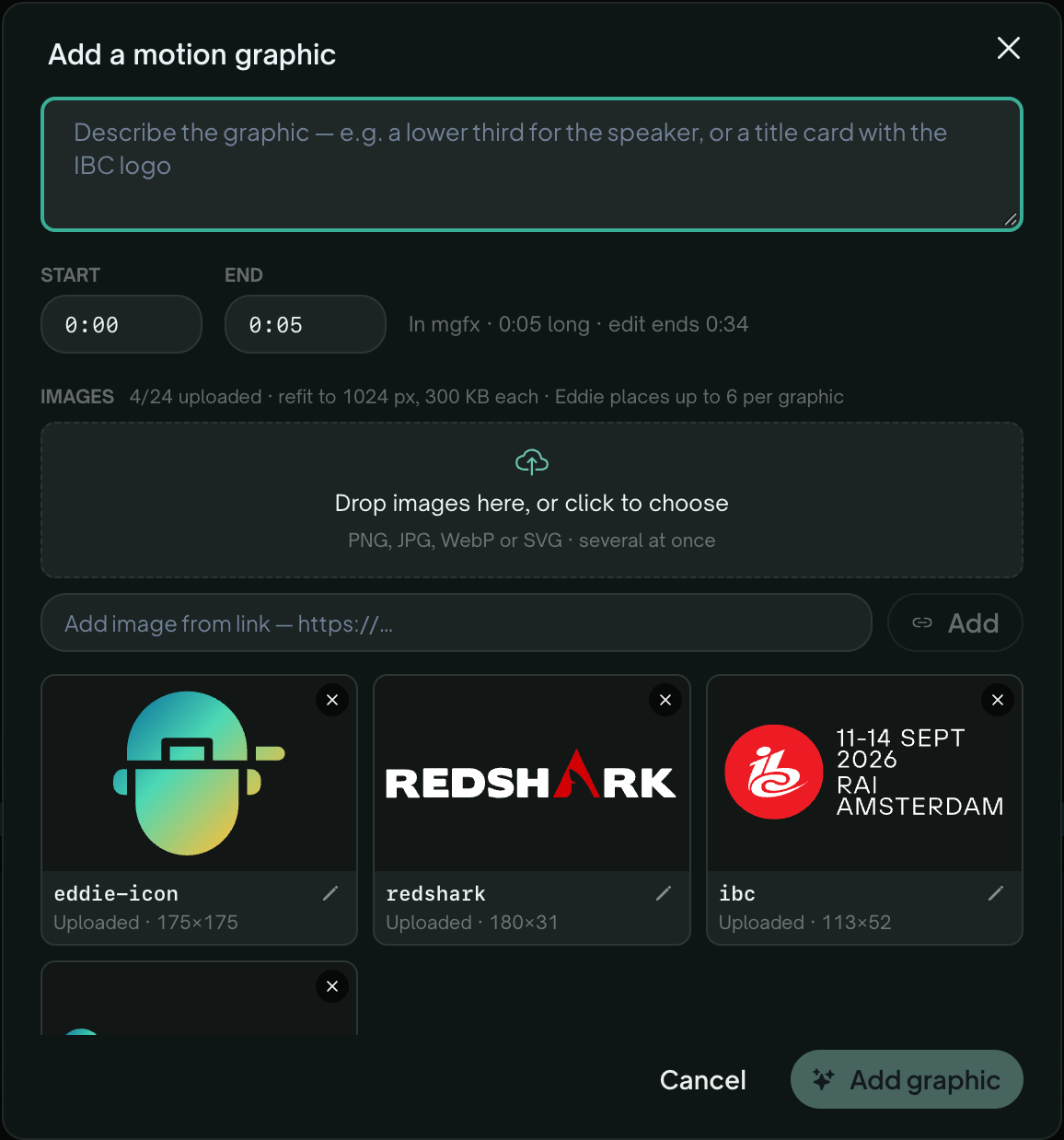
Official Eddie screenshot: a graphics prompt with explicit start and end times. Source.
In invideo Editor, you can select B-roll from your uploaded footage, source stock clips or generate images and video when the edit needs a shot you don’t have.
You can ask the invideo agent, ChatGPT or Claude via MCP to find and place relevant visuals over a section, cover an edit or build a sequence of supporting shots. The footage stays editable on the multitrack timeline, so you can change its selection, framing, duration and placement while keeping the underlying dialogue intact.
For explanations that need more than footage, the editing suite adds layered labels, callouts, shapes and animation. A product close-up can carry a feature label, a screen recording can use an animated callout, or a graphic can reveal information in stages. You can develop the treatment with the invideo agent, use free editing through ChatGPT or Claude via MCP, or refine individual layers, keyframes and animation curves manually for free.

Illustration: stock B-roll on a separate video layer above the presenter and continuous dialogue. Source.
Verdict: invideo offers greater creative latitude when supporting visuals need layered composition and precise animation. Eddie is convenient for contextual cutaways and generated graphics, but custom compositing can require another editor and B-roll placement has its own billing rules.
Cleaning dialogue and mixing sound
A finished soundtrack needs more than noise removal. Voices may need different tonal treatment, music needs room beneath speech, and effects or location recordings need to support the picture without overwhelming it. Here’s how both editors handle these adjustments and let you refine the mix:
In Eddie AI, you can reduce background noise, level speech, adjust clip volume and duck music beneath dialogue. It supports music, sound effects and final-loudness settings for cloud MP4s. These tools cover common cleanup and balancing needs.
However, the limits are clearly visible. EQ, de-essing and click removal require other tools. Cleanup processes the whole source file and does not carry into NLE timeline exports. Eddie also does not support uploading your own sound-effect files to the SFX lane, which matters when the job calls for supplied effects or location recordings.

Official Eddie screenshot: separate voice-over, sound-effect and music lanes, including music ducking. Source.
In invideo Editor, the audio workspace includes eight-band parametric EQ, de-essing, click removal, compression, automation, buses and loudness metering. You can shape one recording, then ask the agent to carry that treatment across the clips you specify.
You can also build a layered soundtrack using your own recordings, sourced music and effects, or generated audio. The agent can arrange the layers and balance them beneath the dialogue, while you refine tone, fades and levels directly.

Illustration from the editing-prompts guide: separate dialogue, music and action-sound layers, with a music volume envelope and mixer faders.
Once those layers are in place, you can revise the mix without changing the picture edit. For example, lower the music during a quiet passage while keeping the surrounding ambience. Vinny G Nali’s walkthrough at 12:29 shows a sound-only revision request alongside an existing layered soundtrack. The guide to adding sound effects and music explains how to develop those layers around the picture and speech.
Verdict: invideo is the stronger choice for detailed voice treatment, supplied sound recordings and layered mixing in the same editor. Eddie covers cleanup, leveling and ducking, but more demanding dialogue finishing needs another tool, and its cleaned audio does not travel with the NLE timeline export.
Creating cutdowns and vertical Shorts
A good cutdown tells a complete story in less time. For vertical Shorts, the framing, captions and graphics also need to work within a smaller canvas. Here’s how both editors select moments, reshape the edit and adapt it for vertical viewing:
In Eddie AI, the short-clip workflow can build several standalone edits from the same imported recording. You specify the themes, number of clips and maximum duration. It supports vertical framing and captions, and you can keep clips as separate edits or collect them in one sequence.
Its reframing tools also allow manual crop adjustments, so you are not restricted to the initial speaker framing. However, creating more versions or requesting revisions uses Eddie credits, with captions and reframing included in that work. Each clip reuses the footage you already imported. Cloud video exports cost extra once you exceed the daily free allowance.
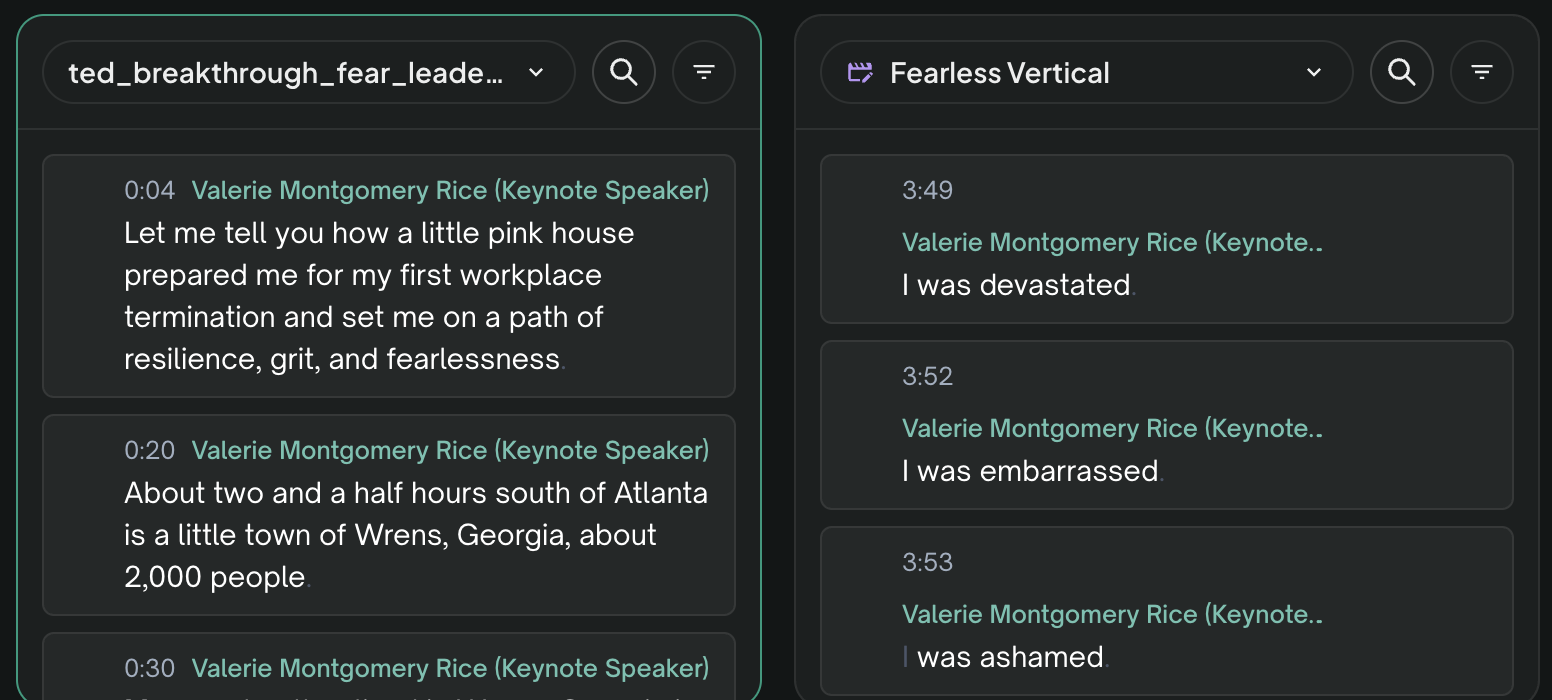
Official Eddie screenshot: the source transcript beside the selected lines of a vertical edit. Source.
In invideo Editor, you can develop ideas for Shorts before committing to a cut. Ask the agent to find interesting themes, suggest clip ideas and identify the moments that support each. You can then choose the strongest ideas and agree on their structure before building the cuts.
For example: “Look through this footage for surprising opinions, useful lessons and stories worth sharing. Suggest Short ideas and the moments that could support each. Flag ideas that need more context to stand alone.”
Once you choose the ideas, the agent can assemble separate cuts and adapt them for portrait. Each version remains editable, including its shot selection, pacing, framing, captions, graphics and sound. You can change the opening, keep a demonstration visible or reposition a graphic yourself, with free manual editing and watermark-free exports. You can also build and revise the cutdowns through ChatGPT or Claude via MCP without spending any additional credits.
The long-video-to-Shorts guide explains how those selections develop into separate stories.

Illustration: a landscape shot reframed for a vertical edit, with framing controls, separate shots, a title and audio layers still editable.
Verdict: invideo is a strong choice when each cutdown needs individual editorial and visual refinement without paying for manual changes or finished-video exports. Eddie is convenient for batches drawn from spoken content, with duration, reframing and captions handled together, but further prompted revisions and exports beyond the daily free allowance can increase the cost of the batch.
Delivering a finished video or editable project
Once your edit is ready, you may need a finished video to share or an editable project for another editor to continue. Here’s how both tools handle these exports, what carries over with the project and what each option costs:
In Eddie AI, you can export native Premiere Pro and DaVinci Resolve projects, alongside XML, FCPXML, AAF and OTIO formats. Avid integration is currently in beta. Support for multicam structures and review markers varies by export format.
Desktop imports can reference your original media, while web and cloud imports use transcoded proxies. Cleaned audio does not carry into editable exports, and some motion and mute settings may be excluded depending on the format. Timeline exports also use Eddie credits.
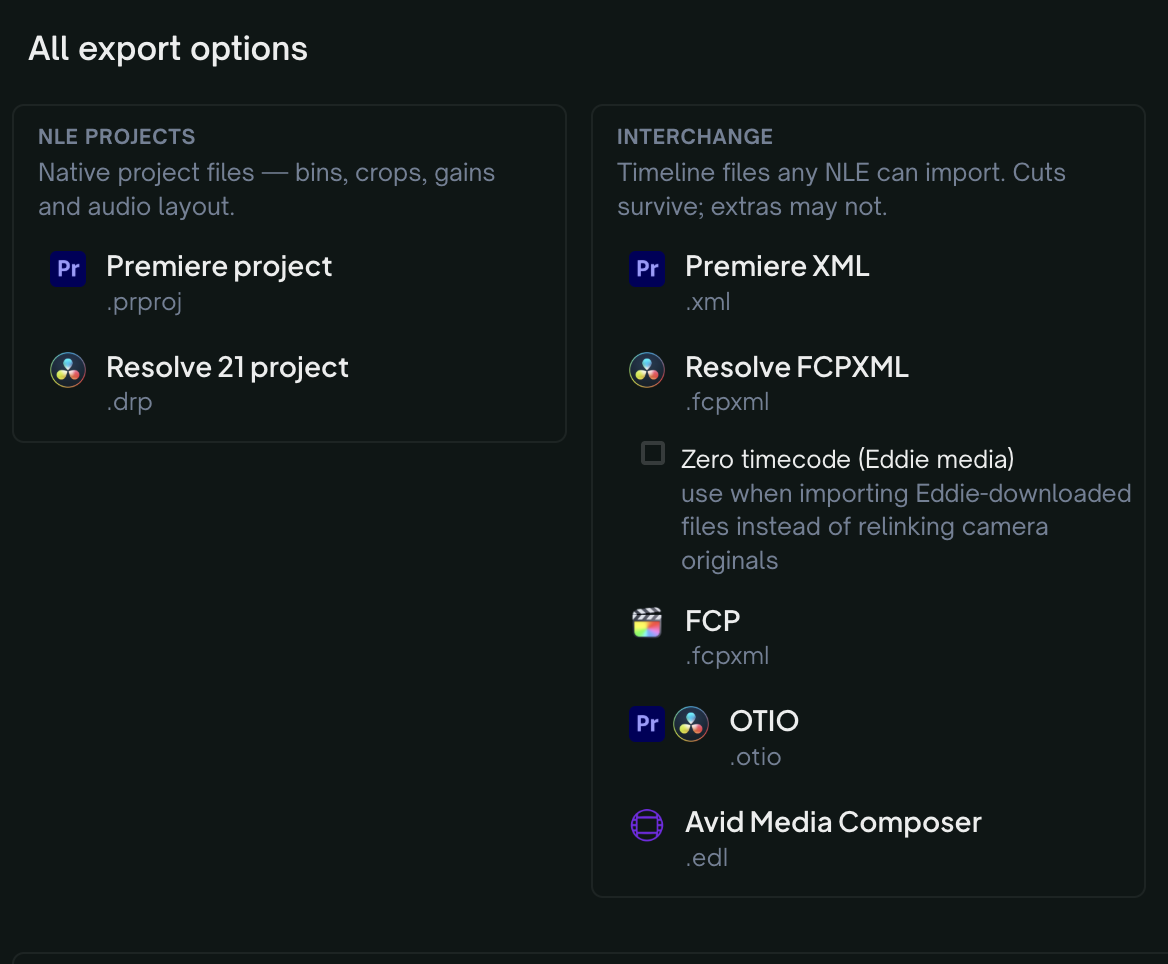
Official Eddie screenshot: native-project and interchange export options. Source.
In invideo Editor, you can export a finished H.264 MP4 or an editable project with its timeline and media. Native project exports, XML/OTIO routes and multicam handoffs let you continue in Premiere Pro, Final Cut Pro or DaVinci Resolve. Finished-video and editable-project exports are free.

Capture from John The Video Guy’s walkthrough at 05:30: finished-video settings and the separate editable-project choice.
Verdict: Both editors support finished-video delivery, native project exports and multicam handoffs. Invideo offers free exports, while Eddie charges credits for timeline exports and excludes some finishing treatments, including cleaned audio.
Editing through ChatGPT or Claude via MCP
Both editors connect to ChatGPT and Claude through MCP, letting you direct video edits from either assistant. Here’s how their editing capabilities, media-generation access and costs compare:
In Eddie AI, the MCP connection supports transcripts, assembly, revisions, B-roll, graphics, sound effects and export. The same projects and Eddie credits are used across its app and external clients. You cannot generate new music, voice-over or AI B-roll through Eddie’s ChatGPT or Claude connection. You need to create them in Eddie’s app first, then the assistant can use them in the same project.
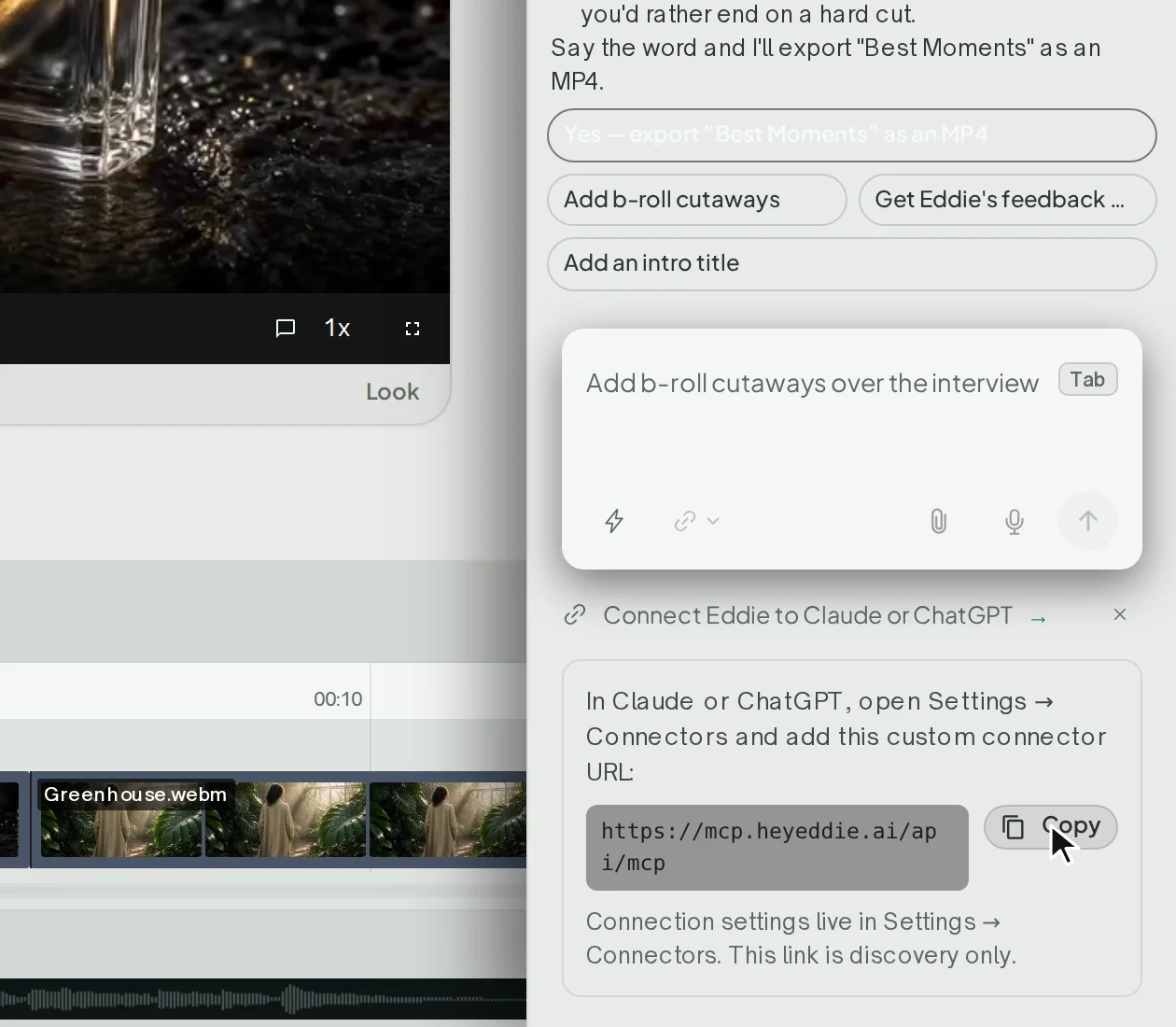
Official Eddie walkthrough frame: the Claude and ChatGPT connection panel. Source.
In invideo Editor, the free MCP connection lets ChatGPT or Claude work on the editable timeline without an additional invideo charge for ordinary editing. You can also request generated images, video and audio through the assistant, with generation charged in invideo credits. Your assistant’s subscription and usage limits remain separate.

Invideo’s ChatGPT connection page, with setup instructions and its MCP server URL. Source.
Verdict: invideo has a clear cost advantage for ordinary editing through an assistant you already use, and supports generation in that connected workflow when needed. Eddie also offers extensive MCP editing, but it continues to meter Eddie work and keeps some generation steps in its app.
Pricing: what will your editing workflow cost?
The cost depends on whether you edit manually, use a built-in agent or work through ChatGPT or Claude. Here’s how free access, paid options and editing charges compare.
Prices are in US dollars, checked on 19 October 2026. The invideo annual price below reflects the 50%-off offer displayed for one seat.
Budget question | ||
|---|---|---|
Can I edit and export for free? | Manual editing, watermark-free video exports and editable-project exports are free. | Direct manual edits avoid prompt charges. Ten cloud MP4 exports per workspace per day are free; additional exports cost 50 credits each. Editable timeline exports cost 100 credits each. |
Can I edit through ChatGPT or Claude? | Ordinary editing via MCP adds no invideo editing charge. Media generation uses invideo credits. | Editing through MCP uses the same Eddie credit balance and charges as the app. |
What is the starting paid option? | Basic costs $54 for the year, with 2,280 credits delivered as 190 each month, plus Lite agent access. | A one-time $10 pack provides 1,000 credits that do not expire. New accounts receive 500 free credits, and a subscription is not required. |
What uses credits? | Built-in-agent analysis and editing, plus generated images, video and audio. | Imports, prompt runs, media generation and certain processing and export operations. Imports cost 250 credits per source hour; prompt costs depend on the work performed. |
Your ChatGPT or Claude subscription and usage limits apply separately. Credit counts are not directly comparable because each platform charges differently for the work. Eddie covers one correction requested within 30 minutes of a fresh result, up to the original run’s cost. Further rebuilds can add charges.
Verdict: invideo keeps manual refinement, ordinary MCP editing and exports free, making those routes attractive for ongoing revisions. Eddie’s credit packs suit occasional paid work, but imports, prompted revisions and timeline exports all draw from that balance.
Which should you choose?
Go with invideo Editor if you want to build a base cut around a brief and develop it into a finished video with full manual control over picture, graphics and sound. Its detailed audio tools support finishing in the same suite, while ordinary editing through ChatGPT or Claude via MCP is free. Free finished-video exports, native project exports and multicam handoffs also let you deliver or continue in another editor.
Go with Eddie AI if reusable footage logs and narrative assemblies fit your production workflow. It also supports manual refinement, graphics, vertical clips and native project exports with multicam handoffs. Budget for imports, prompted rebuilds and timeline exports, and allow for another editor when you need audio treatments or compositing beyond its controls. Some finishing treatments, including cleaned audio, do not carry into its editable exports.
Frequently asked questions
Can I edit the AI’s cut manually in both editors?
Yes. Both let you refine an AI-assisted cut manually. Invideo provides a full professional editing suite for changes across footage, graphics, animation and sound. Eddie supports transcript edits, frame-level trims and other direct adjustments, but detailed finishing and compositing require a separate editing tool.
Is editing through ChatGPT or Claude free?
Ordinary editing through invideo’s MCP connection adds no extra editing charge but new media generation uses invideo credits. Eddie’s MCP connection however uses the same credit balance and charges as its app. Your ChatGPT or Claude subscription and usage limits apply separately.
Can I continue editing in Premiere Pro, DaVinci Resolve or Final Cut Pro?
Yes. Both support editable project exports and multicam handoffs. Invideo’s exports are free and include media. Eddie charges credits for timeline exports, and some finishing treatments do not transfer. Its cleaned audio, for example, stays in Eddie and finished-video renders rather than the exported timeline.
Do I need a paid subscription to use either editor?
Invideo’s manual editing, ordinary MCP editing and exports are free; built-in-agent work and media generation use credits. Eddie does not require a subscription: you can buy credit packs as needed. Its free sign-up credits let you try paid operations before purchasing more.