How do you color grade AI-generated video clips to look consistent in post-production?
Last updated July 27, 2026
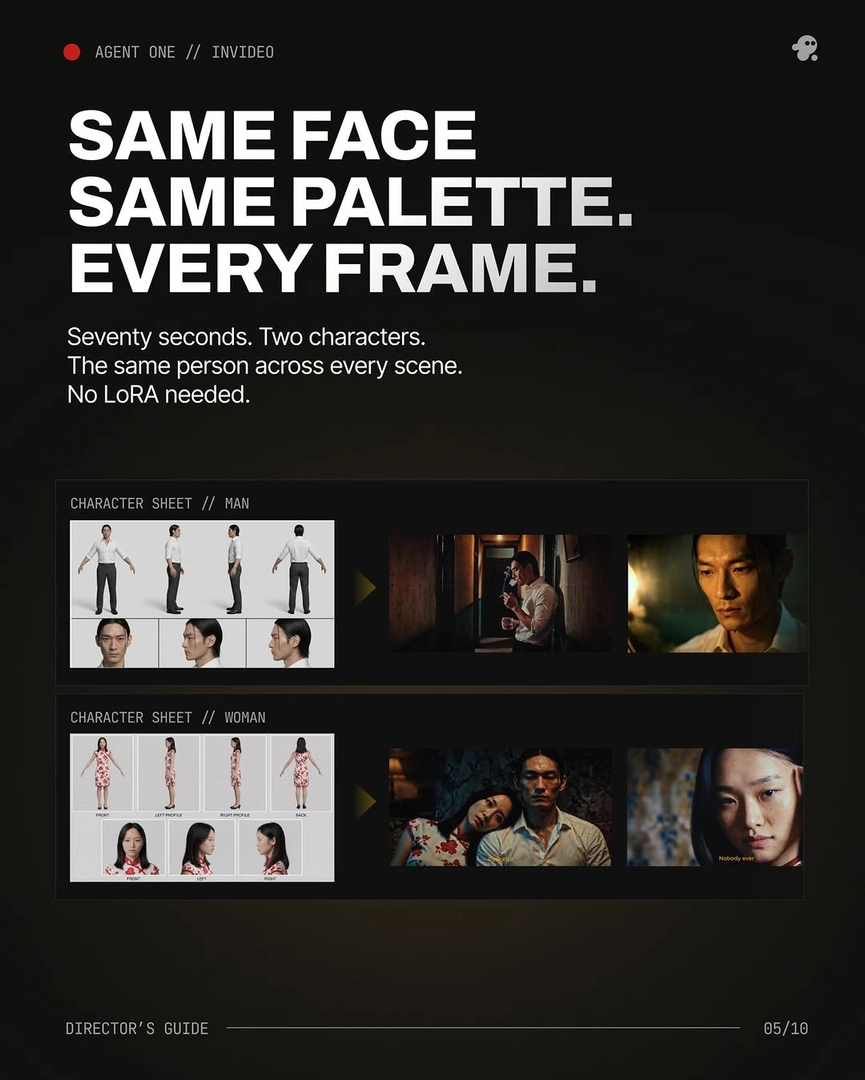
Color grade AI clips in a fixed post-production order: upscale first (Topaz Astra on invideo, before any color work), apply an identical blur-and-grain pass to every clip to remove the over-sharp AI render quality, match all footage to one locked palette reference — named tonal modes with exact hex values — then finish with a per-scene creative grade in your NLE.
AI clips drift in color because every generation is an independent render — color temperature, contrast, and saturation shift between batches even on identical prompts — so the fix is a repeatable grading pass applied in the same order to every clip. invideo is an agentic video creation tool with the current generation models and upscalers built in, so the whole pipeline below runs in one place. (You can reduce the correction load upstream by locking a style block in the invideo agent's context so it rides every generation prompt, but the post pass below is what actually unifies the footage.)
Step 1 — Upscale before you touch color. Run footage through Topaz Astra on invideo as the first post-production step, before any color work — grading after the upscale means your corrections sit on the final pixel detail rather than on footage that will be re-rendered. For volume, spin up a sub-agent named for the job (an "Upscale Artist") to batch-upscale clips without manual intervention.
Step 2 — Remove the AI render signature with one identical pass. AI video — Seedance 2.0 output in particular — carries an ultra-sharp, plasticky skin quality. Correct it the same way on every clip: a small amount of blur on top of the scene, a layer of grain, then adjust the grade until it reads closer to live-action film. Because this pass is identical across clips, it also pulls mismatched generation batches toward a common texture baseline before any matching work begins.
Step 3 — Match every clip to one palette reference. Define your film's color script as named tonal modes with exact hex values (for example, a split-toned amber-and-emerald mode) so every clip is graded toward a measurable target instead of by eye. Do the matching per scene in your NLE — Premiere Pro or DaVinci Resolve are the standard assembly points for AI-generated footage — and keep the mode definitions loaded in the invideo agent so generation and grade reference the same numbers; one production had its agent hold an 8-step color grading guidance process alongside its shot-design rules.
Step 4 — Grade inside composited shots, not just across them. In one 3-minute production, 17 of the final shots were stitched from 2 or more generations, and on average only 5 seconds of each 15-second clip made the timeline — so segments from different generation batches sit adjacent both between shots and within a single Frankenstein shot. Check every stitch point against your palette reference and balance the segments individually first, then apply the scene-level creative grade on top so the whole sequence carries one look.
Watch some of these to see what works for you:
What we tend to do is put a tiny bit of blur on top of the scene, add a bunch of grain and then play with the grade till it comes closer to live action film.
— invideo's creative team