6 Best Video Editors for making UGC Ads in 2026
November 5, 2026

Invideo Editor is the best overall choice for making UGC ads. It connects creator-take cleanup and base-cut assembly with relevant product shots, editable captions, graphics and supporting music, plus optional AI creators and generated B-roll. You can cut the ad yourself or work with ChatGPT or Claude, and export it without a watermark for free. CapCut and Filmora suit desktop timeline editing, Descript transcript-led testimonials, VEED caption-led browser edits and Canva campaign graphics.
Making a UGC ad means cutting false starts and repeated takes, arranging the usable lines, adding product close-ups and timing captions, music and the offer. A new opening, brand revision or ad format can mean working through those clips and layers again. The right editor can take on more of that repetitive work while keeping the finished ad easy to adjust.
We compared six video editors for that workflow: invideo Editor, CapCut, Descript, Filmora, VEED and Canva. This guide looks at how much of the editing each tool can handle for you, the manual control it provides, and its options for adapting and exporting the ad. We also compare AI capabilities for creating presenters and supporting B-roll when you need footage beyond the creator’s recordings.
Best video editors for making UGC ads at a glance
Tool | Building a clean base cut | Adding relevant product shots and B-roll | Adding captions, graphics and music | AI capabilities | Adapting and exporting |
|---|---|---|---|---|---|
invideo Editor | Agent-directed cleanup removes false starts, repeated takes and awkward pauses, then assembles the message around the script. Manual timeline controls keep take selection, cut points and pacing in your hands. | The assistant finds relevant recorded demonstrations and close-ups, then places them above continuing speech. Separate tracks keep product-shot timing adjustable without rebuilding the base cut. | Separate captions, benefit cards and CTA graphics remain editable. Uploaded, stock or generated music can be timed and balanced beneath speech through agent instructions or manual controls. | Access to 200+ AI models lets you generate creator avatars, supporting B-roll, images, music and audio. | Vertical, square and widescreen versions support shot reframing and repositioned text. Watermark-free video exports are free, alongside editable projects with media for Premiere Pro, Final Cut Pro and DaVinci Resolve. |
CapCut | Splits and trims shape creator takes; EditPilot assists with rough trimming and filler removal. EditPilot runs in CapCut’s PC app and currently takes instructions in English. | Multitrack overlays place recorded product shots over the creator’s speech. Clip trims and positioning keep the demonstration visible for the relevant line without replacing the underlying dialogue. | Captions, keyframed text and music controls develop the message. Pro caption styles or effects can trigger payment at export, requiring a subscription or a replacement treatment. | AI media generates supporting shots from text or images; avatar tools create presenters. Generation uses credits, so repeated creator or B-roll variations add to the budget. | Manual crop and positioning adapt footage to different ratios; Auto Reframe requires the Pro plan. Desktop MP4 and MOV exports are available, while Pro elements can block free delivery. |
Descript | Transcript edits remove failed takes and rearrange a creator’s testimonial, with timeline trims to refine the joins. AI cleanup can handle repetitive editing across the recordings, but those automated passes use AI credits. | Scene layers place product footage over continuing narration. Adjustable clip timing lets the demonstration match the spoken benefit while retaining the creator’s recorded explanation beneath it. | Editable captions, titles and music layers support the ad. Studio Sound treats distracting noise and echo, but AI voice processing uses credits, adding a cost to repeated cleanup. | Avatars can be created from a photo, prompt or gallery, alongside generated supporting video. Avatars and B-roll use AI credits; B-roll model settings require the generation panel rather than Underlord. | Landscape, portrait and square layouts have adjustable scene framing. Clean 1080p exports require the Hobbyist plan; 4K and editable timeline exports require the Creator plan or above. |
Filmora | Timeline cuts and silence detection clean up creator takes. You can also cut the recorded dialogue by editing its transcript with AI Text-Based Editing, which uses AI credits. | Separate tracks combine creator speech with demonstrations and close-ups. Trims and manual positioning let the product action remain on screen for the line it needs to explain. | Caption and title tracks carry benefits and offers; audio ducking lowers music beneath speech. Speech-to-Text uses credits, so automatic captions draw on the AI allowance. | You can generate a video with AI characters from a script, or turn a still image into a short video clip for B-roll. These generation tools use AI credits, so rerendering adds to the production cost. | Auto Reframe tracks the subject in vertical, square and widescreen versions, with manual corrections available. MP4 and MOV exports support delivery; routine trial exports carry a watermark. |
VEED | Edit by Script removes unwanted words, pauses and fillers from a creator’s recorded delivery. Moving a later line into the opening requires timeline editing because the transcript cannot be rearranged. | Video overlays add product demonstrations above the spoken edit. Edit by Script requires speech and auto-subtitles, so choosing and timing silent product shots uses the visual timeline. | Captions, overlays and music controls develop the ad. Reusable Brand Kit media and graphic groups require the Pro plan or above, adding a higher-tier cost for repeated treatments. | You can generate a video of an AI avatar speaking your script and create supporting B-roll from text prompts or images. Each generation uses credits, and changing a presenter’s script requires another paid generation. | Aspect-ratio changes and manual crop controls adapt framing for each placement. MP4 delivery is watermarked 720p on the free plan; the Creator plan adds clean 1080p, and the Pro plan adds 4K. |
Canva | Highlights and Magic Video help select and sequence creator footage. Removing false starts and unwanted pauses relies on manual clip trims because Auto-trim is temporarily unavailable in the updated timeline. | Upper video tracks place product shots above the creator footage. Independent element timing lets demonstrations and text follow the spoken message without cutting the dialogue into separate pieces. | Dynamic captions, animated text and layered music support campaign styling. Enhance Voice requires eligible paid access and AI usage, adding a cost when the recorded speech needs that treatment. | Canva AI can create short supporting clips but needs HeyGen to generate presenters. The HeyGen app requires a separate account and desktop access, so avatar availability follows that service’s access rules. | Resize presets and custom dimensions adapt the video, with manual cropping to refine framing. Magic Resize requires an eligible plan; the free plan exports clean MP4s using your own or free assets. |
1. invideo Editor: Best overall for making UGC ads

Invideo Editor can assemble recorded creator takes into an ad that follows the supplied script. Its built-in agent can remove false starts, repeated lines and unwanted pauses, choose takes against the supplied script or brief, and assemble the opening, explanation and offer. ChatGPT or Claude can direct those edits for free through MCP, and the same frame-accurate timeline remains available for manual trims. You can keep a deliberate pause or a complete qualification while tightening the material around it.
That control matters when a testimonial’s best wording spans more than one take. The built-in agent can use the supplied script and selected recordings to assemble the first cut, while manual controls let you choose which performance to keep and where the cuts fall. The script-led editing guide explains how a supplied script gives recorded takes their structure. The ad’s pace comes from those choices, rather than removing every gap by default.
Relevant product footage can also be added to make the spoken benefit visible. The built-in agent, ChatGPT or Claude can find a matching demonstration or close-up in your recordings and place it above the creator’s continuing speech. Product shots sit on separate tracks, so their duration and entrance can change without cutting up the explanation underneath.
Captions, benefit cards, prices and the closing CTA can each remain separate editable elements. Their wording, timing and position can change independently, with keyframe animation available for a moving callout or offer reveal. Balaram Paul’s sponsored microphone walkthrough at 06:21 shows a product-feature card above separately editable presenter footage and audio. That arrangement gives a product message room on screen while keeping later text changes manageable.
The soundtrack can use music you upload, stock music or a generated track. The built-in agent can select or generate music to fit the brief, place it on the timeline and adjust its timing and volume beneath speech. Manual volume changes and fades remain available, along with dialogue cleanup when a recording needs it. Colour adjustments can help mismatched product shots sit together, without turning routine ad editing into a separate grading exercise.
If you are building the entire UGC ad from scratch, invideo also offers AI creator and avatar generation features that can turn a presenter image, script and generated or supplied voiceover into clips for the edit. A brief and consistent references guide the creator’s appearance; supported models provide the voice and talking-head generation. Video models like Seedance 2.5, Veo 3.1 and Kling can also be used to create supporting B-roll.
Generated clips sit alongside your recordings on an editable timeline, with cuts, captions, music and placement still adjustable. Alternate timelines support different openings and formats, and watermark-free video and editable-project exports are free.
Invideo Editor is the best overall choice for making UGC ads because it brings creator-footage editing, AI generation and manual control into one project. You can build an ad from recorded takes or generate presenters and supporting footage, then refine the cuts, captions, graphics and sound on the same timeline. Free editing through ChatGPT or Claude and watermark-free exports also keep the cost of editing and delivering new ad versions down.
2. CapCut: For hands-on creator edits with desktop assistance

CapCut Desktop gives you direct timeline control over the creator’s delivery. Splits, trims and rearrangement remove unusable passages and connect the opening to the demonstration and offer. EditPilot adds assistance with rough trimming, filler-word removal, captions and voice cleanup, with the result available for manual refinement. EditPilot runs in the PC app and currently takes instructions in English; the phone and web editors have their own tools.
Product demonstrations and close-ups can sit on overlay tracks above the spoken cut. You can trim the product shot to the action being described, keep the creator’s audio underneath and adjust the return to camera. Desktop search by dialogue, objects or people helps locate a shot when the supplied folder contains several possible takes.
Editable captions and keyframed text handle spoken subtitles, benefits and offer graphics. Music tracks, fades and audio levels let the soundtrack support the voice, while available voice tools help with a distracting recording. Basic crop, zoom and positioning also let you keep the creator and product visible in the chosen frame.
For additional material, CapCut’s AI media tools offer text-to-video and image-to-video generation with models including Veo 3.1 and Sora 2. They can produce a short supporting shot from a description or reference image. Its avatar tools also create scripted presenters from preset or custom likenesses. Generation uses credits, with the cost shown for the operation, so repeated attempts at a creator or B-roll shot belong in the production budget.
The timeline remains editable for an alternate opening or changed offer. Auto Reframe requires the Pro plan; manual framing is available without that automatic route. Desktop exports include MP4 and MOV. Clean delivery can be free, but a Pro element can trigger payment at export. A premium caption style or effect must therefore be paid for or replaced. Subscription prices vary by region, device and promotion. The invideo Editor versus CapCut collaboration comparison explores the review controls when several people handle the ad.
CapCut suits editors who want hands-on control of creator takes, overlays and captions, with focused desktop help for repetitive speech cleanup. Its generation credits, paid automatic reframing and premium-element rules become relevant as the treatment grows.
3. Descript: For assembling testimonial ads through the transcript
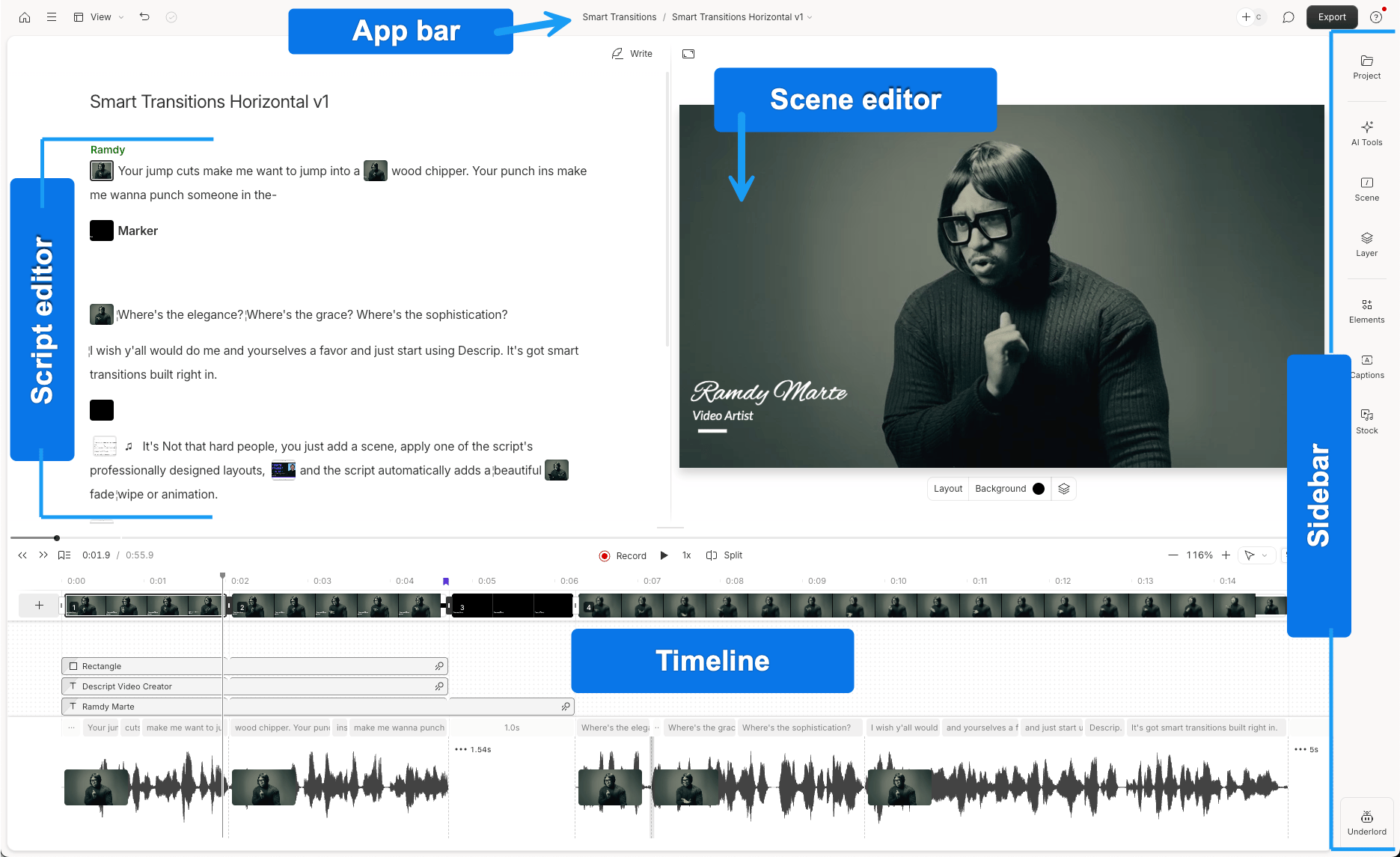
In Descript, the creator’s words provide the main editing surface. Deleting a failed passage removes the corresponding recording; moving text changes the order of the message. Retake removal helps clear repeated attempts, while timeline trims refine joins and pauses that need more care than a text deletion alone provides. This is a useful way to shape a testimonial while keeping track of the exact statement being retained.
The scene editor adds the visual side of the ad. Product footage, stills and other layers can appear over continuing narration, with their own timing and framing. Captions and titles carry the spoken message, benefit or offer, and separate music layers can be trimmed and balanced beneath it. Studio Sound treats noise and echo when needed. Underlord can assist with revisions, alongside direct transcript and timeline editing.
Optional generation includes AI avatars made from a photo, text prompt or stock character, assigned to recorded or generated speech. Generated images and video can supply supporting B-roll in the same project. The generation panel provides the selected model’s available reference, duration and aspect-ratio controls. Those parameters cannot be adjusted when generating video through Underlord, so detailed control means using the panel directly.
Imported recordings and AI work use separate allowances. The full source upload counts toward media usage, including takes later discarded from the ad. Underlord, AI cleanup, avatars and generated footage use AI credits. Repeated automated cleanup or a new presenter performance therefore has a different cost from rearranging the existing transcript yourself.
Scenes and aspect-ratio controls let you adjust the layout for another placement and revise captions around the product. The Hobbyist plan lists US$24 per person monthly, or US$16/month billed annually, with ten media hours, 400 AI credits and clean 1080p output. The Creator plan lists US$35 monthly, or US$24/month billed annually, with thirty media hours, 800 AI credits and 4K. It also adds timeline exports, with format-specific omissions if another editor needs the project. The invideo versus Descript podcast comparison develops the related dialogue-editing and delivery choices.
Descript suits testimonial-led ads where choosing and rearranging spoken ideas is the central job. Product layers and optional generation support the result, while the full-source allowance, AI credits and required export resolution determine the practical cost.
4. Filmora: For desktop timeline editing with guided assistance
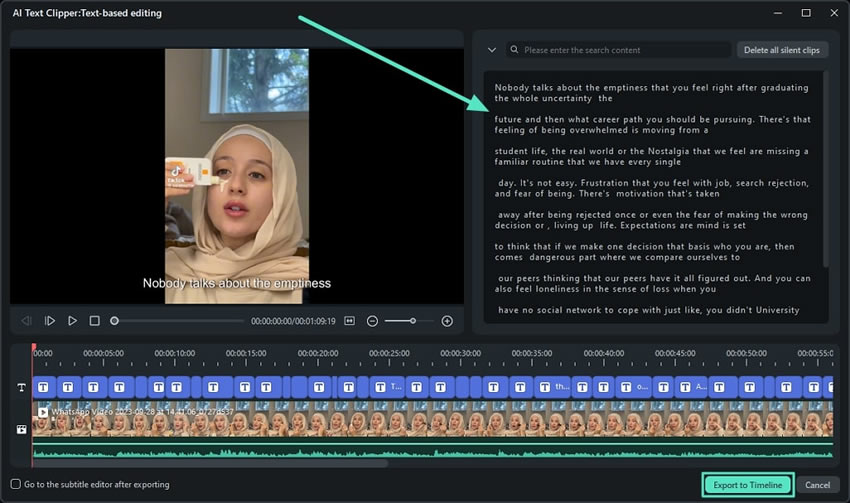
Filmora offers both direct timeline editing and transcript-based cleanup for creator takes. Splits and trims remove failed passages, silence detection shortens gaps, and AI Text-Based Editing turns changes to the transcript into cuts. The sequence stays available for hands-on timing, so a useful hesitation or complete product explanation can remain while the unnecessary material goes.
Product demonstrations, close-ups and stills can be layered over the spoken base cut, with independent timing and position. Caption and title tracks then carry benefits, prices or the closing offer. Keyframes add movement to those elements, and audio ducking lowers music when speech needs the foreground. Colour and voice adjustments are available for recordings that need a little matching or cleanup.
AI Mate can assist with editing actions or guide you through a tool. Some requests return instructions for you to execute manually. Its role therefore depends on the change: it can help develop the ad, while the conventional desktop controls remain part of completing and refining it.
For optional generation, AI Idea to Video develops a script into character-based scenes with reference images and voiceover options. Image-to-Video creates supporting footage from a still and prompt, with model choices including Veo 3.1 and Seedance 2.0. Generated material can be refined alongside the recorded edit. AI Idea to Video and Image-to-Video use credits, so another attempt at a character scene or supporting shot uses more of the allowance.
AI Text-Based Editing and Speech-to-Text also use AI credits, while AI Mate has a separate allowance. The individual Advanced plan lists US$59.99/year with 1,000 AI credits monthly. The Perpetual purchase lists US$79.99 with 1,000 credits once and updates within Filmora 16. Auto Reframe supports different aspect ratios, with manual corrections available. MP4 and MOV exports cover finished-video delivery, while the native project retains its layers.
Routine trial exports carry a watermark. For advertising, distinguish individual software pricing from Business commercial-use coverage, which lists US$155.88 per user as a one-time price for teams of one to five; included stock and audio have their own usage terms. A limited new-user clean-export redemption does not provide an ongoing free licence. The invideo Editor versus Filmora podcast comparison examines the related transcript-editing and assistant-cost distinctions.
Filmora suits editors who want to build the full ad on a desktop timeline, with transcript tools and guided assistance where useful. Its metered cleanup and generation, software purchase and commercial coverage need to be considered together for recurring ad work.
5. VEED: For caption-led browser edits and reusable brand elements

VEED starts speech cleanup with Edit by Script. Deleting transcript words removes the corresponding footage, and removed passages can be restored. Pause and filler controls tighten the take; Magic Cut adds automatic cleanup for English speech. These tools help clear a recorded delivery before the rest of the ad is assembled.
The transcript workflow requires spoken audio and auto-generated subtitles, and text cannot be dragged into a new order. Moving a later benefit into the opening therefore uses the visual timeline. That is also where silent product shots are selected and placed as overlays, with their timing adjusted against the creator’s speech.
Caption styling, editable text and image or video layers carry the benefit, offer and CTA. Music placement and volume controls support the voice, with Clean Audio available on paid plans when the recording needs treatment. Brand Kit media and saved graphic groups require the Pro plan or above. The Creator plan’s kit holds fonts and colours, so reusing a complete logo, intro or callout group needs the higher tier.
Talking Characters and AI Avatars provide an optional scripted presenter. The generated clip can be moved and trimmed on the timeline. Each generation uses credits, and revising the script means generating again; text changes are available only while the avatar clip remains uncut. AI Playground separately creates B-roll from text or images with models including Veo, Kling and Seedance. Its model-dependent credit cost is shown before generation, so both new shots and presenter revisions affect the allowance.
Crop and aspect-ratio controls adapt the ad to a placement, with captions and product overlays available for further adjustment. The free plan delivers watermarked 720p. The Creator plan adds clean output up to 1080p, while 4K requires the Pro plan or above. Subscription pricing is per editor seat and localized, and generation has its own AI-credit allowance. VEED’s separate OpenEdit agent-driven beta is another route on supported Macs; its absence of a GUI timeline makes it a different workflow from refining this browser project.
VEED suits creator ads built around spoken captions, browser editing and repeated brand treatments. Timeline restructuring, the Brand Kit tier, generation credits and delivery resolution are the decisions to cost before committing to that workflow.
6. Canva: For creator footage built into branded campaign designs

Canva’s video editor brings creator footage into the same environment as campaign designs. Highlights and Magic Video help identify moments and develop a sequence, while manual splits, trims and rearrangement shape the actual base cut. Auto-trim is temporarily unavailable in the updated timeline, so removing false starts and awkward pauses there means editing the clips directly.
Upper tracks let product demonstrations and close-ups appear over the creator’s footage. You can adjust those elements’ timing independently, keep the spoken message continuing underneath and return to the creator when the product action is complete. This makes the multilayer timeline useful for an ad assembled from both a filmed script and separate product coverage.
Dynamic captions, editable text and custom animation paths develop benefits, offer cards and the CTA in the campaign’s visual style. Captions can be edited and styled on the timeline, rather than being fixed into the footage. Music and recorded speech can be layered, trimmed and balanced with volume changes and fades. Enhance Voice requires the Pro plan, the Business plan or the Enterprise plan and uses monthly AI usage, adding a cost when the original recording needs that enhancement.
Optional generation has two distinct routes. Canva AI’s Video Clip creates short supporting footage from text and an optional reference image, then opens it in the Video Editor. It offers eight-second clips with audio or six-second clips without it; prompts are English-only, and audio generated with the clip cannot be manually changed within that generation workflow. The HeyGen AI Avatars app adds scripted presenters, but requires a separate HeyGen account and desktop access. Its plans and usage rules apply separately from Canva’s editing access.
Crop and positioning controls help keep the creator, product and text visible in another layout. Video-to-video resizing is supported, with some conversions restricted in the updated timeline; Magic Resize also requires eligible access and uses the monthly AI allowance. The free plan exports clean MP4s with your own or free assets. Pro content requires appropriate paid access. Canva’s pricing comparison lists the Pro plan at US$144/year for one person and the Business plan at US$250/year per person, before tax; regional prices vary. The invideo Editor versus Canva creative-control comparison develops the choices around independently editable motion and finishing.
Canva suits UGC ads whose captions, offers and campaign graphics drive the visual treatment. Its direct timeline controls support the recorded edit, while temporary auto-trim limits, paid voice enhancement and separate avatar access matter when those tasks become routine.
Frequently asked questions
Can AI turn raw creator footage into a UGC ad?
AI can handle much of the initial assembly. With your footage, script and brief, invideo Editor can assemble a rough cut, remove unwanted pauses and add supporting visuals, captions and audio. The result stays editable, so you retain control over the selected takes, pacing and final cut.
What if the creator hasn’t supplied enough product shots or B-roll?
Product photos, demonstrations and close-ups can sit over the creator’s continuing speech. Invideo Editor can find and place relevant footage or generate additional supporting B-roll. Each shot’s timing and duration remain adjustable, helping you show the product while the creator explains its benefits. See its B-roll capabilities.
Can I make a UGC-style ad without filming a creator?
Yes. AI creator and avatar generation can turn a presenter image, script and generated or supplied voiceover into talking-head clips. You can build the ad around those presenter clips, adding product shots, supporting B-roll, captions and music on an editable timeline.
Can I create different hooks and ad formats without rebuilding the ad?
Different openings can be developed on separate timelines while keeping the original version available. Invideo Editor also supports adapting the edit for vertical, square and widescreen placements, with adjustable shot framing and text positioning. Targeted revision instructions can identify both the changes required and the approved material to preserve. See the revision workflow.
Can ChatGPT or Claude make edits directly to my UGC ad?
Yes. Connected through invideo’s MCP integration, ChatGPT or Claude can trim clips, place product footage, adjust captions and balance music directly on the timeline. Editing through that connection is free, and you can refine the same edit manually at any point.