invideo Editor vs CapCut: Which Is Better for Collaborative Video Editing?
October 21, 2026

Invideo Editor and CapCut both support team video workflows, AI-assisted revisions and manual editing. We compare how teams work together in each editor, from sharing a project and reviewing a cut to applying feedback, delegating edits with AI and handing off the finished work, along with the cost of giving collaborators access.
A team video rarely ends with the first cut. Someone changes the opening, a reviewer flags the wrong product shot, and another editor needs the project for finishing. Choosing between invideo Editor and CapCut means looking at how the work moves between people, as well as how each person edits.
Below, we compare shared workspaces, review and revisions, AI delegation, editable handoff and team costs. The aim is to help you choose a setup that keeps the team working on the right edit, with the controls and access it needs.
invideo Editor vs CapCut at a glance
invideo Editor combines a built-in AI editing agent with a professional editing suite you can use fully manually. Its collaborative workflow brings people and connected assistants into an editable project. CapCut Teams combines shared resources, team access to Pro features and brand management with CapCut’s editing tools.
Team task | invideo Editor | CapCut |
|---|---|---|
Working on a shared timeline | Offers a shared workspace for projects and media, where teammates can edit video, audio, motion graphics and other layers simultaneously on one master timeline. Live cursors show where others are working. | Gives teammates shared projects, media, templates and brand assets for collaboration, but only one editor can work on a project at a time. |
Review and feedback | Lets you create review links to collect timestamped feedback from teammates and stakeholders, which you can pass to the built-in agent, ChatGPT or Claude to apply on the timeline. | Supports review links through which teammates and external reviewers can leave timestamped comments on the cut. |
AI-friendly collaboration | Allows teammates to bring their own ChatGPT or Claude agents into the same timeline while avoiding conflicting edits. Each agent reads the latest edit before making changes, so it can build on colleagues’ updates. | Offers AI-assisted editing through CapCut × Codex, but lacks the same awareness of other teammates’ changes on a shared timeline. |
Timeline sharing | Provides built-in export to Premiere Pro, Final Cut Pro or DaVinci Resolve, carrying over the project’s media, layers and timing. Session replays let collaborators see how the edit came together. | Lets teammates continue editing projects within CapCut. Handoffs to another app require rebuilding or conversion, which can lose CapCut-specific effects, filters, stickers and text animations. |
Shared editing: How easily can teammates work on the same project?
Working on a video together means sharing footage, keeping track of changes and contributing to the same project. Here’s how both tools give teammates access to the resources and editing workspace they need:
CapCut gives teammates shared projects, media, templates and brand assets for collaboration, with permissions controlling who can edit. Shared storage and a brand kit keep approved logos, fonts and material available for recurring social content. Only one editor can work on a project at a time, so teammates take turns editing or work on separate timelines that need to be combined later.
CapCut’s shared workspace with a collaboration draft and member-invitation controls. Source: CapCut’s collaboration guide.
invideo offers a shared workspace for projects and media, with simultaneous editing and live cursors on one master timeline. One teammate can refine the video while others work on audio and motion graphics, with everyone’s changes coming together on the same timeline. This lets the team contribute without taking turns or combining separate edits later. The professional editing suite gives them full manual control over footage, graphics and sound, alongside the option to delegate changes to the built-in agent.
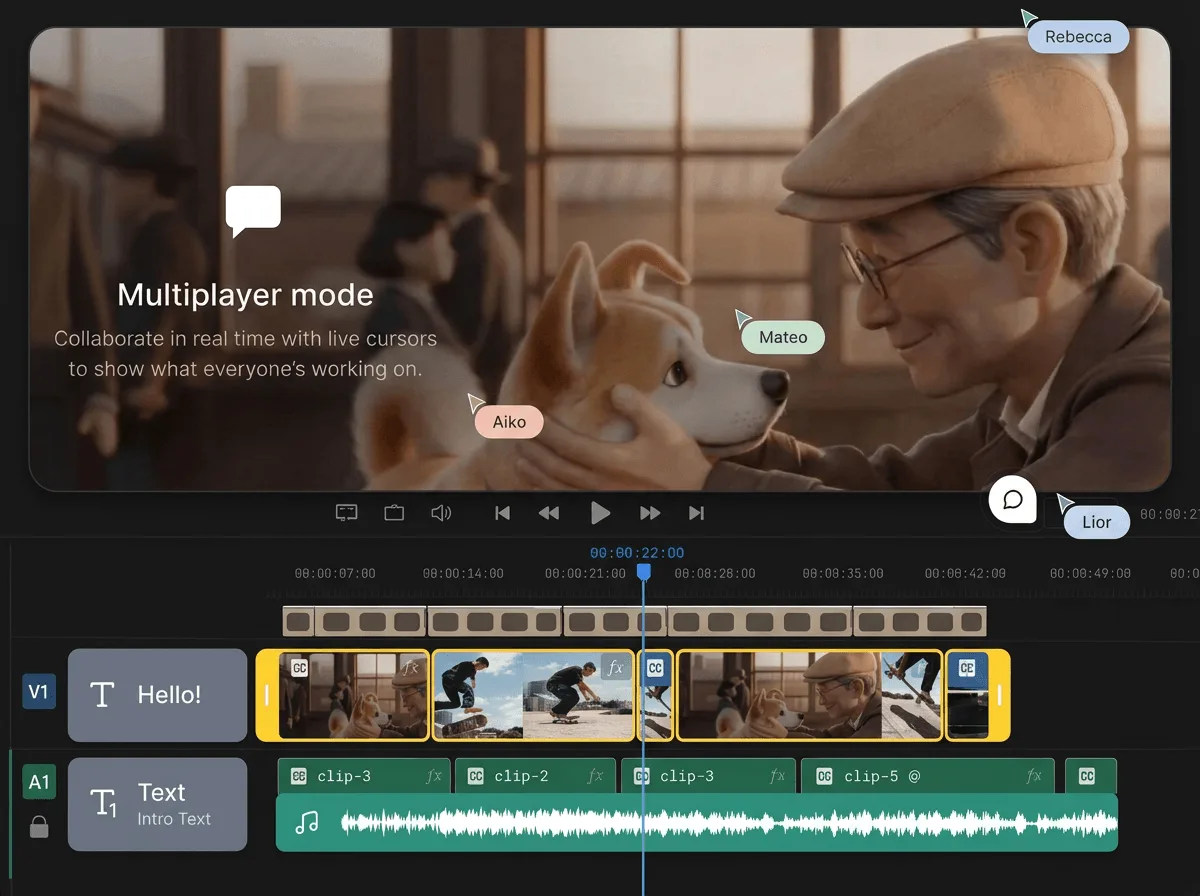
Official invideo product illustration of live cursors and a shared timeline.
Verdict: invideo is the stronger choice for teams contributing to the same edit. Teammates can work on video, audio and graphics together on one master timeline, without waiting their turn or combining separate edits later. CapCut provides shared resources for collaboration, but teammates still need to take turns editing or bring their individual work together.
2. Review and feedback: Taking notes and turning them into edits
Reviewers may want a different shot, a shorter explanation or a title held on screen longer. Below we compare how each tool collects those notes and helps turn them into changes on the timeline.
CapCut supports review links through which teammates and external reviewers can leave timestamped comments on the cut. Reviewers can identify a shot, line or title that needs changing without editing the project themselves, giving the editor feedback tied to specific moments.
Official CapCut product visual showing review sharing and comments tied to moments in the video. Source: CapCut’s video-sharing page.
invideo lets you create review links to collect timestamped feedback from teammates and stakeholders, which you can pass to the built-in agent, ChatGPT or Claude to apply on the timeline. For example, in a kitchen-renovation video, the agent can replace the drawer shot, remove a repeated sentence and extend the closing title across the relevant video, graphics and audio layers. You can specify which approved choices should stay, review the revised passage and fine-tune it manually.

Timestamped comments and replies alongside the cut. Source: invideo’s video feedback tool.

Illustration of a targeted kitchen-video revision: the replacement shot, title and sound remain separate editing elements.
Verdict: Either tool works well for collecting timestamped feedback. invideo is the stronger fit when your team also wants the built-in agent, ChatGPT or Claude to apply those notes to the shared timeline.
3. AI-friendly collaboration: Can teammates bring their own AI assistants into the project?
Teammates may prefer different AI assistants to help them while editing. Here’s how both tools let them bring those assistants into a shared project and work together without conflicting edits:
CapCut offers AI-assisted editing through CapCut × Codex, including chat-based timeline changes and manual continuation in CapCut, but lacks the same awareness of other teammates’ changes on a shared timeline. Claude access is also possible but requires a third-party connection to desktop project files.
Official CapCut × Codex promotional example showing chat beside an effects workspace.
invideo allows teammates to bring their own ChatGPT or Claude agents into the same timeline through invideo MCP while avoiding conflicting edits. Each agent reads the latest edit before making changes, so it can build on colleagues’ updates to video, audio, graphics and overlapping layers.
The current timeline gives agents the latest editing state; external conversation history remains separate. Decisions that are not visible in the edit, such as why a particular take was approved, can be included in the brief given to ChatGPT or Claude. Teammates can alternate between agent-led changes and manual editing without moving the project. Ordinary editing through MCP adds no invideo editing charge.

In Jon Mac’s walkthrough at 07:48, revision notes sit beside Main Timeline and a separate tighter cut.
Verdict: invideo lets teammates bring different agents into a shared project and build on the latest changes, rather than relying on an earlier version of the edit. CapCut × Codex offers conversational editing, but does not provide the same shared-timeline awareness across teammates’ agents.
4. Timeline sharing: Options for handing off an editable project
The next person working on a video may use a different editing app. They need an editable timeline, its media and enough context to continue. Here’s how both tools handle that handoff:
CapCut lets teammates continue editing shared projects within its workspace, but offers no direct editable-project export to other editing apps. Handoffs outside CapCut require rebuilding or conversion.
invideo provides built-in export to Premiere Pro, Final Cut Pro or DaVinci Resolve, carrying over the project’s media, layers and timing. Export options include editable invideo projects, XML and OpenTimelineIO. Session replays let collaborators see how the edit came together, adding context to the handoff. The receiving editor checks the imported timeline before continuing.

The export walkthrough at 05:37 shows editable-project destination options. Cropped from the creator’s demonstration.
Verdict: invideo gives teams a built-in route to hand over an editable project to another supported app, without adding a separate conversion service. Session replays also provide context on how the edit developed. CapCut suits handoffs that stay within CapCut; moving elsewhere adds conversion or rebuilding work.
5. Pricing: What does each tool’s team plan cost?
Team costs depend on how many people need access, which editing tools they use and how much AI work they delegate. Here’s what each tool includes.
CapCut Team Plans
CapCut bundles Pro features for every seat, premium templates, a brand kit, 1 TB of shared storage and 1,200 monthly AI credits per seat.
For a two-seat team, the pricing page displays £13.49 per seat per month, or £120 per seat per year with annual billing. That totals £26.98 monthly or £240 annually for two seats. Prices vary by region, team size and account offers.
The bundle covers teams that want CapCut’s premium editing tools and shared brand resources under one subscription.
invideo Team Plans
invideo lets you handle most editing tasks for free, either manually or through a connected ChatGPT or Claude agent. Manual editing and watermark-free exports carry no charge, and ordinary editing through invideo MCP adds no invideo editing fee. Your assistant’s subscription and usage limits apply separately.
Paid plans add team capacity and credits for built-in-agent work and media generation.
Plan | Monthly price | Credits per seat | Team access |
|---|---|---|---|
Basic | $9 per seat | 190 | Up to five multiplayer seats |
Pro | $30 per seat at the displayed credit tier | 1,000 | Up to ten multiplayer seats and ten free guest seats |
AI credits are not directly comparable between the two tools. Each calculates usage differently, and the credits consumed depend on the task and model used.
This gives teams a way to use free manual or MCP editing alongside paid access for collaborators and credit-based AI work.
Verdict: invideo is the stronger fit for teams that want free manual editing and the option to use existing ChatGPT or Claude agents without an additional invideo editing charge. Paid plans add team capacity and AI credits as needed. CapCut’s team plan offers value when every member needs its bundled Pro tools, brand resources and storage.
Which tool should you choose?
Go with invideo if your team wants to collaborate across projects, edit together and bring its own ChatGPT or Claude agents into the workflow. Teammates can turn feedback into edits with free manual or ordinary MCP editing, while built-in project exports and session replays support handoffs to collaborators using other editing apps.
Go with CapCut if your team plans to stay within its ecosystem and values bundled Pro access, shared assets and brand resources. When a task requires another editing app or an external collaborator needs an editable project, the lack of direct project export adds conversion or rebuilding work. It’s best suited to teams that intend to finish their edits within CapCut.
Frequently asked questions
Can teammates edit the same invideo project at the same time?
Yes. invideo offers simultaneous editing on a shared timeline, with live cursors showing where teammates are working. Collaborators can contribute video, audio and graphics to the same project.
Can AI assistants apply review feedback in invideo?
Yes. Review links collect timestamped comments that you can pass to the built-in agent, ChatGPT or Claude as revision instructions. The agent can apply changes to the timeline, and you can review or refine the result manually.
Can I use Claude to edit in CapCut?
Claude access is possible through third-party connections to CapCut desktop project files. CapCut’s official external-assistant integration is CapCut × Codex. invideo provides direct ChatGPT and Claude connections through invideo MCP.
Can I hand off an editable project to another editing app?
invideo provides built-in editable-project exports for Premiere Pro, Final Cut Pro and DaVinci Resolve, alongside editable invideo projects. CapCut supports finished-video exports, but moving an editable project to another app requires conversion or rebuilding. Check the imported timeline before continuing.
Is editing through invideo MCP free?
Ordinary editing through invideo MCP adds no invideo editing charge. Your ChatGPT or Claude subscription and usage limits apply separately. Built-in-agent work and media generation use invideo credits, while paid plans provide team capacity and credit allowances.