Can I edit AI-generated B-roll in Final Cut Pro the same way as regular footage?
Last updated August 1, 2026
Yes. AI-generated B-roll imports into Final Cut Pro exactly like camera footage — press Command+I and it lands in your library with no special pipeline. Trimming, connected clips, transitions, color grading, and speed changes all work natively. The only real differences are editorial: you select harder from each clip, and you add a light grade pass to blend AI footage with camera footage.
Import the clips the way you import everything else. Download your generated B-roll as standard video files and bring them in with Command+I — they behave as ordinary media on the timeline, so connected clips, storylines, blade cuts, retiming, and Lumetri-style color tools apply without any conversion step. AI generation platforms are asset generators, not editors, so a finished cut in a professional NLE like Final Cut Pro is the intended end of the pipeline, not a workaround.
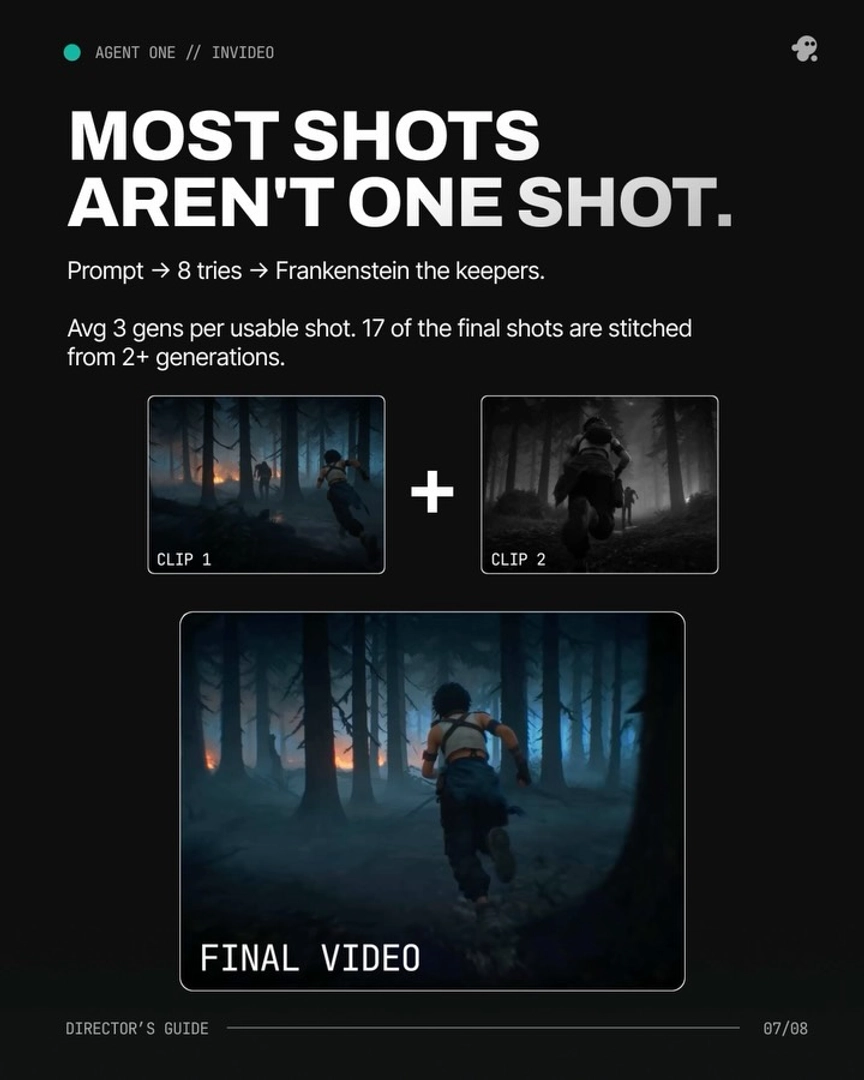
Expect to select harder than you would with camera B-roll. In one documented production, editors used 41 of 164 generated clips — a ~25% selection rate — keeping an average of just 5 seconds from each 15-second generation. Treat each AI clip as coverage: scrub for the strongest seconds and cut the rest. When no single generation is complete, build a Frankenstein shot — stitch the best seconds from two or more generations of the same prompt into one shot on the timeline; that same production composited 17 of its final shots this way. Motion speed isn't final either: if a generated move plays too slow, retime it in Final Cut rather than regenerating.
To make AI B-roll match your camera footage before it ever hits the timeline, export an anchor frame from your existing shot (File > Share > Save Current Frame) and upload that PNG as a reference image. invideo is an agentic video creation tool with the current video models built in, and the invideo agent uses that anchor frame to constrain all generated B-roll to the lighting, color, and visual style of your original shoot.
Finally, blend the look in the grade. AI footage often comes back ultra-sharp with a plasticky skin quality, so add a tiny amount of blur, some grain, and adjust the grade until it sits next to your live-action material — the same finishing pass you'd give mismatched camera footage.
Watch some of these to see what works for you:
It works the same way as you import any other clip in Final Cut. You just press command I.
— an editor documenting an AI B-roll workflow in one production