How do I import AI-generated video clips into Premiere Pro without manually downloading them?
Last updated August 10, 2026
Use the invideo plugin for Adobe Premiere Pro: it pulls generated clips from your invideo project straight into a Premiere bin in a single click, and the assets are locally available the moment you click import — no browser downloads, no drag-and-drop from a downloads folder. One demonstrated workflow moved 8 assets into a bin in one click.
Install the invideo plugin for Premiere Pro and connect it to the invideo project where your clips were generated — invideo is an agentic video creation tool, so everything the invideo agent produces for a project sits in one place ready to sync. From the plugin panel inside Premiere, select the generations you want and click import: the clips land in a Premiere bin and are locally available immediately, with no manual download step in between. In a demonstrated production workflow, 8 generated video assets hit the bin in a single click.
Organize before you import, not after. If you're producing a series or multi-scene project, run each episode or scene through its own sub-agent so the plugin panel shows a clean, compartmentalized set of generations per unit — "Everything stays compartmentalized. Your post team isn't digging through 100 generations to find one shot from episode 4," as Hridaye, invideo's creative director, puts it. This structure is what made the pipeline hold up at volume: one documented 3-person team shipped a 10-episode series in 3 days on this generate-then-sync-to-Premiere flow, roughly 5X faster than a standard microdrama pipeline.
Import coverage, not single takes. Generate 3–4 options per shot before you sync, so the editor cuts from real choices inside Premiere instead of bouncing back to the generation tool mid-edit.
Once the clips are in your bin, two post passes are worth knowing: upscale faces and fabrics with Topaz Starlight 2.5 (documented as outperforming Topaz Astra on those and more cost-effective), and add a film grain pass in Premiere or DaVinci Resolve to soften the digital edges of AI footage before delivery.
Watch some of these to see what works for you:
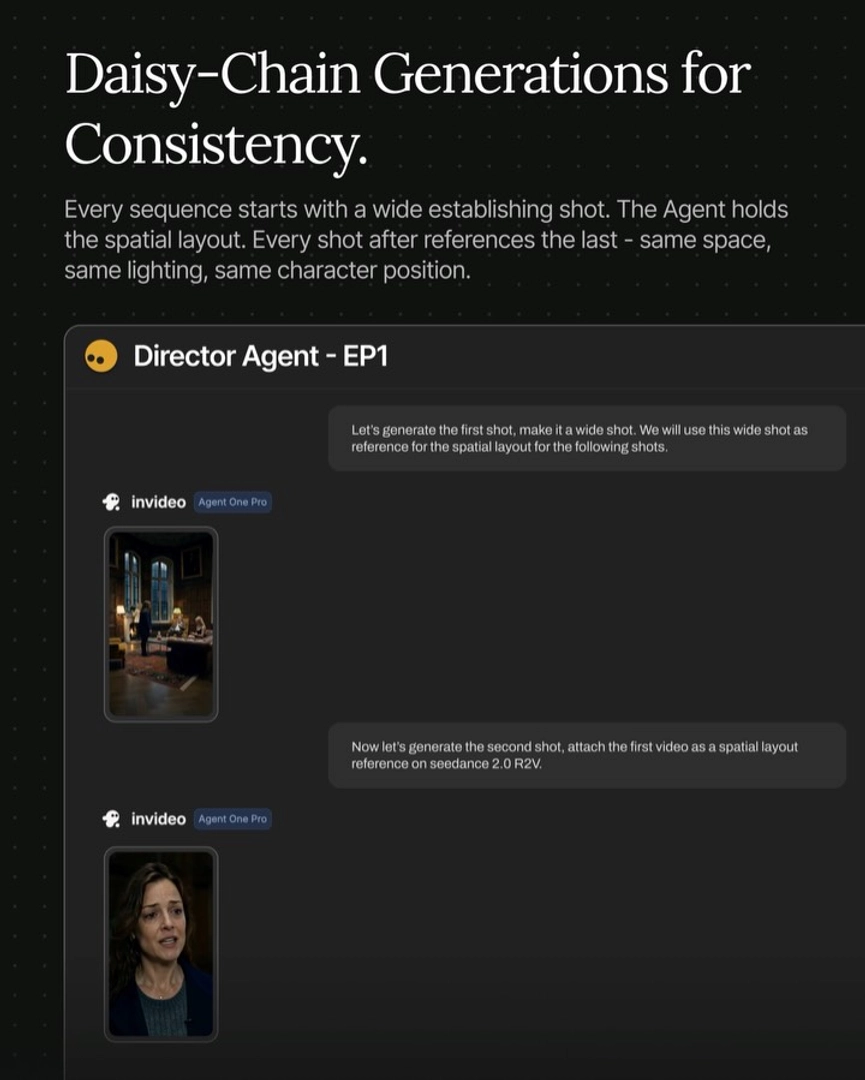
Everything stays compartmentalized. Your post team isn't digging through 100 generations to find one shot from episode 4.
— Hridaye, invideo's creative director