How do you change the location or background in an AI video project without losing your character?
Last updated August 1, 2026
You change location without losing your character by locking the character before touching the environment: lock a multi-angle character sheet by version number, redirect the location through the invideo agent (it updates lighting logic while keeping cast and wardrobe intact), then generate an anchor keyframe of that locked character at the new location and animate from it.
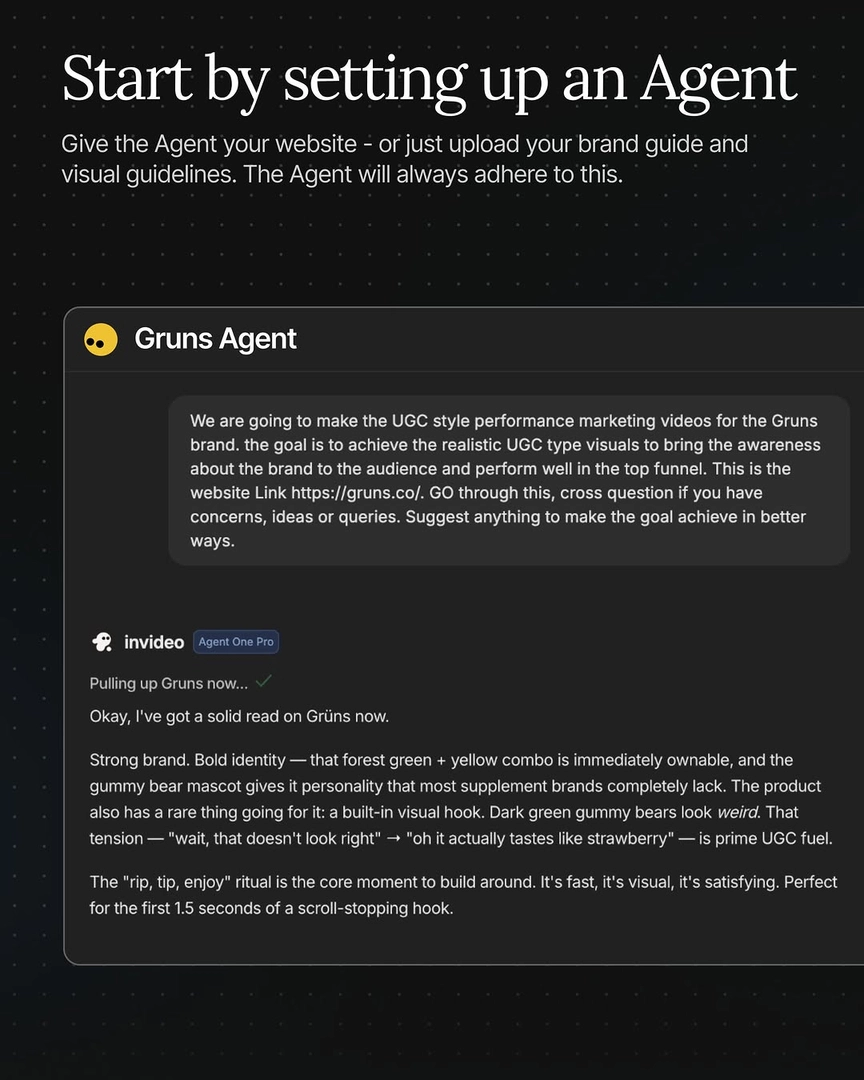
Lock the character before you change anything about the environment. Generate a character sheet — front, side, and back angles — iterate until the face and wardrobe are right, then lock it by referencing the exact version number ("lock v3 for all subsequent generations"). invideo is an agentic video creation tool where all the current image and video models run under one persistent project context, so a locked character sheet applies to every generation that follows without re-uploading or re-prompting.
Then redirect the location as a plain instruction to the invideo agent. Because the character sheet is locked in project context, the invideo agent changes only what the new environment demands — in one documented production, the location was redirected mid-project to a beach and the invideo agent updated the lighting logic while keeping cast and wardrobe intact, with no character rebuild.
Build the new location as a reference of its own. Generate a location sheet — GPT-Image-2 is the strongest model for realistic environments and accepts reference image attachments, and a sheet takes roughly 5 minutes to generate. Then create one anchor keyframe: a single clean image of your locked character standing in the new location, framed exactly how the shot opens. That one image anchors every video generation that follows; if the shot needs a specific regional or time-of-day atmosphere, iterate color tone at this keyframe stage so it propagates through all clips.
Before locking the new location, review old and new frames side by side in a grid. Viewing both location states together is how you verify the lighting and color palette stay consistent across the cut — one production locked two location states (before and after) this way for a multi-scene ad, and the same project held 3 distinct characters consistent across scenes.
Animate from the locked keyframe, not from a text prompt. Feed Seedance 2.0 the anchor keyframe and the character sheet as dual references — in one documented production, using locked frames as keyframes into Seedance 2.0 reference-to-video preserved character identity down to skin tone in hands and feet across every shot. Character identity also holds across models: the same character generated in Kling and Seedance 2.0 in the same run stayed consistent in a side-by-side test, and since every roster model runs inside invideo, the invideo agent can route the shot to whichever model renders the new environment best without breaking the character lock.
Watch some of these to see what works for you:
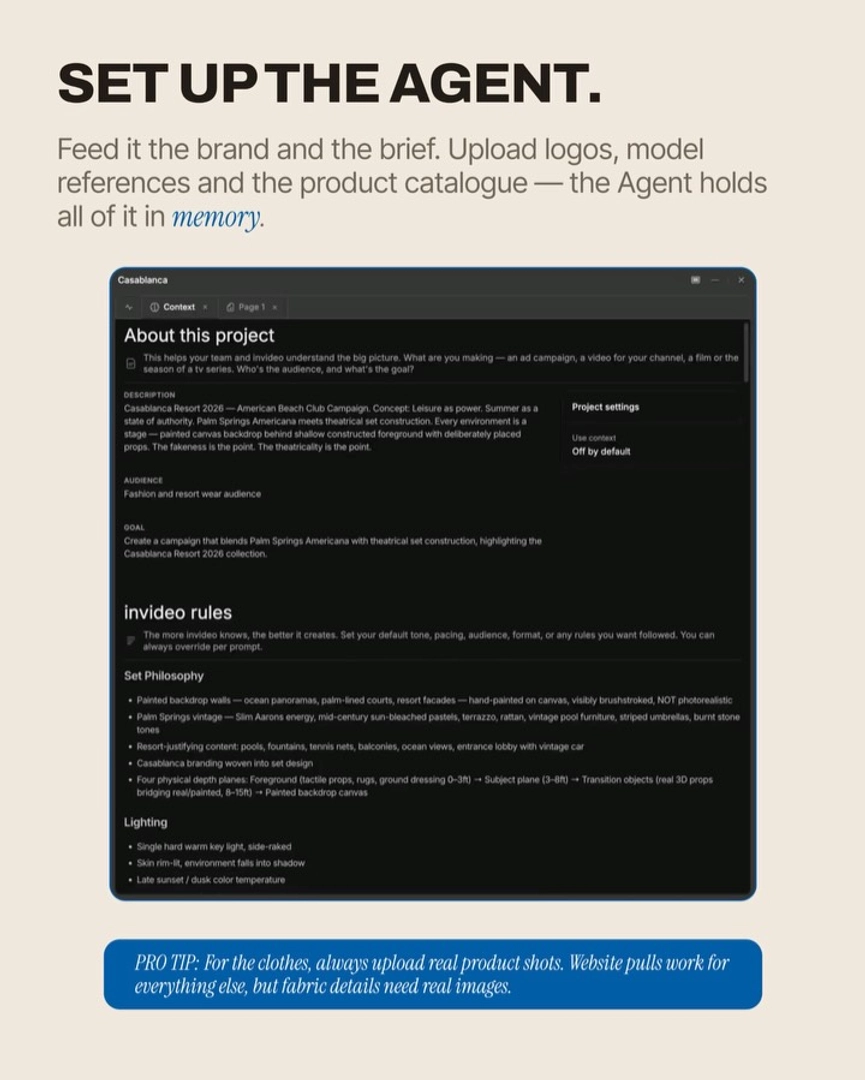
Re-directed the location mid-project. The agent locked this and updated the lighting logic, keeping the cast & wardrobe intact.
— invideo's creative team