Best AI Video Editors for Podcasts and Interviews
October 26, 2026

Invideo Editor is the best overall choice for editing supplied podcast and interview recordings: it connects camera and microphone sync, conversation assembly, editable shot choices and detailed picture, sound and caption finishing. Manual editing and exports are free. You can also edit through ChatGPT or Claude for free, using your assistant’s own allowance. Built-in-agent work and generated media use invideo credits. Descript suits transcript-led episodes, Filmora offers desktop multicam with AI Mate, Riverside combines transcript edits and speaker layouts, and Eddie suits story-led assemblies and planned handoffs. Premiere and Resolve are compelling when established NLE finishing workflows matter, with separate plugin costs, beta restrictions and differences between Resolve’s free and Studio editions to consider.
A recorded conversation can be compelling and still need a substantial edit. The host and guest have separate cameras and microphones, an answer starts twice, a pause matters, and the most useful reaction happens while someone else is speaking. The finished episode needs to preserve the conversation while making its picture, sound and pacing easier to follow.
We compare seven AI video editors for supplied podcast and interview recordings: invideo Editor, Descript, Filmora, Riverside, Eddie AI, Adobe Premiere and DaVinci Resolve. The comparison follows importing and syncing, assembling and tightening the conversation, choosing cameras, finishing picture, sound and captions, and delivering the episode. The comparison draws on current product documentation and demonstrations.
Best AI video editors for podcasts and interviews at a glance
Tool | Importing and syncing | Assembling and tightening | Choosing and refining cameras | Finishing picture, sound and captions | Delivering the episode |
|---|---|---|---|---|---|
invideo Editor | The agent syncs camera and microphone recordings on separate tracks. You can also ask ChatGPT or Claude to do this for free. | The agent can build a first cut, remove repeated answers and shorten long pauses. You can also ask ChatGPT or Claude, or edit the timeline yourself. | The agent can cut between recorded angles, hold on a speaker and show reactions. You can also ask ChatGPT or Claude, or adjust the cuts yourself. | The agent can clean up voices, balance sound, match camera colors and add names and captions. You can also ask ChatGPT or Claude, or work by hand. | Exports watermark-free videos and editable projects for free. Keep the episode and promotional versions on separate timelines. |
Automatically aligns imported audio-enabled tracks in sequences, but every source upload uses the media allowance, including footage you leave out of the episode. | Transcript edits cut and rearrange the video. Retake removal and Underlord help with cleanup, but AI requests use a separate credit allowance. | Automatically selects speakers, cutaways and layouts, but rerunning Automatic Multicam overwrites scenes. Earlier scene styling may need rebuilding. | Offers Studio Sound, manual audio effects, visual layers and captions, but XML handoffs omit audio keyframes and animation. Those treatments need rebuilding. | The paid Hobbyist plan includes watermark-free 1080p. The Creator plan adds 4K and timeline export, but the beta Premiere handoff excludes visual transforms. | |
Filmora for Windows syncs camera recordings using audio, clip start points or markers. You can also ask AI Mate to sync audio. | You can cut video by deleting transcript passages and shorten gaps with silence detection. But AI Text-Based Editing uses credits. | Offers a dedicated multicam viewer for live angle selection and editable cuts, keeping camera decisions in the desktop timeline. | Provides color, EQ, denoise, titles and dynamic captions, but transcription uses credits. AI Mate conversations have a separate allowance. | Paid licenses support ongoing watermark-free export. Smart Short Clips adds editable promo candidates, but its AI processing also uses credits. | |
Combines outside recordings as multitrack media, but unequal-length tracks need matching start times. Prepare that alignment before importing. | Edits the recording through transcript cuts, pause and filler removal, and Co-Creator. Collapsed edits keep tracks together. | Uses Smart Layouts and editable speaker tiles, but expanded tracks move independently. Timing changes there can put recordings out of sync. | Offers captions, layered media, per-section volume and audio cleanup, but editable timeline exports leave out media inserts, overlays and some AI treatments. | Paid plans remove watermarks, but editable timeline export requires the Business plan. A consumer editing plan does not include that handoff. | |
Syncs supplied angles or imports prepared multicam clips. Importing uses credits, so unused source footage also contributes to cost. | Builds interview cuts from story prompts and searchable logs, but requested structural edits use credits. Repeated assemblies add to the cost. | Cuts between speakers from instructions and retains multicam angles through native Premiere and Resolve project exports. | Offers color, captions, graphics, clean speech and music, but native Premiere and Resolve projects omit color grades. Color needs another pass after handoff. | Delivers MP4 and editable timelines using credits. Resolve FCPXML retains more finishing work but drops multicam angles, so the export format affects what stays editable. | |
Syncs cameras and external audio using audio, timecode or markers. The editor configures the source sequence and audio routing. | Provides transcript cuts and bulk pause/filler deletion. Prompted rough assemblies are in an early Assistant beta that Adobe advises against for client work. | Supports manual multicam switching and revisions. Optional AutoPod automates speaker cuts, but it needs separate speaker-audio mapping and an additional license. | Carries the episode into Lumetri color, Enhance Speech, mixing, graphics and captions within the same native project. | Delivers finished files and native Premiere projects, but continued desktop editing requires a subscription. Optional AutoPod adds US$29/month. | |
Syncs footage by timecode or audio waveforms and creates multicam clips in the free desktop editor. | The free version includes full timeline assembly, but transcription and IntelliCut audio tools require DaVinci Resolve Studio, the paid edition. | The free version includes manual multicam editing, but automatic active-speaker SmartSwitch requires DaVinci Resolve Studio. You choose the angles manually in the free version. | The free version includes color, Fairlight mixing, subtitles and AI Dialogue Leveler, but Voice Isolation and Fairlight Audio Assistant require DaVinci Resolve Studio. | Exports finished episodes and native Resolve projects without a subscription. Studio is a paid license for the broader AI workflow. |
1. invideo Editor: Best overall for editing podcasts and interviews
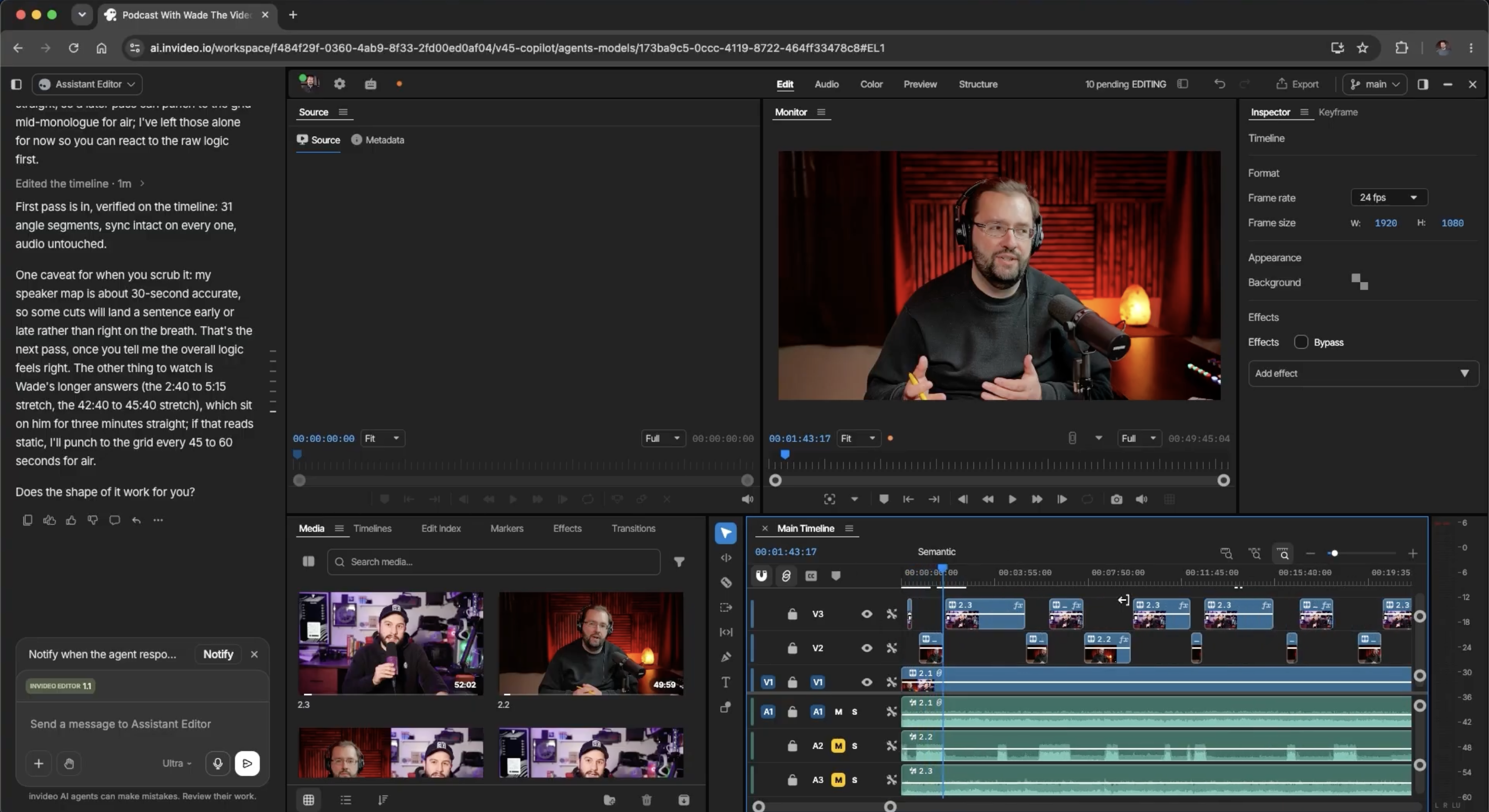
In Invideo Editor, you can build and finish a podcast or interview with its editing agent or by connecting ChatGPT or Claude to the editor for free. Either assistant can sync recordings, arrange answers, change camera cuts and help with sound, color and captions. You can keep revising through chat or work directly on the timeline, then export the finished episode or an editable project.
That helps when the strongest material is scattered across a long conversation. A later answer can become the opening, while the host’s question stays with a response that needs context. You can tighten repeated passages while keeping the qualifications and pauses that matter. Single-camera interviews can follow the same assembly process. You can ask ChatGPT or Claude to arrange the answers, or make those changes on the timeline yourself.
For multicam episodes, the agent can also assemble the camera changes. You can keep the guest’s close-up through an answer, bring in a listener’s reaction or return to the wide shot. Further instructions and full manual control let you change the angle, move a cut point or hold a reaction longer. You can ask ChatGPT or Claude to change the camera choices too.
John The Video Guy’s podcast walkthrough at 04:54 shows the resulting workspace: editable camera cuts above separate audio tracks. Our multicam podcast workflow with Claude explains how the source brief guides the assembly and camera edit.
You can take that edit through picture and sound finishing in the same workspace. Match exposure and color between cameras, add speaker names and captions, and work on each microphone with EQ, compression, de-essing and noise cleanup. Volume automation and fades in the audio workspace let you balance voices and bring intro music under speech. You can ask ChatGPT or Claude for those changes too. A revision can stay specific: shorten the repeated answer, keep the guest’s counterargument and leave the opening music unchanged.
Manual editing, watermark-free video exports and editable project exports are free. You can also edit through ChatGPT or Claude for free, with your assistant’s own subscription and allowance applying separately. The built-in agent uses invideo credits. Generating images, video or audio uses credits too, even when you ask ChatGPT or Claude to create them.
Invideo is our best overall choice because selecting answers, building the episode, revising camera choices and finishing picture and sound all happen in the same editable project. You can export the episode, keep promotional versions on separate timelines or send the project with its media to Premiere Pro, Final Cut Pro or DaVinci Resolve.
2. Descript: For editing the conversation through its transcript
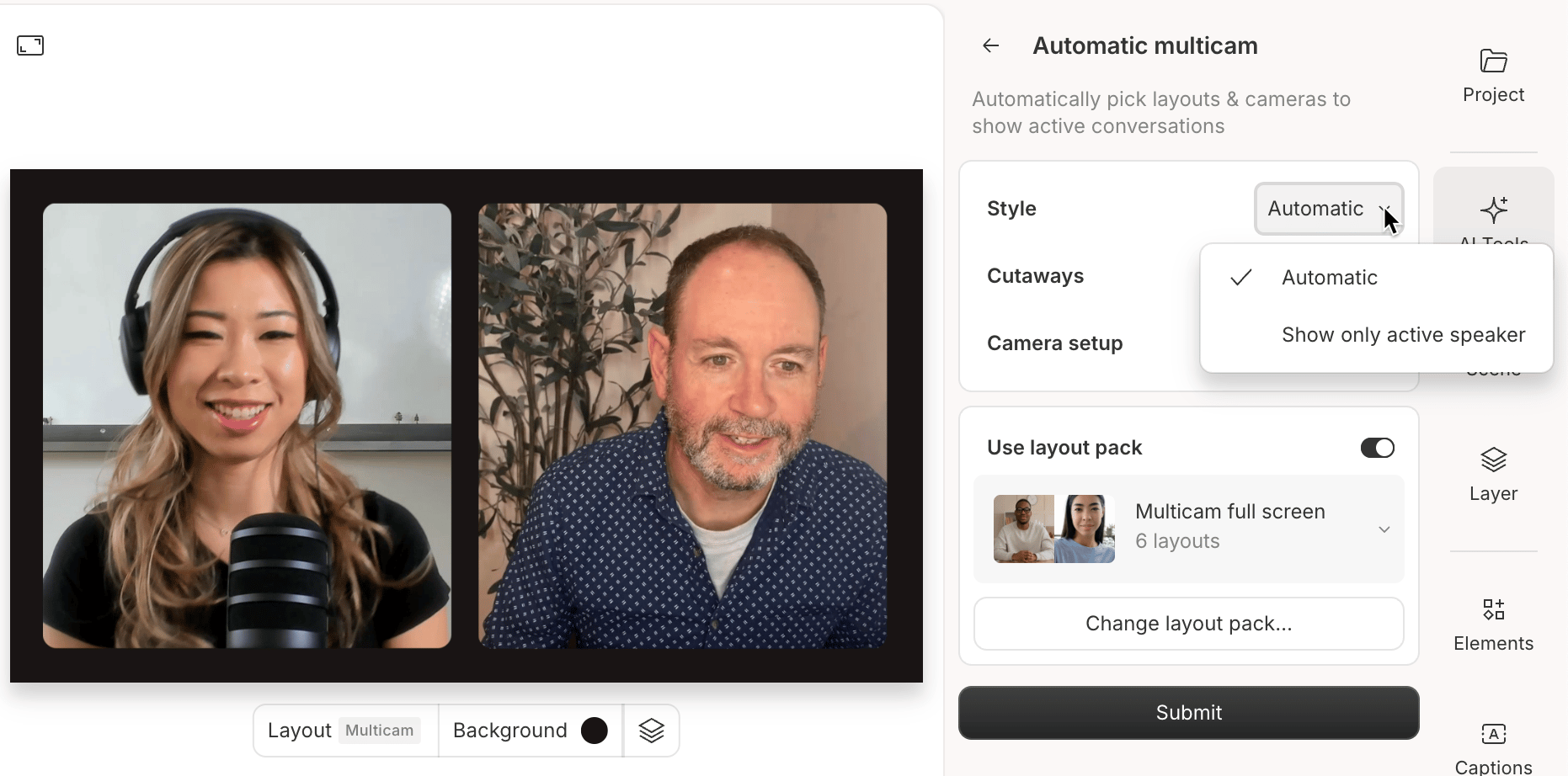
Descript is a strong fit when you want to decide what stays by reading the conversation. Import supplied recordings into a multitrack sequence and use Autosync to align audio-enabled tracks. Then delete or move transcript passages to cut or rearrange the corresponding audio and video. Remove Retakes helps with repeated attempts, while Underlord, Descript’s AI assistant, accepts broader editorial instructions.
Automatic Multicam can select active speakers, add cutaways and create group layouts. You configure the camera-to-audio relationships and the style, then refine the resulting scenes. But running Automatic Multicam again overwrites existing scenes. Run the full pass before detailed scene styling to avoid rebuilding that work. Individual scene changes remain possible.
Studio Sound, manual audio effects, visual layers, captions and timeline controls support a complete episode. But standard XML exports omit animation and audio effects, so those treatments need rebuilding in the receiving editor. Studio Sound is an exception and transfers as processed audio. The beta native Premiere format carries supported multicam sequences and selected angles. But it is not available on every account, and position, scale and crop do not carry over.
The Hobbyist plan costs US$24 per person monthly, or US$16/month billed annually, with 10 media hours, 400 AI credits and watermark-free 1080p. The Creator plan is US$35 monthly, or US$24/month billed annually, with 30 media hours, 800 credits, 4K and timeline export. Source uploads use the media allowance. Underlord work uses AI credits, including through MCP. Choose Descript for transcript-led assembly, but decide on the scene setup and export format before finishing. The Invideo versus Descript podcast comparison develops those decisions.
3. Filmora: For desktop multicam editing with guided assistance
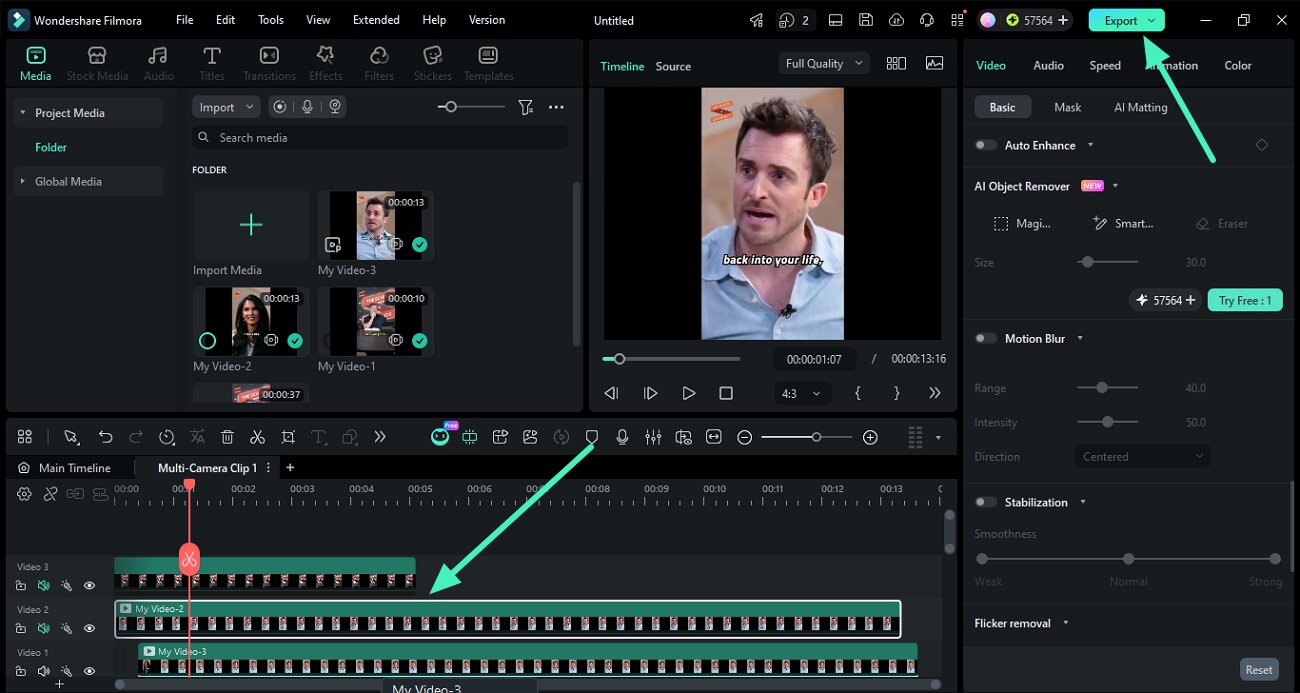
Filmora combines a conventional desktop timeline with native multicam, transcript editing and AI Mate, its conversational assistant. On Windows, multicam clips can synchronize using audio waveforms, first frames or markers. A dedicated multicam viewer lets you choose angles during playback and refine those cuts afterward. AI Mate also offers Audio Sync and executable editing actions, including sound and color adjustments.
For the conversation edit, AI Text-Based Editing turns transcript deletions into media cuts and can remove silent clips before sending the result to the timeline. Separate silence detection provides another way to shorten gaps. You can continue with color controls, EQ, denoise, titles, keyframes and editable dynamic captions, keeping the episode inside Filmora.
A paid license covers exports, but AI services have separate allowances. Filmora’s plans meter AI Text-Based Editing and Speech-to-Text with credits, while AI Mate has its own conversation allowance. The displayed paid plans include 500 AI Mate conversations a month. The Advanced plan lists US$59.99/year and 1,000 AI credits monthly. The Perpetual plan supplies 1,000 credits once, but that allowance does not replenish every month.
Paid licenses support ongoing watermark-free output, including 4K on the displayed plans. But routine trial exports carry a watermark. The limited clean-export offer for new users does not provide an ongoing free license. Smart Short Clips can prepare editable promotional candidates, but its AI processing costs extra. Filmora suits editors who want a desktop multicam viewer and guided assistance, but recurring transcription and AI usage need to fit the show’s budget. Our Filmora podcast comparison explores the workflow in more detail.
4. Riverside: For transcript edits and reusable speaker layouts

Riverside accepts recordings made elsewhere, so its editor is relevant even when you do not record the interview on Riverside. Multiple files can become a layered multitrack recording or consecutive segments. But for separate camera and microphone files, its upload instructions require matching start times when tracks have different lengths. Prepare that alignment before importing those sources together.
Transcript selections cut the corresponding recording, with pause and filler removal for cleanup. Co-Creator adds conversational editing, while Smart Layouts create scenes around changing speaker views. The rebuilt editor supports movable and resizable speaker tiles, reusable layouts, layered media and individual track cuts and volume. Collapsed editing keeps tracks together. Expanded editing gives independent control, but timing changes can put tracks out of sync.
Captions, branding, per-section volume and audio enhancement support finishing inside Riverside. But editable timeline export requires Business. It carries basic cuts, trims, chapters and comments, but media inserts, overlays and other AI treatments do not carry over. Those elements need rebuilding in the receiving editor.
Paid plans remove the output watermark and allow video-quality selection. The live plan comparison lists the Pro plan at US$29 monthly or US$24/month billed annually. Riverside MCP is included on the Grow plan and above. It accepts editing instructions through compatible assistants and leaves an editable version in Riverside. Choose Riverside for transcript edits and reusable speaker layouts, but budget for the Business plan if you need an editable timeline for another editor.
5. Eddie AI: For interview-led assemblies and planned NLE handoffs
Eddie AI is especially relevant when the episode needs to be built around ideas spread across recorded answers. Its searchable interview logs help locate those passages, and story prompts turn selected answers into an editable assembly. It can synchronize supplied camera angles or import prepared multicam clips, then cut between speakers from instructions.
The editor also supports transcript changes, trims, captions, motion graphics, color, clean speech, music and ducking, with MP4 delivery and external-assistant access through MCP. That gives it a role beyond logging and rough cuts.
For editing in another app, the export format determines what needs finishing again. Native Premiere and Resolve projects preserve multicam angles, but color grades do not carry over. Some reframing, motion and audio-level treatments transfer only partly. Resolve FCPXML keeps more of that finishing work, but loses multicam angles. Choose the format based on whether editable camera angles or the finishing work matters more.
Eddie uses pay-as-you-go credits. New accounts receive 500 credits, and a 1,000-credit pack costs US$10. Importing costs about 250 credits per source hour. Requested edits, rendered videos and timeline exports also use credits, so larger source collections and repeated assemblies add to the cost before delivery. Its pricing FAQ says existing work remains accessible and exportable after credits run out, but that does not make every export type free.
Choose Eddie for organizing recorded answers into a story when reusable logs and a deliberate Premiere or Resolve handoff fit your production process.
6. Adobe Premiere: For established multicam and finishing workflows

Premiere offers a complete route from separate recordings to a finished episode. Create a multicamera source sequence using audio, timecode or markers, configure its audio routing, and make or revise angle choices in the multicam viewer. Text-Based Editing cuts the corresponding sequence from transcript selections and supports bulk pause and filler-word deletion. Lumetri color, Enhance Speech, mixing, graphics and captions carry the episode through finishing in the same project.
Premiere also has a native AI Assistant beta for organizing media, transcripts and rough assemblies. It is a meaningful preparation option, but Adobe advises against client work in the early beta and recommends duplicate projects or fresh media. An established delivery should therefore rely on the production editor’s existing tools while the prompted workflow is evaluated separately.
AutoPod is an optional, separately installed route for speaker-based camera cuts, silence cuts and formatting selected social ranges. It adds US$29/month to the host editor’s cost and requires source preparation and speaker-to-camera mapping. Its Multi-Camera Editor requires multiple unique audio tracks and multiple speakers, so a single mixed microphone track or solo interview is not that plugin’s intended input. These are AutoPod requirements, not Premiere’s native multicam limits. AutoPod also offers a Resolve version.
Premiere’s US individual single-app plan lists US$22.99/month on an annual commitment billed monthly. Regional prices and terms vary. Native Premiere projects keep the episode available for collaborators and later revisions. Choose this route when your existing Adobe tools, templates and finishing experience suit the show. Add AutoPod only when its input requirements and separate cost fit the recordings.
7. DaVinci Resolve: For detailed finishing with a free desktop starting point

DaVinci Resolve’s free desktop editor can sync separate audio and video using timecode or waveforms, create multicam clips, and support manual assembly and camera editing. Its Edit, Color and Fairlight tools cover camera matching, titles, subtitles, EQ, dynamics and precise level changes in one project. AI Dialogue Leveler is also included in the free version.
The important choice is which parts of the job you want automated. Blackmagic’s Resolve 21.1 edition matrix puts transcription, IntelliCut and Multicam SmartSwitch in Studio. IntelliCut includes Remove Silence for audio preparation. SmartSwitch analyzes camera angles and active speakers, then produces a cut you can refine with normal angle and trim controls. You can still complete the camera edit in the free version, but you choose the angles manually.
DaVinci Resolve Studio adds Voice Isolation, Fairlight Audio Assistant and the built-in MCP server for supported AI-assistant workflows. It uses a paid license without a mandatory subscription. The US page displays US$236, reduced from US$295. The free version covers a complete manual episode and some AI assistance, but the broader dialogue, camera and sound automation requires Studio.
Finished-video delivery and native Resolve project handoff keep the production in Resolve. Choose it when detailed color and sound work are central to the show, and decide whether the paid automation saves enough preparation work to justify Studio. The free-version comparison separates the manual suite from the edition-specific AI tools.
Frequently asked questions
Can I use these editors for a single-camera interview?
Yes. A single-camera interview still benefits from conversation assembly, pause and retake cleanup, audio work, captions and delivery. Multicam switching is simply unnecessary. AutoPod’s Multi-Camera Editor is a separate exception within the Premiere discussion: it requires multiple speakers and unique audio tracks.
What if I only have a mixed recording instead of separate microphones?
You can edit the conversation and picture from a mixed recording, but you do not have the original independent microphone signals for precise balancing or speaker-to-camera mapping. Speaker separation offered by some tools is processed audio, not the original isolated tracks. Check the chosen camera-switching tool’s input requirements before committing to that route.
Can I start with AI and hand the episode to my regular editor?
Yes. Invideo offers free editable-project exports for supported Premiere Pro, Final Cut Pro and Resolve workflows. Eddie and Descript also offer editable routes with format and access differences; Riverside reserves timeline export for Business. First check a short representative sequence in the receiving editor, including camera changes, separate voices, captions and any treatments that must remain editable. Keep the original media available.
Should I automatically remove every pause and filler word?
No. A pause can carry meaning, make room for a reaction or keep an answer natural. Remove distractions selectively, then watch and listen across the joins. With separate sources, confirm that dialogue edits preserve camera and microphone alignment, including around restarts and overlapping speech.
Capabilities and displayed US prices checked on 26 October 2026. Billing term, region, offers and account entitlements can affect the final cost.