The Best Video Editing tools for making AI Films in 2026
November 5, 2026

Invideo Editor is the best overall choice for turning AI-generated clips into finished films. It combines assisted story assembly, precise manual timeline controls, selective color adjustments and layered sound design in one editable project. Editing through ChatGPT or Claude via MCP is free, along with manual editing and exports. Your assistant’s own plan and usage limits still apply. Resolve suits detailed desktop color and sound finishing, Premiere established Adobe workflows, Final Cut Pro Mac-based scene restructuring, Filmora guided desktop editing and CapCut self-contained short films.
Editing can begin while you’re still generating your AI film. As shots become available, a base cut lets you shape the story, judge the pacing and see where more coverage is needed. From there, you can refine how scenes connect, match the look of generated and recorded footage, and bring dialogue, music and effects into the soundtrack.
We compared six popular video editors for turning AI-generated clips into finished films: invideo Editor, DaVinci Resolve, Adobe Premiere, Final Cut Pro, Filmora and CapCut Desktop. The comparison covers story assembly, pacing, picture and sound finishing, and the costs and restrictions that matter through revisions and delivery.
Best video editors for editing AI Films at a glance
Tool | Assembling and pacing the story | Matching shots and refining picture | Building and mixing the soundtrack | Revising and delivering |
|---|---|---|---|---|
invideo Editor | Approved clips generated in invideo can enter the timeline as generation continues. Invideo’s agent or a connected ChatGPT or Claude assistant can build a base cut from those shots and uploaded footage, with separate picture and sound layers for precise pacing. | Brightness, color and selective area controls help match the shots. The agent can apply a reference image’s look, with individual adjustments available by hand. | Separate voice, music, background-sound and effects tracks keep each layer adjustable. Cleanup, tone controls and timed volume changes help voices remain clear against the soundtrack. | Revisions can target selected shots or sound while separate versions retain the original. Timeline editing through connected ChatGPT or Claude, watermark-free videos and exports for continued editing are free. |
DaVinci Resolve | The free desktop timeline supports precise arrangement and trimming of imported AI footage. Script-based assembly and connected AI assistants require the paid Studio edition, adding a license cost for those assisted routes. | Free automatic color balancing, shot matching and detailed adjustment controls help align sources. Automatic isolation of people or objects and extra picture-noise cleanup require the paid Studio edition. | The Fairlight audio workspace includes separate tracks, tone controls and automatic speech-level balancing. AI voice isolation, which separates speech from background sound, and AI-assisted mixing require the paid Studio edition. | Saved projects retain the separate cuts, color adjustments and sound mix. Free video exports reach 3840 × 2160 pixels at 60 frames per second; larger or faster output requires the paid Studio edition. |
Adobe Premiere | Visual search, transcript selections and precise trimming support scene assembly of imported AI clips. AI Assistant can use attached scripts and production notes to guide the cut, but Assistant requests consume Firefly credits. | Color adjustment controls and side-by-side reference views help match brightness, contrast and color between generated and recorded shots, with individual corrections available for further refinement. | Speech enhancement, track mixing, automatic music lowering and music-duration adjustment support the soundtrack. The clip-extension feature cannot continue dialogue or music, leaving those to separate audio work. | Saved Premiere projects retain editable sequences for later work. Finished-video exports support delivery, but continued desktop access requires a subscription after the trial. |
Final Cut Pro | Once your AI generated footage is imported, you can assemble it on a Magnetic Timeline that keeps related picture and sound clips together when scenes move. This desktop workflow requires a Mac, so a Windows workstation needs another editor. | Brightness and color controls help match shots, while selective effects and movement tracking keep a treatment on a chosen area or moving subject. | Dialogue, Music and Effects labels group sounds by purpose while keeping clips adjustable. Voice cleanup, fades and individual audio controls support a layered film soundtrack. | Sound categories can export as separate files for a sound editor. Motion and Compressor add further animated graphics and video-export settings as separate apps, included in the Apple Creator Studio subscription or bought separately. |
Filmora | The desktop timeline combines direct arrangement of imported AI footage with AI Mate, an editing assistant. Its Guide mode returns instructions, so some requests leave the operation to you. | AI Color Palette creates an adjustable color treatment from a reference image or clip. Strength and skin-tone protection help refine that look, alongside manual brightness and color controls. | Separate sound tracks, volume controls and automatic music lowering keep the soundtrack adjustable. Generated music and effects use credits, so repeated attempts draw on an allowance. | Paid licenses support videos without a watermark. Routine trial exports carry a watermark, while AI services have usage allowances separate from the editing license. |
CapCut Desktop | Imported AI footage and recorded clips can be arranged on multiple picture and sound layers, with precise trims and speed adjustments for hands-on scene timing. | Brightness and color controls, plus reusable adjustments, help align the shots. Automatic resizing that keeps the subject in view requires the paid Pro plan; free resizing uses manual crop and zoom. | Separate sound layers, volume changes, fades, voice enhancement and noise reduction support finishing. Tools or materials marked Pro require paid access when retained in the exported film. | Finished videos can be exported, but editable projects cannot transfer directly to another editor. A finished-video handoff combines the picture and sound, leaving more work to rebuild during later revisions. |
1. invideo Editor: Best overall for turning AI-generated clips into finished films

Snackable AI’s commercial-editing demonstration shows source folders and an editable picture/audio assembly. The creator identifies the sources as generated shots and client B-roll.
In invideo Editor, generated shots, recorded footage and supplied sound can become one editable film. Approved clips generated in invideo can land directly on the timeline, letting you build the base cut while generating the remaining shots. Its built-in editing agent can find visual moments, select material and arrange a first cut around your brief. A script or scene outline can guide the order, while instructions about pacing and important story beats help define what the assembly should communicate. You can also direct that work for free by connecting ChatGPT or Claude through MCP.
The frame-accurate multitrack timeline gives you control over how the shots meet. You can trim away an unusable opening, hold a reaction longer, replace a take or overlap dialogue across a picture cut. Keeping picture and audio on separate layers lets a voice continue while the viewer sees a different shot. The agent can make those changes from your direction, and the same cuts remain available for manual refinement.
Snackable AI’s commercial walkthrough around 02:17 shows an assembled picture/audio timeline beside folders labeled CLIENT B-ROLL and GENERATED SHOTS. It is a useful view of the mixed-source workspace.
Matching the material involves more than applying one filter. The color workspace provides exposure and white-balance adjustments, Lift, Gamma and Gain wheels, curves, LUT strength and scopes. Qualifiers and masks let a correction target a color range or part of the frame. The agent can work from a reference image or adjust the grade from feedback, while copied treatments and individual shot refinements help carry the look through the sequence.
The soundtrack stays open to equally detailed work. Dialogue, voiceover, ambience, music and effects can sit on separate tracks, with cleanup, EQ, compression, de-essing, fades and volume automation shaping the mix. Agent-assisted sound design can find or generate audio and arrange it around the picture; manual controls let you adjust an entrance, extend an ambience bed or lower music under a line. The sound-design guide explains that layered approach.
Revisions can target a shot, a time range or the sound alone, with approved portions identified in the brief. Separate timelines support alternate openings or shorter episode versions. Titles, captions, graphics and keyframe animation remain part of the editable project, so finishing can continue after a structural change. When the cut needs new coverage, generated replacement footage can be added to the same project and assessed against the surrounding shots.
Manual editing, watermark-free video exports and editable-project exports are free. Ordinary editing through ChatGPT or Claude MCP is also free, with the external assistant’s own subscription and usage allowance applying separately. The built-in agent uses invideo credits, including when it handles delegated work; generating images, video or audio also uses credits. You can deliver an H.264 MP4 or export a compatible project with media for continued work in Premiere Pro, Final Cut Pro or DaVinci Resolve.
Invideo is the best overall choice for turning AI clips into a finished film because assisted assembly, precise timeline revisions, selective color work and layered sound design stay connected in one editable project. The free ChatGPT/Claude MCP route and substantial manual controls let you keep developing the film from the first arrangement through delivery.
2. DaVinci Resolve: For detailed color and sound finishing in a desktop project

Blackmagic Design’s Resolve 20 Fairlight training example shows a layered soundtrack and mixer. The interface pictured is Studio 20.
For films built from imported AI footage and recorded shots, DaVinci Resolve combines precise editing with dedicated picture and sound workspaces. Its free timeline lets you arrange scenes, refine cut points and overlap picture and sound, while Color, Fusion effects and Fairlight audio carry the same project through finishing.
The Color page lets you build and adjust each shot’s corrections separately. Color wheels and curves balance exposure and contrast, while selections and tracked areas let you refine a part of the image. Scopes help compare exposure and color between shots. Auto Color and Shot Matching are included in the free version. A shared look can bring separately generated shots closer together, with individual corrections for differences in lighting, framing and skin tone.
Fairlight keeps dialogue, score, ambience and effects on separate tracks. You can trim individual cues, adjust a voice’s tone and loudness, balance groups of sounds and change levels through a scene, so the mix can follow its changing sound perspective. Dialogue Leveler is included in the free version for balancing speech levels. Titles and compositing can also be finished within Resolve.
The Studio boundary matters for more automated assembly and finishing. Script-based assembly, transcription and official MCP-compatible AI Assistants require DaVinci Resolve Studio. Automatic subject isolation, additional picture-noise cleanup, AI voice isolation and assisted sound mixing are also part of the paid edition. The free version still supports a complete manual film; those specific automated routes add a license cost. The invideo versus Resolve free-version comparison develops the distinction between included controls and paid automation.
The free version exports supported formats up to UHD 3840 × 2160 at 60 fps. Higher resolutions or frame rates require Studio. Blackmagic’s US store currently displays Studio at US$236, reduced from US$295, as a purchase without a mandatory subscription. Native projects keep the edit, grade and mix available for later revisions.
Resolve suits filmmakers who want to shape the grade and soundtrack closely in a desktop finishing suite. Its free tools cover a substantial film workflow; Studio becomes the relevant choice when the listed AI operations or higher-end delivery requirements are part of the job.
3. Adobe Premiere: For films already moving through an Adobe workflow

Premiere’s Comparison View places reference and current shots side by side for a matching pass. Source: Adobe.
Adobe Premiere lets you import AI-generated clips and combine them with recorded footage to build your film. Media Intelligence helps find material by visual content, speech or metadata, while Text-Based Editing lets you select spoken passages through their transcript. Timeline trims can change a shot’s length, shift the source moment used or adjust the join between two clips, helping picture changes and dialogue land at the intended time.
With Comparison View, reference and current shots sit side by side while Lumetri color controls adjust brightness, contrast and color. Masks, keyframes, titles and graphics remain available as the sequence develops. Enhance Speech and track effects support voice cleanup; automatic ducking creates editable level changes that lower music beneath dialogue, and Remix adapts an existing music track to the scene’s duration.
Generative Extend can add material at a clip edge when a cut needs more breathing room. Its extensions are 8-bit SDR, even for higher-bit-depth or HDR sources, so that addition needs checking in the film’s finishing workflow. It cannot extend spoken dialogue, and music-containing clips are ineligible for audio extension. Dialogue and score need their own editing or generation approach. The Agentic Extend versus Generative Extend comparison explains the difference between extending an edge and creating a missing passage.
Premiere’s AI Assistant can organize material and assemble editable first cuts using an uploaded script or production notes as context. The resulting scene choices and timing may need correction. For client work, test changes in a duplicate project, retain the approved sequence and review story continuity before accepting the revision.
Continued desktop editing requires a Premiere subscription after the trial. Assistant requests and generated media consume Firefly credits, so the editing subscription does not provide unlimited AI use. Native Premiere projects keep sequences available for Adobe collaborators and later finishing.
Premiere fits films whose editors, existing projects and finishing tools already revolve around Adobe. Its timeline, colour and audio controls carry the film through delivery, with credit costs for AI assistance and generated media alongside the subscription.
4. Final Cut Pro: For flexible scene restructuring and role-based sound on Mac
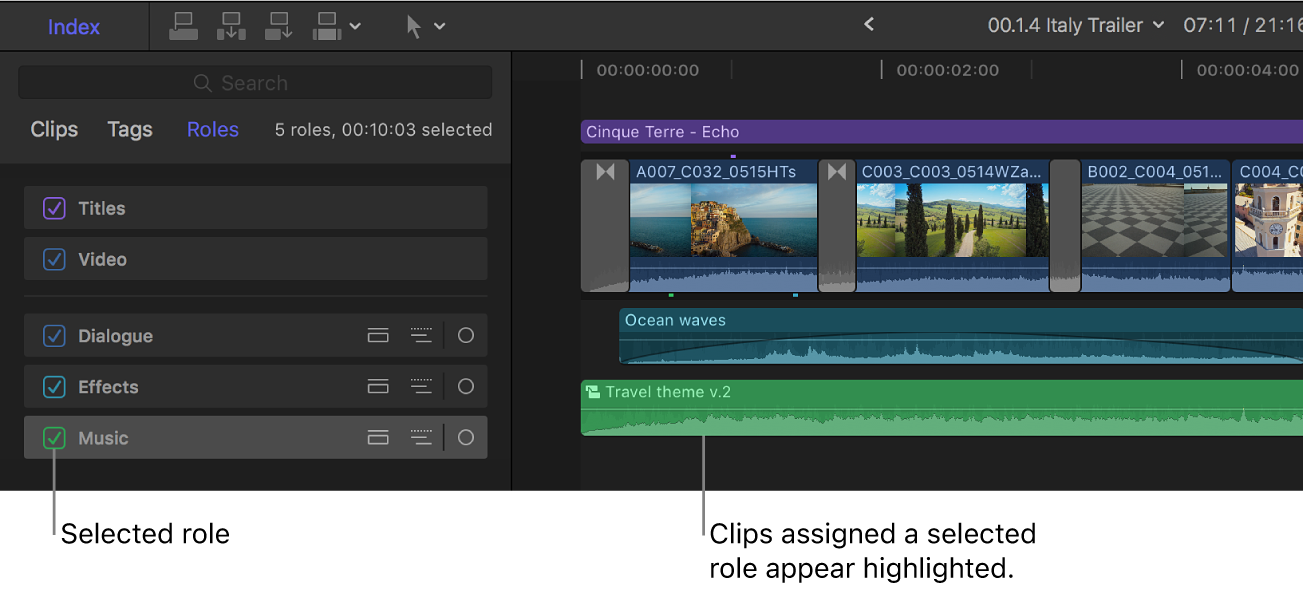
Final Cut Pro’s roles organize picture, titles and soundtrack components. Apple’s original explanatory labels are retained.
Final Cut Pro assembles imported AI footage and recorded clips on a Magnetic Timeline, where related picture, sound and connected clips move together as scenes change. This helps when you reorder the film without leaving supporting sound behind. Auditions let you compare alternative takes, and precise trimming controls how long an action or reaction stays on screen.
Visual Search and Transcript Search help locate material by visible content or spoken phrases. Color controls, masks and object tracking support shot refinement, while Beat Detection lays out musical structure for timing cuts. These tools help organize and shape a mixed collection of clips; the editor still decides whether the adjacent performances and screen direction make sense.
Roles and subroles organize dialogue, music and effects by function. Audio components, fades and enhancement controls keep individual elements adjustable, and role-based exports can supply separate stems for a sound handoff. Voice Isolation, equalization and other cleanup controls support the spoken material before the final mix.
This desktop route requires macOS 15.6 or later, and some features require Apple silicon. A Windows collaborator therefore needs another editing setup or an appropriate handoff. The iPad app has a different feature set and should not be treated as the same desktop finishing environment.
Apple lists Final Cut Pro at US$299.99 as a one-time Mac purchase, or within an Apple Creator Studio subscription at US$12.99/month or US$129/year. Some premium content is exclusive to the subscription. Motion and Compressor are separate applications, included in Apple Creator Studio or bought separately, when the job needs their expanded graphics authoring or delivery controls.
Final Cut Pro suits Mac editors who want to restructure scenes freely while keeping related clips connected and sound organized by role. The purchase choice is useful for ongoing work, provided the team’s hardware and any separate-app requirements fit the production.
5. Filmora: For desktop assembly with guided assistance and reference-based color
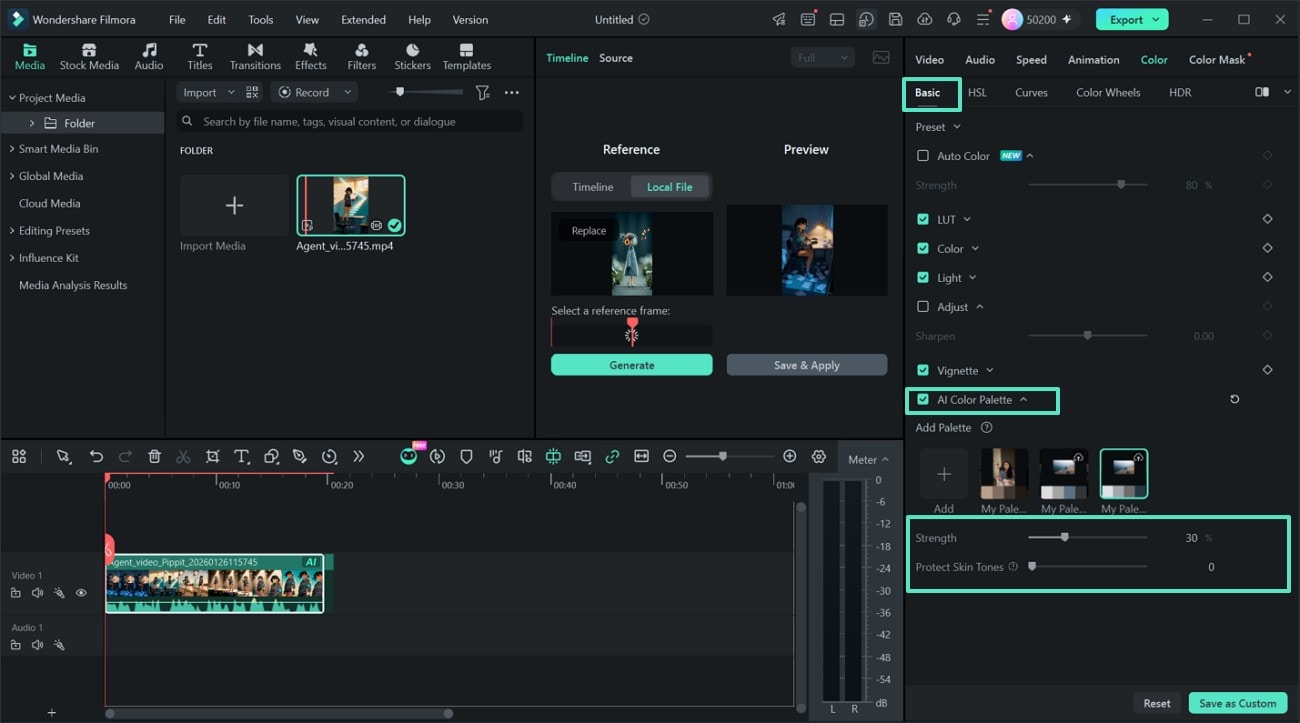
Filmora’s Windows guide shows reference-based AI Color Palette controls beside the timeline. Source highlights are retained.
Filmora combines a desktop timeline for imported AI footage and recorded clips with AI Mate, its conversational editing assistant. You can arrange scenes, trim shot boundaries and layer sound, titles or graphics directly. AI Mate’s Action mode applies supported edits, including parameter changes and audio denoising, while its Guide mode provides instructions for you to carry out yourself.
AI Color Palette extracts a look from a reference frame or a local image/video. Strength and Protect Skin Tones controls let you moderate that treatment, with color wheels, curves and HSL available for further adjustment. This is useful for bringing separately generated shots toward a shared palette before refining each one.
Separate audio tracks, mixer controls, fades and ducking keep voices, music and effects adjustable. Audio Stretch helps adapt music duration. AI music and sound-effect generation can supply new material, but those generation operations use credits. The invideo versus Filmora podcast comparison explores the related dialogue, mixing and assistant-access decisions.
A paid editing license and AI usage are separate costs. The Advanced plan currently lists US$59.99/year and 1,000 AI credits per month. The Perpetual plan provides 1,000 credits once and updates within the specified major version. AI Mate conversations have a separate allowance. Routine trial exports carry a watermark; a limited new-user clean-export promotion does not provide ongoing free delivery.
Filmora suits editors who want a conventional desktop timeline, accessible reference-based color tools and assistance they can alternate with manual work. It can carry the film through a finished export, with repeated AI services budgeted separately from the editing license.
6. CapCut Desktop: For hands-on short films and self-contained delivery

CapCut’s official desktop example shows the timeline and Auto Reframe controls. The red highlights are part of the source image.
CapCut Desktop can assemble imported AI footage and recorded clips into short films on a multitrack timeline. Separate picture, text and audio layers keep the elements adjustable, while precise trims and speed changes shape a scene’s pacing. Keyframes and animation curves control how movement develops within a shot, and search tools help locate media by objects, dialogue and people.
Its color wheels, curves and HSL controls support balancing the shots and building a common look. Reusable adjustments help carry that treatment across clips. Separate audio, fades, level controls, voice enhancement and noise reduction support dialogue and soundtrack finishing, while captions and titles remain part of the edit.
The free route depends on the tools and materials retained in the project. Pro-tagged features and assets require the Pro plan for export, so adding a paid effect can change the cost of an otherwise free film. Auto Reframe also requires the Pro plan; basic crop and zoom remain a manual alternative for another aspect ratio. Subscription prices and available features vary by region and platform.
The more consequential restriction for a film production is project interchange. CapCut does not support directly importing or exporting third-party editing projects. Sending a rendered video into Premiere or another editor combines the assembled picture and mix rather than preserving the original clip structure and separate treatments. That leaves more rebuilding if a colorist, sound editor or another cutter must continue the project. The invideo versus CapCut collaboration comparison expands on shared editing and handoff choices.
CapCut Desktop fits short films you intend to assemble, finish and deliver within CapCut. Its direct controls and built-in finishing tools are useful when the required effects fit your access, while a planned external finishing handoff favors an editor with the necessary interchange formats.
Frequently asked questions
Can I start editing an AI film before every shot is generated?
In invideo, approved clips can land directly on the timeline while generation continues. Its editing agent can arrange those shots and uploaded footage around your brief, so you can build a base cut, judge the pacing and see where more coverage is needed.
Can an editor help improve pacing without rebuilding the film?
Invideo lets you trim shots, adjust their timing and replace selected clips on the existing timeline. Revisions can target a shot, a time range or the sound alone, helping you refine the cut while keeping changes focused.
Can an editor make AI-generated clips and recorded footage look consistent?
Invideo’s color controls let you adjust exposure, white balance and color across shots. These adjustments can bring different sources closer together visually. If a generated character, costume or prop changes, selecting another take or generating a replacement shot may still be necessary.
Can an editor give me separate control over dialogue, music and sound effects?
Invideo’s multitrack timeline lets you arrange separate audio files, adjust their timing and balance their levels against the picture. That gives you control over when dialogue, music and effects enter the film. Sounds already combined in a source clip remain mixed unless separate tracks are available.
Can I move the film to another editor for further finishing?
Invideo supports free editable-project exports with media for Premiere, Final Cut Pro and DaVinci Resolve workflows. You can continue refining the film in your preferred editor. Check a representative sequence after import, since titles, effects and other application-specific treatments may transfer differently.