How do you split long voiceover scripts across multiple AI video clips without rushing the dialogue?
Last updated August 1, 2026
Split the script at natural line breaks — one line or beat per clip — and size each clip to the dialogue plus a 2–5 second buffer. Seedance 2.0 caps generations at 15 seconds; keep dialogue clips to 10–12 seconds, never add timestamps, and let the model set its own pacing.
Break the script at natural breath points before you prompt anything — one line or one beat per clip. Splitting a single character's lines into separate single-line clips also gives you more editorial control in post than generating one combined clip, because you can trim, reorder, and re-time each line independently.
Step 1 — Size each clip to the dialogue, plus buffer. Seedance 2.0 has a 15-second limit per generation, so structure dialogue around it: keep dialogue clips to 10–12 seconds and add 2–5 extra seconds beyond the minimum time needed to deliver the line. That buffer is what prevents rushed delivery — it gives the model room for natural pacing, pauses, and emotion. For lines paired with on-screen action or walking, allocate the full 15 seconds even if the dialogue is short, so the physical action completes without compression.
Step 2 — Prompt without timestamps. Give the model the line of dialogue and the scene context, and let it determine its own pacing. Second-by-second timestamps produce robotic, stilted performance, and when a timed clip has dead air the model hallucinates whispered filler lines to pad the remaining time — wasted credits on takes you can't use.
Step 3 — Split long lines across consecutive clips. When a voiceover passage won't fit one generation, split it across two consecutive clips, each under 15 seconds, breaking at a sentence or breath boundary. This preserves pacing across the join instead of forcing the narrator to sprint through the text in a single clip.
Step 4 — Anchor the voice so the split stays invisible. A voiceover split across clips only works if the voice matches on both sides. Give Seedance 2.0 a face reference and generate the line as a talking-head clip rather than a disembodied voiceover — the model anchors vocal characteristics to the face, producing a more consistent voice signature across generations; you can strip the audio and lay it over B-roll in your edit. For longer projects, the alternative is generating the voice separately with a dedicated voice model and resyncing it in your editor, which guarantees continuity across every clip.
Step 5 — Let the invideo agent flag scenes that are too dense. invideo is an agentic video creation platform with the current video models built in, and the invideo agent checks your scene plan against model limits before generating. In one documented production, the invideo agent flagged a scene requiring 18 cuts in 15 seconds and recommended splitting it into two parts before any credits were spent — and the split version produced a sharper result than the original script intended.
Finally, do the timing assembly in your editor, not in the prompt. Generate each dialogue clip with its buffer, then trim the slack on the timeline — cutting a pause down is easy; fixing a rushed line means regenerating.
Watch some of these to see what works for you:
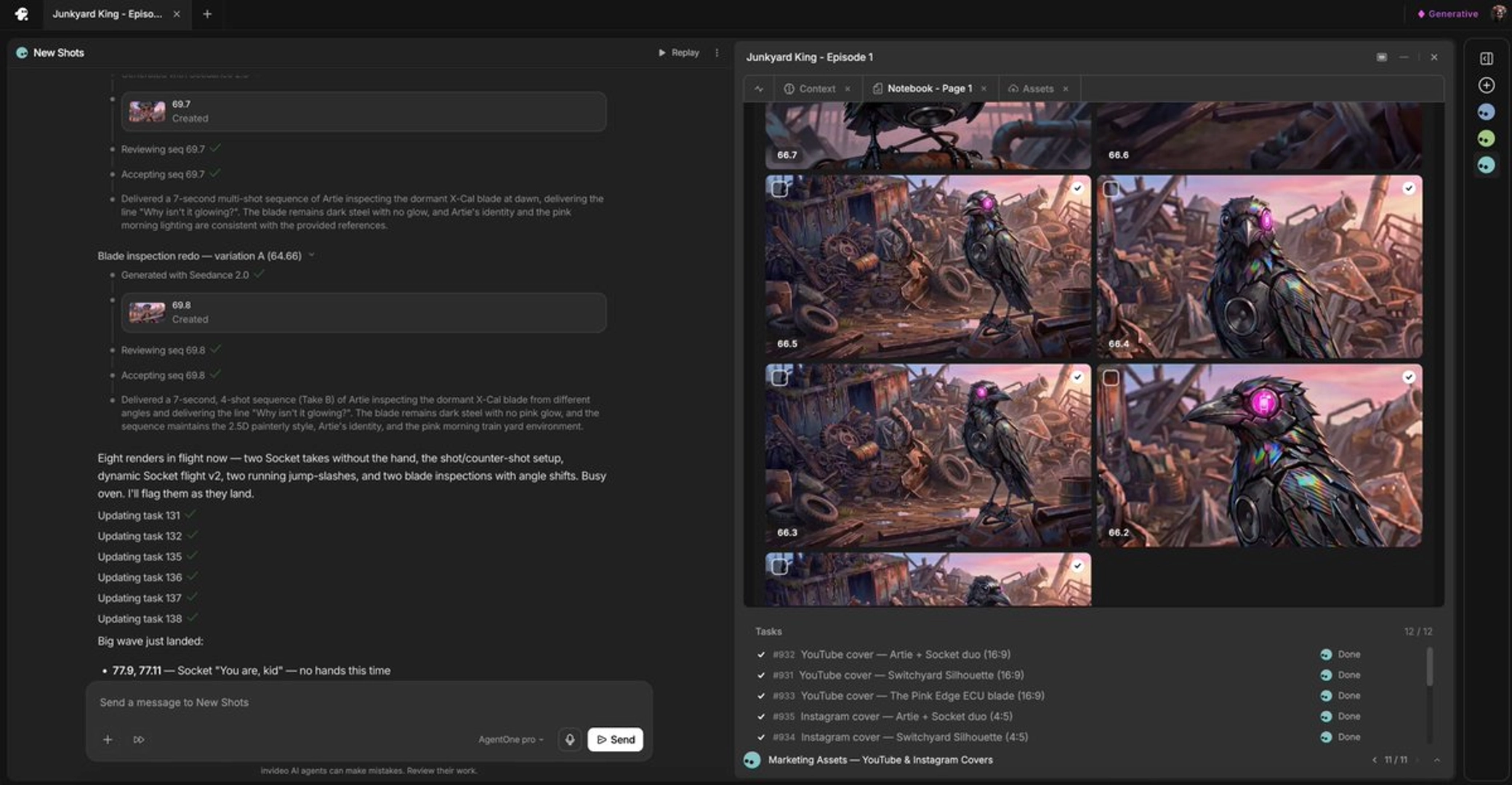
Every time you have motion action, you don't want that rushed. So I'm going to give him that 15 seconds so that C Dance 2.0 will have room.
— an AI filmmaker documenting a Seedance 2.0 dialogue workflow