6 Best AI Video Editors for Editing YouTube Videos
October 30, 2026

Invideo Editor is the best overall choice for editing YouTube videos: it connects footage selection and story assembly with pacing revisions, layered B-roll, editable graphics and detailed picture and sound finishing. You can connect ChatGPT or Claude as a free alternative to the built-in agent, with full manual control on the same timeline. Gling suits presenter cleanup, Descript suits transcript-led edits, and Premiere, Resolve and Filmora offer capable desktop workflows with different paid access and AI allowances.
A YouTube edit has to carry an idea from the opening to the final payoff. The recordings may include repeated presenter takes, demonstrations, screen captures and supporting footage. Cutting gaps is only part of the job. You still need to choose the useful explanations, give viewers time to understand the visuals, build readable graphics and keep the voice clear against music.
We compare six AI video editors for that complete edit: invideo Editor, Gling, Descript, Adobe Premiere, DaVinci Resolve and Filmora. The comparison follows selecting and assembling footage, shaping the pacing, adding visuals and sound, and revising and delivering the finished video.
Best AI video editors for editing YouTube videos at a glance
Tool | Selecting and assembling | Shaping the pacing | Adding visuals and sound | Revising and delivering |
|---|---|---|---|---|
invideo Editor | Builds a structured first cut by finding speech and visual moments in your footage that match your brief, using the built-in agent or free editing through ChatGPT or Claude. Manual selection and arrangement are also available. | Based on your brief, its AI agent reorders sections, trims unwanted pauses and adjusts cut points, letting you shape the pacing while preserving important explanations and demonstrations. | Lets you find, generate and add layered B-roll and editable animated graphics to support the explanation. You can mix dialogue, music and effects with AI assistance or manual controls. | Focused revisions stay on the same timeline, with separate alternate cuts and free watermark-free video or editable-project exports. |
Gling | Detects bad takes, gaps and fillers in spoken recordings, but the free plan covers one source hour monthly, so larger recording batches need paid access. | Tightens pacing by using AI to trim unwanted pauses. You can then manually refine pause lengths and cut points, review removed passages and restore any you want to keep. Cut boundaries still need checking for clipped words and abrupt transitions. | Lets you add stock B-roll or upload your own footage. You can also import custom graphics as image overlays, add captions and enhance speech audio. AI B-roll options vary by plan and rollout. Complex titles and dedicated music or sound-effects work need another editor. | Exports finished video, but free output has a watermark. Editable timeline handoff also needs the desktop app and a paid plan. |
Descript | Underlord helps find visual moments while transcript edits let you select and rearrange spoken material. However, full source uploads use the media allowance, including discarded takes. | Text cuts, AI retake removal and manual timeline controls are all options to shape the explanation, but Underlord requests use AI credits, so repeated AI assisted passes draw down the allowance. | Lets you search its built-in stock library or generate B-roll with its AI tools. You can also create editable titles and name labels, animate visual layers, and add music and sound effects. Generation and Underlord requests use AI credits, so repeated additions draw down the allowance. | Exports finished videos, but editable timeline export requires the Creator plan or above. XML omits animation and audio effects, so those treatments need rebuilding after handoff. |
Adobe Premiere | Lets you manually select and arrange clips on the timeline or build a sequence by editing the transcript. Its AI assistant can also assemble a first cut, but cannot use reference scripts or production notes yet, so a separate script cannot directly guide its assembly. | Precise timeline trims and transcript cuts shape pauses and joins. Prompted work uses an early Assistant beta, which Adobe advises against for client work. | Layers supplied or generated B-roll and sound. Custom graphics use text, shapes and keyframes, with manual design controls. AI media generation consumes credits, adding a cost to repeated generation. | Exports finished videos and packages editable projects with their media. Desktop access requires a subscription after the seven-day trial, so continued exporting carries a software cost. |
DaVinci Resolve | The free version offers manual assembly and multicam. Transcription, IntelliSearch and IntelliScript need Studio, so assisted selection and script-led assembly require the paid edition. | Ripple, roll and slip trims give precise rhythm control. IntelliCut needs Studio, leaving automatic silence cleanup outside the free version. | Layers imported B-roll and creates custom graphics and animation in Fusion, with Fairlight sound mixing. You supply the footage and build the graphics, adding manual sourcing and design work. | The free version exports up to UHD 60 fps. Higher resolutions or frame rates need Studio; its license is a purchase, without a mandatory subscription. |
Filmora | AI Text-Based Editing turns transcript changes into cuts, but the feature uses credits, so processing recordings draws on the AI budget. | Timeline trims, silence detection and AI Mate help adjust pauses and cut timing, but AI Mate has a separate conversation allowance, limiting repeated assistant-led pacing passes. | Layers imported or generated B-roll, creates custom titles and animated charts, and mixes audio. Some AI generation uses additional credits, so the editing license alone does not cover every generated asset. | Paid licenses support ongoing watermark-free delivery. Routine trial exports have a watermark, so the trial is not an ongoing clean-delivery route. |
1. invideo Editor: Best overall for editing YouTube videos

In invideo Editor, you can develop your recordings into a complete YouTube video with its built-in editing agent or by connecting ChatGPT or Claude to the editor for free. The assistant can find relevant speech and visual moments, select takes and arrange an editable first cut around your script or story direction. It can also remove restarts and repeated passages, layer supporting footage above the dialogue and synchronize recordings from multiple cameras and microphones. The same project remains available for full manual editing throughout.
Pacing stays open to revision after the first assembly. You can change section order, shorten an introduction, retain a necessary pause or give a demonstration more screen time. Ask the built-in agent, ChatGPT or Claude to target that part of the edit, or move the exact cut point yourself on the frame-accurate timeline. Further assistant work reads the updated timeline, so your manual choices remain part of the continuing edit. Our complete YouTube editing workflow with Claude develops this approach.
B-roll, captions and explanatory graphics can be built as separate layers. The assistant can arrange supplied images, source stock footage and create animated titles or callouts, with editable text, timing and keyframes. You can refine the treatment yourself, keep text clear of a screen demonstration and adjust an overlay without replacing the underlying explanation. Pascal Basel’s sponsored walkthrough at 06:14 shows a developed review timeline with separate B-roll and audio layers.
Picture and sound finishing belong to the same workspace. Color wheels, curves, selective corrections and scopes help bring recordings together. Separate dialogue, music and effects tracks, EQ, compression, de-essing, noise cleanup and volume automation let you shape the soundtrack around the voice. You can ask ChatGPT or Claude for these changes too, then refine them in the manual audio workspace. Focused feedback can preserve the approved picture while changing a music level or caption.
Invideo is the best overall choice for editing YouTube videos because you can build the story, refine the pacing and finish the video in the same editable project. Free editing through ChatGPT or Claude lets you keep requesting changes as the video develops, with full manual control over the result. You can keep alternate cuts separately and prepare chapter markers, then export a finished video or send an editable project with its media to Premiere Pro, Final Cut Pro or DaVinci Resolve.
2. Gling: For cleaning up presenter recordings before finishing

Gling suits a YouTube video whose explanation is already present in the recording and needs a cleaner delivery. It uses AI to identify bad takes, unwanted pauses and filler words. You can review the removed passages and restore anything you want to keep, including a useful qualification or a pause that gives the viewer time to follow.
After the AI cleanup, transcript selections let you remove whole phrases, while manual timeline controls refine pause lengths and cut points. Check the joins for clipped words and abrupt transitions, since a tighter pause setting may not suit every sentence. Automatic framing can vary the crop, and captions, speech enhancement and multicam editing help develop the presenter recording.
You can add stock B-roll or upload your own footage over the main recording, then move and trim each overlay to match the explanation. AI B-roll options vary by plan and rollout. Custom graphics can be imported as prepared image overlays, but complex titles and dedicated music or sound-effects work need another editor. Gling can therefore finish a straightforward presenter video, while more involved graphics and sound work call for a handoff.
The main budget question is the amount of source footage. The free plan includes one hour of AI-edited media each month and watermarked video exports. The Plus plan costs US$20 monthly, or US$10/month billed annually, with 10 source hours and watermark-free video. The Pro plan raises the source allowance to 30 hours. The full recording session counts against that allowance before it becomes a shorter final video.
You can export a finished video directly, but editable timeline export to Premiere Pro, Final Cut Pro or Resolve requires the desktop app and an eligible paid plan. That paid handoff matters if you need to continue graphics or sound work elsewhere.
Gling is a useful choice when speech cleanup is the main obstacle, its source allowance fits your recording volume and the remaining finishing work is straightforward.
3. Descript: For building the video around an editable transcript
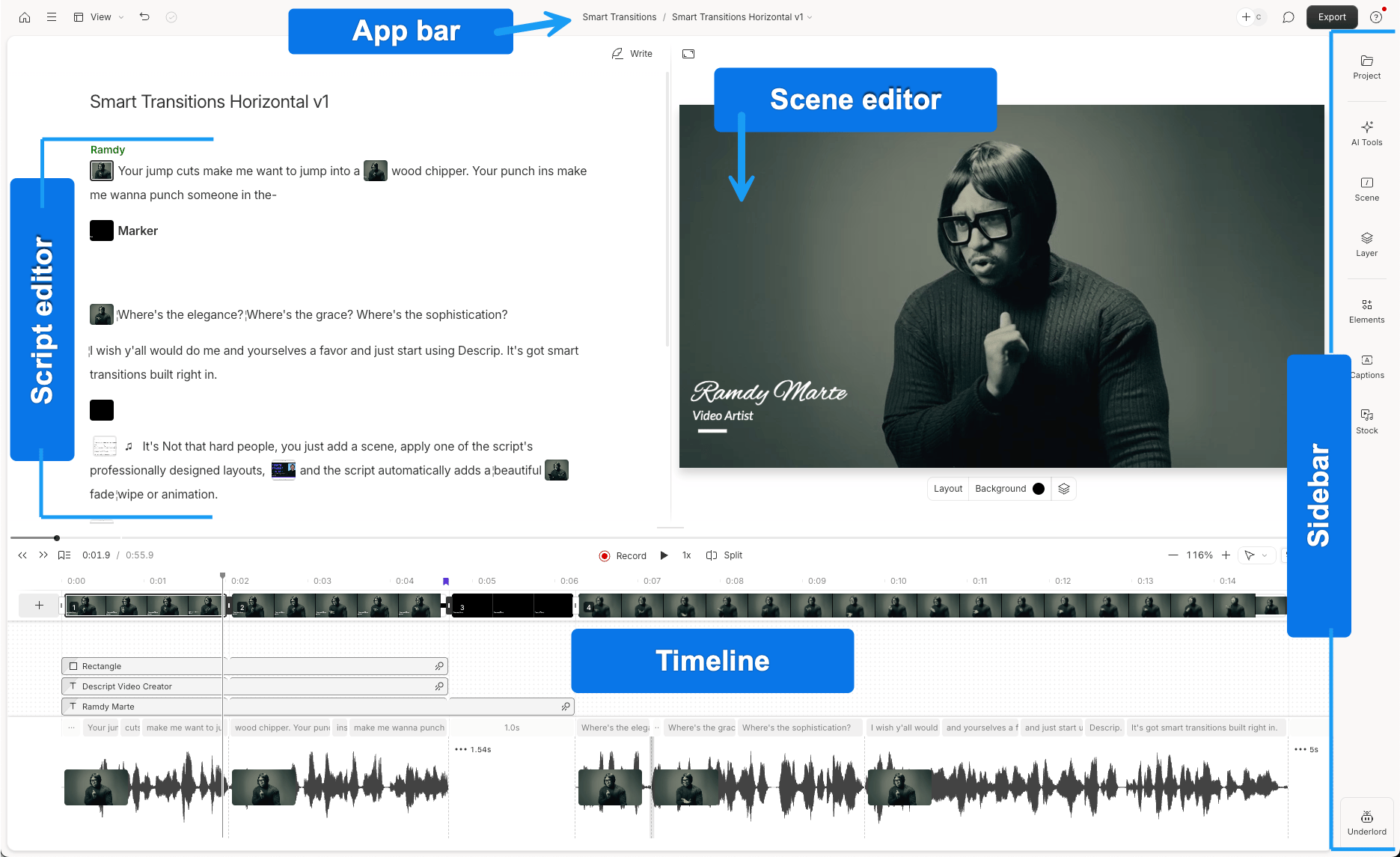
Descript makes the spoken explanation the main editing surface. Deleting a passage removes the corresponding media; moving text changes the order of the video. Retake and filler removal help clean up the delivery, while Underlord, its AI co-editor, accepts broader editing requests and can help find visual moments.
The scene editor and multitrack timeline then develop that spoken structure. You can add B-roll, images, captions and layouts, adjust layer timing and animate visual elements. Close-up timing work remains available on the timeline, and Studio Sound plus manual audio effects support speech treatment and the mix. This is useful for explanations and interviews that need visual support without leaving a text-led workflow.
Descript counts the full uploaded recording against your media allowance, including discarded takes, so a short finished video can still use hours of source allowance. Repeated Underlord revisions, including requests through Descript’s MCP connection, draw from a separate AI-credit balance and can leave you low on credits before the edit is finished. You need to budget for both footage that never makes the cut and the AI work needed to finish the edit.
The Hobbyist plan costs US$24 per person monthly, or US$16/month billed annually, with 10 media hours, 400 AI credits and watermark-free 1080p. The Creator plan costs US$35 monthly, or US$24/month billed annually, with 30 media hours, 800 credits and 4K export.
Editable timeline export requires the Creator plan or above. XML handoffs omit animation, titles, audio effects and audio keyframes, leaving that finishing work to rebuild; Studio Sound carries over as processed audio. The beta native Premiere format keeps supported multicam edits but omits position, scale and crop, and is not available on every account.
Descript suits creators who prefer shaping ideas through text, especially when the final video can be finished inside Descript. Our invideo Editor versus Descript comparison for podcasts develops that choice for recorded conversations.
4. Adobe Premiere: For detailed editing in an established Adobe workflow

Premiere combines useful AI preparation with a full desktop editing environment. Media Intelligence searches footage by visual descriptions, speech and metadata. Text-Based Editing lets you choose and rearrange spoken passages through their transcript, then continue with normal sequence editing.
Ripple and rolling trims, source selection and track-based editing give you control over the exact join. You can let dialogue continue beneath B-roll, vary the picture without interrupting the explanation, and revise one section while retaining the rest of the sequence. Multicam editing supports additional angles within the same project. Our comparison of invideo Editor and Premiere Pro podcast plugins examines the multicamera route for recorded discussions.
That sequence can carry through graphics, keyframe animation, Lumetri color, captions, speech enhancement and audio mixing. Native project files also keep the work available for collaborators who already use Premiere, its templates and its associated finishing tools.
The AI Assistant is an early public beta. It can organize bins, process transcripts, add markers and build stringouts or rough assemblies, with editable results. Adobe currently advises against using it for client work and recommends testing with duplicate projects or fresh media. Its complimentary daily beta credits refresh separately from paid-plan credits, so an existing credit balance does not extend that allowance.
Desktop Premiere requires a subscription after its seven-day trial; region and billing term affect the price. That makes desktop editing an ongoing software cost.
Premiere suits creators whose channel already relies on its timeline, project compatibility and finishing tools. Its production editing tools can carry the complete video while you evaluate the Assistant separately.
5. DaVinci Resolve: For detailed picture and sound finishing on desktop

DaVinci Resolve is a substantial option when the final edit needs close attention to picture and sound. The free desktop version combines source organization, precise timeline editing, multicam, Fusion titles and effects, color grading and Fairlight audio. You can assemble the video, layer supporting footage and refine its sound without buying an editing subscription.
Ripple, roll, slip and slide edits provide different ways to change pacing: move a join, change the source moment inside an existing shot or adjust the surrounding timing. Keyframes and curves control overlays and movement. The Color page provides selective grading and scopes, while Fairlight supplies track mixing, EQ, dynamics and automation. Auto Color, Shot Matching and Dialogue Leveler are also included in the free version.
The Studio edition adds the broader AI workflow. Transcription, IntelliSearch, script-led IntelliScript assembly and IntelliCut require Studio. Voice Isolation, Fairlight Audio Assistant and the official MCP-compatible AI Assistants route also require that paid edition. The free version’s full manual finishing suite therefore remains a different proposition from paying for those assisted preparation and revision tools.
The free version can deliver supported formats up to UHD 3840 × 2160 at 60 fps. Higher resolutions or frame rates require Studio. The Studio edition costs US$236 as a one-time purchase, with no mandatory subscription. Format support and hardware requirements still depend on the system and media you use.
Resolve suits creators who want to shape a YouTube edit directly and keep grading, graphics and mixing in one desktop project. Choose the edition around the AI preparation you need; our free-version comparison separates those tools from the substantial free suite.
6. Filmora: For a desktop timeline with conversational editing assistance
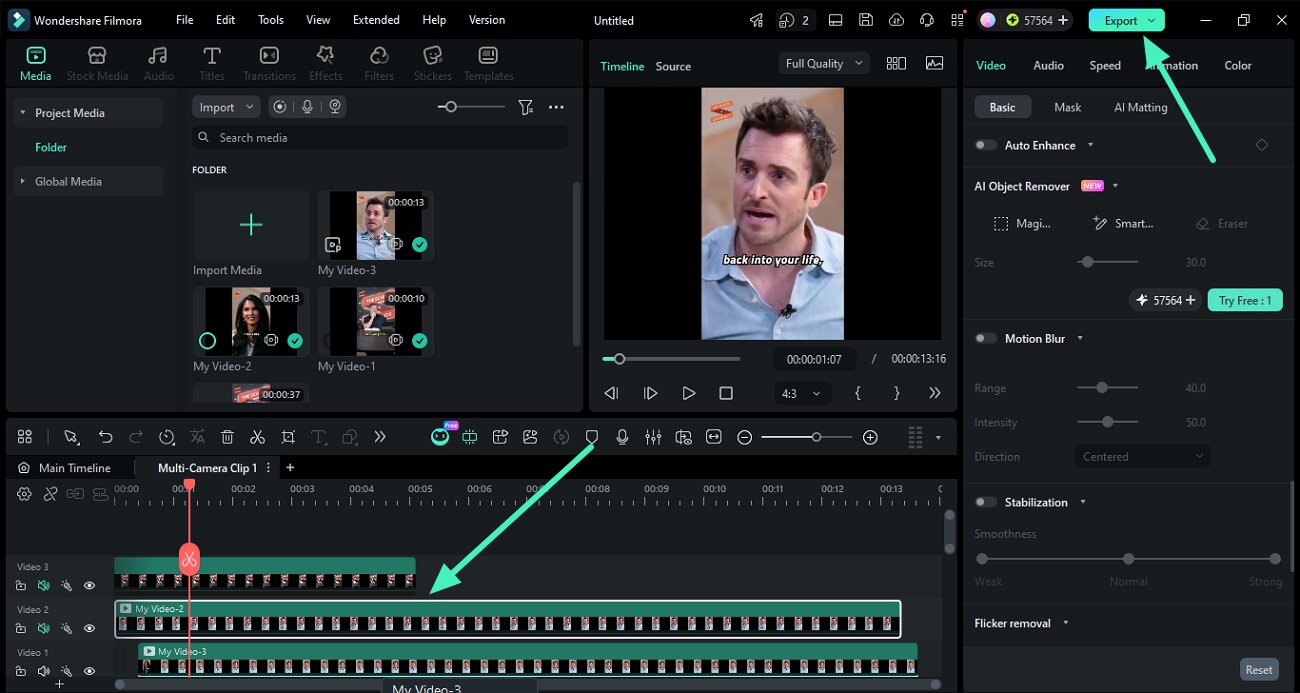
Filmora lets you select and arrange footage on a desktop timeline, trim clips and adjust track timing manually. You can shape the structure and pacing directly, with multicam editing available for recordings with several camera angles.
For an assisted first cut, AI Mate, Filmora’s built-in AI editing assistant, can help find relevant moments in your footage, assemble scenes and trim clips. AI Text-Based Editing provides another route for spoken material by turning transcript changes into cuts, while silence detection helps shorten gaps. You can refine the resulting sequence on the same timeline.
AI Mate also accepts requests for further adjustments, including sound, noise reduction and color work. It can execute supported edits, but some requests return instructions for you to follow manually, so conversational assistance does not always complete the task for you.
You can develop the explanation visually by layering imported or AI-generated B-roll, creating custom titles and animated charts, and adding captions. Keyframes control movement, while audio tools help balance dialogue, music and effects. Some chart templates require Creative Assets access for watermark-free export, so those visuals may require access beyond the editing license.
The editing license and AI allowances cover different parts of this workflow. AI Text-Based Editing uses credits, while Speech-to-Text is listed at four credits per processed minute. Some video, image and audio generation also uses credits, and AI Mate has its own conversation allowance. Repeated transcription, generated assets and assisted revisions can therefore draw down the included allowances while you are still developing the video.
The Advanced plan costs US$59.99/year and includes 1,000 AI credits monthly. The Perpetual license costs US$79.99 with 1,000 credits once. Its updates cover Filmora 16; future major-version upgrades are not included. The paid options include 500 AI Mate conversations monthly and watermark-free export. Prices and platform rights depend on the selected offer.
Routine trial exports carry a watermark. A limited new-user clean-export offer does not provide ongoing free delivery.
Filmora suits creators who want manual control alongside AI-assisted assembly and refinement in a desktop application, provided its AI allowances and asset access fit their recording volume and finishing needs. Our invideo Editor versus Filmora comparison for podcasts covers that choice for multicamera discussions.
Frequently asked questions
How can I tighten a YouTube video without losing important explanations?
Tell invideo’s built-in agent or connected ChatGPT or Claude which explanations and demonstrations must stay, and where you want a faster pace. It can trim unwanted pauses, adjust cut points and reorder sections around that direction. You can then refine the timing manually, including keeping pauses that give viewers time to understand what is on screen.
Can I continue a YouTube edit I have already started?
Yes. If the project is already in invideo Editor, connect ChatGPT or Claude and share its link or name. The assistant reads the current timeline, including your manual changes, so you can continue refining the project from where you left off.
Can I try a different structure without losing my current edit?
Yes. In invideo Editor, you can ask ChatGPT or Claude to duplicate the edit onto another timeline and develop an alternative version. That keeps the original intact while you explore a different section order or pacing, then compare the cuts before choosing which to finish.
Can I finish an AI-assisted edit in Premiere Pro, Final Cut Pro or DaVinci Resolve?
Yes. Invideo Editor can export an editable project with its timeline and media for those editors. Choose an editable-project export when you want to continue changing the cut in another application. A finished-video export is available when you are ready to deliver the rendered video.
How do I create YouTube chapters once the edit is finished?
In invideo Editor, connected ChatGPT or Claude can review the final timeline, add named markers where the main topics begin and return a timestamped chapter list. Add that list to the YouTube description when you upload the video. If you shorten or rearrange the edit, update the markers and timestamps before exporting the final version.
What is the best online video editor for YouTube videos?
For editing a complete YouTube video online, invideo Editor is the strongest overall choice in this comparison. It can select and assemble your recorded footage, refine pacing, add separately editable B-roll, captions and graphics, and finish picture and sound on the same professional timeline. You can direct the work through its built-in agent or connected ChatGPT or Claude, then refine any cut manually. Descript is another option if you prefer assembling the spoken explanation through a transcript.
What video editing software do YouTube editors use to edit faster?
For YouTube editing, tools such as invideo Editor, Gling, Descript and Premiere can reduce different kinds of repetitive work. Invideo Editor can find relevant speech and visual moments, select takes and assemble a first cut, then apply targeted pacing, B-roll, graphics and sound changes. ChatGPT or Claude can operate the same timeline through invideo’s free MCP connection, with manual controls for refining the result. Gling focuses on presenter cleanup, while Descript and Premiere offer transcript-based editing. The useful choice depends on your footage and the finishing work the video needs.