Best ChatCut Alternatives for Video Editing in 2026
November 13, 2026

invideo Editor is the best overall ChatCut alternative for assisted assembly and detailed manual finishing, combining a frame-accurate multitrack timeline, independent motion curves, adjustable custom effects, selective colour controls and audio mixing. Manual editing and exports are free. Editing with ChatGPT or Claude through MCP is also free, with the assistant’s subscription and usage limits applying separately. Built-in-agent work and media generation use invideo credits. Descript suits transcript-led videos, Eddie AI suits searchable footage and story assembly, Kapwing suits shared Studio projects, Flixier offers easing, EQ and editable handoffs, and Canva fits design-led videos. Their plan, AI and delivery limits differ.
ChatCut brings several parts of making a video into one project: selecting footage, editing a transcript, generating supporting media, adding motion graphics and refining a timeline. You can work in its browser editor or Desktop app, use the built-in agent, or connect a supported external desktop agent. Looking for an alternative therefore means deciding which parts of that workflow you want to retain and where you need more control.
We compared six ChatCut alternatives: invideo Editor, Descript, Eddie AI, Kapwing, Flixier and Canva. The comparison covers footage assembly and revisions, graphics and generated media, picture and sound refinement, assistant access and manual controls, and finished-video or editable-project delivery. Some suit spoken stories; others make more sense for layered videos or a wider brand-design workflow.
Popular ChatCut alternatives at a glance
Editor | Timeline editing | Graphics and animation | Picture and sound | AI assistance | Export and project handoff |
|---|---|---|---|---|---|
invideo Editor | A frame-accurate multitrack timeline supports precise trimming, clip rearrangement and layered edits, keeping footage, text, graphics and sound independently editable. | Keyframes and motion curves control how editable text, shapes and media move. Custom effects retain adjustable settings; image and video generation supplies supporting visuals. | Colour-range selections and masks target individual colours or areas. An equalizer shapes voice and music frequencies, while compression and automated volume changes balance layered sound. | The built-in agent and connected assistants can search footage, assemble cuts and apply revisions. Editing with ChatGPT or Claude through MCP is free; built-in-agent work and generation use credits. | Watermark-free videos and editable projects with source media export for free, including supported handoffs to Premiere Pro, Final Cut Pro and DaVinci Resolve. |
Descript | Transcript editing cuts or rearranges matching footage. A multitrack timeline and scene editor give direct control over timing and visual layers. Source uploads use a media allowance. | Editable text, captions, visual layers and animations develop the composition. Descript can generate images and video for the edit, but creating them uses AI credits. | Studio Sound enhances recorded speech. Manual audio effects and volume controls adjust the soundtrack; scene layouts and visual layers arrange the picture. | Underlord, Descript’s AI assistant, can find moments and apply requested edits, including through connected assistants. AI work uses credits; API access requires a paid plan. | The Hobbyist plan exports clean 1080p; the Creator plan or above adds 4K and timeline export. XML drops animation and most effects, leaving finishing work to rebuild. |
Eddie AI | A paper edit organizes selected transcript passages; frame-level timeline trims refine the cut. The main video track closes gaps automatically, so pauses use Eddie’s break operation. | Titles, generated motion graphics and B-roll add supporting visuals. Exposed text, numbers and colours remain editable, but generated graphics cannot be dragged along their lane. | Noise cleanup isolates voices. Volume controls balance speech and music, with ducking lowering music during dialogue. Tone adjustment and reducing harsh ‘s’ sounds require another tool. | Speech and visual logs support footage search and prompted story assembly. ChatGPT and Claude can direct edits through MCP; imports, prompts and generation use credits. | MP4 delivery and editable timeline exports support finished-video or desktop handoff. Timeline exports cost 100 credits each; cleaned speech does not carry into the editable project. |
Kapwing | Separate video, text and audio layers support direct revisions. Transcript editing trims matching footage, while shared Studio projects let collaborators work on the same cut. | Position, zoom and adjustment keyframes animate editable Studio layers. AI Motion Graphics returns an MP4, so its internal elements cannot be edited as separate layers. | Colour and lighting controls balance whole shots. Volume keyframes vary loudness over time, while fades and cleanup refine the soundtrack. | Kai, Kapwing’s AI assistant, applies instructions to editable Studio projects and generates supporting media. AI work uses credits, with allowances determined by the workspace plan. | The Pro plan exports clean 4K videos up to two hours. Free exports are watermarked 720p and limited to four minutes; layered revisions continue in Studio. |
Flixier | A layered timeline, track locks, groups and ripple edits support direct clip arrangement and revisions. | Position, scale and opacity keyframes include easing for smoother starts and stops. Chroma key and blend modes combine layers; generated media supplies supporting material. | Colour sliders adjust brightness and individual red, green and blue channels. Volume, stereo balance, equalizer bands and fades shape the sound. | Eva, Flixier’s AI assistant, can assemble and revise spoken footage from its transcript. Editing with Eva requires the Creator plan or Business plan; visual-only cues need explicit direction. | Finished videos and editable timeline packages with media support delivery and handoff. Linked Giphy, YouTube or Twitch assets block timeline export; free videos are watermarked 720p. |
Canva | A multitrack timeline supports trimming, splitting and separately timed video, text and audio. Shared designs keep brand assets and the edit together. | Editable graphics and custom motion paths support branded animation. Each created animation is limited to ten seconds, so longer movement needs multiple paths or states. | Colour controls, levels and fades balance picture and sound. Speech cleanup through Enhance Voice requires the Canva Pro, Canva Business or Canva Enterprise plan and an AI allowance. | Canva AI generates short video clips, and connected assistants can edit designs through MCP. Resizing through MCP requires the Canva Pro plan or above after the free trial. | Own or free assets export without a watermark. Premium elements require licensing; the free plan limits MP4 videos to 30 minutes at 1080p. |
1. invideo Editor

invideo Editor combines a full manual editing suite with optional AI assistance. Its frame-accurate multitrack timeline lets you arrange recorded footage, add B-roll over continuing dialogue and refine individual cuts. Footage search, take selection, retake cleanup and multicam assembly can also be directed through the built-in agent or through ChatGPT or Claude connected by MCP. The resulting sequence remains available for direct editing.
That combination carries beyond a rough cut. Separate text, shape and media layers give labels and explanatory graphics their own placement, styling and duration. Keyframe animation controls position, scale, rotation and opacity independently, with Bézier curves and a graph editor for shaping acceleration and settling. You can change one movement without giving every property the same timing.
Its built-in AI editing agent can also build an effect from a description or visual reference and expose controls for further refinement. Scenecraftstudio’s invideo-partner demonstration at 02:13 shows a highlight-trail treatment with threshold, softness, trail-length, direction and mix settings beside the preview. Those controls keep that effect open to adjustment after it has been created.
Picture and sound have their own detailed tools. Colour wheels, curves and scopes help match shots; hue, saturation and luminance qualifiers and grade masks isolate a correction to a selected colour or area. The audio workspace includes parametric EQ, compression, de-essing, level automation, buses and sends. Dialogue, music, ambience and effects can stay on separate tracks while you refine their tone, timing and balance.
You can generate a cutaway, supporting image, music or sound effect, then place and refine it within the existing edit. Revisions can target a clip, layer or time range, while another timeline holds a cutdown or alternate opening. Raman Bauri’s invideo-partner walkthrough at 03:45 shows an assembled four-clip Editor timeline beside the ChatGPT conversation.
How invideo Editor compares with ChatCut
Invideo retains the useful combination of assistant direction and a timeline you can change yourself, while giving you a complete manual route through motion, custom effects, selective colour and sound. You can inspect the same layers and settings that the assistant changes, revise them directly and continue from the updated project. This makes it a strong alternative when a first assembly needs substantial creative development and repeated finishing changes.
Ordinary editing through ChatGPT or Claude via MCP is free, including supported web conversation routes. Manual editing, watermark-free video exports and editable-project exports are free too. Your external assistant’s subscription and allowance apply separately. Built-in-agent work and generating new images, video or audio use invideo credits, including generation requested through an external assistant.
You can finish in invideo or export an editable project with its timeline and media for supported Premiere Pro, Final Cut Pro or DaVinci Resolve workflows. The invideo Editor and ChatCut free-editing comparison explores the access and delivery distinctions in more detail.
Choose invideo Editor for the most complete combination of assisted assembly and hands-on finishing in this shortlist. Its detailed motion, effects, grading and mixing controls stay connected to the same editable timeline, with free ordinary MCP editing and free delivery supporting continued revisions.
2. Descript
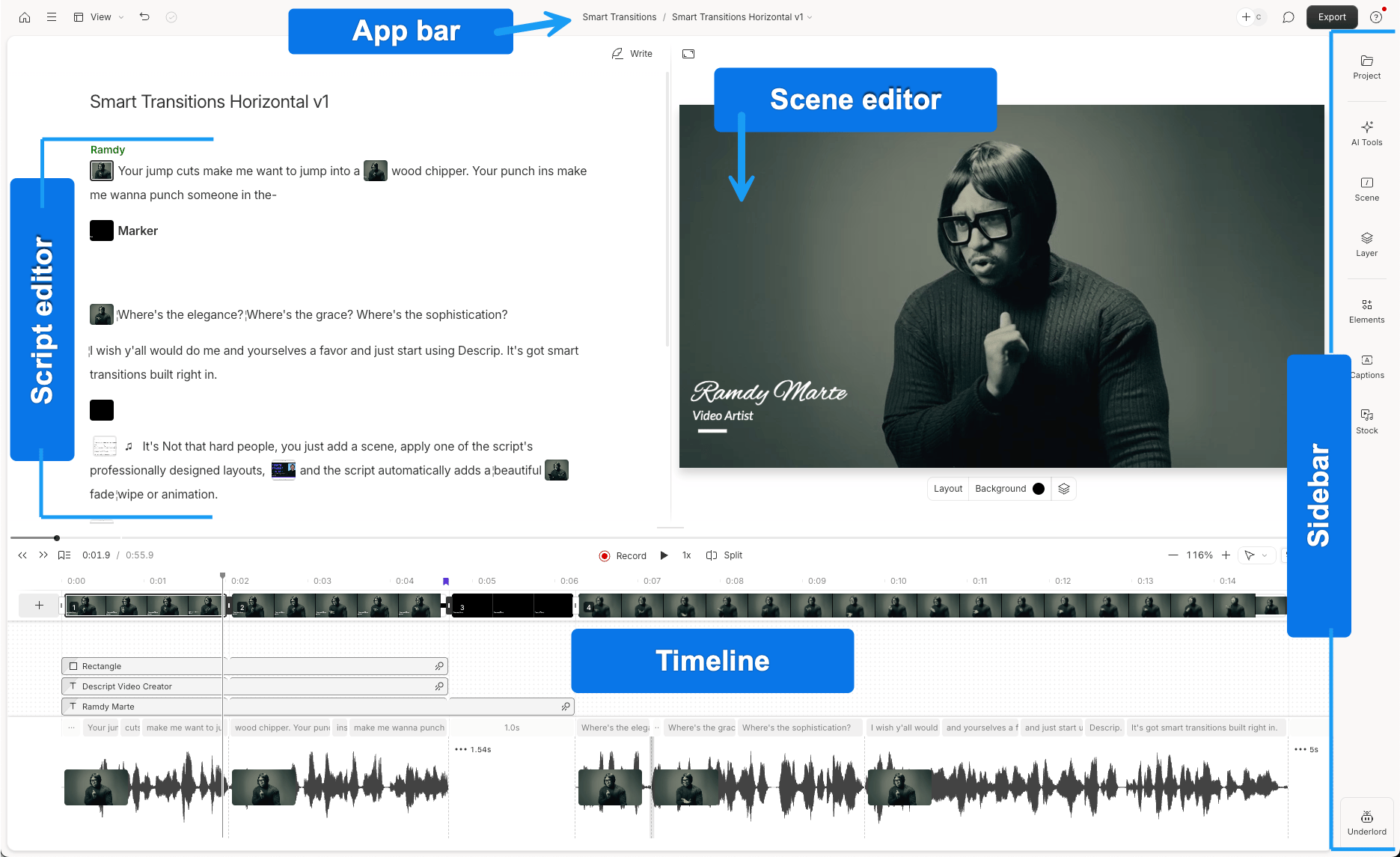
Descript is useful when the structure of the video comes from what people say. Deleting or moving transcript passages cuts or rearranges the corresponding recording. Retake and filler removal help clean spoken material, while Underlord, its AI assistant, can carry out broader instructions and find relevant moments.
A visual editor and multitrack timeline let you develop the cut with B-roll, text, captions and layouts. Automatic Multicam builds speaker changes and cutaways from audio-enabled camera sequences. Studio Sound, manual audio effects, animations and generated images or video extend the workflow into a finished spoken video. The project can be revised in the browser or desktop app, and its API/MCP route lets a compatible external assistant direct Underlord.
How Descript compares with ChatCut
Descript makes the transcript the centre of the story edit, with scenes and layouts closely tied to the spoken sequence. That suits interviews, tutorials and commentary where reading and reorganizing the argument is the main editorial task. ChatCut also offers transcript and timeline editing, so the reason to switch is Descript’s connected speech, scene and multicam workflow. Both can develop a recording with captions, visual layers and generated media.
ChatCut’s broader selection references can point at clips, assets and time ranges as well as speech. Its multiple timelines can also share one media pool. Descript organizes revisions around its compositions and scenes; the invideo versus Descript podcast comparison examines how those scene and camera decisions affect a spoken edit.
Where Descript falls short
A new Automatic Multicam pass overwrites existing scenes. Layout and scene refinements can therefore need rebuilding if you rerun the full camera pass after styling the episode. The existing cut still supports individual manual changes, which are preferable when only a few camera choices need revising.
Source uploads and recordings use a media allowance, including material you do not keep. Underlord messages and AI operations use a separate credit balance, and API/MCP work draws on those same meters. Connecting your own assistant does not remove Descript’s usage charges. API access requires a paid plan. Through the API or MCP, publishing a composition to a Descript web link provides a download URL for the finished video or audio. Downloading that rendered file without publishing requires an export from the Descript app.
The Hobbyist plan includes watermark-free 1080p, 10 media hours and 400 AI credits monthly. The Creator plan adds 4K, 30 media hours and 800 AI credits; timeline export requires the Creator, Business or Enterprise plan. The free plan is therefore a limited starting point for clean delivery and continued editing elsewhere.
XML timeline exports leave out animation, titles, transitions, images, most audio effects and audio keyframes. Studio Sound transfers as processed audio, but the wider finishing work needs rebuilding. The beta native Premiere project route retains supported multicam structures, yet is not available on every account and omits position, scale, crop and other visual transforms. Choosing the handoff early avoids polishing elements that will not transfer.
Choose Descript when editing the spoken argument through text is the priority. Its transcript, scene layouts and speech tools make a coherent workflow, provided its usage allowances and scene/export behaviour suit the finishing plan.
3. Eddie AI
Eddie AI is a strong candidate when a story needs to be found across recorded interviews and supporting footage. Searchable speech logs help locate answers, while visual B-roll logs describe what happens in silent shots. You can build a paper edit by choosing transcript lines, or ask Eddie to assemble a story and then revise its order, length or emphasis.
Its browser and desktop editors also support manual transcript changes and frame-level trims, multicam, captions, titles, generated motion graphics, colour adjustments, music and ducking. Stock and generated supporting media can develop the cut. External-assistant access through MCP and native Premiere or Resolve project delivery make it useful for productions that expect another editor to continue the work.
How Eddie AI compares with ChatCut
Eddie’s distinctive case is reusable footage logging and story-led assembly, with a paper edit that makes the selected spoken material easy to inspect. ChatCut also assembles footage and accepts focused revisions; Eddie is particularly attractive when finding and recombining recorded answers is a recurring production job.
Both offer real manual editing, graphics, generated media and editable handoff. ChatCut’s separate tracks, track locks, multiple timelines and Desktop graphic-element editing remain useful for a more freely arranged project. Eddie’s V1 storyline closes up automatically, keeping a spoken cut contiguous but giving gaps a different treatment. For more on footage assembly, creative control and sound, see the invideo Editor vs Eddie AI comparison.
Where Eddie AI falls short
The main video track (V1) cannot leave an empty gap. A pause is added as a break through Eddie, and a billed prompt can be involved even though the break operation itself is free. Correcting a misheard transcript word also goes through Eddie; deleting words by hand is free but removes the passage from the edit. Hand editing requires a wider window, while the phone layout shows the player only.
Generated graphics have their own refinement limits: they cannot be dragged along their lane. Moving an existing graphic requires saving it as a template and adding it again at the new playhead position. Prompted timing refinements are also supported, while exposed words, numbers and colours can be edited directly. For sound, EQ, de-essing, echo/reverb removal and click removal require another tool. Cleanup keeps voices and removes other sound, making it unsuitable for preserving a musical performance or location ambience. You also cannot upload your own sound-effect file to the SFX lane, although uploading your own music is supported.
Imports, prompted editing and generation use Eddie credits. New accounts start with 500 credits; credit packs are available without a required subscription. Importing costs 250 credits per source hour in 15-minute blocks, so a large library has a cost before selection begins. Editable timeline exports cost 100 credits each. Ten cloud MP4s a day at 1080p or below are included under the workspace/person allowance; higher-resolution cloud output, additional renders and desktop renders have separate charges.
The MCP connection does not generate new music, AI voice-over or AI B-roll, and cannot upload your own video files. Add that material in Eddie’s app first, then return to the connected assistant. Generated SFX also cannot be dragged along their lane, and music cues cannot overlap; a new cue trims the preceding one and adds a crossfade. More intricate sound layering can therefore require the destination editor.
Delivery needs more than choosing a resolution. Cloud MP4s are limited to 60 minutes and use the uploaded working media. Desktop rendering can use local originals without that length limit. Web/cloud-import NLE exports reference transcoded proxies, while desktop imports can reference local originals. Cleaned sound does not carry into editable handoffs, some motion details can be lost, and track-mute support varies by format. Those treatments may need restoring in the receiving editor.
Choose Eddie AI for footage logging and recorded-story assembly with a planned finishing route. Its searchable material and paper edit are compelling when you accept its contiguous storyline, sound limits and metered editing and handoffs.
4. Kapwing

Kapwing combines a shared Studio editor with Kai, its AI assistant. Footage, graphics, text, captions and audio remain as layers, so a team can revise a project directly instead of exchanging only finished files. Transcript trimming, silence removal, captions, dubbing and generated B-roll support recorded videos and their shorter versions.
Its manual animation goes beyond preset entrances. Position and zoom keyframes move or enlarge a layer, while supported adjustment keyframes change opacity, brightness, contrast, saturation and blur. Whole-shot colour settings, volume automation, fades and audio cleanup support the finishing pass. A separate AI Motion Graphics route creates animated material from prompts that can then be placed in Studio.
How Kapwing compares with ChatCut
Kapwing is appealing when shared browser projects, captions and branded layered videos are the main work. Both products pair AI help with a manual timeline and generated media. Kapwing’s normal Studio text and graphic layers stay individually editable, making it convenient to revise wording, placement and keyed moves directly in a team project.
ChatCut retains a more specific route for keeping alternate timelines in one project and for exporting an editable XML cut to Premiere or Resolve. Kapwing’s rendered downloads and continued Studio editing serve a different delivery model. The invideo versus Kapwing creative-control comparison explores the finer motion, colour and sound choices.
Where Kapwing falls short
Position, zoom and adjustment keyframes give ordinary Studio layers custom motion and changing appearance. The more consequential control restriction is in the separate generated-graphics workflow.
The AI Motion Graphics tool returns an MP4. Studio can trim, position and layer that video, but its internal text and shapes do not become individual editable Studio elements. Changing them means revising the generated asset. This limit applies to that output, rather than to ordinary Studio layers or every Kai edit.
The free plan exports watermarked 720p videos up to four minutes long, with a 2 GB upload limit. The Pro plan removes the watermark, raises uploads to 6 GB and allows 4K videos up to two hours. AI work still draws on credits: the Pro plan includes 1,000 monthly credits and the Business plan 4,000. A paid editing plan does not make repeated generation or dubbing unlimited. Downloading a finished video also does not provide the original Studio layer structure for another NLE; continued layered revisions belong in the shared Studio project.
Choose Kapwing for collaborative browser videos with captions, editable design layers and custom keyed moves. It fits best when Studio remains the shared project and its paid delivery and AI allowances cover the output.
5. Flixier

Flixier gives layered browser editing substantial direct controls. Track locks, groups, snapping and ripple changes keep footage and sound organized. Custom position, scale and opacity keyframes animate media and graphics, and easing changes how a move accelerates or settles. Chroma key, blending, blur, shadows and adjustable styling help build a composite.
Colour sliders and separate RGB gamma settings refine the picture. Audio controls include gain, pan, fades and individually adjustable EQ frequency bands, alongside enhancement and generated sound. Eva, its built-in AI assistant, can help assemble speech-led footage, revise the timeline, add captions and develop sound. It can also plan a video and generate supporting assets, with the resulting work available for manual refinement.
How Flixier compares with ChatCut
Flixier is a useful alternative when you want direct browser animation and audio controls alongside optional assistance. Its easing and EQ are practical tools for finishing layered edits by hand. ChatCut also offers multiple tracks, direct trims, sound ducking and agent-created graphics. The distinction is Flixier’s particular browser finishing controls.
Both have editable NLE delivery routes. Flixier packages several timeline formats with media, while ChatCut offers XML with its own unsupported-element warnings. ChatCut’s selection-based requests can reference visual assets and time ranges; Eva’s structural decisions lean heavily on the transcript, which affects the material it can select reliably.
Where Flixier falls short
Eva needs spoken material for its transcript-led structural editing. Cross-talk, noise and transcription mistakes can lead to a wrong selection. It cannot infer visual comedic timing, expressions or gestures unless they are reflected in the dialogue or prompt. Visual montages therefore need explicit direction and manual selection. Eva changes the active timeline, so retaining an original cut requires duplicating the project before a new pass.
The Creator and Business plans include editing with Eva; the free and Starter plans provide Eva help rather than that editing access. The free plan limits output to ten minutes monthly, watermarked at 720p. The Starter plan removes the watermark and supplies 1080p with 60 export minutes per seat monthly; the Creator plan adds 4K and unlimited video exports. AI generation and transcription retain their own allowances, so unlimited exports do not mean unlimited AI work.
Premiere XML and EDL timelines cannot be imported directly. For an external timeline supplied as XML or EDL, continuing in Flixier means rebuilding from source media or importing a rendered video with the earlier layers flattened. In the other direction, Giphy, YouTube or Twitch linked assets block timeline export until those assets are removed. Check that source choice before relying on its NLE handoff.
Choose Flixier for substantial manual browser editing with easing, EQ and outbound timeline packages. Its strongest fit is starting and developing the edit there, with Eva’s transcript dependence and the source-media export rules included in the decision.
6. Canva

Canva makes sense when video is part of a wider design workflow. Templates, brand assets, typography and editable graphics sit alongside a multitrack timeline. You can trim and split footage, layer titles, time overlays and arrange music or voice tracks, keeping related visual material inside the same design environment.
Custom animation records a path as you drag an element, with movement-style and speed controls. Match & Move connects element states across pages, while native animation effects develop the design. Colour adjustments, levels, fades and Beat Sync help with routine picture and sound work. Canva AI can generate short video clips that continue into the editor. Core MCP editing is also available across plans, with the exact actions depending on the connected assistant.
How Canva compares with ChatCut
Canva’s main advantage is the relationship between the video and the rest of a brand’s design work. Its text and graphic elements remain directly editable alongside the footage. ChatCut is also capable of titles, charts and custom motion graphics; its Desktop app supports direct selection of exposed graphic elements, while other surfaces use agent requests for element and structural changes.
Canva is a useful substitute for branded social videos, explainers and presentations when shared design assets matter more than a footage-led agent workspace. ChatCut’s multiple timelines, targeted edit references and XML handoff remain relevant for a more editing-centred job. The invideo versus Canva control comparison develops the motion, grading and audio distinctions.
Where Canva falls short
Created animations have a ten-second maximum and a limit of 50 per design. A longer or closely coordinated movement can need several paths or states. These limits apply to created animations, rather than the length of the whole video. Adjustable shader effects on the Canva Pro, Canva Teams, Canva Enterprise, Canva Education and Canva for Nonprofits plans also have eligible-plan and rollout requirements; access to one preset does not give every account the same effects catalogue.
Sound refinement has a different emphasis from a detailed mixing suite. Enhance Voice works only on material containing speech, requires the Canva Pro, Business or Enterprise plan and uses the monthly AI allowance. Its strength slider offers an overall treatment; detailed EQ or de-essing may still need another application. Canva AI’s video-clip route uses English prompts and generates eight-second clips with sound or six-second clips without it. Its generated audio cannot be manually changed within that generation route; trimming the result and adding music in the video editor are separate operations.
Core MCP editing is available across plans, but resizing through that connection requires the Canva Pro plan or above after the free trial. Manual editing is free, and your own or free assets can export without a watermark. Premium elements require licensing; a one-off purchase covers the same design, rather than every new design that reuses the element.
The free plan’s MP4 delivery is limited to 30 minutes at the default 1080p quality. The Canva Pro plan supports longer output up to two hours. A Video design uses a continuous timeline, so downloading pages as separate videos is unavailable there; separate outputs require separate designs. That matters when one project needs many distinct deliverables.
Choose Canva when editable graphics and shared brand assets drive the video. It is a useful design-led replacement for that part of ChatCut’s work, with animation, generation, sound and delivery limits to plan around.
Frequently asked questions
Which ChatCut alternative can edit videos that don’t have much dialogue?
invideo Editor is a strong fit for product footage, montages and other videos where the pictures carry the story. Footage analysis helps locate visual moments, while its multitrack timeline combines clips, titles, graphics and music. You can direct an assistant to assemble and refine the sequence, then adjust the same elements manually.
Which video editor lets me create custom effects from a visual reference and fine-tune them manually?
Yes. In invideo Editor, the built-in AI editing agent can build an effect from a description or visual reference and provide controls for further refinement. You can adjust the effect’s settings and timing yourself or ask the agent to revise the treatment, keeping creative changes within the same editable project.
Does any editor allow me to export videos without a watermark on the free plan?
Yes. invideo Editor includes free watermark-free video exports alongside free manual editing. You can edit your footage, add captions and graphics, balance the sound and export the finished video without paying to remove a watermark.
Can I keep editing with ChatGPT or Claude after my invideo credits run out?
Yes. You can connect ChatGPT or Claude to your existing invideo project through MCP, the connection that lets the assistant edit its timeline. Timeline changes, captions and audio cleanup through MCP do not use invideo credits, and you can keep editing manually. Generating new images, video or audio and assigning work to invideo’s built-in agent use invideo credits. Your ChatGPT or Claude subscription and usage limits apply separately.