Top 5 AI Video Editing Tools Ranked
November 5, 2026

Invideo Editor is the best overall choice for a complete edit, combining a professional editing, sound design and colour-correction suite with AI editing assistance, optional media generation and simultaneous browser collaboration. Resolve follows for specialist finishing, Premiere for Adobe workflows, Descript for dialogue-led videos and Filmora for guided desktop editing.
Choosing an AI video editor means weighing its editing tools and AI assistance together. The right choice should give you control over the cut, sound and colour, support the way you collaborate, and make the costs of editing and exporting clear.
We ranked invideo Editor, DaVinci Resolve, Adobe Premiere, Descript and Filmora across editing and AI capabilities, collaboration, and free access and cost. The comparison looks at how each tool combines manual picture, sound and colour controls with useful AI assistance, how people revise the same project, and what it takes to finish and export. The overall order favours a complete editable workflow, with media generation available when the video needs additional material.
The best AI video editors at a glance
Overall rank and editor | Editing and AI capabilities | Collaboration | Free access and cost |
|---|---|---|---|
1. invideo Editor | Combines professional video editing, sound design and colour-correction tools with AI assistance for editing and optional image, video and audio generation capabilities. | Teammates edit the same browser timeline together. Review links collect timestamped comments from internal and external stakeholders that can be used as editing instructions. | Manual editing and exports are free, as is ordinary editing with ChatGPT or Claude via invideo’s free MCP connection. Assistant allowances apply separately; built-in-agent work and generation use credits. |
2. DaVinci Resolve | Dedicated editing, colour, visual-effects and sound workspaces support detailed finishing. Studio adds AI search, script assembly, camera switching and sound assistance. | Editors, colourists and sound specialists can share projects, with locking and update controls protecting their work. | The free desktop edition can finish and export complete videos manually. Major AI features and external MCP connections to Claude or ChatGPT require the paid Studio edition. |
3. Adobe Premiere | Offers precise timeline editing, colour correction, sound mixing and graphics controls, with transcript-based cutting, visual search and editable AI assemblies. | Team Projects shares changes and Adobe’s online review service supports review. Each sequence is locked to its current editor until changes are published. | Ongoing desktop editing requires a subscription after the trial. Assistant requests and generated media consume Firefly credits. |
4. Descript | Transcript editing and an AI co-editor shape speech-led cuts. Scenes, visual layers, captions and speech cleanup develop the recording into a finished video. | Shared editing and comments support revisions. Unpaid project editors cannot upload media or use AI; those functions require a paid Editor seat. | The free plan offers limited media/AI use and watermarked 720p output. Paid plans unlock clean exports, higher resolution and editable timeline delivery. |
5. Filmora | A conventional timeline supports clip timing, animation, colour and sound. AI Mate applies supported changes or guides the editor to the relevant controls. | Workspace backs up projects, shares media and collects review notes tied to specific video moments. | Routine trial output is watermarked, with a limited new-user clean-export offer. Paid licenses support ongoing clean output; AI credits and assistant allowances remain separate. |
1. invideo Editor: Best overall for professional editing with AI assistance

Editing and AI capabilities
Invideo Editor brings a professional editing, sound design and colour-correction suite into one browser workspace, with AI assistance available alongside the manual controls. Its multitrack timeline supports precise cuts, separate picture and sound layers, editable captions and titles, compositing and keyframe animation. Movement and timing can be shaped through individual values and curves, keeping the finished composition open to detailed adjustment.
The finishing tools are a substantial part of that suite. Separate dialogue, music, ambience and effects tracks support a developed sound design, with EQ, compression, de-essing, noise cleanup and volume automation for balancing the mix. Colour wheels, curves, selective corrections and brightness and colour displays support matching shots and developing a consistent look. These controls let an editor refine the picture and soundtrack directly throughout the project.
The built-in AI agent can help find useful footage, choose takes, assemble a cut, build graphics and effects, and revise picture and sound. A free MCP connection also lets ChatGPT or Claude operate the editor’s controls. MCP is the connection that gives those assistants access to the editing tools. Ordinary editing through either assistant is free, with your ChatGPT or Claude subscription and usage allowance applying separately. The same timeline remains available for manual changes.
When a project needs additional material, images, video clips or audio can be generated as needed and developed alongside the original footage. New media generation uses invideo credits. AI can also build effects with exposed controls: Luuk Alleman’s partner demonstration at 03:50 shows an adjustable effect panel beside an editable timeline.
Collaboration
Invideo leads collaboration in this shortlist by combining simultaneous browser editing, timestamped review links and assistant-led revisions in the same project. Reviewers can comment, while session replays help the next contributor understand how the edit developed. Accepted feedback can be handled manually or passed to an assistant as targeted changes, and separate timelines retain alternate cuts.
Free access and cost
Manual editing, watermark-free video exports and editable-project exports with media are free. Access to ordinary editing with ChatGPT or Claude through invideo’s MCP connection is also free; their subscriptions and usage limits apply separately. Built-in-agent work, including work delegated to that agent, and generating images, video or audio use invideo credits. Supported editable exports allow continued work in Premiere Pro, Final Cut Pro and DaVinci Resolve.
Invideo earns first place for the combination of professional manual editing and finishing, AI help with the work, shared revisions and free ordinary ChatGPT/Claude editing and delivery. It is the overall recommendation for an editor who wants substantial creative control with AI assistance available across the project.
2. DaVinci Resolve: For specialist picture and sound finishing

Editing and AI capabilities
DaVinci Resolve is particularly useful when an edit needs detailed picture and sound finishing. Timeline editing, Fusion visual effects, colour grading and Fairlight audio have dedicated workspaces inside one application. A project can develop through selective colour work, layered effects and a detailed soundtrack while retaining the working controls for another pass.
AI contributes to preparation and finishing too. IntelliSearch finds visual content and dialogue, IntelliScript assembles footage around a script, Multicam SmartSwitch prepares camera cuts, and Fairlight Audio Assistant helps with the mix. These major AI tools require DaVinci Resolve Studio. Native AI Assistants also require Studio and a compatible external assistant. The distinction matters when choosing between the free manual toolset and paid automation.
Collaboration
Editors, colourists, effects artists and sound specialists can contribute to one shared project, with locking and update controls protecting their work. Keeping the edit and finishing passes together is useful for a team dividing work across disciplines. Remote collaborators still need an appropriate project and media-sharing setup; cloud services can add hosting or storage costs.
Free access and cost
The free desktop edition can complete a manual edit and export the result. The paid DaVinci Resolve Studio edition unlocks major AI tools, advanced finishing features and MCP access to Claude and ChatGPT. Assistant subscriptions and usage limits apply separately. Native projects retain cuts, effects, colour and sound for later revisions. The invideo and Resolve free-version comparison explains the access differences in more detail.
Resolve earns second place for its integrated finishing depth and the working project it preserves through production. It can be the more suitable first choice when specialist colour, effects and sound work matter most, with the required Studio and collaboration services included in the budget.
3. Adobe Premiere: For Adobe projects and production teams

Editing and AI capabilities
Adobe Premiere combines detailed trimming, camera-angle switching, animation, colour, sound mixing, titles and captions in a complete editing environment. Connections to After Effects and other Adobe applications are useful when a team already develops its graphics and production assets there.
Transcript cutting and picture search help find and assemble material, while AI Assistant can organize media and build editable rough assemblies. Results may need correction, so a duplicate project with the approved sequence retained provides a practical way to evaluate changes. Selected passages and joins still need review before a revision is accepted. New generated media can support an edit when additional material is needed, with credit conditions applying.
Collaboration
Team Projects shares editing changes and retains version history, while Adobe’s online review service supports client review. The sequence being edited is locked to its current editor, so collaborators coordinate ownership of that sequence. Each editor also needs access to the source media. A native Premiere project is a useful handoff when the next contributor expects the same Adobe working environment.
Free access and cost
Ongoing desktop editing requires the Premiere single-app plan or another qualifying subscription after the trial. Regional billing terms differ, and Assistant requests and generated media consume Firefly credits. The invideo versus Premiere and AutoPod comparison explores a separate plugin-assisted podcast workflow.
Premiere earns third place for its broad editing and AI capabilities and the practical value of keeping Adobe projects, assets and collaborators together. It moves up the shortlist when that environment is already part of the delivery requirement, with ongoing subscription and credit usage included in the decision.
4. Descript: For shaping dialogue-led videos
Editing and AI capabilities
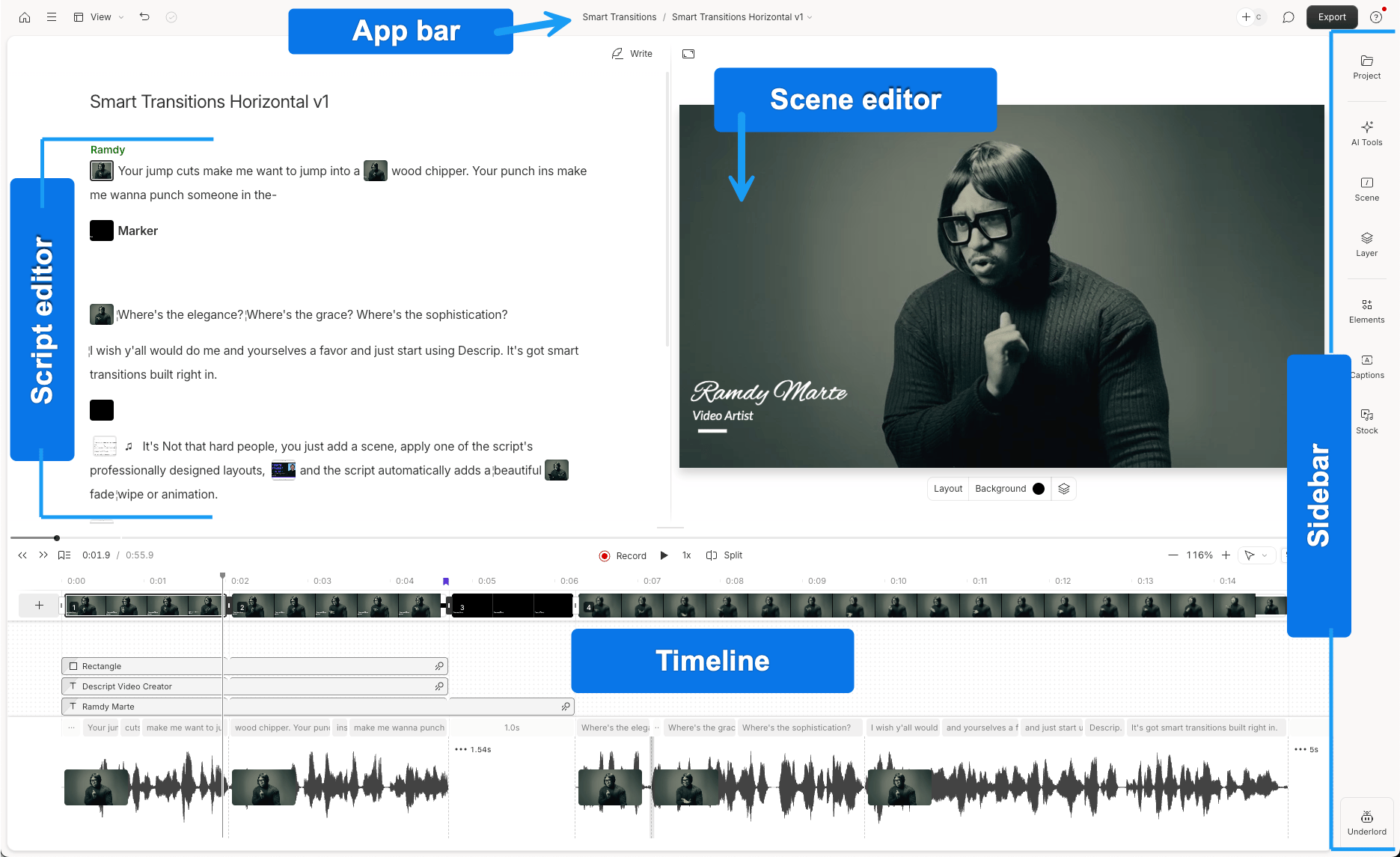
Descript is especially useful when the story is carried by spoken passages. Changing the transcript changes the recording, keeping decisions about a repeated explanation or the order of answers close to the words. Underlord, its conversational co-editor, handles requested changes, while scenes, layouts, visual layers and captions develop the picture around the dialogue.
Retake removal, speech enhancement and automatic camera layouts help prepare interviews, explainers and other speech-led videos. Manual timing and visual adjustments remain available as the edit develops. Rerunning Automatic Multicam replaces existing scenes, however, so earlier layout adjustments may need rebuilding. An edit centred on specialist colour work, layered effects or a developed soundtrack gives the broader finishing suites more weight.
Collaboration
Shared editing and comments let contributors revise the same project. Project-specific collaborators can be unpaid, but their editing permissions exclude uploads and AI use. Contributors who need those functions require paid drive-level Editor access. That distinction matters when planning access for people who will contribute media or carry out assisted edits, as well as review the result.
Free access and cost
The free plan provides limited media and AI use with watermarked 720p output. The Hobbyist plan enables clean 1080p exports; the Creator plan adds 4K and timeline export. Imported source material and AI work consume separate allowances. For an external handoff, standard XML transfers omit animation, audio effects and audio keyframes, leaving those treatments to rebuild. XML is a format for moving an editable cut between applications; a separate beta native Premiere route has its own availability and transfer conditions. The invideo versus Descript podcast comparison develops those choices.
Descript earns fourth place for its combination of dialogue-led AI editing, shared revisions and an ongoing free entry point. It is a particularly useful personal choice when restructuring speech is the main editorial job and most of the finishing will stay inside Descript.
5. Filmora: For guided desktop editing
Editing and AI capabilities
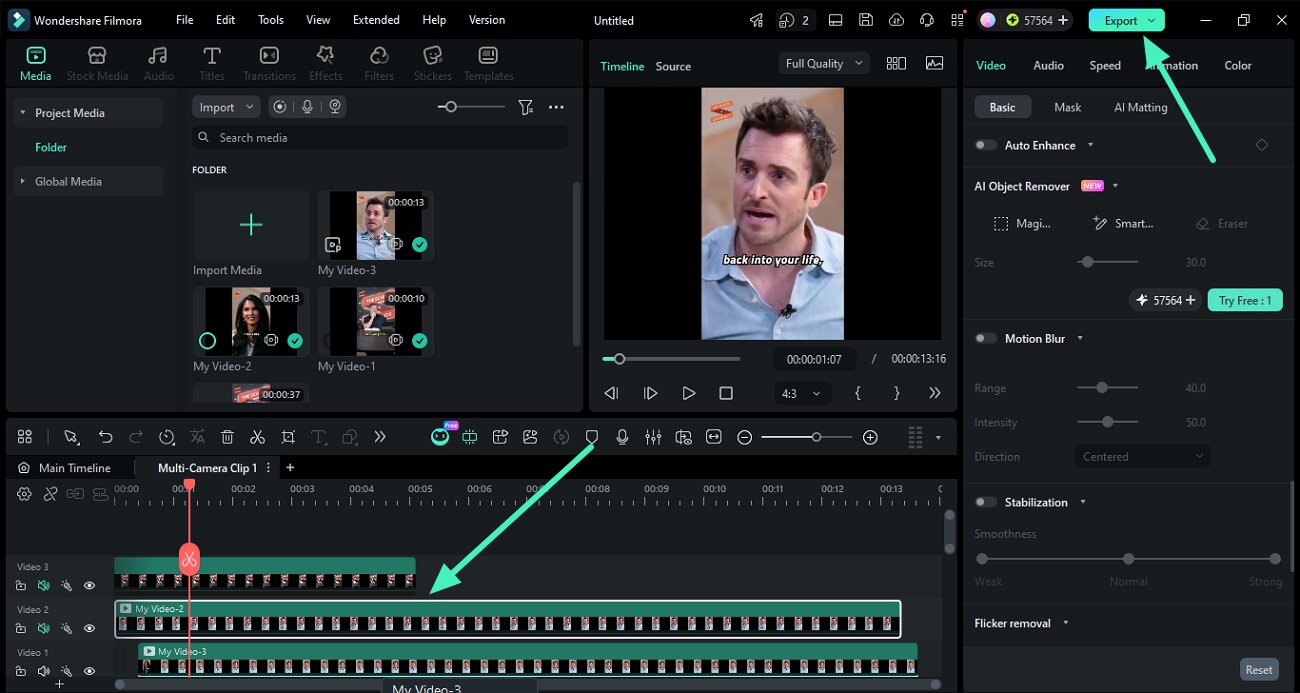
Filmora suits an individual editor who wants a conventional desktop timeline with help close at hand. Clip timing, animation, colour controls, sound mixing and editable titles and captions support a complete finish, making its manual workspace a useful reason to choose it when the project needs development beyond a transcript cut.
AI Mate’s Action Mode applies supported changes directly to clips, while Guide Mode helps locate the relevant controls. Transcript cutting and silence detection help prepare recordings, and the editor can continue shaping picture and sound manually. AI and generation features add options when the project calls for them, with their usage allowances considered separately from the software license.
Collaboration
Workspace provides cloud backups, shared assets and frame-by-frame review. This helps collect notes and preserve access to the project across supported devices. A saved Filmora project keeps the edit available for another pass, making the workflow useful when the same editor will finish and revisit the video in Filmora.
Free access and cost
Routine trial exports carry a watermark, with a limited clean-export offer for newly registered users as a separate entitlement. Paid licenses support ongoing watermark-free output. The Advanced plan includes monthly AI credits; the Perpetual plan supplies a one-time grant and software access within the specified major version. AI Mate has its own conversation allowance, and transcription features use AI credits. The invideo versus Filmora podcast comparison examines those recurring-use decisions.
Filmora takes fifth place for this combination of editing depth, AI assistance, collaboration and access. It remains a useful personal choice for guided desktop work, particularly for someone who values its direct timeline and plans to keep the editable project in Filmora.
Frequently asked questions
Is editing with ChatGPT or Claude in invideo Editor free?
Yes. Ordinary editing with ChatGPT or Claude through invideo’s MCP connection is free, as are manual editing, watermark-free video exports and editable-project exports. Your ChatGPT or Claude subscription and usage allowance apply separately. Built-in-agent work, including delegated work, and generating new images, video or audio use invideo credits.
Do I have to use AI to finish a video in invideo Editor?
No. The manual suite provides precise timeline editing, separate picture and sound layers, captions, graphics, keyframe animation, sound design and colour correction. AI assistance can help with selected editing tasks, and media generation can add material when the project needs it. You can continue refining the same timeline manually.
Can clients review a video without buying an editing seat?
Invideo review links accept timestamped comments. Adobe’s online review service supports external review, and Descript separates project commenters from paid drive-level Editors. Review access and permission to upload media or run AI are different entitlements.
Can AI video editors work with footage I already have?
Yes. These editors can work with footage you already have. Depending on the tool and plan, AI can help find relevant clips, assemble a rough cut, edit spoken passages or clean up dialogue. Manual controls remain available for further changes. Generating new images, video or audio is an optional capability and may use separate credits.