7 Best AI Video Editors in 2026: Features and Costs Compared
November 5, 2026

Invideo Editor is the best overall choice for AI-assisted editing across supplied footage, creative revisions and finishing. It combines agent-led selection and assembly with editable graphics, detailed colour and sound controls, and a fully usable manual timeline. Manual and ChatGPT or Claude MCP editing are free, along with watermark-free videos and editable-project exports. Premiere and Resolve suit established desktop workflows, Filmora combines a desktop timeline with AI Mate, Descript puts the transcript first, CapCut suits social treatments, and VEED offers browser-based cleanup and captioned delivery.
Getting a video to look and sound the way you want can involve a lot of fiddling: finding the right shots, getting the pacing right, adjusting graphics and sound, then making further changes as the edit develops. Choosing an AI video editor means finding one that makes that work easier to manage while giving you control over the result.
To help you choose, we compared seven AI video editors: invideo Editor, Adobe Premiere, DaVinci Resolve, Filmora, Descript, CapCut and VEED. We looked at how straightforward it is to get started, build and revise an edit, finish the picture and sound, and deliver the video. We also considered where paid features or usage allowances affect the process.
Best AI video editors in 2026 at a glance
Tool | Selecting and assembling | Revising the cut | Finishing picture and sound | Delivering and access |
|---|---|---|---|---|
invideo Editor | The built-in assistant or connected ChatGPT or Claude finds useful speech and visual moments, chooses takes and arranges clips. The resulting sequence remains editable by hand. | Conversational requests to the built-in assistant or connected ChatGPT or Claude can revise the edit while manual controls can adjust exact cut points. Separate timelines keep alternate versions available without replacing the original. | Graphics, effects, colour adjustments and separate voice, music and sound-effect tracks remain editable. AI assistance and manual controls shape their appearance, timing and sound together. | Finished videos export without a watermark, and projects can move to another editor with their media. Both exports, manual editing and ordinary connected ChatGPT or Claude editing are free. |
Adobe Premiere | Premiere can find clips by what they show or what is said. Editors can select and arrange footage through the recording’s written transcript. Assistant changes need review and may add reworks before client delivery. | Editing the recording’s written text or exact clip boundaries refines the cut. Attached scripts or production notes can now guide the Assistant. Test changes on a duplicate timeline to retain the original. | Colour, graphic-animation and audio-mixing controls support detailed finishing. AI Assistant use and generative actions consume Firefly credits, adding usage costs. | Finished files and editable Premiere projects support delivery and continued Adobe editing. Desktop access needs a subscription after the trial, including when returning to make later versions. |
DaVinci Resolve | The free version lets editors select and arrange clips manually. Turning speech into written text, AI footage search and script-guided assembly require the paid Studio edition, adding an upgrade for assisted preparation. | Manual controls refine cut timing and the source moments shown. The built-in connection for AI assistants like ChatGPT and Claude requires the paid Studio edition, so conversational changes need that upgrade. | Colour, graphics and audio controls finish the edit. Automatic colour matching and voice-volume leveling are free; separating speech from background sound and automatically mixing tracks require the paid Studio edition. | The free version exports supported video up to 3840 × 2160 pixels at 60 frames per second, plus editable Resolve projects. More picture detail or more frames per second require the paid Studio edition. |
Filmora | AI Mate, the built-in assistant, helps select and arrange footage. Deleting words from the recording’s written text cuts matching speech, but this feature uses credits, drawing on a separate allowance. | Manual cuts and assistant requests refine the sequence. The assistant returns guidance for actions it cannot execute, leaving the editor to complete those adjustments. | Titles, animation, colour and audio controls develop the video. Creating captions from speech and generating some assets use credits, adding usage costs alongside the editing licence. | Paid licences support exports without Filmora’s added logo. Assistant conversations and AI credits have separate allowances, so paid video delivery does not make assistance unlimited. |
Descript | Moving or deleting words from the recording’s written text changes the matching footage. The whole recording counts toward the plan’s processing allowance, including takes discarded from the final video. | Text, layout and clip-timing controls refine the cut. Every interaction with Underlord, the built-in assistant, uses credits, including discussion before a revision is settled. | Visual layers, captions and speech enhancement develop the video. Standard project handoffs omit animation and audio effects, leaving those treatments to rebuild in another editor. | The Hobbyist plan exports full-HD (1080p) video without an added logo. Exporting an editable project requires the Creator plan or above, a higher tier than finished-video delivery alone. |
CapCut | Editors can select, trim and arrange clips on the timeline to build a first cut. Tools and materials marked Pro require paid access, limiting the resources available without an upgrade. | Manual trims adjust clip length and text timing. The CapCut × ChatGPT connection accepts conversational changes, but requires the ChatGPT desktop app on a PC and is currently unavailable in the US. | Effects, background removal, captions and sound tools support social videos. Some AI actions spend usage credits, so repeated use can cost extra beyond the subscription. | Finished videos export from CapCut. Pro elements or locked output settings can trigger an upgrade, requiring payment or changes to the project before delivery. |
VEED | Clips can be trimmed and arranged on the timeline to build a first cut. Magic Cut removes unwanted gaps and hesitation words from speech, but supports English only. Recordings in other languages need a different cleanup route. | Edit by Script removes or restores video by changing the recording’s written text. It cannot move sections into a different order, so restructuring requires manual clip rearrangement. | Layered footage, titles and noise reduction develop the video. The free plan permits one use of its Clean Audio treatment per account, limiting repeated sound cleanup. | Videos export as downloadable files. The free plan adds VEED’s logo and limits picture detail to 720p. Higher-detail 1080p and 4K videos require the Creator plan and Pro plan, respectively. |
1. invideo Editor: Best overall for AI-assisted editing and manual finishing

In invideo Editor, you can turn supplied recordings into a finished video with its built-in editing agent or by connecting ChatGPT or Claude to the editor for free. The assistant can search for spoken ideas and visible actions, select takes, remove restarts and arrange a first cut around a script or creative brief. Multicam synchronization and switching bring multiple angles into the same editable project. You can also select, arrange and trim the material yourself.
The professional multitrack timeline keeps the creative decisions accessible. A requested structural change can move whole sections, while direct frame-level trims refine a pause or reaction. Supporting shots, captions and graphic overlays remain separate elements, so changing a title does not require replacing the video beneath it. The assistant reads the current timeline, allowing further instructions to build on manual changes.
Graphics and effects can go beyond a preset. The assistant can build a treatment from a description or reference, with editable controls and keyframes for further refinement. Luuk Alleman’s partner walkthrough at 03:48 shows a custom-effect panel with threshold, softness, trail-length, direction and mix controls beside the timeline.
Colour wheels, curves, masks and scopes support balancing shots and refining a shared look. Separate dialogue, music and effects tracks provide room for EQ, compression, noise cleanup, fades and volume automation. Those controls let the picture and soundtrack develop together, through assistant requests or hands-on adjustments.
Revisions and delivery stay connected to that edit. Alternate structures and portrait cutdowns can occupy separate timelines, keeping the longer version available. Liqui AI’s promotional walkthrough at 03:03 shows a revised-introduction card beside the editable sequence. Finished-video and editable-project exports let you deliver directly or continue in Premiere Pro, Final Cut Pro or DaVinci Resolve.
Manual editing, ordinary ChatGPT or Claude MCP editing, watermark-free videos and editable-project exports are free. Your external assistant’s subscription and usage allowance apply separately. Built-in-agent work and generation of new images, video or audio use invideo credits, including generation requested through a connected assistant.
Invideo is the best overall choice for this broad editing workflow because footage selection, assisted assembly, custom graphics, detailed picture and sound work, and later revisions share one fully editable project. Free manual and AI editing via ChatGPT or Claude MCP, together with free exports, make that combination useful from the first cut through final delivery.
2. Adobe Premiere: For editing within an established Adobe workflow

Adobe Premiere suits editors whose projects already depend on Adobe sequences, templates and collaborators. Media Intelligence searches footage by visual content, speech and metadata, while Text-Based Editing builds and revises spoken sequences through the transcript. The timeline retains precise trims, multicam editing and control over layered footage.
Lumetri colour, editable graphics, keyframes and audio mixing carry the sequence through finishing. That continuity is useful when the first assembly needs substantial design or sound work, or when another Premiere editor will take over the same native project.
The AI Assistant can organize clips, prepare transcripts and assemble a first cut from plain-language direction, then help refine picture and sound. Its output remains editable. Assistant changes may need correction during testing, so do not rely on unchecked results for client delivery. Test on a duplicate timeline and keep a saved project copy to retain your original work.
Scripts, production notes and images can now be attached as references to guide the Assistant. Its visual search only accepts English queries and can miss small details or fast action, so a search result remains a candidate shot to inspect.
Continued desktop access requires a subscription after the seven-day trial. AI Assistant use and generative actions consume Firefly credits. For interview and multicamera work, the invideo Editor versus Premiere plugins comparison develops the difference between native tools, optional automation and a wider agent-assisted workflow.
Choose Premiere when native Adobe projects and detailed finishing are central to the job, with the ongoing subscription and Assistant credit use included in the decision.
3. DaVinci Resolve: For detailed desktop colour, sound and visual effects

DaVinci Resolve brings editing, Fusion graphics and compositing, colour grading and Fairlight audio into one desktop project. The free version supports manual assembly, multicam editing, precise trims, layered titles, selective grading and track mixing. Auto Color, Shot Matching and AI Dialogue Leveler also provide useful assistance without the Studio upgrade.
The paid DaVinci Resolve Studio edition adds the broader AI workflow. IntelliSearch helps find material, transcription supports text-based work, and IntelliScript can assemble matching takes around a script. Multicam SmartSwitch creates an active-speaker camera cut that remains open to manual refinement. Voice Isolation and Fairlight Audio Assistant add further sound automation.
That edition boundary changes the buying decision. The free version can finish a complete edit, but transcription, IntelliScript, SmartSwitch and native AI Assistants require Studio. Choosing the free version therefore means doing more of the selection, camera editing and preparation yourself rather than getting that full assisted workflow at no cost.
The free version exports supported formats up to UHD 3840 × 2160 at 60 fps; higher resolutions or frame rates require Studio. The US product page currently lists Studio at US$236, reduced from US$295, as a purchase without a mandatory subscription. The invideo Editor and Resolve free-version comparison separates those AI upgrades from the substantial manual tools included in both editors.
Resolve suits editors who want a desktop finishing environment with deep colour, compositing and mixing controls. Choose the edition around the preparation and sound work you want automated, while retaining the same native project for later finishing.
4. Filmora: For a desktop timeline with guided and executable AI assistance
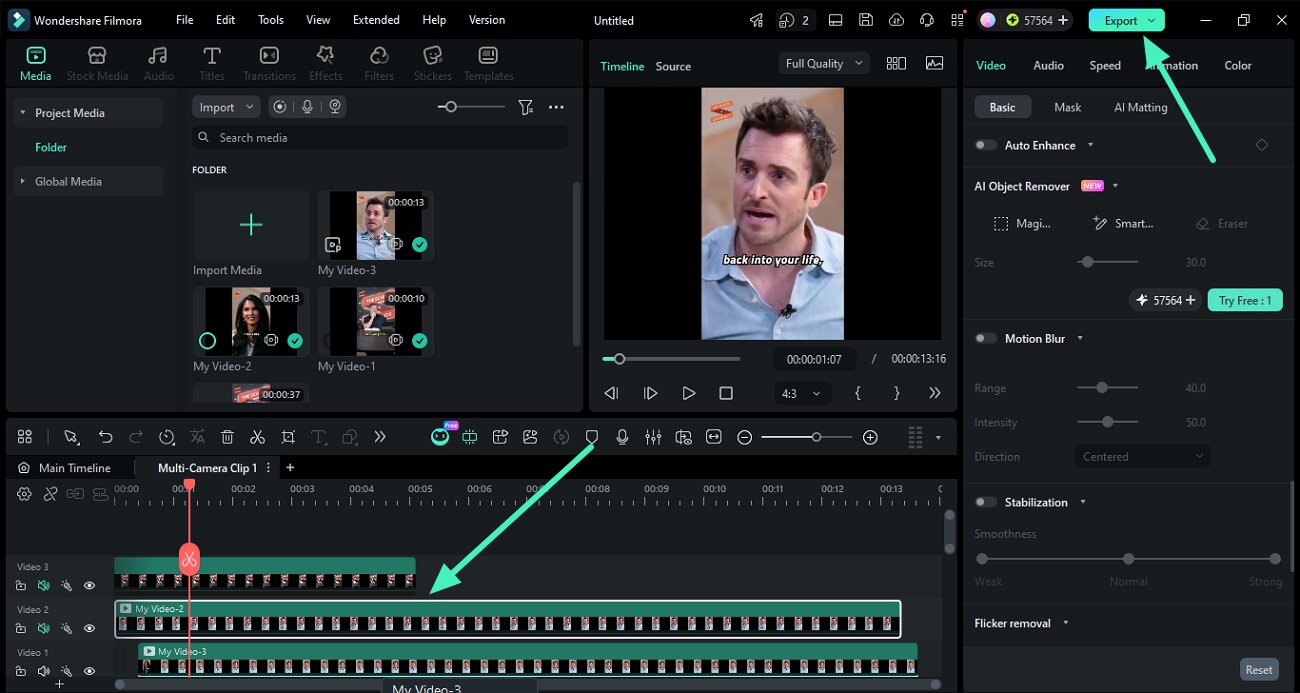
Filmora combines a conventional desktop timeline with multicam editing, titles, keyframes, colour adjustments and audio tools. You can arrange footage and refine its timing manually, then add captions, supporting shots and music without changing applications.
AI Mate, Filmora’s conversational assistant, helps select material, assemble scenes and apply supported adjustments. Its Action Mode can execute operations such as audio sync, noise reduction and colour changes. AI Text-Based Editing offers a separate way to cut spoken footage through its transcript, while silence detection helps tighten gaps.
AI Mate also offers guidance, and that distinction matters during revisions. Some requests return instructions for the editor to carry out rather than an executed change. A conversational request therefore does not always finish the adjustment, although the manual timeline remains available to complete it.
The editing licence and AI allowances cover different work. AI Text-Based Editing and Speech-to-Text use credits, and AI Mate has a separate conversation allowance. The displayed paid options include 500 AI Mate conversations monthly. The Advanced plan costs US$59.99/year with 1,000 AI credits monthly; the Perpetual plan includes 1,000 credits once and updates within Filmora 16. A one-time credit allocation does not replenish for each new recording session.
Paid licences include watermark-free export. Routine trial exports carry a watermark, so trying the editor is a different proposition from ongoing clean delivery. The invideo Editor versus Filmora podcast comparison explores the multicam, caption and recurring-AI-cost decisions for recorded discussions.
Filmora fits editors who want to work directly on a desktop timeline and call on conversational help as needed. Its value depends on how much of the recurring work AI Mate can execute and how the separate credit and conversation allowances fit that workload.
5. Descript: For shaping speech-led videos through the transcript
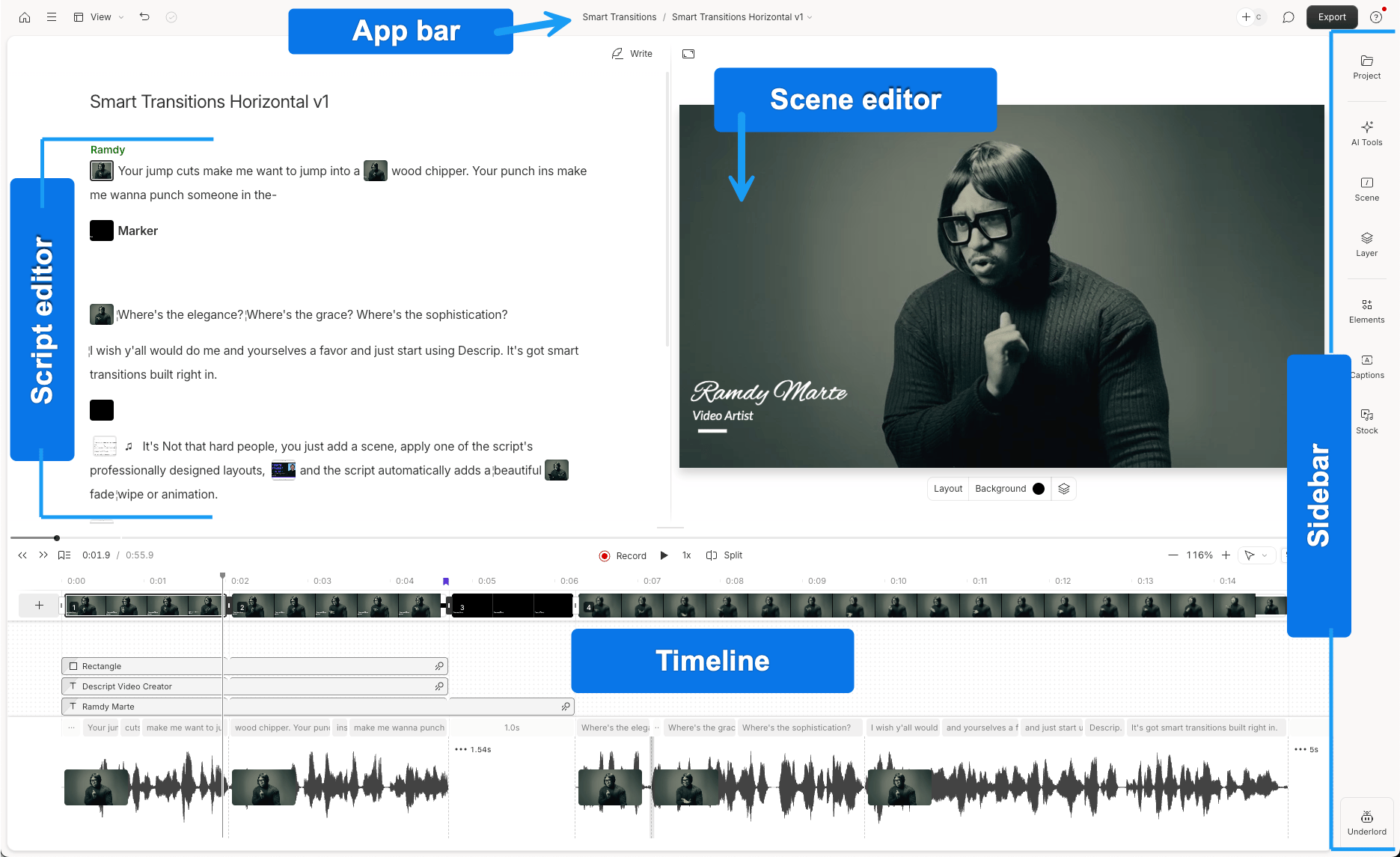
Descript makes spoken content an editing surface. Removing or moving words changes the corresponding audio and video, so an interview, explanation or presentation can be shaped by reading it. Underlord, its AI co-editor, accepts broader instructions and helps develop the cut with supporting visuals, captions and shorter versions.
Scene layouts and a multitrack timeline retain visual and timing control after the text edit. Studio Sound helps treat recorded speech, and Automatic Multicam can select speakers and build layouts for recorded conversations. This combination serves work where the central editorial question is which ideas to keep and how to arrange them.
The source-media and AI allowances are separate. Uploading a long recording uses media minutes even when only a short passage survives. Underlord interactions also use AI credits, including chat messages before an edit is settled. Repeated assistant-led revisions can therefore use the allowance while the story is still taking shape.
The Hobbyist plan includes watermark-free 1080p delivery; the Creator plan adds 4K and editable timeline export. Standard XML handoffs omit animation, audio effects and audio keyframes, leaving those treatments to rebuild in the receiving editor. Clean video delivery and an editable project for finishing elsewhere consequently require different planning.
Choose Descript when the transcript is the most useful way to make editorial decisions, with the source allowance and final handoff settled before detailed finishing. The invideo versus Descript podcast comparison develops those choices for interviews and multicamera conversations.
6. CapCut: For social videos built from editable clips and visual treatments

CapCut combines familiar clip editing with tools aimed at social content. Its multitrack editor supports trims, speed changes, layered text, music and effects, while auto captions, background removal and voice tools help develop supplied footage. Templates provide a starting treatment, and the timeline remains available for adjusting the individual clips and overlays.
There is a conversational route too. CapCut × ChatGPT accepts requests to reorder clips, replace visuals, adjust text timing and update sound, with manual continuation in CapCut. This connection requires the ChatGPT desktop app on PC and is currently available outside the United States, with US access still forthcoming. An ordinary browser chat is therefore a different route. The invideo Editor versus CapCut collaboration comparison covers shared projects, review and editable handoffs for teams.
Access depends on the feature, material and platform. Pro-marked resources or locked export settings can require an upgrade. A project containing those elements can reach delivery with a subscription prompt, so the practical choice is to pay for access or change the resources and settings used. That is more consequential than whether the app itself is free to download.
The Standard plan and Pro plan also differ in platform and feature access; the Standard plan focuses on mobile editing, while the Pro plan covers mobile, desktop and web. Some premium AI actions use credits, so a subscription and the remaining AI balance are separate considerations. Prices and offers vary by region and account.
CapCut suits creators who want clip-level control alongside captions, effects and ready-made social treatments. It is a practical fit when the intended device, chosen assets and export settings are covered by the account used to finish the video.
7. VEED: For browser editing, spoken-footage cleanup and captioned delivery

VEED brings supplied footage into a browser editor with layered video, images, titles and audio. Magic Cut can remove unwanted pauses, fillers and mistakes from English speech. The resulting cuts remain editable, and the timeline supports more deliberate trimming, reordering and overlay placement.
Edit by Script lets you delete or restore spoken passages through the transcript. It is useful for tightening an explanation, but it cannot move a highlighted text passage to a different point in the video. Structural reordering returns to the timeline. Transcript editing also needs spoken audio and supported languages that separate words with spaces; Magic Cut’s automatic cleanup is English-only.
Clean Audio reduces background noise and normalizes the selected clip, alongside manual timing and media-layer controls. The free plan allows one Clean Audio use per account, so repeated recordings need paid access to that treatment. The paid subtitle allowance is subject to a 50-hour monthly fair-use limit, and translations have their own allowance.
The free plan exports at 720p with a watermark. The Creator plan reaches 1080p and the Pro plan reaches 4K. That makes the required delivery format a buying decision before you spend time styling the video. Plans are charged per editor seat, so a shared workspace also changes the total subscription cost.
VEED fits creators and teams who want browser-based cleanup, editable overlays and captioned video delivery. It is most useful when its speech-language support, manual reordering and chosen export tier match the recurring work.
Frequently asked questions
Which AI video editor can turn my footage and script into an editable first cut?
Invideo Editor can find spoken and visual moments, select takes and arrange uploaded clips around a script or brief. The result stays on a multitrack timeline, where you can change selections, pacing, graphics and sound yourself.
Which AI video editor lets me switch between ChatGPT or Claude and manual editing?
In invideo Editor, connected ChatGPT or Claude can revise the current timeline, while manual controls handle exact trims, layers, keyframes and sound. Ordinary MCP editing and manual editing are free; your assistant’s plan applies separately, and generating new media uses invideo credits.
Which AI video editor can build custom effects from a description or reference?
Invideo Editor can build a custom treatment and leave controls for refining it. You can adjust supported properties and keyframes or request changes in chat. Available controls depend on the effect, and built-in-agent work uses invideo credits.
Which AI video editor combines AI colour grading and audio mixing with manual controls?
Invideo Editor brings both into the same editable project. Assistant requests can guide picture and sound changes, while colour wheels, curves, masks, EQ, compression and separate audio tracks let you refine the result directly.
Which AI video editor can keep alternate cuts and export an editable project?
Invideo Editor supports separate timelines for different lengths, layouts and story structures. You can retain the original cut, develop another version and export the timeline with its media for Premiere Pro, Final Cut Pro or DaVinci Resolve. Check the imported edit before continuing.