AI Animation Generator: How to Produce a Full Animated Episode
July 15, 2026
Producing a full AI animated episode means locking style with reference frames, locking each character as a reusable image, generating about three takes per shot, and keeping roughly one clip in four. A two-person team made a 3-minute hand-painted Arcane-style episode in two days at about $315 per finished minute; longer pieces build act by act in 25% increments.
An AI animation generator produces a full animated episode through four locks: lock the style with a batch of reference frames saved to persistent context, lock each character as a reusable reference image, generate multiple takes per shot, and keep only the strongest clips at the edit. A small team produced a hand-painted Arcane-style episode for ~$950 — and longer pieces are built act by act in 25% increments.
What an AI animation generator actually does (and doesn't)
An AI animation generator turns written direction plus visual references into animated video clips — and the version that produces full episodes is not a single text-to-clip box but an agent that holds your style, characters, and script in persistent context across every generation. invideo is an agentic video creation tool with all the current video and image models available, so the invideo agent acts as the decision layer: it stores your style block, attaches your character references to every prompt, and routes each shot to the right model.
What it does: maintains a locked visual style across dozens of scenes without re-prompting, keeps the same character recognizable in every shot using character sheets rather than fine-tuning, and generates multi-shot clips you select from like dailies. One documented short film held two characters visually consistent across 70 seconds with no LoRA fine-tuning — character sheets and agent context did the work.
What it doesn't do: produce a finished episode from one prompt. Overgeneration is a planned budget line, not a failure mode — you direct, select, and assemble.
How to produce an animated episode, step by step
The workflow runs in a fixed order: style lock, character lock, shot generation, then edit. Every lock you complete upstream prevents rework downstream.
Load the script. Give the invideo agent the full script first so it holds characters, arc, and themes before any visual work starts.
Lock the style. Upload a large batch of frames from your target aesthetic in one message, with an instruction like: "I want you to deeply understand this art style and save it into context for further generations." Write the style block with explicit negative constraints; the episode's block read: "This MUST look and feel like Arcane animation — not live action, not photorealistic. Every surface has hand-painted brushstroke texture." Every prompt after this starts with the style block.
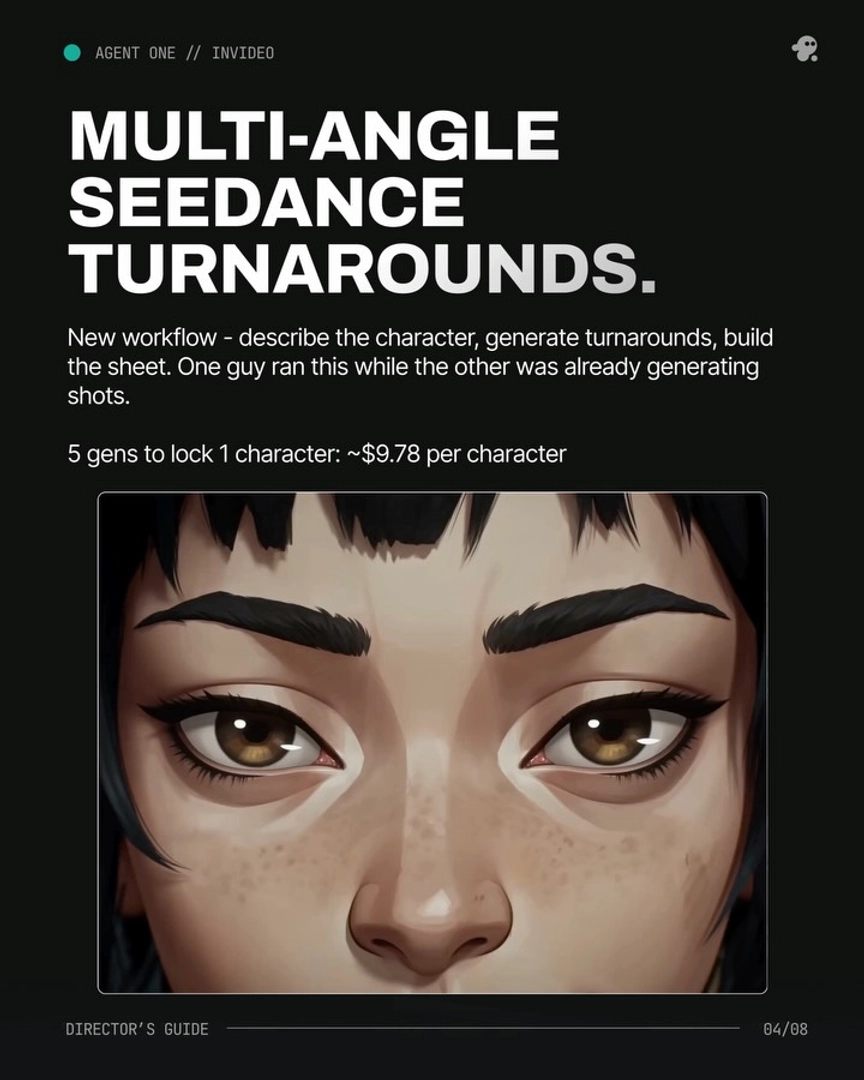
Lock the characters. Generate headshot and head-to-toe reference images for each character and each key prop. Budget ~5 generations per character and lock the best before generating any video.
Generate in short chunks with approval on. Break the script into 15-second segments and generate each one with character references and the style block attached to every prompt. Run the invideo agent in Always Ask mode so you approve each generation before credits are spent.
Select, don't accept. Each 15-second clip contains 4–7 usable shot candidates; pick the best seconds rather than treating a generation as one shot. Expect ~3 generations per usable shot.
Assemble Frankenstein shots. When no single generation delivers a complete shot, stitch the strongest segments from two or more generations of the same prompt into one composite — 17 final shots in the documented episode were built this way.
Cut the episode. At an average of 5 usable seconds per clip, your edit compresses raw output heavily — plan generation volume around the keep rate, not around your runtime.
If a shot keeps failing in prompting — multi-character contact and POV setups are the usual cases — bring in a physical reference input (a quick phone-shot mock or a hand sketch uploaded to the invideo agent) and hand it back to the model as a visual anchor.
Going longer: act by act, in 25% increments
For episodes beyond a few minutes, divide the project into acts and fully complete storyboarding, video generation, and editing for one act before starting the next. A documented 7-minute animated short was built exactly this way — the script split into a three-act structure, produced in 25% increments — which prevents the agent from losing context on a large project and keeps you oriented inside it.
Two practices make the long format manageable. First, multi-shot generation means you don't storyboard every frame: a single storyboard frame can drive a 15-second multi-shot sequence, which cuts both time and credits. Second, when you return to a half-finished project, ask the invideo agent for a status summary — what's approved, what's pending, what's awaiting regeneration — to restore orientation before generating anything new.
Which generator for which look
Model choice splits by what the shot needs, and you don't need a different platform per model — every roster model runs inside invideo, and the invideo agent routes each shot to the right one. Seedance 2.0 carries character and location references across clips, which is why it anchored the reference-heavy Arcane-style episode; Kling generates multi-shot sequences natively, useful when one prompt should yield several cuts; Veo is a strong general option the invideo agent can route to when a shot calls for it.
For the frames that feed animation — style tests, character sheets, key art — Recraft, Nano Banana, and GPT-Image-2 cover image generation, with Nano Banana documented for character sheet work.
Before committing to a style, run a frame test: have the invideo agent generate the same three script frames in each candidate style side by side (one documented production compared a Ghibli-style pass against a 3D pass) and decide on evidence, not assumption.
What goes wrong, and the fix
Style drift toward photorealism. The fix is in the style block itself: explicitly prohibit what you don't want ("not live action, not photorealistic") and prepend the block to every single prompt. Consistency comes from 100% application, not from the first upload alone.
Character continuity errors. Don't re-roll the shot. Ask the invideo agent to inspect the character sheet — it can identify the exact panel containing the error, correct it, store the updated sheet in context, and regenerate only what's needed, leaving the rest of the episode intact.
Completely wrong output from a prompt. Check the attachments before rewriting the prompt — a stray or wrong reference image attached to a generation produces incorrect output, and removing it is often the entire fix.
Shots that won't resolve through prompting. Multi-character physical contact (props, bodies in contact) breaks models faster than almost anything else. Switch input modes: sketch the configuration by hand or film a rough mock on your phone, upload it as a reference, and let the invideo agent feed it to the model.
What this costs
Cost is best read per finished minute, and documented productions ran $315–$750 per finished minute, with the animated episode at the low end because hand-painted animation tolerates compositing and heavy editorial selection. Budget for iteration, not just runtime: most of your spend buys takes you'll cut — which is the same economics as shooting coverage, at a fraction of traditional animation cost.
FAQ
How do you keep characters consistent across an episode?
Lock each character as a reference image set before generating video — headshots plus head-to-toe references — and attach them to every prompt.
What is a Frankenstein shot?
A Frankenstein shot is a final shot assembled by stitching the strongest seconds from two or more generations of the same prompt into one composite. It's standard practice in AI animation production: more than 40% of the final shots in one documented episode were built this way.
Can a small team really produce a full episode?
Yes — the pair worked in parallel: one locked character turnarounds while the other generated shots.
Sources
All production figures in this article — costs, generation counts, selection rates, and timelines — come from documented invideo productions, quoted as recorded in each production's ledger.
Watch these to see the techniques in action: